How to Censor a Video Online: Complete Privacy Guide [2026]
A complete walkthrough of censoring video content online in 2026, covering faces, license plates, documents, logos, and audio, plus the AI tools and legal requirements behind each method.
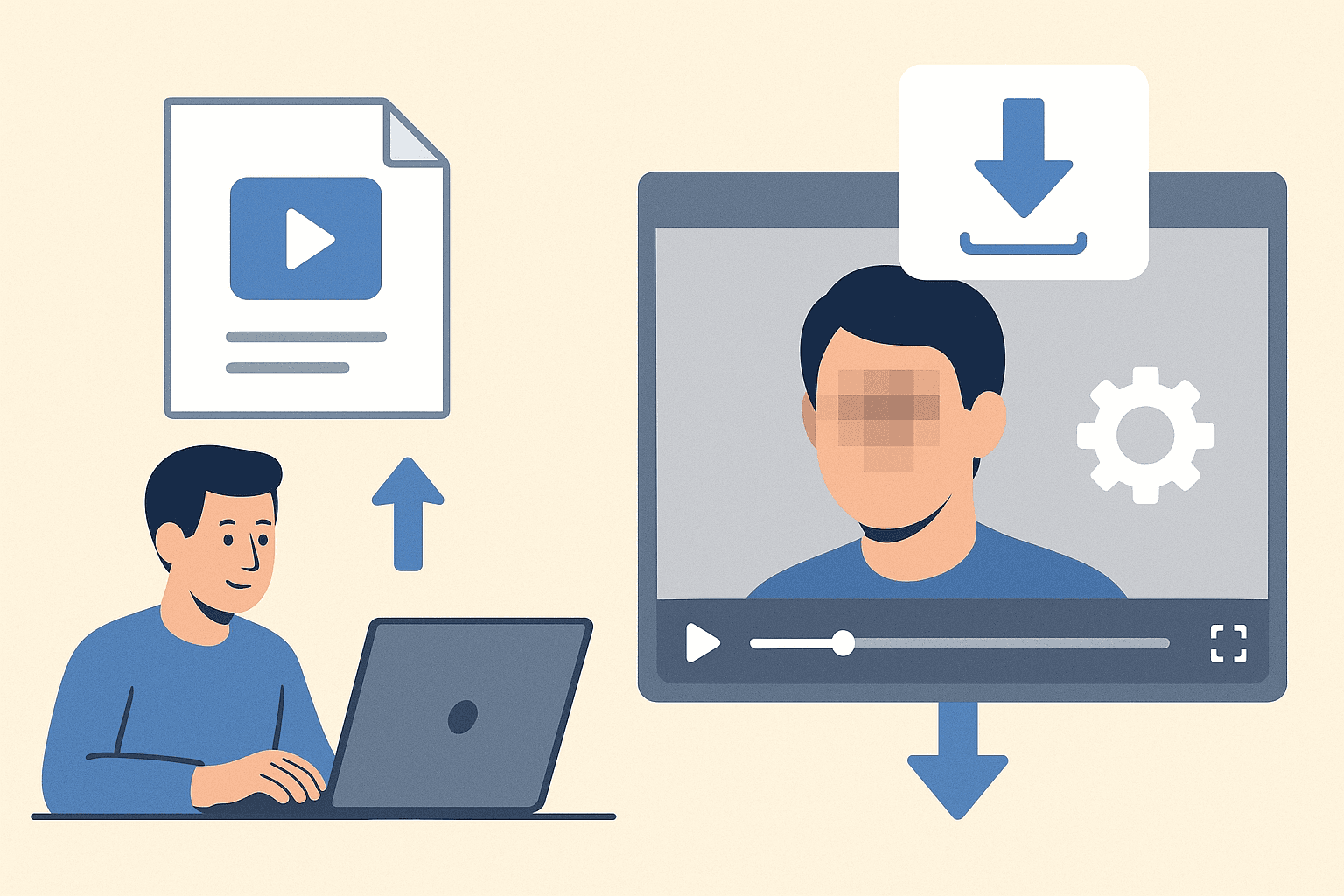
Video censoring goes beyond simple face blurring. Whether you need to hide license plates, obscure documents, remove logos, or protect sensitive on-screen information, censoring video content requires the right tools and techniques. This comprehensive guide covers everything you need to know about censoring videos online in 2026.
What Does "Censoring a Video" Mean?
Video censoring involves obscuring, blurring, or removing visual elements that shouldn't be publicly visible. Unlike editing (which removes content entirely), censoring preserves the video while making specific elements unrecognizable.
Common Censoring Needs
- Faces: Protecting identity of individuals who didn't consent or need anonymity
- License Plates: Hiding vehicle identification in dashcam or street footage
- Documents: Obscuring IDs, medical records, financial documents on screen
- Logos and Trademarks: Avoiding copyright/trademark issues in published content
- Screens and Monitors: Hiding computer screens, phone displays, or TV content
- Addresses: Protecting location information on buildings, mail, or signs
- Nudity: Content moderation for platform compliance
- Sensitive Information: SSNs, credit cards, passwords visible on screen
Why Censor Video Content?
Legal Requirements
Privacy laws increasingly require content protection:
- GDPR (Europe): Identifiable individuals require consent or legitimate interest
- CCPA (California): Consumer privacy rights extend to video content
- HIPAA (Healthcare): Patient information must be protected
- FERPA (Education): Student records require confidentiality
- Industry Regulations: Finance, legal, and government have specific requirements
Platform Policies
Social media and video platforms enforce content standards:
- YouTube: Community guidelines on privacy and consent
- TikTok: Policies against non-consensual imagery
- Instagram: Privacy and intellectual property rules
- LinkedIn: Professional content standards
- Streaming Platforms: Broadcast standards compliance
Ethical Considerations
Beyond legal requirements, ethical content creation demands:
- Respecting individual privacy choices
- Protecting vulnerable populations
- Avoiding unintended exposure of personal information
- Maintaining professional standards
Best Online Tools for Video Censoring
1. BGBlur - Comprehensive AI Censoring
Website: bgblur.com
BGBlur offers the most comprehensive online video censoring capabilities, powered by AI that automatically detects and censors multiple element types.
Censoring Capabilities:
- Face Detection: AI identifies all faces automatically
- License Plate Recognition: Detects plates from multiple angles
- Custom Region Blur: Manually select any area to censor
- Background Blur: Obscure entire backgrounds
- Motion Tracking: Censoring follows moving objects
How to Use BGBlur for Censoring:
- Upload Video: Drag and drop your video file
- Select Censor Type: Choose faces, license plates, or custom regions
- AI Processing: System automatically detects and marks elements
- Adjust if Needed: Fine-tune detection or add manual regions
- Choose Blur Style: Select blur intensity and appearance
- Download: Get your censored video instantly
Why It's Best for Censoring:
- Multiple detection types in one tool
- Automatic AI detection saves hours of manual work
- Motion tracking ensures consistent censoring
- No software installation required
- Quality preservation throughout processing
2. Kapwing - Online Video Editor with Blur
Website: kapwing.com
Kapwing provides blur tools within its broader online video editing platform.
If you want to automate trimming, captions, and privacy edits with natural-language prompts, see our guide to editing videos with Claude, ChatGPT, Descript, and BGBlur MCP.
Features:
- Manual blur region placement
- Keyframe animation for tracking
- Multiple export options
- Collaborative editing
Limitations:
- No automatic detection
- Watermark on free tier
- Manual tracking required
3. Flixier - Cloud-Based Censoring
Website: flixier.com
Flixier offers face blur capabilities with cloud processing.
Features:
- Online editor interface
- Face blur tools
- Fast cloud rendering
- Team collaboration
Considerations:
- Limited free tier
- Manual positioning for non-face elements
- Learning curve for new users
Step-by-Step: How to Censor Different Elements
Censoring Faces
Faces are the most common censoring need. For a deeper walkthrough of the detection and tracking process, see our guide on blurring faces in photos and video with AI in seconds. Here's the complete process:
Using AI Detection (Recommended):
- Upload video to BGBlur
- Enable face detection
- AI automatically marks all faces
- Review detection accuracy
- Deselect faces you want to keep visible
- Apply blur and download
Manual Method:
- Import video to editor
- Add blur/mosaic effect
- Position over face in first frame
- Create keyframes for movement
- Adjust throughout video
- Export final version
Censoring License Plates
License plate censoring is essential for dashcam, street, and automotive content.
Key Considerations:
- Plates appear at various angles
- Text must be completely unreadable
- Motion blur can reveal plate numbers
- Front and rear plates both need censoring
Best Practice:
Use BGBlur's license plate detection—it's specifically trained to recognize plates from multiple angles and lighting conditions. Manual censoring often misses plates that AI catches. For dashcam and street footage specifically, see our dedicated guide on blurring faces and license plates in dashcam videos.
Censoring Documents
On-screen documents require careful attention:
What to Censor:
- Names and signatures
- ID numbers (SSN, license numbers, etc.)
- Addresses
- Financial information
- Medical details
- Dates of birth
Technique:
- Use solid color blocks rather than blur for text
- Ensure complete coverage—partial visibility can still be readable
- Check all frames where document appears
- Consider audio if document contents are read aloud
Censoring Logos and Trademarks
Brand visibility in content can create legal issues:
When to Censor:
- Commercial content without brand permission
- Negative context that could trigger legal action
- Competitor branding in marketing materials
- User-generated content with brand exposure
Methods:
- Blur or pixelate the logo
- Cover with graphic overlay
- Use color correction to obscure
- Crop if possible
For custom region censoring beyond faces and plates—logos, screens, documents, or any other on-screen element—see our complete guide to object and region blur for video privacy. If you'd rather remove an object entirely instead of blurring it, our guide on AI object removal from video covers the scene-fill approach.
Censoring Best Practices
Complete Coverage
The 100% Rule: If any part of the censored element is recognizable, the censoring has failed.
- Faces: Entire face including distinctive hairstyles
- Plates: Full plate including frame and state indicators
- Documents: All text and identifying marks
- Logos: Complete brand identity elements
Consistency Throughout Video
Censoring must be maintained across all frames:
- Verify censoring at entry and exit points
- Check rapid movement scenes
- Review slow-motion sequences
- Test different playback speeds
Audio Considerations
Visual censoring means nothing if audio reveals the information:
- Bleep names if spoken
- Remove address readings
- Censor phone numbers read aloud
- Consider background conversations
Quality Preservation
Poor censoring damages credibility:
- Use appropriate blur intensity
- Match censoring style to video aesthetic
- Avoid jarring transitions
- Maintain overall video quality
Common Censoring Mistakes
Insufficient Blur Intensity
Light blur or minimal pixelation can sometimes be reversed or seen through. When protecting identity, err on the side of heavier blur.
Missing Frames
A single uncensored frame at a scene cut can expose the protected information. Always check transitions.
Forgetting Reflections
Faces and plates can appear in:
- Mirrors
- Windows
- Shiny surfaces
- Water reflections
- Other vehicles
Overlooking Audio
Visual censoring is undermined when audio reveals:
- Names being called
- Addresses being read
- Information being discussed
- Background conversations
Inconsistent Application
If some faces are blurred but others aren't, viewers question the reasoning. Be consistent in your approach.
Censoring for Different Platforms
YouTube
- Apply censoring before upload (YouTube's editor is limited)
- Maintain aspect ratio during processing
- Check mobile preview—small screens can reveal blur gaps
- Consider thumbnail—ensure censoring appears there too
TikTok
- Fast-paced content needs extra attention to frame-by-frame censoring
- Vertical video may reveal more than expected
- Effects and filters can interfere with censoring
- Review after any in-app editing
Instagram Reels
- Square and vertical crops may expose different areas
- Stories vs. Reels have different display requirements
- Preview in-app before posting
- Check both feed and fullscreen views
Professional Platforms
- LinkedIn, Vimeo, and professional platforms have higher standards
- Ensure censoring appears professional, not hastily applied
- Consider branded blur overlays
- Maintain video quality after processing
Frequently Asked Questions
Is censoring the same as blurring? Blurring is one type of censoring, not the whole category. Censoring can also include pixelation, solid color overlay, graphic replacement, or complete removal of the element in question. Blurring is the most common method online because it clearly signals that something was there while still protecting the subject's privacy, unlike a hard cut that can feel jarring. Tools like BGBlur default to blur because it preserves motion continuity better than a static block, especially for moving faces or license plates across frames.
Can censored video be uncensored? Properly applied blur or pixelation destroys the underlying pixel data, so it cannot be mathematically recovered. However, insufficient censoring — light blur, low pixelation, or a small blur radius — may be partially reversible using AI enhancement or deblurring tools. This is why security professionals recommend erring toward heavier blur intensity for anything sensitive, such as faces, license plates, or documents. BGBlur applies strong default blur intensity specifically to avoid this reversibility risk.
How do I censor a moving object in video? For moving objects you need motion tracking, since a static blur region will drift off the subject within a few frames. AI tools like BGBlur handle this automatically by detecting and following the object across the entire clip. Manual methods require keyframing — setting the censoring position at multiple points in the timeline and letting the editor interpolate between them, which is time-consuming and error-prone for fast motion or camera pans.
Should I censor my own face in videos? This depends entirely on your content strategy, and there is no requirement either way. Many successful creators — faceless channels, anonymous reviewers, privacy-focused influencers — deliberately censor their own faces as a deliberate branding and privacy choice. It protects personal safety, keeps focus on the content rather than the creator, and is increasingly normalized across YouTube and TikTok. It is a valid creative decision, not a red flag to viewers.
Is it legal to publish uncensored video of strangers? This varies significantly by jurisdiction. In the EU, GDPR generally treats an identifiable face or license plate as personal data and requires consent or a legitimate legal basis before publishing. In the US, it depends heavily on context — editorial and newsworthy use has stronger First Amendment protection than commercial use, which faces more restrictions under state privacy torts and laws like CCPA. When in doubt, censor first and ask questions later.
How much does professional video censoring cost? Professional video redaction services typically charge $50 to $500 or more per hour of footage, depending on complexity and turnaround time. AI tools like BGBlur offer comparable automated detection and blurring for free or a small monthly fee, making professional-quality censoring accessible to individual creators and small businesses that cannot justify enterprise redaction contracts. For high-volume archives, dedicated enterprise tools may still be more cost-effective.
Conclusion
Video censoring is an essential skill for content creators, businesses, and anyone publishing video in 2026. The combination of privacy laws, platform policies, and ethical considerations makes proper censoring non-negotiable for professional content.
BGBlur offers the most efficient approach—AI-powered detection of faces, license plates, and other elements, combined with easy-to-use online processing. For most censoring needs, it's the fastest path from raw footage to privacy-compliant content.
Whatever tool you choose, remember: effective censoring requires complete coverage, consistent application, and attention to both visual and audio elements. When privacy is at stake, it's always better to over-censor than under-censor.
Need to censor your video quickly? Try BGBlur for AI-powered face, license plate, and custom region censoring—completely online and free to start.