Edit Videos with AI: Claude, ChatGPT, Descript & BGBlur
In 2026 you don't need a video editor. You need an AI that can control one. Here's exactly how to use Claude Code, ChatGPT, and Descript MCP to go from raw recording to published video — with BGBlur MCP handling the privacy layer automatically.
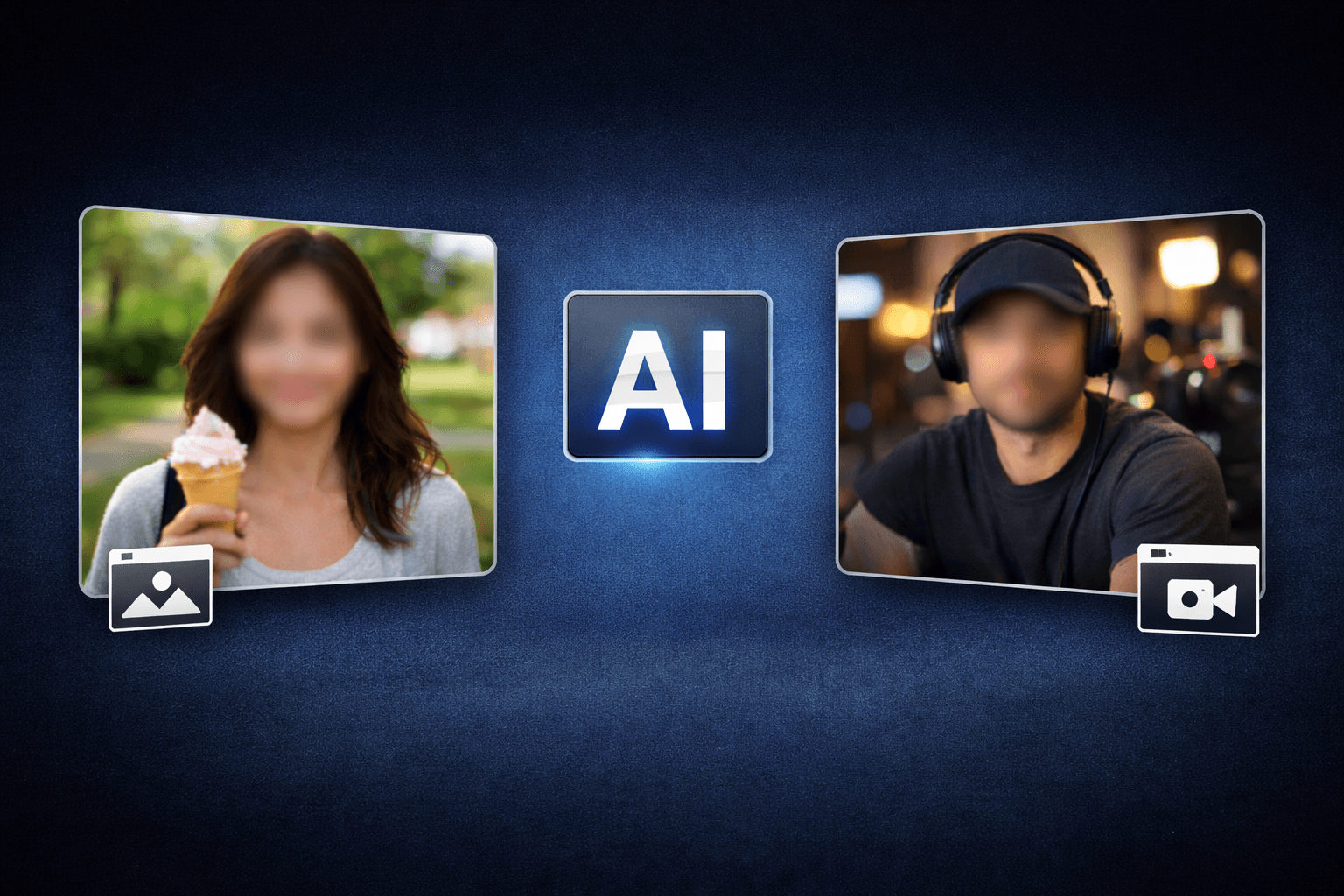
Traditional video editing is a bottleneck. Even a 15-minute screen recording can take an hour to trim, caption, reformat for platforms, and clean up — before you've even thought about privacy. In 2026, that bottleneck is gone. AI tools connected through Model Context Protocol (MCP) can take a raw .mp4 from your desktop to a published, privacy-safe video in under 15 minutes, without you touching a timeline.
This guide covers the AI tools that matter — Claude Code, ChatGPT, Gemini, Descript, Opus Clip — and how to connect BGBlur MCP as the privacy layer across all of them.
What Is MCP and Why Does It Change Video Editing?
Model Context Protocol is the standard that lets AI assistants control external software directly. Instead of switching between apps, you describe what you want in plain language and the AI calls the right tool, waits for results, and chains the next step automatically.
For video, this means an AI like Claude or ChatGPT can:
- Upload footage to Descript
- Tell Descript's agent to remove fillers and silences
- Set up a picture-in-picture layout
- Export the finished file
- Pass it to BGBlur for face blur and PII redaction
- Return a publish-ready video
All from a single conversation, with no timeline editing required.
The AI Video Editing Tools Compared
Claude Code + Descript MCP
Claude Code with Descript MCP is currently the most capable combination for structured, multi-step video editing workflows. The Descript MCP exposes the full Descript AI agent — silence removal, filler word deletion, caption generation, layout changes, and export — as callable actions that Claude chains automatically.
Best for: Screen recordings, talking-head tutorials, reaction videos, side-by-side layouts. Any video where the editorial decisions are relatively standard (trim, caption, reformat) and speed matters.
Typical workflow:
- Claude checks file size, creates a Descript project, generates an upload script
- You double-click the script — upload happens from your machine
- Claude sends a natural-language edit prompt to the Descript agent
- Descript returns a cleaned, captioned composition in 3–5 minutes
- Claude exports, writes the YouTube title and description, and shares the link
ChatGPT + Video Tools
OpenAI's ChatGPT now supports MCP connections and can interface with video tools including Descript, Opus Clip, and Runway. The workflow is similar to Claude — describe the edit, let the AI call the tool, review the output.
ChatGPT's strength is its native understanding of video content when combined with GPT-4o's vision capabilities. You can upload a short clip directly and ask "what's the best 60-second highlight from this?" before sending the full file to Descript for export. For longer content, the transcript-based approach works the same as Claude.
Best for: Quick highlight extraction, thumbnail suggestions, caption style decisions. Pairs well with Descript for the actual edit.
Gemini + YouTube Studio Integration
Google's Gemini has native integration with YouTube Studio, making it the most streamlined tool if your destination is YouTube. Gemini can suggest chapter markers, rewrite descriptions, generate titles, and flag which sections of a video are likely to lose viewers — all without leaving the YouTube ecosystem.
Best for: YouTube-first creators who want AI assistance on metadata, chapters, and retention analysis. Less useful for the raw editing step (trim, silence removal) where Descript is stronger.
Descript Standalone AI
Descript's built-in AI editor (without any external MCP) is the most polished single-tool experience. Upload, let Descript transcribe, use the Underlord AI toolbar to remove fillers, cut silences, add Studio Sound (noise reduction), and publish. No coding, no CLI, no MCP setup.
Best for: Creators who want a traditional software interface with AI features built in. The MCP approach adds value when you want to automate Descript from Claude or ChatGPT rather than using the Descript UI directly.
Opus Clip
Opus Clip specialises in a single task: taking a long video and generating multiple short-form clips ranked by viral potential. It identifies hooks, adds captions, and formats each clip for TikTok, Reels, and Shorts automatically.
Best for: Repurposing long-form content (podcasts, webinars, YouTube videos) into 15–90 second social clips. Not designed for full-length video editing.
The Privacy Layer: BGBlur MCP
Regardless of which AI tool you use for the editorial edit, BGBlur MCP adds the privacy pass before any video goes public. This step is often skipped because it's tedious to do manually — but it's legally and ethically necessary for most professional video content.
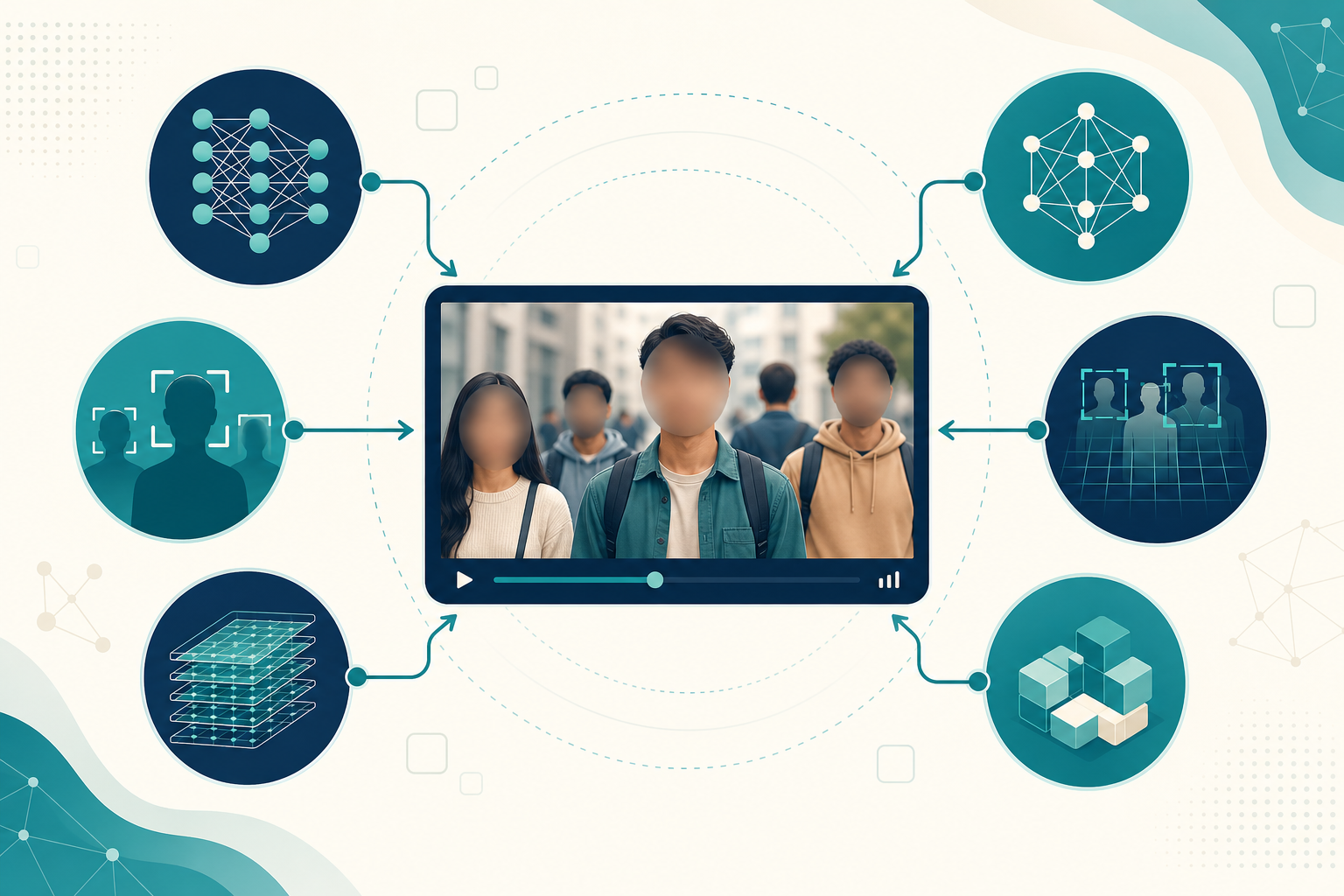
BGBlur MCP gives any connected AI the ability to:
- Blur faces — spectators, bystanders, clients, employees, or anyone who appears without explicit consent
- Redact license plates — any readable plate in outdoor footage, dashcam clips, or drone video
- Blur email addresses and names — PII visible in screen recordings of CRM tools, support desks, or inboxes
- Blur chat messages — WhatsApp, Slack, Teams, Discord, iMessage conversations captured on screen
- Blur signatures — handwritten or printed signatures in document recordings
- Background blur — post-production depth-of-field for talking-head content recorded in distracting environments
The BGBlur MCP connects to your BGBlur account at bgblur.com. Once authenticated, any connected AI (Claude, ChatGPT) can call it programmatically — upload a video, specify the blur type, get back a redacted file.
Full documentation for the BGBlur MCP integration is at the BGBlur MCP docs. The API covers face blur, plate blur, object blur, and screen content redaction, with examples for common workflows.
The Full Pipeline: Upload to Published
Here's the complete sequence for a side-by-side screen recording (face cam + screen share):
1. Upload to Descript
Claude generates a signed upload URL via the Descript MCP and writes a one-click shell script:
curl -X PUT \
  -H "Content-Type: application/octet-stream" \
  --data-binary @'/Users/you/recording.mp4' \
  "<signed_upload_url>"
echo "Upload complete!"
Double-click in Finder → footage uploads from your machine in 30–90 seconds depending on file size.
2. AI Edit Pass
Claude sends this to the Descript agent:
Remove all filler words (um, uh, like, you know, basically, actually, right). Remove silences longer than 0.5 seconds. Trim dead air at start and end. Add captions — bold, white, centred, dark outline, positioned in lower third.
Descript processes against the full transcript. A 30-minute recording takes 3–5 minutes. The result is a cleaned composition with captions already styled for the platform.
3. Layout for Platform
YouTube (16:9):
Set PiP: screen share fills 1920×1080. Face cam: 320×180, pinned bottom-right, rounded corners, drop shadow. Reposition captions to not overlap face cam.
Shorts/Reels/TikTok (9:16):
Resize canvas to 1080×1920. Screen share fills top 960px, face cam fills bottom 960px. Add 3px white dividing line. Captions just above dividing line.
4. BGBlur Privacy Pass
Before export, Claude calls BGBlur MCP:
Blur all visible faces in this composition. Also blur any email addresses or names visible on screen.
BGBlur processes frame by frame. For a 10-minute recording this takes 1–2 minutes. The output is a redacted version of the Descript export.
5. Export and Metadata
Claude triggers the Descript export (1080p, unlisted share link), then generates:
- YouTube title and description matching the channel's style
- Tags and hashtags
- Chapters if the content has distinct sections
- A suggested thumbnail concept
Total time for a typical 20-minute recording: 10–15 minutes, with about 2 minutes of manual effort (running the upload script and reviewing the output).
When to Use Each Tool
| Goal | Best AI tool | Add BGBlur? |
|---|---|---|
| Full edit (trim, caption, layout, export) | Claude + Descript MCP | Yes — always |
| Quick highlight clips for social | Opus Clip | Yes, if faces visible |
| YouTube metadata and chapters | Gemini | No (metadata only) |
| Thumbnail generation | ChatGPT + DALL-E or Canva | No |
| Face blur in raw footage | BGBlur MCP directly | — |
| Screen recording PII redaction | BGBlur MCP directly | — |
| Long-form podcast → shorts | Opus Clip + BGBlur MCP | Yes |
Privacy: When BGBlur Is Required, Not Just Recommended
For most content creators, BGBlur is about looking professional. For compliance teams and enterprise video workflows, it's legally required.
GDPR (EU): Individuals captured in video without consent must have their identity protected before distribution. This includes employees in internal recordings, attendees at company events, and customers in support session recordings.
HIPAA (US healthcare): Any video that incidentally captures patient information — faces, names on screens, medical record numbers — must be redacted before the recording is stored or shared.
CCPA (California): Personal information visible in screen recordings, including email addresses and customer names in CRM views, must be protected when recordings are shared externally.
For a detailed breakdown of which scenarios require redaction versus which are best practice, the AI video blur privacy guide covers the legal landscape across major jurisdictions.
Pro Tips for the AI Video Editing Workflow
1. Let the AI pick the highlight segment If you're making a 60-second short from a longer recording, tell Claude or ChatGPT to select the most engaging 60-second segment from the transcript before sending it to Descript. This is faster and often more accurate than scrubbing manually.
2. Run BGBlur before Descript for problematic footage If your footage has faces you definitely need removed, blur first with BGBlur and then send the redacted file to Descript. This prevents any chance of unblurred frames appearing in the Descript timeline preview.
3. Use Gemini for YouTube strategy, Claude for execution Let Gemini analyse your channel's top-performing videos and suggest what angle to take on new content. Then run the actual edit with Claude + Descript MCP. Two AI tools, each doing what it's best at.
4. Keep a reusable edit prompt Once you've found the edit settings that match your style — caption position, silence threshold, filler word list — save the prompt. Reuse it as a starting point for every new recording so you're not re-describing preferences each time.
5. Automate the BGBlur pass for compliance workflows If you're processing video at scale (weekly webinar recordings, support session archives, event footage), the BGBlur MCP can be called as part of an automated pipeline — no human review required for straightforward face blur tasks.
6. Treat multi-agent pipelines as a security surface, not just a workflow Once Claude, the Descript agent, and BGBlur MCP are all chained together with file and network access, you've effectively built a small autonomous pipeline — and it's worth evaluating it the way you would any other piece of infrastructure with access to your files. If you're running several MCP-connected agents regularly, it's worth reviewing some of the best agent security platforms to keep tabs on what each agent can access and act on.
Frequently Asked Questions
Do I need coding skills to use Claude with Descript MCP? No. The only semi-technical step is double-clicking an upload script that Claude generates for you. Everything else is plain-language prompts.
Which AI gives the best video editing results in 2026? For structured multi-step editing (filler removal, silence cuts, layout, export), Claude + Descript MCP is the most capable combination currently available. For quick social clip extraction, Opus Clip is faster for that specific task. For YouTube-native workflows, Gemini + YouTube Studio is the most integrated.
Is BGBlur MCP free to use? BGBlur has a free tier for basic processing. The MCP integration uses your existing BGBlur account — connect it once and any AI tool with MCP support can call it. Full pricing is at bgblur.com.
Can I use this workflow without a Descript subscription? Descript has a free tier that covers basic transcript editing. For AI Underlord features (filler removal, silence cuts, Studio Sound), you need a paid plan. Alternatives like CapCut or Runway can be substituted for specific tasks.
How does BGBlur handle large event videos with hundreds of faces? BGBlur processes video frame by frame and detects all visible faces simultaneously — there's no per-face limit. A wide-angle stadium shot with 200 visible faces takes the same workflow as a two-person interview. Processing time scales with video duration, not face count.
Can ChatGPT call BGBlur MCP? Yes — any AI tool that supports MCP connections can call BGBlur MCP once you've authenticated. The same BGBlur account works whether you're connecting from Claude, ChatGPT, or a custom workflow.
Conclusion
AI video editing in 2026 isn't about replacing editors — it's about removing everything from the workflow that doesn't require creative judgment. Silence removal, filler deletion, captions, platform reformatting, and privacy redaction are mechanical tasks. Claude, ChatGPT, Descript MCP, and BGBlur MCP handle them automatically so you can spend your time on what actually matters: the content.
The privacy pass through BGBlur MCP isn't optional for professional content. Whether you're a solo creator protecting bystanders in your footage, or a compliance team processing event recordings, BGBlur's face, plate, and PII blur belongs in the pipeline. Connect the MCP and it runs automatically — one less thing to remember before you hit publish.