Download Mio Dashcam Videos with MiVue App, SD, USB
Learn how to download Mio MiVue dashcam videos using WiFi app transfer, SD card, and USB methods. Discover how to blur faces and license plates for GDPR-compliant sharing on YouTube and social media.
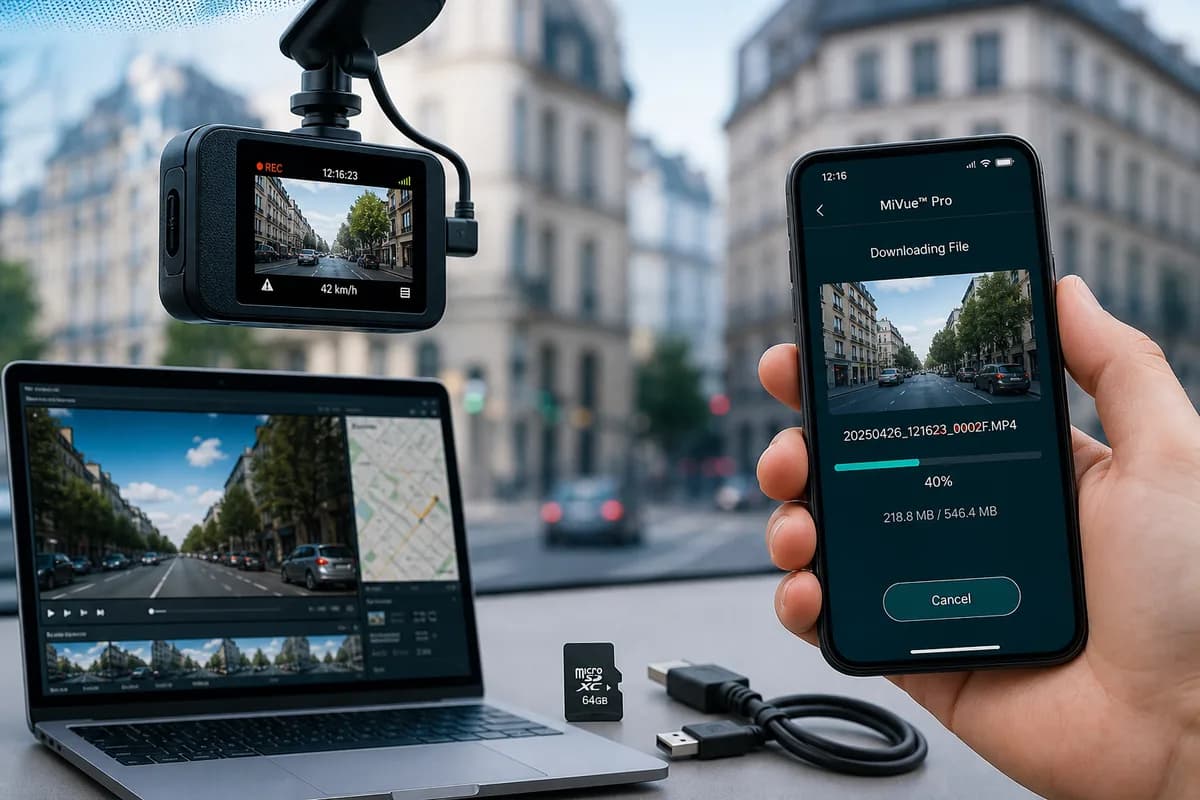
Mio Technology, a leading Taiwanese dashcam manufacturer, produces the popular MiVue series including the 886, 812, 792, J85, and C570 models. If you need to download Mio dashcam videos for insurance claims, evidence preservation, or YouTube uploads, this comprehensive guide covers all download methods: MiVue Pro app WiFi transfer, SD card extraction, and USB connection.
According to European dashcam user surveys, over 71% of Mio owners never access their footage until after an incident—often discovering files corrupted, overwritten, or too complex to extract. This guide ensures you can retrieve your Mio MiVue footage reliably, plus how to blur faces and license plates to comply with strict EU GDPR regulations and international privacy laws.
Why Download Mio MiVue Dashcam Footage?
Mio MiVue dashcam owners download footage for:
Insurance Claims & Accident Evidence: Mio's 1080p, 1440p, and 2K resolution models provide crystal-clear evidence of fault in accidents. The MiVue 886 with Sony STARVIS sensor excels in low-light conditions, capturing crucial nighttime details.
YouTube & Social Media Content: European dashcam channels showcase Autobahn high-speed footage, scenic Alpine drives, and traffic incidents. Many creators monetize compilations featuring Mio's excellent video quality.
Law Enforcement Submissions: Police departments across Europe accept Mio dashcam footage for hit-and-run investigations, traffic violations, and accident reconstruction.
Fleet & Commercial Use: Taxi, delivery, and transport companies use Mio MiVue cameras for driver training, route verification, and liability protection.
Personal Archive: Preserve memorable road trips through European countryside, unusual wildlife encounters, or scenic coastal routes.
The GDPR Privacy Challenge
Every unblurred face and license plate in your Mio footage is personally identifiable information (PII) protected under strict regulations:
- GDPR (Europe): Fines up to €20 million or 4% of annual global revenue for privacy violations
- UK GDPR: Up to £17.5 million or 4% of annual turnover
- DPDP Act (India): Penalties up to ₹250 crore for visual data breaches
- CCPA (California): $7,500 per violation for unauthorized PII sharing
- BIPA (Illinois/Texas): $875+ million paid in biometric privacy settlements
In the EU, Article 6 and Article 9 of GDPR require explicit consent for recording and sharing footage containing identifiable individuals. Since obtaining consent from dozens of drivers and pedestrians in traffic footage is impossible, you must blur faces and license plates before sharing publicly.
Method 1: Download Mio MiVue Videos via SD Card (Fastest Method)
The SD card method is the fastest and most reliable way to download Mio MiVue footage, especially for large files or bulk transfers.
Step 1: Power Off and Remove SD Card
- Turn off your Mio dashcam (disconnect from power or wait until recording stops)
- Locate the SD card slot (usually on the side or back of camera, protected by rubber cover)
- Press gently to eject the microSD card (spring-loaded mechanism on most models)
- Handle carefully to avoid static damage or fingerprints on contacts
Mio-specific tip: On MiVue 886 and 812 models, the SD card slot is on the right side under a rubber flap. The 792 has it on the back panel.
Step 2: Insert SD Card into Computer
For computers with SD card readers:
- Insert microSD into full-size SD adapter (usually included with card)
- Insert adapter into computer's SD slot
- Wait for drive to appear in File Explorer (Windows) or Finder (Mac)
For computers without SD card readers:
- Use USB microSD card reader ($5-15 on Amazon)
- Plug reader into USB port
- Insert microSD card
- Wait for drive to mount
Step 3: Navigate to Mio MiVue Video Files
- Open File Explorer (Windows) or Finder (Mac)
- Locate SD card drive (often labeled "NO NAME", "MIVUE", or "MIO")
- Navigate to folder structure:
- Normal or Loop: Continuous loop recordings (1-3 minute segments)
- Event or Emergency: G-sensor triggered incident recordings
- Parking: Parking mode recordings (motion/impact detection)
- Photo: Still images (if snapshot feature used)
- Timelapse: Time-lapse recordings (if enabled)
File naming convention: Mio typically uses YYYYMMDD_hhmmss.MP4 format (e.g., 20260528_093045.MP4)
Metadata files: You may also see .DAT or .IDX files alongside videos—these contain GPS and speed data. Keep them with the videos if you need to access this information later.
Step 4: Copy Files to Computer
- Select videos you want (Ctrl/Cmd+Click for multiple selections)
- Copy (Ctrl+C / Cmd+C)
- Navigate to destination folder (Desktop, Documents, Videos, or create "Mio_Dashcam_Archive")
- Paste (Ctrl+V / Cmd+V)
- Wait for transfer (typical speed: 20-80 MB/s depending on card quality and USB version)
Mio MiVue file sizes (approximate):
- 1080p (MiVue 792): ~200MB per minute
- 1440p (MiVue 812): ~350MB per minute
- 2K (MiVue 886): ~450MB per minute
Transfer time examples:
- 10-minute incident: 2-4.5GB (1-3 minutes transfer)
- Full 64GB SD card: 10-15 minutes transfer
- Full 128GB SD card: 20-30 minutes transfer
Step 5: Safely Eject and Reinsert
Windows:
- Click "Safely Remove Hardware" icon in system tray
- Select your SD card drive
- Wait for "Safe to Remove Hardware" confirmation
- Remove the card
Mac:
- Right-click the drive icon on desktop
- Select "Eject [drive name]"
- Wait for icon to disappear
- Remove the card
Reinsert SD card into your Mio dashcam and verify recording resumes normally. The camera should display "Recording" indicator.
SD Card Method: Pros & Cons
Pros:
- ✅ Fastest transfer speed (no WiFi bottleneck)
- ✅ Works offline without smartphone or internet
- ✅ Transfer entire day's footage at once
- ✅ Most reliable method across all models
- ✅ Preserves GPS and metadata files
Cons:
- ❌ Physical dashcam access required
- ❌ Risk of corruption if not ejected properly
- ❌ Need SD card reader for computers without built-in slots
- ❌ Can't preview footage before downloading
- ❌ Interrupts dashcam recording temporarily
Method 2: Download via MiVue Pro App (WiFi Transfer)
The MiVue Pro app enables wireless downloads directly to your smartphone—perfect for quick access, insurance claim submissions, or on-the-go sharing without removing the SD card.
Step 1: Download MiVue Pro App
For iPhone:
- Open App Store
- Search "MiVue Pro" (by Mio Technology)
- Download official app (look for Mio logo)
- Requires iOS 11.0 or later
For Android:
- Open Google Play Store
- Search "MiVue Pro"
- Download and install
- Requires Android 5.0 or later
Compatible Mio models: MiVue 886, 812, 792, J85, J86, C570, C380, 766 WiFi, 792D Pro (check manual for WiFi capability—not all MiVue models have WiFi)
Step 2: Enable WiFi on Mio MiVue Dashcam
For touchscreen models (MiVue 886, 812):
- Power on dashcam
- Swipe down from top of screen or tap Menu icon
- Navigate to Settings → WiFi
- Toggle WiFi ON
- Note the network name (SSID): "MiVue_####" or "MIVUE-####"
- Note the password (default: "12345678" or printed on camera label/manual)
For button-controlled models (MiVue 792, J85):
- Power on dashcam
- Press WiFi button (usually marked with WiFi icon)
- Hold for 3 seconds until WiFi LED indicator blinks
- Network appears as "MiVue_####"
- Default password: "12345678"
First-time setup: Some models require you to set a custom WiFi password during initial setup. Check your camera's display for instructions.
Step 3: Connect Smartphone to Dashcam WiFi
iPhone:
- Open Settings → WiFi
- Find "MiVue_####" or "MIVUE-####" network
- Tap to select
- Enter password (default: "12345678" unless changed)
- Tap Connect
- Confirm connection (checkmark appears)
Android:
- Open Settings → WiFi
- Find and select "MiVue_####"
- Enter password
- Tap Connect
- Wait for "Connected" status
Important note: You will temporarily lose internet access while connected to the dashcam's WiFi network. Your phone is now communicating directly with the Mio camera via local WiFi, not through your home network or mobile data.
Step 4: Open MiVue Pro App and Connect
- Launch MiVue Pro app on your smartphone
- The app should automatically detect your Mio dashcam
- If not auto-detected, tap "Add Device" or "+" icon
- Select your MiVue model from the list (886, 812, 792, etc.)
- Follow on-screen pairing instructions
- Wait for connection confirmation message
Troubleshooting: If connection fails, ensure you're connected to the dashcam's WiFi network (not your home WiFi) and that WiFi is enabled on the dashcam with LED blinking.
Step 5: Browse and Download Videos
- Tap "Playback" or "Gallery" icon in the app
- Browse recordings organized by folders:
- Normal/Loop: Continuous recordings
- Event/Emergency: G-sensor triggered clips
- Parking: Parking mode recordings
- Manual Save: User-saved recordings
- Tap a video thumbnail to preview
- Watch the preview to confirm it's the footage you need
- Tap the download icon (downward arrow, usually in top right)
- Wait for transfer (slower than SD card: typical 5-15 MB/s)
- Videos save to your phone's Photos (iPhone) or Gallery/Videos (Android)
Download progress: The app displays transfer progress percentage and estimated time remaining.
Step 6: Disconnect and Share
- Exit the app when downloads complete
- Reconnect your phone to regular WiFi or mobile data
- Videos are now accessible in your phone's photo library/gallery
- Share to cloud storage (Google Drive, iCloud, Dropbox)
- Share to insurance companies via email or portal
- Edit or upload to social media (after blurring—see section below)
MiVue Pro App: Pros & Cons
Pros:
- ✅ No SD card removal needed
- ✅ Download directly to smartphone
- ✅ Preview footage before downloading
- ✅ Quick access for insurance claims or evidence sharing
- ✅ Adjust camera settings remotely
- ✅ View live footage from camera
- ✅ Convenient for on-the-go access
Cons:
- ❌ Slower transfer than SD card method
- ❌ Drains dashcam and smartphone battery
- ❌ Limited WiFi range (typically 10-20 feet)
- ❌ Not ideal for bulk downloads (entire SD card)
- ❌ Only works with WiFi-enabled models
Method 3: Download via USB Cable (Direct Computer Connection)
Some Mio MiVue dashcam models support direct USB connection to computers for file transfer, eliminating the need to remove the SD card.
Step 1: Check USB Compatibility
Mio models with USB file transfer support:
- MiVue 886 (USB-C connection)
- MiVue 812 (mini-USB connection)
- MiVue 792 (mini-USB, limited support)
- MiVue J86 (USB-C)
- MiVue C570 (mini-USB)
Models with charging-only USB (no file transfer):
- Some older MiVue 700 series models
- MiVue J60 (SD card only)
Check your manual or product specifications to confirm USB file transfer capability. If unsure, try the SD card method first.
Step 2: Connect Dashcam to Computer
- Locate the USB port on your Mio dashcam (usually covered by rubber flap on side or back)
- Use the included USB cable (USB-C or mini-USB depending on model)
- Important: Use the original Mio cable—generic cables may only provide power, not data transfer
- Plug one end into dashcam, the other into your computer's USB port
- Power on the dashcam if it doesn't turn on automatically
- Watch for "Mass Storage Mode", "PC Mode", or "USB Mode" message on dashcam screen
- Some models require you to select "File Transfer" or "MTP Mode" on the dashcam display
Driver installation: Windows 10/11 and macOS usually recognize Mio dashcams automatically. If not, visit Mio's official website to download drivers.
Step 3: Access Video Files
Windows:
- Open File Explorer
- Your Mio dashcam appears as a removable drive (labeled "MIVUE", "MIO", or model number)
- Double-click to open
- Navigate to video folders (same structure as SD card)
Mac:
- The dashcam appears on your Desktop or in Finder sidebar
- Click to open
- Navigate to DCIM or video folders
Folder structure (same as SD card method):
- Normal/Loop recordings
- Event/Emergency recordings
- Parking mode recordings
Step 4: Copy Videos to Computer
- Select videos you want to download
- Copy (Ctrl+C / Cmd+C) or drag-and-drop to destination folder
- Wait for transfer (speed depends on USB version: USB 2.0 ~20-30 MB/s, USB 3.0 ~60-100 MB/s)
- Keep original files on dashcam unless you need to free up space
Step 5: Safely Disconnect
- Windows: System tray → "Safely Remove Hardware" → Select Mio device → Confirm
- Mac: Right-click drive icon → "Eject" → Wait for icon to disappear
- Unplug USB cable from both dashcam and computer
- Dashcam should resume normal recording operation
USB Connection Method: Pros & Cons
Pros:
- ✅ No SD card removal required
- ✅ Direct computer connection
- ✅ Faster than WiFi transfer
- ✅ May charge dashcam while connected (model-dependent)
- ✅ Good middle ground between SD card and WiFi
Cons:
- ❌ Not all Mio models support USB file transfer
- ❌ Requires compatible USB cable (original Mio cable recommended)
- ❌ Slower than SD card reader (especially on USB 2.0)
- ❌ Must physically access dashcam and computer
- ❌ Some models require manual mode selection on screen
Before Sharing: How to Blur Faces and License Plates in Mio MiVue Videos
Critical GDPR compliance step: Before uploading Mio dashcam footage to YouTube, social media, or insurance portals, you must blur all identifiable faces and license plates to:
- Comply with EU GDPR Article 6 and Article 9 (consent requirement for personal data processing)
- Avoid GDPR fines up to €20 million or 4% of annual revenue
- Protect yourself from legal liability if identifiable subjects object
- Prevent identity theft — license plates can be used to trace vehicle owners
- Meet YouTube monetization policies — unblurred faces may violate privacy guidelines
- Satisfy insurance requirements — many insurers require redacted footage for claims
The GDPR Privacy Challenge for Dashcam Users
In the European Union, dashcam footage falls under GDPR Article 6 (lawful basis for processing) and Article 9 (special categories of personal data). Key requirements:
1. Data Minimization (Article 5): Only collect and share footage necessary for your legitimate purpose (e.g., accident evidence).
2. Consent Requirement (Article 6): You need explicit consent to record and share identifiable individuals—impractical for traffic footage with dozens of vehicles and pedestrians.
3. Right to Erasure (Article 17): Identifiable individuals can request removal from your footage.
Solution: Blur all faces and license plates before sharing publicly. This transforms identifiable PII into anonymous data, exempting you from most GDPR obligations for public sharing.
Why Manual Blurring Fails for Mio Dashcam Footage
Mio MiVue videos present unique challenges:
- Moving vehicles: License plates and faces move unpredictably, requiring frame-by-frame tracking
- Multiple subjects: A typical 2-minute Mio clip may contain 20-50 license plates and numerous faces
- Variable quality: Distance, lighting, rain, and motion blur make manual detection time-consuming
- High resolution: 2K footage from MiVue 886 means sharper details but more visible identifiable information
- Time constraints: Manual blurring in Adobe Premiere Pro or DaVinci Resolve can take 3-5 hours per 5-minute clip
The BGBlur Solution for Mio MiVue Dashcam Videos
BGBlur.com automates GDPR-compliant privacy protection with AI-powered face and license plate detection specifically optimized for dashcam footage.
Why BGBlur Is Perfect for Mio MiVue Footage
-
Automatic Detection: AI finds all faces and license plates in your Mio video, including:
- Distant or partially obscured European-style plates (DE, FR, IT, UK, etc.)
- Faces in side mirrors, reflections, and car windows
- Moving vehicles at various angles and speeds
- Pedestrians on sidewalks and crosswalks
- Motorcyclists and cyclists
-
Frame-Accurate Tracking: Blur stays locked to subjects throughout the video, even during:
- Camera shake and vibration (common in dashcams)
- Rapid lane changes and highway merging
- Vehicles entering and leaving frame
- Autobahn high-speed scenarios (120+ km/h)
- Low-light nighttime footage (where Mio STARVIS sensors excel)
-
Fast Processing: A typical 5-minute Mio MiVue video is processed in 2-5 minutes
-
Multiple Blur Styles:
- Gaussian blur: Natural-looking, professional, YouTube-friendly
- Pixelation: Stronger anonymization, news media style
- Solid blocking: Complete redaction, maximum privacy
-
Batch Processing: Upload multiple Mio clips and process simultaneously
-
GDPR-Compliant: BGBlur automatically deletes source videos after processing, meeting Article 5 (storage limitation) requirements
How to Blur Mio MiVue Dashcam Videos: 3-Step Process
Step 1: Upload Your Mio Video to BGBlur
- Go to BGBlur.com/en/upload
- Select blur type:
- Face Blur: For videos with pedestrians, cyclists, or people in stopped vehicles
- License Plate Blur: For traffic footage (most common for dashcams)
- Both: For comprehensive GDPR-compliant privacy protection (recommended)
- Drag and drop your Mio MP4 file or click to browse
- Supported formats: MP4, MOV, AVI (all Mio MiVue formats compatible)
- Maximum file size: 2GB per upload (typical 5-10 minute Mio clip)
Step 2: Let AI Detect and Track
-
BGBlur's AI automatically scans every frame of your Mio footage
-
Detected faces and plates are highlighted in the preview player
-
Review the detection overlay to confirm complete coverage
-
Adjust settings if needed:
- Blur intensity: Light (partial privacy, readable context) to heavy (full anonymization)
- Blur style: Choose Gaussian (natural), pixelation (strong), or solid blocks (maximum)
- Selective blur: Keep specific plates unblurred (e.g., your own vehicle if needed for context)
- Detection sensitivity: Increase if distant plates are missed, decrease if false positives occur
-
Preview detection before processing to ensure all identifiable elements are covered
Step 3: Process and Download
- Click "Start Processing"
- Wait for AI rendering (typically 2-5 minutes for a 5-minute clip, scales with length)
- Preview the blurred video before downloading to verify quality
- Download the GDPR-compliant, privacy-safe version
- Share confidently on YouTube, insurance portals, social media, or with law enforcement
Privacy guarantee: BGBlur processes videos securely with enterprise-grade encryption and automatically deletes source files after you download. No permanent storage, no third-party access, full GDPR Article 32 compliance.
Mio MiVue Model Compatibility Guide
All current Mio MiVue dashcam models support SD card download. WiFi and USB capabilities vary by model:
| Model | SD Card | MiVue Pro App | USB Transfer | Resolution | Notes |
|---|---|---|---|---|---|
| MiVue 886 | ✅ | ✅ | ✅ (USB-C) | 2K (1440p) | Sony STARVIS, GPS, WiFi, top model |
| MiVue 812 | ✅ | ✅ | ✅ (mini-USB) | 1440p | GPS, WiFi, popular mid-range |
| MiVue 792 | ✅ | ✅ | ⚠️ (limited) | 1080p | WiFi, budget-friendly |
| MiVue J85 | ✅ | ✅ | ✅ | 1080p | Compact, WiFi, GPS |
| MiVue J86 | ✅ | ✅ | ✅ (USB-C) | 1440p | Upgraded J85, WiFi |
| MiVue C570 | ✅ | ✅ | ✅ (mini-USB) | 1080p | WiFi, 150° wide angle |
| MiVue C380 | ✅ | ✅ | ❌ | 1080p | Dual camera, WiFi |
| MiVue 792D Pro | ✅ | ✅ | ✅ | 1080p | Dual front+rear, WiFi |
| MiVue 766 WiFi | ✅ | ✅ | ⚠️ | 1080p | GPS, WiFi |
| MiVue 733 | ✅ | ❌ | ⚠️ | 1080p | No WiFi, GPS only |
Note: Models without WiFi (733, older 600 series) require SD card or USB transfer only. Always update to latest firmware for best compatibility.
Troubleshooting Common Mio MiVue Download Issues
"Computer doesn't recognize SD card"
Solutions:
- Try a different SD card reader or USB port
- Check if SD card lock switch is engaged (small slider on side of adapter)
- Test the SD card in your dashcam to verify it's functional
- Format the card in your Mio dashcam (WARNING: deletes all content)
- Update your computer's SD card reader drivers
- Try the card on a different computer to isolate the issue
- If card appears corrupted, use recovery software (Recuva, PhotoRec) before formatting
"MiVue Pro app won't connect to dashcam"
Solutions:
- Verify WiFi is enabled on dashcam (check for blinking WiFi LED indicator)
- Ensure your phone is connected to the dashcam's WiFi network (MiVue_####), not your home WiFi
- Restart both the MiVue Pro app and the dashcam
- Move closer to vehicle (WiFi range typically 10-20 feet, weaker through metal/glass)
- Update MiVue Pro app to latest version (App Store/Play Store)
- Check for dashcam firmware updates via Mio website
- Reset dashcam WiFi settings to factory defaults
- Try "Forget Network" on phone, then reconnect
- Disable mobile data temporarily during connection
- Check that WiFi password is correct (default: "12345678")
"Video files are corrupted or won't play"
Solutions:
- Try playing with VLC Media Player (free, highly compatible with all codecs)
- Install K-Lite Codec Pack for Windows
- Don't remove SD card while dashcam is actively recording
- Use high-endurance SD cards designed for dashcams (SanDisk High Endurance, Samsung PRO Endurance)
- Format SD card monthly via dashcam menu (not computer formatting)
- Ensure dashcam has stable power supply (check vehicle connection)
- Avoid cheap/counterfeit SD cards that fail under continuous recording stress
- Check if specific file is corrupted (try playing other files)
- Use video recovery software if file is partially corrupted
"WiFi transfer is extremely slow"
Solutions:
- Move smartphone closer to dashcam (within 10 feet)
- Close background apps on your phone that consume WiFi bandwidth
- Disable mobile data and Bluetooth temporarily
- Download smaller clips (under 1GB) via WiFi, larger files via SD card
- Restart your phone's WiFi connection
- Check for interference from other WiFi networks (try in less congested area)
- Ensure dashcam has sufficient battery or is connected to power
- Try downloading one file at a time instead of batch
"Downloaded video has no GPS data or speed information"
Solutions:
- Ensure GPS is enabled in dashcam settings
- Wait for GPS signal lock before recording (can take 1-5 minutes after startup)
- Use Mio MiVue Manager software (Windows/Mac) to view embedded GPS data
- Check if your video player supports GPS metadata (VLC, specialized dashcam players)
- Keep the
.DATor.IDXmetadata files with the video files - Some video formats strip GPS on export—use original MP4 files from dashcam
- Verify GPS antenna is properly connected (internal on most models)
"USB connection not working"
Solutions:
- Verify your Mio model supports USB file transfer (check manual or compatibility table above)
- Use the original Mio USB cable—generic cables may only provide charging
- Try different USB ports on your computer (prefer USB 3.0 ports)
- Install Mio drivers from official website if prompted
- Check if dashcam enters "Mass Storage Mode" or "PC Mode" on screen
- Some models require manual selection: on dashcam display, choose "File Transfer" or "MTP Mode"
- Restart both computer and dashcam, then reconnect
- Try on different computer to isolate driver issues
Best Practices for Managing Mio MiVue Footage
1. Use High-Quality, High-Endurance SD Cards
Recommended SD cards for Mio MiVue dashcams:
- SanDisk High Endurance 64GB or 128GB (most popular, proven reliability)
- Samsung PRO Endurance 64GB, 128GB, 256GB (excellent for high-res models)
- Lexar High-Endurance 64GB or 128GB (budget-friendly alternative)
- Transcend High Endurance 64GB (good warranty support)
Required specifications:
- Class 10 or higher
- UHS Speed Class 1 (U1) or UHS Speed Class 3 (U3) for 2K/4K models
- Minimum 32GB, recommended 64GB to 128GB
- "High Endurance" or "Dashcam Rated" designation
Why high-endurance matters: Regular SD cards fail within 3-6 months of continuous dashcam use. High-endurance cards are rated for 10,000+ hours of continuous recording.
2. Regular SD Card Maintenance
- Format monthly using the dashcam's format function (Settings → Format SD Card)
- DO NOT format on computer—use dashcam formatting for proper file structure
- Replace every 12-18 months — SD cards have limited write cycles (even high-endurance models)
- Keep a spare in your vehicle for emergencies or immediate swaps
- Check for errors periodically by playing back recent recordings
- Monitor free space — dashcam should alert when card is nearly full
3. Organize Downloaded Footage Systematically
Create a logical folder structure for easy retrieval:
Mio_MiVue_Archive/
├── 2026/
│   ├── January/
│   │   ├── Insurance_Claim_20260115_Rear_End/
│   │   │   ├── 20260115_084530.MP4
│   │   │   ├── 20260115_084530_Blurred.MP4
│   │   │   ├── GPS_Data.dat
│   │   ├── Scenic_Drive_20260120_Alps/
│   │   │   ├── 20260120_101200.MP4
│   ├── February/
│   │   ├── Incident_20260205_Parking_Hit/
│   │   ├── Road_Trip_20260214_France/
Naming convention: YYYY-MM-DD_Event_Description.mp4
Examples:
2026-01-15_Rear_End_Collision.mp42026-02-05_Parking_Lot_Hit_And_Run.mp42026-03-10_Autobahn_Scenic_Drive.mp4
Keep both versions:
- Original file (for official submissions to insurance/police)
- Blurred file (for social media, YouTube, public sharing)
4. Back Up Critical Footage Immediately
For incident footage (accidents, near-misses, evidence):
- Copy to multiple locations: Computer hard drive + cloud storage + external USB drive
- Don't rely on SD card alone — cards can fail, be damaged, or accidentally formatted
- Upload to cloud within 24 hours (Google Drive, Dropbox, OneDrive, iCloud)
- Make redundant backups of legally critical footage (insurance claims, police evidence)
Cloud storage options:
- Google Drive (15GB free, then paid)
- Dropbox (2GB free, then paid)
- Microsoft OneDrive (5GB free with account)
- iCloud (5GB free for Apple users)
External storage:
- USB flash drive (keep in vehicle for immediate backup)
- External hard drive (for long-term archival)
- NAS (Network Attached Storage) for advanced users
5. Respect Privacy Laws Before Sharing
Before sharing any Mio dashcam video publicly:
✅ Blur all faces and license plates using BGBlur.com ✅ Remove or mute audio if bystander conversations are captured ✅ Check local privacy laws — GDPR in EU, CCPA in California, DPDP in India, etc. ✅ Keep original unblurred version for official use (insurance, police) ✅ Obtain consent when practically possible (impractical for traffic footage) ✅ Only share relevant portions — don't share unnecessary footage showing bystanders
DO NOT: ❌ Share raw, unblurred footage publicly on YouTube, Facebook, Instagram, TikTok ❌ Post footage showing minors without parental consent ❌ Upload footage to public dashcam portals without privacy protection ❌ Assume "public space" exempts you from privacy laws (it doesn't in most jurisdictions)
Legal Considerations: When to Share (and When Not To)
Insurance Claims & Law Enforcement
Always provide original, unedited footage to:
- Your insurance company (as evidence for claims)
- Police officers (when requested for investigations)
- Your attorney (for legal proceedings)
- Accident reconstruction experts
Important: Insurance and law enforcement need unblurred footage to verify identities, license plates, and details. Keep the original, but blur before posting publicly.
YouTube & Social Media Sharing
Required before posting on public platforms:
- Blur all faces and license plates (use BGBlur)
- Remove or mute profane audio or private conversations
- Check platform policies (YouTube's dashcam content guidelines, Facebook community standards)
- Add disclaimers if showing accidents or incidents
Failure to blur may result in:
- GDPR violation notices and fines (€20 million or 4% revenue)
- YouTube account strikes, demonetization, or video removal
- Legal complaints from identifiable subjects (right to erasure under GDPR Article 17)
- Platform removal of content for privacy violations
- Potential civil lawsuits for invasion of privacy
YouTube monetization note: Channels monetizing dashcam footage must comply with privacy policies. Many successful dashcam YouTubers blur all plates and faces as standard practice.
Workplace & Fleet Use
Commercial Mio dashcam footage (taxis, delivery, transport companies) must:
- Comply with employee privacy laws and works council agreements (EU)
- Include visible recording notices for drivers and passengers (required in some jurisdictions)
- Be stored securely with access controls (GDPR Article 32)
- Be deleted after retention period (typically 30-90 days unless incident occurs)
- Only be used for legitimate business purposes (safety, training, liability)
- Obtain employee consent or have legal basis (employment contract, legitimate interest)
GDPR Article 88: Employee monitoring via dashcams requires legal basis and proportionality.
Frequently Asked Questions
How long does it take to download Mio dashcam videos?
SD card method: 2-5 minutes for typical 16-64GB card contents MiVue Pro app WiFi method: 1-3 minutes per 1-minute video clip (5-15 MB/s) USB method: Similar to SD card, depends on USB version (USB 2.0 vs USB 3.0)
Transfer time varies based on file size, video resolution, SD card speed (Class 10 vs UHS-I), and connection method.
Can I view Mio MiVue dashcam videos on my phone without downloading?
Yes, the MiVue Pro app allows live preview and playback of videos stored on your dashcam's SD card without downloading them to your phone's storage. However, for permanent storage, editing, or sharing, you'll need to download the files.
Will downloading videos delete them from my Mio dashcam?
No. Copying videos from SD card, WiFi app, or USB connection leaves the original files intact on the SD card. To free up space, manually delete unwanted clips via the dashcam's menu or format the SD card (deletes everything).
What video format does Mio MiVue dashcam use?
Mio MiVue dashcams record in MP4 format (H.264 or H.265 codec depending on model), compatible with all major video players (VLC, Windows Media Player, QuickTime) and editing software (Premiere, Final Cut, DaVinci). Resolution varies by model: 1080p, 1440p, or 2K.
How much storage do I need for Mio dashcam videos?
Storage requirements (approximate):
- 1080p (MiVue 792): ~6-8GB per hour
- 1440p (MiVue 812): ~10-12GB per hour
- 2K (MiVue 886): ~12-15GB per hour
A 64GB SD card holds approximately:
- 8-10 hours of 1080p footage
- 5-6 hours of 1440p footage
- 4-5 hours of 2K footage
Loop recording automatically overwrites oldest non-protected files when card is full. Event recordings are protected from overwriting.
Can I edit Mio MiVue dashcam videos before sharing?
Yes, but blur faces and license plates first using BGBlur.com for GDPR compliance, then edit using:
- Basic editing: iMovie (Mac), Windows Video Editor, CapCut (mobile), OpenShot (free)
- Professional editing: Adobe Premiere Pro, DaVinci Resolve (free version available), Final Cut Pro
Important: Always work with copies, never edit the original evidence footage. Keep the original unblurred version for insurance/police if needed.
How do I extract GPS data from Mio MiVue videos?
Option 1: Use Mio MiVue Manager software (free download from Mio website)
- Import your video file
- View embedded GPS route, speed, coordinates on map overlay
Option 2: Third-party dashcam viewers
- Dashcam Viewer (paid, excellent features)
- Registrator Viewer (free, basic features)
Option 3: Export GPS data
- Some software allows export to GPX or KML files for Google Earth
GPS data is embedded in video metadata, not a separate file (though some models create .DAT companion files).
Conclusion: Download Safely, Share Responsibly
Downloading videos from your Mio MiVue dashcam is straightforward with the SD card, MiVue Pro app, or USB methods outlined in this guide. Choose the method that best fits your situation:
- SD card: Fastest for large transfers, most reliable, works with all models
- MiVue Pro app: Most convenient for smartphone sharing, quick insurance claims, on-the-go access
- USB cable: Good middle ground when available, no SD card removal needed
Most importantly: Before sharing any Mio MiVue dashcam footage publicly, blur all faces and license plates using BGBlur.com to:
- Protect privacy and prevent identity theft
- Comply with EU GDPR, UK GDPR, and international regulations
- Avoid fines up to €20 million or 4% annual revenue
- Meet YouTube monetization and platform policies
- Satisfy insurance requirements for redacted evidence
Your Mio MiVue dashcam captures valuable evidence and memorable moments—download and share them safely with proper privacy protection.
Blur Mio MiVue dashcam videos free on BGBlur.com →
Related Resources
- How to Download Garmin Dashcam Videos — Complete Garmin download guide
- How to Download Rexing Dashcam Videos — Rexing download guide
- How to Download Cobra Dashcam Videos — Cobra download guide
- How to Blur License Plates in Dashcam Footage — Comprehensive dashcam privacy guide
- Dashcam Blur Software — Professional redaction for fleet and personal use
- GDPR Compliance for Video Content — EU privacy law guide
- State of Visual Privacy 2026 Whitepaper — GDPR, DPDP, and BIPA compliance
- How to Blur Faces in Video — Complete face anonymization guide
Last updated: May 28, 2026