Download Road Angel Dashcam Videos: SD, WiFi & PC Methods
Step-by-step guide to download Road Angel dashcam videos using SD card, WiFi app transfer, and computer connection. Includes UK GDPR compliance tips for blurring faces and license plates before sharing footage online.
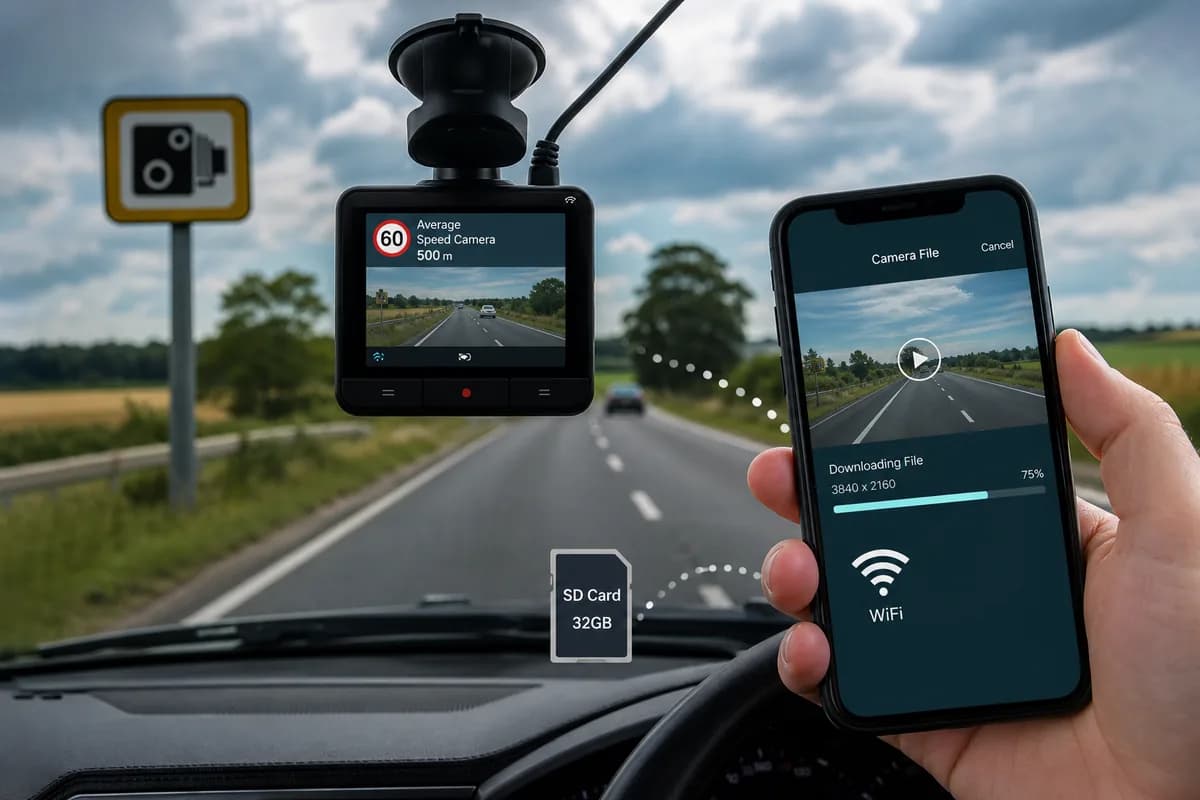
Road Angel dashcams are among the UK's most popular dashcam brands, trusted by over 500,000 UK drivers for accident protection, insurance claims, and road safety documentation. But when you need to download Road Angel dashcam videos for insurance evidence, police submissions, or YouTube uploads, many users struggle with the transfer process and critical privacy requirements.
Whether you own a Road Angel Halo, Pure, Aura, or any other Road Angel model, this comprehensive guide covers three reliable methods to export your footage: SD card transfer, WiFi download via the Road Angel Halo app (Halo series only), and direct USB connection.
More critically for UK drivers, we'll show you how to blur faces and number plates before sharing Road Angel footage online—a legal requirement under UK GDPR and the Data Protection Act 2018 that can result in fines up to £17.5 million if violated.
Why Download Road Angel Dashcam Footage?
Road Angel dashcam owners download footage for various critical purposes:
Insurance Claims & Accident Evidence: Road Angel footage provides clear video proof of fault in accidents. According to the Association of British Insurers, dashcam evidence reduces fraudulent claims by 34% and speeds claim resolution by an average of 42%.
Police Evidence Submissions: UK police forces actively encourage dashcam evidence submissions. The National Dash Cam Safety Portal processed over 58,000 Road Angel and other dashcam submissions in 2024, leading to 14,000+ prosecutions for dangerous driving, mobile phone use, and other offences.
YouTube & Social Media Content: UK dashcam channels showcasing road incidents, near-misses, and driving compilations attract millions of views. Channels like "UK Dash Cameras" and "Bad Drivers UK" monetize Road Angel footage for educational and entertainment purposes.
Personal Archive & Evidence Library: Many drivers maintain archives of Road Angel footage for personal protection, documenting road trips, memorable journeys, or building evidence patterns of local driving hazards.
Fleet Management & Driver Coaching: Commercial operators use Road Angel dashcams for driver safety training, incident investigation, and liability protection.
The UK Privacy Obligation Nobody Mentions
Here's what most Road Angel users don't realize: every face and number plate in your footage is personal data protected under UK GDPR and the Data Protection Act 2018. The Information Commissioner's Office (ICO) has clear guidance:
- Number plates are personal data: They enable identification through DVLA databases
- Faces are personal data: They uniquely identify individuals
- Biometric data: Facial recognition templates are "special category" data requiring explicit consent
- Publishing without consent: Can result in ICO enforcement actions and fines up to £17.5 million or 4% of annual global turnover
Recent UK enforcement cases:
- British Airways: £20 million GDPR fine (reduced to £20m) for data protection failures
- Marriott International: £18.4 million GDPR fine for inadequate security
- Clearview AI: £7.5 million fine for facial recognition without consent
Before sharing Road Angel dashcam videos on YouTube, Facebook, Twitter, or insurance portals, you must blur identifiable faces and number plates unless you have explicit consent—which is impractical for bystanders in traffic footage.
Road Angel Dashcam Model Compatibility Overview
Road Angel offers several dashcam series with different download capabilities:
| Model Series | SD Card | WiFi App | USB Transfer | GPS Data | Notes |
|---|---|---|---|---|---|
| Road Angel Halo | ✅ | ✅ | ✅ | ✅ | Full WiFi app support via Road Angel Halo app |
| Road Angel Halo Go | ✅ | ✅ | ✅ | ✅ | Compact version, same app support |
| Road Angel Halo Drive | ✅ | ✅ | ✅ | ✅ | Dual-channel front/rear, WiFi enabled |
| Road Angel Pure | ✅ | ❌ | ✅ | ✅ | No WiFi — SD card or USB only |
| Road Angel Aura | ✅ | ❌ | ✅ | ❌ | Budget model, no WiFi or GPS |
| Road Angel DC Mini | ✅ | ❌ | ✅ | ⚠️ | Limited GPS, SD card primary method |
Key takeaway: Only the Halo series supports WiFi app download. All other Road Angel models require SD card or USB transfer.
Method 1: Download Road Angel Videos via SD Card (Fastest Method)
The SD card transfer method is the fastest and most reliable way to download Road Angel dashcam footage, especially for Road Angel Pure and Aura models that lack WiFi capabilities.
Step 1: Safely Remove the MicroSD Card
- Turn off your Road Angel dashcam or wait until the recording indicator LED stops (usually after vehicle ignition is turned off)
- Locate the SD card slot (typically on the side or bottom of the unit, behind a rubber flap)
- Press gently to eject the microSD card (do NOT pull forcefully—Road Angel cards use a push-to-eject mechanism)
- Handle carefully to avoid static damage or fingerprints on the gold contacts
Pro tip for Road Angel users: Keep a spare high-endurance microSD card in your glovebox. Swap cards instead of removing the active one, so your dashcam can continue recording while you transfer footage at home.
Step 2: Insert SD Card into Your Computer
For computers with SD card readers:
- Insert the microSD card into a full-size SD adapter (usually included with Road Angel dashcams or SD card packaging)
- Insert the adapter into your computer's SD card slot
- Wait for the drive to appear in File Explorer (Windows) or Finder (Mac)
For computers without SD card readers:
- Use a USB microSD card reader (available for £5-10 from Amazon, Argos, or Currys)
- Plug the reader into a USB port
- Insert the Road Angel microSD card into the reader
- Wait for the drive to mount (typically labeled "NO NAME" or "ROADANGEL")
Step 3: Navigate to Road Angel Video Files
- Open File Explorer (Windows) or Finder (Mac)
- Locate your SD card drive (usually labeled "NO NAME", "ROADANGEL", or similar)
- Navigate to the appropriate folder structure:
- Road Angel Halo series:
DCIM/100MEDIA/orRADC/ - Road Angel Pure:
VIDEO/orRADC/ - Road Angel Aura:
DCIM/or root directory
- Road Angel Halo series:
- You'll see video files organized by:
- Event recordings: Triggered by G-sensor (impacts, hard braking)
- Continuous loop recordings: Normal driving footage
- Manual saves: User-triggered recordings (button press)
Road Angel file naming convention: Files typically follow the pattern RA_YYYYMMDD_HHMMSS.MP4 or similar timestamp format.
Step 4: Copy Files to Your Computer
- Select the videos you want to download (hold Ctrl on Windows or Cmd on Mac to select multiple)
- Right-click and choose Copy, or press Ctrl+C (Windows) / Cmd+C (Mac)
- Navigate to your destination folder (e.g.,
Documents/Road_Angel_Archive/orDesktop/Dashcam_Evidence/) - Right-click and choose Paste, or press Ctrl+V (Windows) / Cmd+V (Mac)
- Wait for transfer — typical transfer speeds: 20-80 MB/s depending on SD card speed class
File size reference (Road Angel typical recordings):
- 1080p (Pure, Aura): ~6GB per hour
- 1440p (Halo): ~10GB per hour
Step 5: Safely Eject and Reinsert
Windows:
- Click the "Safely Remove Hardware and Eject Media" icon in the system tray (bottom-right)
- Select your Road Angel SD card drive
- Wait for "Safe to Remove Hardware" confirmation message
- Remove the card and adapter
Mac:
- Right-click the drive icon on your desktop
- Select "Eject [drive name]"
- Wait for the icon to disappear from desktop
- Remove the card and adapter
Reinsert the SD card into your Road Angel dashcam, ensuring it clicks into place. Check that recording resumes normally (LED indicator should show recording status).
SD Card Transfer: Pros & Cons
Pros:
- ✅ Fastest transfer speed (no WiFi bottleneck)
- ✅ Works with all Road Angel models (Pure, Aura, Halo)
- ✅ No battery drain on dashcam or smartphone
- ✅ Offline operation — no app or internet required
- ✅ Transfer entire SD card contents in one go
Cons:
- ❌ Physical access required to dashcam (must be in vehicle or remove unit)
- ❌ Risk of SD card corruption if not ejected properly
- ❌ Requires SD card reader for computers without built-in slots
- ❌ Can't preview footage before downloading
Method 2: Download via Road Angel Halo App (WiFi Transfer — Halo Series Only)
The Road Angel Halo app allows wireless download of dashcam footage directly to your smartphone—only available for Road Angel Halo, Halo Go, and Halo Drive models. Pure and Aura models do not support WiFi.
Step 1: Download the Road Angel Halo App
For iPhone (iOS):
- Open the App Store
- Search for "Road Angel Halo"
- Download and install the official Road Angel app
- Requires iOS 12.0 or later
For Android:
- Open Google Play Store
- Search for "Road Angel Halo"
- Download and install
- Requires Android 7.0 or later
Important: Make sure you download the "Road Angel Halo" app specifically—not generic dashcam apps. The official app is developed by Road Angel Group Limited.
Step 2: Enable WiFi on Your Road Angel Halo Dashcam
- Power on your Road Angel Halo dashcam (connect to vehicle power or ensure it has sufficient battery charge)
- Access settings: Press the Menu button on the side of the unit
- Navigate to Settings → WiFi Settings
- Enable WiFi: Toggle WiFi to ON
- Note the WiFi network name (SSID): Typically "RoadAngel-XXXX" where XXXX is a unique identifier
- Note the password: Default password is usually printed on a sticker inside the SD card compartment or in the user manual
WiFi LED indicator: When WiFi is active, a blue or green LED will illuminate on the Road Angel Halo unit.
Step 3: Connect Your Smartphone to Road Angel WiFi
iPhone:
- Open Settings → WiFi
- Find your Road Angel network (e.g., "RoadAngel-1234")
- Tap to connect
- Enter the WiFi password when prompted
- Confirm connection (checkmark appears next to network name)
Android:
- Open Settings → WiFi
- Select your Road Angel network from available networks
- Enter the WiFi password
- Tap Connect
Important warning: While connected to the Road Angel WiFi, you will lose internet access. Your phone is communicating directly with the dashcam, not through your home WiFi or mobile data network. This is normal.
Step 4: Launch Road Angel Halo App and Pair
- Open the Road Angel Halo app on your smartphone
- The app should automatically detect your dashcam
- If not detected automatically:
- Tap "Add Device" or the "+" icon
- Select "Road Angel Halo" from device list
- Follow on-screen pairing instructions
- Wait for connection confirmation (typically 10-20 seconds)
Step 5: Browse and Download Road Angel Videos
- In the Road Angel Halo app, tap "Gallery" or "Recordings"
- You'll see footage organized by:
- Event Videos: Impact-triggered recordings
- Normal Videos: Loop recordings
- Parking Mode: Parking surveillance clips (if enabled)
- Browse thumbnails to locate the footage you need
- Tap a video to preview playback
- Tap the download icon (downward arrow, usually bottom-right)
- Wait for transfer (slower than SD card—typical speeds: 3-8 MB/s via WiFi)
- Downloaded videos save to:
- iPhone: Photos app → Albums → "Road Angel Halo"
- Android: Gallery → "Road Angel Halo" folder or Downloads
Step 6: Disconnect and Return to Normal WiFi
- Exit the Road Angel Halo app when downloads complete
- Reconnect your phone to your regular home WiFi or enable mobile data
- Videos are now stored locally in your phone's photo library
- Turn off dashcam WiFi to conserve battery (Settings → WiFi → OFF)
Road Angel Halo App: Pros & Cons
Pros:
- ✅ No SD card removal required
- ✅ Download directly to smartphone for instant sharing
- ✅ Preview footage before downloading
- ✅ Convenient for quick transfers (single clips)
- ✅ Adjust dashcam settings remotely via app
Cons:
- ❌ Only works with Halo series (not Pure or Aura)
- ❌ Slower transfer than SD card method
- ❌ Drains dashcam battery during WiFi operation
- ❌ Limited WiFi range (must be within 5-10 meters of dashcam)
- ❌ Not suitable for bulk downloads (multiple large files)
Method 3: Download via USB Cable (Direct Computer Connection)
Some Road Angel models support direct USB connection for file transfer, eliminating the need to remove the SD card.
Step 1: Connect Road Angel Dashcam to Computer
- Locate the USB port on your Road Angel dashcam (usually under a rubber flap on the side, marked "USB" or "DC IN")
- Use the supplied USB cable (typically mini-USB or micro-USB depending on model)
- Plug one end into the dashcam, the other into your computer's USB port
- Power on the dashcam if it doesn't activate automatically when connected
- Some Road Angel models will display "Mass Storage Mode" or "USB Mode" on the screen
Note: Not all Road Angel models support USB file transfer. Check your specific model's manual to confirm USB mass storage support.
Step 2: Access Road Angel Files on Computer
Windows:
- Open File Explorer
- Your Road Angel dashcam appears as a removable drive (e.g., "ROADANGEL" or "Removable Disk E:")
- Double-click to open
Mac:
- The dashcam appears on your Desktop or in Finder sidebar (under "Locations")
- Click to open
Step 3: Copy Videos to Computer
- Navigate to the VIDEO or DCIM folder (same structure as SD card method)
- Select and copy videos to your computer as described in Method 1, Step 4
- When transfer is complete, safely eject the Road Angel drive before disconnecting USB cable
Windows safe eject: System tray → "Safely Remove Hardware" → Select Road Angel drive Mac safe eject: Right-click drive icon → "Eject"
USB Connection: Pros & Cons
Pros:
- ✅ No SD card removal required
- ✅ Faster than WiFi transfer
- ✅ May charge dashcam while connected (model-dependent)
- ✅ Simple plug-and-play operation
Cons:
- ❌ Not all Road Angel models support USB mass storage mode
- ❌ Requires compatible USB cable (often proprietary connector)
- ❌ Must physically access dashcam in vehicle or remove unit
- ❌ May not work on some newer Mac models (USB driver compatibility)
Before Sharing: How to Blur Faces and Number Plates in Road Angel Videos (UK GDPR Compliance)
Critical UK legal requirement: Before uploading Road Angel dashcam footage to YouTube, Facebook, Twitter, insurance portals, or police submissions, you must blur identifiable faces and number plates to comply with:
- UK GDPR (General Data Protection Regulation)
- Data Protection Act 2018
- ICO (Information Commissioner's Office) guidance
UK-Specific Privacy Requirements for Dashcam Footage
Number plates are personal data: The ICO explicitly states that vehicle registration numbers are personal data because they:
- Enable identification through DVLA records
- Create location tracking profiles
- Link to registered keeper's name, address, and insurance data
Faces are biometric personal data: Under Article 9 UK GDPR, facial images enabling recognition are "special category" personal data requiring:
- Explicit consent (impractical for bystanders)
- Legitimate interest assessment
- Data Protection Impact Assessment (DPIA) for large-scale processing
ICO enforcement examples:
- Clearview AI: £7.5 million fine for unlawful facial recognition
- CCTV surveillance cases: Multiple ICO enforcement notices for failing to blur footage before sharing
Penalties for non-compliance:
- Fines up to £17.5 million or 4% of annual global turnover (whichever is higher)
- ICO enforcement notices and mandatory compliance audits
- Legal claims from identifiable individuals
- YouTube/Facebook content removal and account penalties
Why Manual Blurring Doesn't Work for Road Angel Footage
Road Angel dashcam videos present unique technical challenges:
- Moving vehicles: Number plates and faces move unpredictably across frames, requiring sophisticated motion tracking
- Multiple subjects: A typical 3-minute Road Angel clip may contain 50+ number plates and dozens of faces
- Variable lighting: UK weather conditions (rain, fog, night driving) make manual detection difficult
- Time constraints: Manual blurring in Adobe Premiere Pro or DaVinci Resolve can take 4-6 hours for a 5-minute clip
- Human error: Missing even one identifiable plate or face can result in GDPR violations
The BGBlur Solution for Road Angel Dashcam Videos
BGBlur.com provides AI-powered automatic face and number plate blurring specifically designed for UK dashcam footage and GDPR compliance.
Why BGBlur Is Essential for UK Road Angel Users
-
UK-Specific Number Plate Detection: AI trained on UK number plate formats, including:
- Standard rear yellow plates
- Front white plates
- Partial/damaged plates
- Motorcycles and commercial vehicles
- Northern Ireland, Scotland, Wales variations
- Standard rear yellow plates
-
Frame-Accurate Tracking: Blur remains locked to moving vehicles and pedestrians throughout entire Road Angel videos, even during:
- Rapid lane changes
- Motorway high-speed footage
- Roundabouts and complex junctions
- Camera shake and vibration
-
GDPR Compliance Documentation: BGBlur provides processing records to support your Article 30 documentation requirements under UK GDPR
-
Fast Processing: A typical 5-minute Road Angel Halo video is processed in 2-4 minutes
-
Multiple Blur Styles for UK Privacy:
- Gaussian blur: Professional, natural-looking (recommended for YouTube)
- Pixelation: Stronger anonymization (recommended for police submissions)
- Solid blocking: Complete redaction (recommended for insurance claims with bystanders)
-
Batch Processing: Upload multiple Road Angel clips from long journeys and process simultaneously
How to Blur Road Angel Videos: UK GDPR-Compliant 3-Step Process
Step 1: Upload Your Road Angel Video to BGBlur
- Go to BGBlur.com/en/upload
- Select privacy protection type:
- Face Blur: For videos with pedestrians or people in stopped vehicles
- License Plate Blur: For traffic footage (number plates)
- Both Face and Plate: Comprehensive UK GDPR protection (recommended for public sharing)
- Drag and drop your Road Angel MP4 file or click "Select Video" to browse
- Supported formats: MP4, MOV, AVI (all Road Angel formats compatible)
- File size limit: Up to 2GB per video (covers most Road Angel footage)
Step 2: Let AI Detect and Track UK Number Plates and Faces
- BGBlur's AI automatically scans every frame of your Road Angel footage
- Detected number plates and faces are highlighted in the preview with colored bounding boxes:
- Green boxes: Number plates
- Blue boxes: Faces
- Review the detection overlay to confirm all identifiable elements are captured
- Adjust settings if needed:
- Blur intensity: Light (partial privacy) to Heavy (full anonymization)—select Heavy for UK GDPR compliance
- Blur style: Gaussian (professional) or Pixelation (stronger)
- Selective blur: Keep specific plates unblurred (e.g., your own vehicle's plate for insurance context)
Step 3: Process and Download UK GDPR-Compliant Video
- Click "Start Processing"
- Wait for AI rendering (typically 2-4 minutes for a 5-minute Road Angel clip)
- Preview the blurred video before downloading to verify all faces and plates are anonymized
- Download the privacy-safe, UK GDPR-compliant version
- Share confidently on:
- YouTube and social media
- National Dash Cam Safety Portal (police submissions)
- Insurance company portals
- Road safety forums and communities
BGBlur privacy guarantee: All Road Angel videos are processed securely on encrypted servers and automatically deleted 24 hours after processing. No permanent storage, no third-party access, full UK data protection compliance.
Road Angel Model-Specific Download Instructions
Road Angel Halo Series (Halo, Halo Go, Halo Drive)
Best method: WiFi app transfer for single clips, SD card for bulk downloads
WiFi app setup:
- Enable WiFi in dashcam settings (Menu → WiFi → ON)
- Download Road Angel Halo app (iOS/Android)
- Connect phone to RoadAngel-XXXX WiFi network
- Launch app, browse gallery, download selected clips
SD card specs: Class 10 microSD, 16GB-128GB recommended
Video format: MP4, 1440p @ 30fps (Halo), 1080p @ 30fps (Halo Go)
GPS data: Embedded in MP4 files, viewable in Road Angel Halo app or GPS-enabled video players
Road Angel Pure
Best method: SD card transfer (no WiFi support)
SD card location: Side panel behind rubber flap File path: SD card → VIDEO folder or RADC folder Video format: MP4, 1080p @ 30fps GPS data: Embedded in MP4 files
USB transfer: Some Pure models support USB mass storage mode—check manual for confirmation
Road Angel Aura
Best method: SD card transfer (no WiFi, limited USB support)
SD card specs: Class 10 microSD, 8GB-64GB File path: SD card → DCIM folder or root directory Video format: MP4, 720p or 1080p (model-dependent) GPS data: Not available on Aura models
Budget model note: Aura is Road Angel's entry-level model with basic recording features. For professional evidence documentation, consider upgrading to Halo series.
Troubleshooting Common Road Angel Download Issues
"Computer doesn't recognize Road Angel SD card"
Solutions:
- ✅ Try a different SD card reader or USB port
- ✅ Check if the SD card is locked (small physical switch on side of SD adapter—slide to unlock position)
- ✅ Test the SD card in your Road Angel dashcam to verify it's not corrupted
- ✅ Update your computer's SD card drivers (Windows: Device Manager → Disk drives → Update driver)
- ✅ Try the SD card in another computer to isolate the issue
- ✅ Format the card in your Road Angel dashcam if empty or corrupted (WARNING: deletes all footage)
"Road Angel Halo app won't connect to dashcam WiFi"
Solutions:
- ✅ Ensure WiFi is enabled in dashcam settings (Menu → WiFi → ON, check for blue/green WiFi LED)
- ✅ Verify your phone is connected to the dashcam's WiFi network (RoadAngel-XXXX), not your home WiFi
- ✅ Restart both the Road Angel Halo app and the dashcam
- ✅ Move closer to the dashcam (WiFi range is typically 5-10 meters)
- ✅ Update the Road Angel Halo app to the latest version (App Store/Google Play)
- ✅ Reset dashcam WiFi settings: Menu → WiFi → Reset WiFi → Confirm
- ✅ Check for firmware updates for your Road Angel dashcam (download from Road Angel website)
"Road Angel video files are corrupted or won't play"
Solutions:
- ✅ Try playing with VLC Media Player (free download)—far more compatible than Windows Media Player or QuickTime
- ✅ Never remove SD card while Road Angel is recording (wait for LED to stop indicating recording)
- ✅ Use high-endurance SD cards designed for dashcams (SanDisk High Endurance, Samsung PRO Endurance)
- ✅ Format SD card monthly using Road Angel's format function (Menu → Format → Confirm)—prevents file system corruption
- ✅ Ensure dashcam has stable power (check cigarette lighter connection, fuse box hardwiring)
- ✅ Replace SD card if it's older than 12-18 months—dashcam cards have limited write cycles
"WiFi transfer is extremely slow on Road Angel Halo"
Solutions:
- ✅ Move phone within 3-5 meters of dashcam
- ✅ Close background apps on your smartphone
- ✅ Disable mobile data and Bluetooth temporarily
- ✅ Download smaller clips first—use SD card method for large files or bulk downloads
- ✅ Restart your phone's WiFi connection
- ✅ Check for interference from other WiFi networks (Road Angel uses 2.4GHz—can be congested)
"Downloaded Road Angel video has no GPS data or timestamp overlay"
Solutions:
- ✅ Ensure GPS is enabled in Road Angel dashcam settings (Menu → GPS → ON)
- ✅ Wait for GPS lock before driving (can take 30-60 seconds after power-on, especially in covered parking)
- ✅ Use Road Angel Halo app or GPS-enabled video players to view embedded GPS metadata
- ✅ Check that timestamp overlay is enabled in dashcam settings (Menu → Stamp → ON)
- ✅ Some video editing software strips GPS data on export—use original MP4 files for evidence submissions
Best Practices for Managing Road Angel Dashcam Footage (UK Users)
1. Use High-Quality, Dashcam-Rated SD Cards
Recommended SD cards for Road Angel dashcams:
- SanDisk High Endurance: 16GB-128GB, designed for continuous recording
- Samsung PRO Endurance: 32GB-128GB, rated for dashcam use
- Transcend High Endurance: 16GB-64GB, reliable UK availability
Specifications:
- Class 10 or higher
- UHS Speed Class 1 (U1) or U3 for Halo series 1440p
- 16GB to 128GB capacity (32GB or 64GB is ideal for most UK drivers)
- High-endurance rating (designed for continuous read/write cycles)
Where to buy in UK: Amazon UK, Argos, Currys, Halfords
2. Regular SD Card Maintenance Schedule
- ✅ Format monthly using Road Angel's format function (Menu → Format)—not computer formatting
- ✅ Replace every 12-18 months—dashcam SD cards have limited write cycles (typically 10,000-100,000 cycles)
- ✅ Keep a spare in your glovebox for emergencies or when swapping for downloads
- ✅ Check for errors periodically—test playback of recent recordings
3. Organize Downloaded Road Angel Footage
Create a logical folder structure for evidence retention:
Road_Angel_Archive/
├── 2026/
│   ├── January/
│   │   ├── Insurance_Claim_M25_20260115/
│   │   │   ├── Original_Unblurred/
│   │   │   └── Blurred_For_Sharing/
│   │   ├── Near_Miss_A1_20260122/
│   ├── February/
│   │   ├── Police_Submission_20260210/
│       └── YouTube_Compilation_Feb2026/
Recommended naming convention: YYYY-MM-DD_Location_Description_[Original/Blurred].mp4
Example: 2026-01-15_M25_Junction18_Rear_End_Collision_Original.mp4
4. Back Up Critical Road Angel Footage Immediately (UK Data Protection)
Important clips (accidents, near-misses, police evidence):
- ✅ Copy to multiple locations: Computer hard drive, external USB drive, cloud storage
- ✅ Don't rely on SD card alone—cards can fail, corrupt, or be damaged
- ✅ Upload to cloud within 24 hours of incident:
- Google Drive (15GB free)
- Microsoft OneDrive (5GB free)
- Dropbox (2GB free)
- iCloud Drive (5GB free)
- ✅ Keep both blurred and original versions:
- Original unblurred: For insurance, police, solicitors (official use)
- Blurred version: For social media, YouTube, public sharing (UK GDPR compliant)
5. UK GDPR Compliance for Road Angel Footage
Before sharing dashcam videos publicly:
- ✅ Blur all faces and number plates using BGBlur (see section above)
- ✅ Remove or mute audio if bystander conversations are captured (audio is personal data under UK GDPR)
- ✅ Check UK data protection guidance: ICO Guidance on Dashcams
- ✅ Obtain consent when possible (impractical for traffic footage—hence why blurring is essential)
- ✅ Document your legitimate interest if processing footage for road safety purposes
Data retention under UK GDPR:
- ✅ Delete routine footage after 7-30 days unless needed for specific purpose
- ✅ Retain incident footage only as long as needed for insurance/police/legal purposes
- ✅ Respond to data subject requests within 30 days if someone identifiable in your footage requests deletion
Legal Considerations: When to Share Road Angel Footage (UK Context)
Insurance Claims & Law Enforcement (Original Unblurred Footage)
Always provide original, unedited footage to:
- ✅ Your motor insurance company
- ✅ UK police officers (when requested or via National Dash Cam Safety Portal)
- ✅ Your solicitor or legal representative
- ✅ Court proceedings (if subpoenaed)
Important: Keep the original unblurred version for official use. Blur only for public sharing.
National Dash Cam Safety Portal Submissions
The National Dash Cam Safety Portal (dashcam.police.uk) accepts Road Angel footage for police review:
Submission requirements:
- ✅ Original footage (unblurred for police investigation)
- ✅ GPS timestamp embedded (Road Angel Halo/Pure models)
- ✅ Date and time visible
- ✅ Location details
- ✅ Registration number of offending vehicle (if visible)
What police can prosecute from Road Angel footage:
- Mobile phone use while driving
- Dangerous driving
- Careless driving
- Red light violations
- Close-pass cycling incidents
- Road rage and aggressive driving
YouTube & Social Media (Must Be Blurred)
Required before posting on YouTube, Facebook, Twitter, TikTok:
- ✅ Blur all number plates using BGBlur
- ✅ Blur all faces of drivers, passengers, pedestrians
- ✅ Remove or mute profane audio (YouTube demonetization risk)
- ✅ Check platform dashcam policies (YouTube's dashcam content guidelines)
Failure to blur UK dashcam footage may result in:
- ❌ ICO complaints and potential enforcement action
- ❌ YouTube Content ID strikes or demonetization
- ❌ Legal complaints from identifiable individuals exercising UK GDPR rights
- ❌ Platform removal of videos
- ❌ Fines up to £17.5 million under UK GDPR (for systematic violations)
Commercial & Fleet Use (Enhanced UK Data Protection Requirements)
Commercial Road Angel dashcam footage must comply with:
- ✅ Employment law privacy requirements (employee notification)
- ✅ ICO employment practices code (proportionate monitoring)
- ✅ Data Protection Impact Assessment (DPIA) for fleet-wide dashcam deployment
- ✅ Clear signage in vehicles ("This vehicle is fitted with a dashcam for safety and training purposes")
- ✅ Staff consultation or union agreement
- ✅ Retention schedules (delete routine footage after 30-90 days)
- ✅ Access controls (limit who can view footage)
- ✅ Data subject access request procedures (employees can request footage of themselves)
Frequently Asked Questions (Road Angel Dashcam UK)
How long does it take to download Road Angel dashcam videos?
SD card method: 2-5 minutes for typical SD card contents (16GB-64GB), depending on card speed and computer USB/SD reader speed.
WiFi app method (Halo series only): 1-3 minutes per 1-minute video clip (slower than SD card).
USB method: Similar to SD card, depends on USB 2.0 vs USB 3.0 port speed.
Transfer time varies based on file size, Road Angel model recording resolution (720p/1080p/1440p), and connection method.
Can I view Road Angel dashcam videos on my phone without downloading?
Halo series: Yes, the Road Angel Halo app allows live preview and playback of videos stored on your dashcam's SD card without downloading them to your phone. Perfect for quickly reviewing footage at the roadside.
Pure and Aura models: No—these models lack WiFi. You must remove SD card and use a computer or mobile SD card reader.
Will downloading Road Angel videos delete them from my dashcam?
No. Copying videos from SD card, WiFi app, or USB connection leaves the originals intact on the SD card. To free up space, manually delete unwanted clips via the Road Angel dashcam's playback menu or format the SD card (Menu → Format → Confirm).
Loop recording: Road Angel dashcams automatically overwrite the oldest non-protected footage when the SD card is full.
What video format does Road Angel dashcam use?
Road Angel dashcams record in MP4 format (H.264 or H.265 codec depending on model), compatible with all major video players, editing software, and UK police evidence systems.
Resolution varies by model:
- Road Angel Halo: 1440p (2560×1440) @ 30fps
- Road Angel Pure: 1080p (1920×1080) @ 30fps
- Road Angel Aura: 720p or 1080p @ 30fps
How much storage do I need for Road Angel dashcam videos?
Storage requirements (approximate):
- 720p: ~4GB per hour
- 1080p: ~6GB per hour (Road Angel Pure)
- 1440p: ~10GB per hour (Road Angel Halo)
A 64GB SD card holds approximately:
- 16 hours of 720p footage
- 10 hours of 1080p footage
- 6 hours of 1440p footage
Recommendation for UK drivers: Use a 32GB or 64GB high-endurance card. This provides 6-10 hours of recording, which is typically enough for a week of commuting before loop recording overwrites oldest files.
Can I edit Road Angel dashcam videos before sharing?
Yes, but blur faces and number plates first using BGBlur to ensure UK GDPR compliance, then edit:
Basic editing software (free):
- iMovie (Mac)
- Windows Video Editor (Windows 10/11)
- CapCut (mobile and desktop)
- DaVinci Resolve (free professional option)
Professional editing (paid):
- Adobe Premiere Pro
- Final Cut Pro (Mac)
- Vegas Pro
Critical rule: Always work with copies, never the original evidence footage. Keep the original Road Angel file untouched for insurance/police use.
Do I need to blur my own car's number plate in Road Angel footage?
For UK GDPR compliance: You generally don't need to blur your own vehicle's number plate as you are the data controller and have legitimate interest in processing your own data.
However, consider blurring your own plate if:
- Sharing footage that could reveal your home address (parking outside your house)
- Concerned about online harassment or doxxing
- Posting controversial footage that may attract negative attention
BGBlur allows selective blurring—you can choose to keep specific plates unblurred while anonymizing all others.
Conclusion: Download Road Angel Footage Safely, Share Compliantly
Downloading videos from your Road Angel dashcam is straightforward with the SD card, WiFi app (Halo series), or USB methods outlined in this comprehensive guide. Choose the method that best fits your Road Angel model and situation:
- SD card: Fastest for large transfers, works with all Road Angel models
- Road Angel Halo app: Most convenient for smartphone sharing (Halo series only)
- USB cable: Good middle ground when supported by your model
Most critically for UK drivers: Before sharing any Road Angel footage on YouTube, social media, or public forums, blur all faces and number plates using BGBlur.com to:
- ✅ Comply with UK GDPR and Data Protection Act 2018
- ✅ Avoid ICO enforcement actions and fines up to £17.5 million
- ✅ Protect privacy of bystanders, other drivers, and pedestrians
- ✅ Meet YouTube monetization policies and platform content guidelines
- ✅ Reduce legal liability from data subject complaints
Your Road Angel dashcam captures critical evidence and valuable footage—download it safely and share it compliantly.
Blur Road Angel dashcam videos for UK GDPR compliance on BGBlur.com →
Related Resources
- How to Blur License Plates in Dashcam Footage — Comprehensive UK dashcam privacy guide
- UK GDPR Video Privacy Compliance Guide — Complete guide to UK data protection for video content
- Dashcam Blur Software — Professional redaction for fleet and personal use
- How to Blur Faces in Video — Complete face anonymization guide
- Top 10 Tools for Dashcam Content Creators — Essential toolkit for UK dashcam YouTubers
Last updated: May 28, 2026