Download Philips Dashcam Videos: SD, WiFi App [2026]
Philips GoSure dashcam footage is only useful once it is off the SD card, but every download method has different speed, reliability, and compatibility tradeoffs. This guide covers SD card, RoadTracer WiFi, and USB transfer methods, plus how to blur faces and plates before sharing footage publicly.
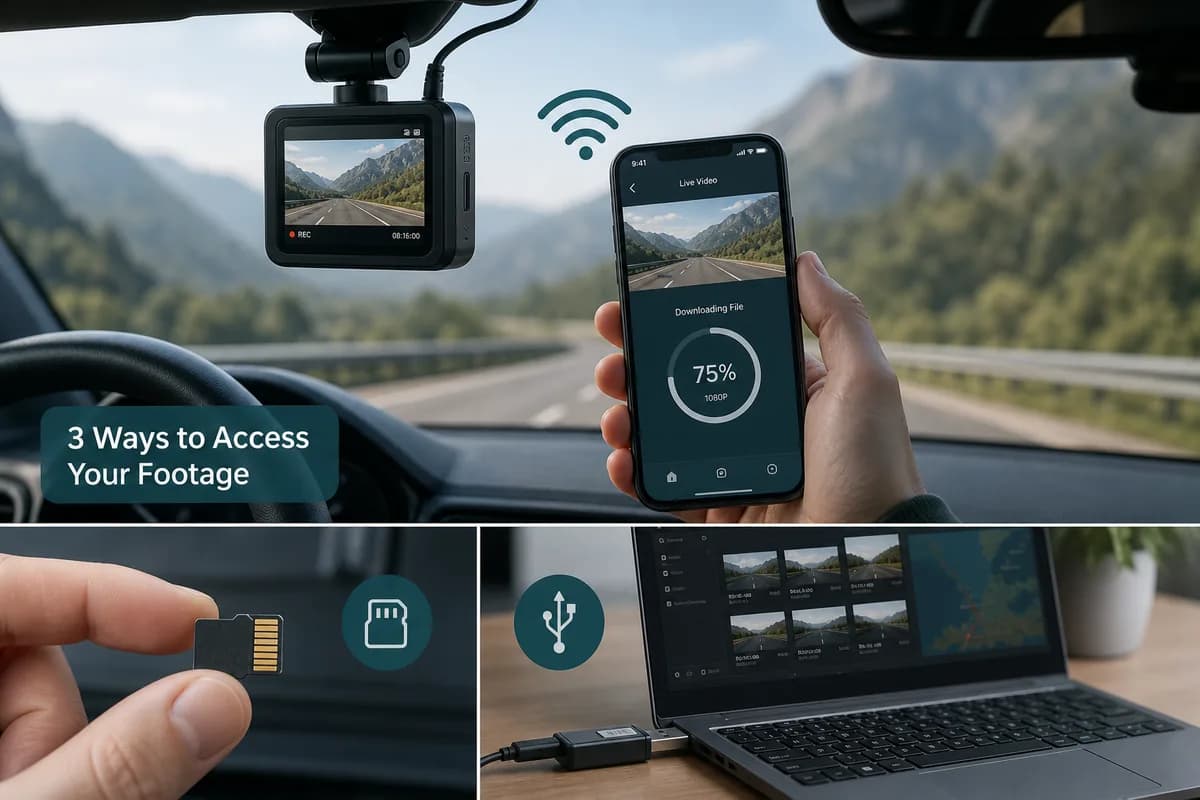
Philips GoSure dashcams (ADR900, ADR820, ADR810, and other models) capture critical road footage—accidents, incidents, scenic drives, and evidence documentation. But footage sitting on an SD card isn't useful until you download Philips dashcam videos to your phone or computer for review, sharing, or storage.
This complete 2026 guide covers every method to transfer Philips GoSure footage, from traditional SD card extraction to wireless RoadTracer app downloads, plus essential privacy protection before you share any dashcam content publicly.
Why Download Philips Dashcam Videos?
Before diving into methods, understand when and why you need to extract footage from your Philips GoSure dashcam:
Common Download Scenarios
- Accident documentation for insurance claims
- Evidence preservation for legal proceedings
- YouTube/social media content creation
- Backup storage before SD card overwrites footage
- Incident reporting to authorities
- Proof of road events for dispute resolution
Philips GoSure Storage Architecture
Philips dashcams record continuously to microSD cards (typically 32GB-256GB) in a loop recording format. When the card fills, the oldest non-protected footage gets overwritten. Understanding this helps you download critical footage before it's lost.
Method 1: Download Philips Dashcam Videos via SD Card (Most Reliable)
The traditional method works for all Philips GoSure models and provides the fastest, most reliable transfer.
Step 1: Power Off and Remove SD Card
- Park safely and turn off your vehicle ignition
- Power off the dashcam (or wait for auto-shutdown)
- Press the release mechanism on your Philips GoSure unit (usually a small button near the SD slot)
- Remove the microSD card carefully
Important: Never remove the SD card while the dashcam is actively recording—this can corrupt the filesystem and damage footage.
Step 2: Insert SD Card into Computer
Use one of these connection methods:
- Built-in SD slot (if your laptop has one—many 2024+ models removed this)
- USB SD card reader (external adapter, most reliable method)
- USB-C hub with SD slot (for modern MacBooks and tablets)
Step 3: Navigate Philips Folder Structure
Once mounted, open the SD card and navigate:
DCIM/
└── PHILIPS/ or 100MEDIA/ or VIDEO/
    ├── Normal/ (continuous recording)
    ├── Event/ (impact-triggered clips)
    └── Parking/ (parking mode recordings)
Exact folder names vary by GoSure model (ADR900 vs ADR820 vs ADR810), but structure remains similar.
Step 4: Copy Files to Computer
- Select footage you need (sorted by timestamp)
- Copy to local drive (drag-and-drop or right-click copy)
- Verify file integrity by playing back one clip
- Safely eject the SD card before removing
File formats: Philips GoSure cameras record in .MP4 or .MOV format at 1080p or higher resolution depending on model.
Pros of SD Card Method
- Works on all Philips GoSure models
- Fastest transfer for large files
- No battery drain on dashcam
- No WiFi network required
- Direct filesystem access
Cons of SD Card Method
- Requires physical access to vehicle
- Need SD card reader hardware
- Risk of corrupting card if removed during write
- SD slot wear over repeated insertions
Method 2: Download Philips GoSure Footage via RoadTracer App (WiFi Transfer)
The Philips RoadTracer app enables wireless download from compatible GoSure models (ADR900, ADR820, and newer units with built-in WiFi).
Step 1: Install Philips RoadTracer App
iOS: Search "Philips RoadTracer" in App Store Android: Search "Philips RoadTracer" in Google Play Store
Compatible with iPhone/iPad iOS 12+ and Android 8.0+.
Step 2: Enable Dashcam WiFi Mode
- Power on your Philips GoSure dashcam
- Press WiFi button (icon looks like standard WiFi symbol)
- Wait for indicator LED to confirm WiFi is active (usually blinking blue/green)
- Check dashcam LCD screen for WiFi network name (SSID) and password
Typical format: PHILIPS_ADR900_XXXX with password printed on camera or in manual.
Step 3: Connect Phone to Dashcam WiFi
- Open phone WiFi settings
- Select Philips GoSure network from available networks
- Enter password (default usually printed on device label)
- Wait for connection confirmation
Note: Your phone will disconnect from home/cellular internet while connected to dashcam WiFi—this is normal and temporary.
Step 4: Open RoadTracer App and Download
- Launch RoadTracer app (should auto-detect dashcam)
- Browse video library organized by date/time
- Select clips to download (tap thumbnail to preview)
- Tap download icon to transfer to phone storage
- Wait for transfer (1080p clips are 50-200MB per minute)
Step 5: Reconnect to Normal WiFi
After download completes:
- Exit RoadTracer app
- Go to phone WiFi settings
- Reconnect to home/mobile network
Downloaded files save to your phone's camera roll or RoadTracer app folder depending on settings.
Philips RoadTracer App Features
- Live preview of dashcam view
- GPS location overlays on compatible models
- Event browsing (impact-triggered clips highlighted)
- Settings adjustment remotely
- Firmware updates via app (on supported models)
Pros of RoadTracer WiFi Method
- No SD card removal required
- Download while sitting in vehicle
- Preview before downloading
- Works on iPhone and Android
- Access settings remotely
Cons of RoadTracer WiFi Method
- Only works on WiFi-enabled GoSure models
- Slower than SD card for large files
- Drains dashcam battery
- Limited range (typically 10-30 feet)
- Requires disconnecting from internet during transfer
Method 3: Computer Transfer Methods (Advanced)
For users comfortable with technical approaches, additional transfer options exist.
USB Direct Connection (Model-Dependent)
Some Philips GoSure models support USB connection for direct file transfer:
- Power off dashcam
- Connect USB cable (camera to computer)
- Camera appears as removable drive
- Navigate folders and copy files
Compatibility: ADR900 supports this; older models may not. Check your manual.
Network Attached Storage (NAS) Backup
For automated backup workflows:
- Remove SD card after trips
- Insert into NAS device with SD slot
- Set up automatic sync to backup folder
- Cards auto-backup when inserted
Useful for fleet managers or professional content creators with multiple dashcams.
Cloud Backup (Third-Party Services)
Philips GoSure cameras don't have native cloud upload, but you can create workflows:
- Download via Method 1 or 2
- Auto-upload to Google Drive/Dropbox via phone app
- Create automated folder watch on computer for sync
Philips GoSure Model Compatibility Guide
Different GoSure models have different download capabilities:
| Model | SD Card | WiFi App | USB Direct | GPS Data |
|---|---|---|---|---|
| ADR900 | ✅ | ✅ | ✅ | ✅ |
| ADR820 | ✅ | ✅ | ⚠️ | ✅ |
| ADR810 | ✅ | ❌ | ❌ | ✅ |
| ADR620 | ✅ | ❌ | ❌ | ❌ |
| ADR500 | ✅ | ❌ | ❌ | ❌ |
✅ = Fully supported ⚠️ = Partial/firmware dependent ❌ = Not available
Always check your specific model manual for confirmed feature support.
How to Blur Faces and License Plates in Philips Dashcam Videos (EU GDPR Compliance)
Once you've downloaded Philips GoSure footage, never share it publicly without privacy protection. European GDPR, UK data protection laws, and many other jurisdictions require blurring identifiable information.
Why Blur Dashcam Footage Before Sharing
- GDPR compliance (EU law treats faces and license plates as personal data)
- Privacy respect for other road users
- Legal protection against defamation claims
- Platform requirements (YouTube may flag unblurred content)
- Insurance submission standards
The BGBlur Solution for Philips Dashcam Privacy
BGBlur automatically detects and blurs faces and license plates in your downloaded Philips GoSure footage:
- Upload your Philips dashcam video to BGBlur
- AI automatically detects all faces and license plates across frames
- Choose blur intensity (gaussian, pixelated, or full anonymization)
- Preview results frame-by-frame
- Download privacy-protected video ready for sharing
What BGBlur Protects in Dashcam Footage
- Driver and passenger faces in other vehicles
- Pedestrian faces crossing streets or sidewalks
- License plates (front and rear, all angles)
- Street addresses and business signs (optional)
- Background people through windows
Legal Privacy Requirements by Region
European Union (GDPR): Faces and license plates are personal data. Sharing dashcam footage publicly without blur can result in fines up to €20 million or 4% of global revenue.
United Kingdom: Post-Brexit UK GDPR maintains same requirements—blur before publishing.
United States: No federal requirement, but state privacy laws (California CCPA, Virginia CDPA) recommend blurring. YouTube/social platforms may have stricter policies.
Australia: Privacy Act recommends blurring identifiable information in public recordings.
Bottom line: BGBlur ensures global compliance regardless of specific local requirements.
Troubleshooting Philips Dashcam Download Issues
SD Card Not Recognized on Computer
Solutions:
- Try different SD card reader
- Check SD card isn't locked (physical switch on side)
- Format card as FAT32 or exFAT (do this AFTER backing up files)
- Test card in another device to rule out corruption
RoadTracer App Won't Connect to Dashcam
Solutions:
- Verify WiFi is actually enabled (check LED indicator)
- Ensure you're connecting to correct SSID (check dashcam screen)
- Move phone closer (within 10 feet of camera)
- Restart both dashcam and phone
- Update RoadTracer app to latest version
- Check dashcam firmware is current
Video Files Won't Play After Download
Solutions:
- Install VLC Media Player (plays all formats)
- Video may be corrupted if SD card was removed during recording
- Try different video player (Windows Media Player, QuickTime, etc.)
- Check file isn't zero bytes (indicates incomplete recording)
WiFi Transfer Extremely Slow
Expected transfer speeds: 1-3 MB/s via RoadTracer WiFi (a 1-minute 1080p clip takes 30-90 seconds)
Speed improvements:
- Ensure strong signal (move phone closer)
- Close other apps during transfer
- Download shorter clips rather than entire events
- Use SD card method for files over 500MB
"Protected" Files Won't Delete from SD Card
Event/impact recordings are write-protected by Philips GoSure to prevent accidental deletion.
Solutions:
- Download and backup protected files first
- Format card through dashcam menu (removes all files including protected)
- Use computer to manually unlock files (right-click > Properties > uncheck Read-only)
Best Practices for Philips GoSure Footage Management
1. Regular Download Schedule
Don't wait until SD card is full:
- Daily: For professional drivers or high-incident areas
- Weekly: For regular commuters
- After any incident: Immediately protect critical footage
2. Organize Downloaded Files
Create folder structure:
Dashcam_Archive/
├── 2026/
│   ├── 01_January/
│   │   ├── 2026-01-15_incident/
│   │   └── 2026-01-20_scenic/
│   ├── 02_February/
│   └── 03_March/
3. Backup Critical Footage Multiple Locations
The 3-2-1 rule:
- 3 copies of important footage
- 2 different storage types (computer + cloud)
- 1 off-site backup (cloud service)
4. Test Your Download Method Regularly
Don't discover SD card reader doesn't work when you need accident footage urgently. Test your transfer process monthly.
5. Keep SD Cards Fresh
MicroSD cards wear out with constant rewriting:
- Replace every 12-18 months for critical use
- Use high-endurance cards rated for dashcam use
- Keep spare card in vehicle
Privacy Workflow: From Download to Sharing
Professional Content Creator Workflow
- Download Philips footage via SD card or WiFi
- Review clips and select interesting moments
- Edit in video software (DaVinci Resolve, Premiere, etc.)
- Process through BGBlur for automatic face/plate detection
- Final edit with text overlays and music
- Upload to YouTube or social media
Insurance Claim Workflow
- Download incident footage immediately
- Create backup copy before editing
- Trim to relevant timeframe (30 seconds before and after)
- Blur license plates if required by insurer
- Submit via insurer portal or email
- Keep original unedited version for potential disputes
Evidence Preservation Workflow
- Download footage the same day as incident
- Write-protect SD card to prevent overwriting
- Create multiple backups (computer + cloud + USB drive)
- Document metadata (date, time, GPS location, weather)
- Do NOT edit original files (courts may require unaltered footage)
- Blur for public sharing only (provide unblurred to authorities if requested)
FAQ: Downloading Philips GoSure Dashcam Videos
How do I download videos from my Philips dashcam without WiFi?
Remove the microSD card from your Philips GoSure dashcam and insert it into an SD card reader connected to your computer. Navigate to the PHILIPS or DCIM folder structure and copy video files directly to your hard drive.
Can I view Philips dashcam footage on my phone?
Yes, using two methods: (1) Download via the Philips RoadTracer app if your model has WiFi (ADR900, ADR820), or (2) Use an SD card reader adapter for your phone (Lightning to SD for iPhone, USB-C to SD for Android).
What app do I need to download Philips GoSure videos wirelessly?
Download the Philips RoadTracer app from the Apple App Store or Google Play Store. This official app connects to WiFi-enabled GoSure models and allows wireless video transfer to your smartphone.
Why won't my Philips dashcam connect to the RoadTracer app?
Common fixes: (1) Ensure dashcam WiFi is enabled (check LED indicator), (2) Verify you're connected to the camera's WiFi network (not your home WiFi), (3) Move phone within 10 feet of dashcam, (4) Restart both devices, (5) Update RoadTracer app and dashcam firmware.
How do I find the WiFi password for my Philips GoSure dashcam?
The default WiFi password is typically printed on a label on the dashcam body, shown on the camera's LCD screen when WiFi mode is enabled, or listed in the user manual. Common default formats include the device serial number or "12345678".
What video format does Philips GoSure record in?
Philips dashcams record in MP4 or MOV container format with H.264 or H.265 video compression, depending on model. Resolution ranges from 1080p on older models to 2K or 4K on newer ADR900 series cameras.
Do I need to blur faces and license plates in Philips dashcam videos?
If sharing publicly (YouTube, social media, forums): Yes, blur is legally required in EU/UK under GDPR and recommended globally. For private insurance claims or police evidence: typically unblurred originals are needed, but confirm with recipient.
How do I protect important footage from being overwritten?
Philips GoSure cameras automatically write-protect event recordings triggered by impact detection. For manual protection, download critical footage immediately or use the dashcam's "protect" button during recording to flag files as non-deletable.
Can I access Philips dashcam footage remotely while parked at home?
No, Philips GoSure cameras don't have internet connectivity or cloud upload. WiFi is local-only for direct phone-to-camera connection. For remote access, you'd need to remove the SD card and insert it into a computer or device with internet connection.
What's the fastest way to transfer large Philips dashcam files?
SD card direct connection to computer via USB 3.0 card reader is fastest (30-90 MB/s transfer speeds). WiFi transfer via RoadTracer app is slower (1-3 MB/s) but more convenient for quick clip downloads.
Related Resources
Essential Tools for Dashcam Content Creators
Our comprehensive guide: Top 10 Tools for Dashcam Content Creators covers complete workflows from download to publication, including editing software, compression tools, and platform optimization.
General Dashcam Privacy Guide
Learn complete privacy protection: How to Blur Faces and License Plates from Dashcam Videos with step-by-step AI blur workflows for all dashcam brands.
GDPR Compliance for Video Content
Understand legal requirements: GDPR Video Content Face License Plate Blurring Compliance Guide explains EU privacy law as applied to dashcam and surveillance footage.
Comparing Dashcam Brands
If you manage footage from more than one dashcam brand, see our comparison of dashcam video download methods across brands to see how Philips GoSure's SD card and WiFi options stack up against Nextbase, Garmin, and Viofo.
Conclusion
Downloading Philips GoSure dashcam footage is straightforward once you understand your model's capabilities. SD card extraction provides the fastest, most reliable method for all models, while the RoadTracer WiFi app offers convenient wireless transfers on compatible ADR900 and ADR820 units.
For professional content creators, insurance documentation, or public sharing, the download is only the first step. Privacy protection with BGBlur ensures your Philips dashcam videos comply with GDPR and global privacy standards by automatically blurring faces and license plates.
Start protecting your dashcam footage today: Upload to BGBlur for automatic face and license plate detection, then share your Philips GoSure videos confidently and legally.