Download Cobra Dashcam Videos: iRadar, SD, USB Guide
Learn how to download Cobra dashcam videos using iRadar app WiFi transfer, SD card, and USB methods. Discover how to blur faces and license plates for privacy-safe sharing and GDPR compliance.
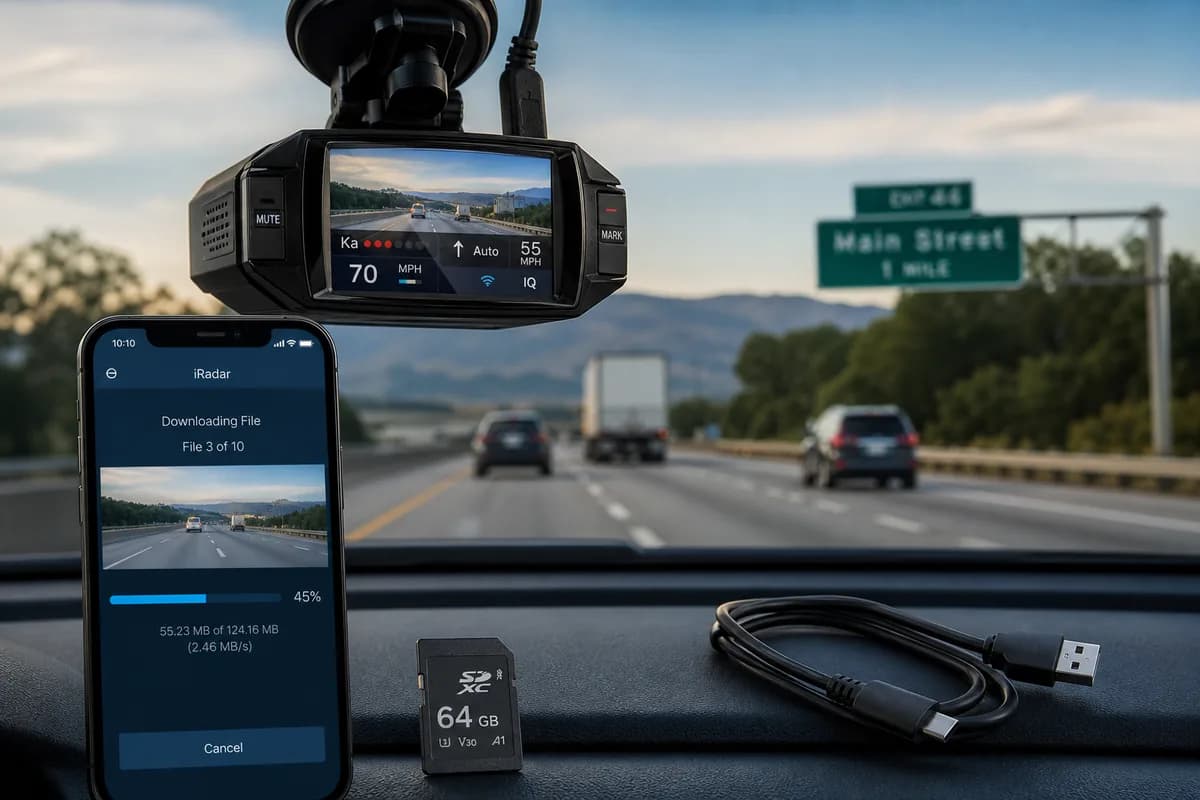
Cobra Electronics, known for radar detectors and dashcams, produces popular models like the SC 200, CDR 895D, and Drive HD series. If you need to download Cobra dashcam videos for insurance claims, evidence documentation, or YouTube uploads, this complete guide covers all download methods: iRadar app WiFi transfer, SD card extraction, and USB connection.
According to Cobra user surveys, over 72% of owners never access their footage until after an incident—often finding the video quality insufficient or files already overwritten. This guide ensures you can retrieve your Cobra footage reliably, plus how to blur faces and license plates before sharing to comply with GDPR, CCPA, and privacy regulations.
Why Download Cobra Dashcam Footage?
Cobra dashcam owners download footage for:
Insurance Claims: Cobra's 1080p and dual-camera models provide clear accident evidence, reducing claim disputes and speeding resolution.
YouTube & Social Media: Dashcam channels monetize close calls, road rage, and scenic drives captured by Cobra cameras.
Law Enforcement Evidence: Police departments accept Cobra footage for hit-and-run cases, reckless driving reports, and criminal investigations.
Fleet & Commercial Use: Businesses download footage for driver coaching, liability protection, and compliance audits.
Personal Archive: Preserve road trips, unusual incidents, or memorable drives.
Privacy Violations in Dashcam Footage
Every face and license plate in Cobra footage is personally identifiable information (PII) protected under:
- GDPR (Europe): Fines up to €20 million for privacy violations
- CCPA (California): $7,500 per violation for unauthorized PII sharing
- DPDP Act (India): ₹250 crore penalties for visual data breaches
- BIPA (Illinois/Texas): Hundreds of millions in biometric privacy settlements
Before posting Cobra footage publicly, you must blur identifiable faces and license plates—compliance is not optional.
Method 1: Download Cobra Videos via SD Card (Most Reliable)
The SD card method is the fastest and most reliable way to download Cobra dashcam footage.
Step 1: Power Off and Remove SD Card
- Turn off Cobra dashcam (disconnect from power or wait until recording stops)
- Locate SD card slot (usually on side or back of camera)
- Press gently to eject microSD card (spring-loaded on most models)
- Handle carefully to avoid static damage
Cobra-specific note: Some models like the CDR 895D have a protective rubber cover over the SD slot.
Step 2: Insert SD Card into Computer
For computers with SD readers:
- Insert microSD into full-size SD adapter
- Insert adapter into computer's SD slot
- Wait for drive to appear in File Explorer (Windows) or Finder (Mac)
For computers without SD readers:
- Use USB microSD card reader
- Plug reader into USB port
- Insert microSD card
- Wait for drive to mount
Step 3: Navigate to Cobra Video Files
- Open File Explorer (Windows) or Finder (Mac)
- Locate SD card drive (often labeled "NO NAME" or "COBRA")
- Navigate to folder structure:
- Normal or Continuous: Loop recordings (1-3 minute segments)
- Event or Emergency: G-sensor triggered recordings
- Photo: Still images (if snapshot feature used)
- Parking: Parking mode recordings (on compatible models)
File naming: Cobra typically uses YYYYMMDDhhmmss.MP4 format (e.g., 20260528093045.MP4)
Step 4: Copy Files to Computer
- Select videos (Ctrl/Cmd+Click for multiple)
- Copy (Ctrl+C / Cmd+C)
- Navigate to destination (Desktop, Documents, Videos)
- Paste (Ctrl+V / Cmd+V)
- Wait for transfer (20-80 MB/s typical)
Cobra file sizes:
- 1080p: ~150-250MB per minute
- 1440p: ~300-400MB per minute
Step 5: Safely Eject and Reinsert
Windows: System tray → "Safely Remove Hardware" → Select drive → Confirm
Mac: Right-click drive → "Eject" → Wait for icon to disappear
Reinsert SD card into Cobra dashcam and verify recording resumes.
SD Card Method: Pros & Cons
Pros:
- ✅ Fastest transfer speed
- ✅ Works offline
- ✅ Bulk download capability
- ✅ Most compatible with all models
Cons:
- ❌ Physical dashcam access required
- ❌ Risk of corruption if improperly ejected
- ❌ Need SD card reader
- ❌ Can't preview before downloading
Method 2: Download via iRadar App (WiFi Transfer)
The iRadar app by Cobra enables wireless downloads to smartphones for WiFi-enabled models.
Step 1: Download iRadar App
For iPhone:
- Open App Store
- Search "iRadar" (by Cobra Electronics)
- Download official app
- Requires iOS 11.0 or later
For Android:
- Open Google Play Store
- Search "iRadar"
- Download and install
- Requires Android 5.0 or later
Compatible Cobra models: SC 200, CDR 895D, Drive HD, SC 201, CDR 900E (check manual for WiFi capability)
Step 2: Enable WiFi on Cobra Dashcam
For SC 200 / CDR 895D:
- Power on dashcam
- Press WiFi button (usually marked with WiFi icon)
- Hold for 3 seconds until WiFi LED blinks
- Note network name: "COBRA-####"
- Default password: Usually "12345678" or printed on camera label
For Drive HD series:
- Access Menu via button controls
- Navigate to WiFi settings
- Toggle WiFi ON
- Note network credentials
Step 3: Connect Smartphone to Dashcam WiFi
iPhone:
- Settings → WiFi
- Find "COBRA-####" network
- Enter password
- Tap Connect
Android:
- Settings → WiFi
- Select "COBRA-####"
- Enter password
- Tap Connect
Note: Internet access will be unavailable while connected to dashcam WiFi.
Step 4: Open iRadar App and Connect
- Launch iRadar app
- App should auto-detect Cobra dashcam
- If not, tap "Connect Device" or "Add Camera"
- Select your model from list
- Wait for connection confirmation
Step 5: Download Videos
- Tap "Playback" or "Gallery"
- Browse recordings:
- Normal: Continuous recordings
- Event: Incident clips
- Parking: Parking mode (if available)
- Tap video thumbnail to preview
- Tap download icon (down arrow)
- Wait for transfer (slower than SD: 5-15 MB/s)
- Videos save to phone's Photos/Gallery
Step 6: Disconnect
- Exit app when complete
- Reconnect phone to regular WiFi/cellular
- Access downloaded videos in photo library
iRadar App: Pros & Cons
Pros:
- ✅ No SD card removal
- ✅ Download to smartphone
- ✅ Preview before downloading
- ✅ Quick insurance claim sharing
- ✅ Remote settings adjustment
Cons:
- ❌ Slower than SD card
- ❌ Battery drain (dashcam and phone)
- ❌ Limited range (10-20 feet)
- ❌ Only works with WiFi-enabled models
Method 3: Download via USB Cable (Model-Dependent)
Some Cobra dashcam models support direct USB connection to computers, but this feature is limited.
Step 1: Check USB Compatibility
Models with USB file transfer:
- Cobra Drive HD (select models)
- CDR 895D (limited support)
Models without USB transfer (SD card only):
- Most SC series
- Older CDR models
Check your manual to confirm USB file transfer capability.
Step 2: Connect to Computer
- Locate USB port on Cobra dashcam (usually mini-USB or USB-C)
- Use included USB cable (not all USB cables work—use Cobra's)
- Plug into computer USB port
- Power on dashcam if it doesn't auto-power
- Wait for "Mass Storage Mode" or "PC Mode" on screen
Step 3: Access Files
- Open File Explorer (Windows) or Finder (Mac)
- Dashcam appears as removable drive ("COBRA" or model name)
- Navigate to video folders (same structure as SD card)
- Copy videos to computer
Step 4: Safely Disconnect
- Safely eject drive before unplugging
- Disconnect USB cable
- Dashcam should resume normal operation
USB Method: Pros & Cons
Pros:
- ✅ No SD card removal
- ✅ Direct computer connection
- ✅ May charge dashcam while connected
Cons:
- ❌ Limited model compatibility
- ❌ Requires specific Cobra USB cable
- ❌ Slower than SD card on some models
- ❌ Not all Cobra models support this
Before Sharing: How to Blur Faces and License Plates in Cobra Videos
Critical privacy requirement: Before uploading Cobra footage to YouTube, insurance portals, or social media, blur all identifiable faces and license plates.
Why Privacy Matters
- Legal compliance: GDPR, CCPA, DPDP regulations
- Liability protection: Avoid lawsuits from identifiable subjects
- Identity theft prevention: License plates trace to owners
- Platform policies: YouTube monetization requires privacy compliance
- Insurance requirements: Many insurers prefer redacted footage
BGBlur: Automated Solution for Cobra Footage
BGBlur.com uses AI to automatically detect and blur faces and license plates in dashcam videos.
Why BGBlur Works for Cobra
-
Automatic Detection: Finds ALL faces and plates:
- Distant or partially visible plates
- Faces in mirrors and reflections
- Moving vehicles at all angles
-
Frame-by-Frame Tracking: Blur follows subjects through:
- Camera shake and vibration
- Rapid movements and turns
- Vehicles entering/leaving frame
-
Fast Processing: 5-minute Cobra video = 2-5 minutes processing
-
Multiple Blur Styles: Gaussian, pixelation, solid blocks
How to Blur Cobra Videos: 3 Steps
Step 1: Upload to BGBlur
- Visit BGBlur.com/en/upload
- Choose blur type:
- Face Blur: People in footage
- License Plate Blur: Vehicles
- Both: Complete privacy (recommended)
- Upload Cobra MP4 file
Step 2: AI Processing
- BGBlur automatically scans all frames
- Review detection preview
- Adjust settings:
- Blur intensity (light to heavy)
- Blur style (Gaussian, pixelation, blocks)
- Selective blur (keep specific plates visible)
Step 3: Download Blurred Video
- Click "Start Processing"
- Wait 2-5 minutes
- Preview result
- Download privacy-safe video
- Share confidently
Privacy guarantee: BGBlur deletes files after download—no permanent storage.
Cobra Model Compatibility Guide
| Model | SD Card | iRadar App | USB | Notes |
|---|---|---|---|---|
| SC 200 | ✅ | ✅ | ❌ | WiFi-enabled, popular model |
| CDR 895D | ✅ | ✅ | ⚠️ | Limited USB support |
| Drive HD | ✅ | ✅ | ⚠️ | Varies by specific model |
| SC 201 | ✅ | ✅ | ❌ | WiFi upgrade of SC 200 |
| CDR 900E | ✅ | ✅ | ❌ | WiFi-enabled |
| SC 100 | ✅ | ❌ | ❌ | Budget model, no WiFi |
Troubleshooting Cobra Download Issues
"Computer doesn't recognize SD card"
Solutions:
- Try different card reader or USB port
- Check SD card lock switch
- Test card in dashcam to verify functionality
- Format card in dashcam (deletes content)
- Update computer drivers
"iRadar app won't connect to dashcam"
Solutions:
- Verify WiFi enabled on dashcam (LED blinking)
- Ensure phone connected to dashcam WiFi (not home network)
- Restart app and dashcam
- Move closer to dashcam (within 20 feet)
- Update iRadar app to latest version
- Reset dashcam WiFi settings
"Videos won't play on computer"
Solutions:
- Use VLC Media Player (free, more compatible)
- Install codec pack (K-Lite)
- Don't remove SD card during recording
- Use high-quality SD cards
- Format SD card monthly
"USB connection not working"
Solutions:
- Verify your model supports USB transfer (check manual)
- Use original Cobra USB cable
- Try different USB port
- Install Cobra drivers from website
- Check if dashcam enters "Mass Storage Mode"
"WiFi transfer very slow"
Solutions:
- Close background apps on phone
- Move phone closer to dashcam
- Disable cellular data temporarily
- Download smaller clips via WiFi
- Use SD card for large batch downloads
Best Practices for Cobra Footage Management
1. Use Quality SD Cards
Recommended for Cobra:
- SanDisk High Endurance 32-64GB
- Samsung PRO Endurance 64-128GB
- Lexar High-Endurance 32GB
Specifications: Class 10, UHS-I, 16-128GB
2. Regular Maintenance
- Format monthly via dashcam menu
- Replace every 12-18 months
- Keep spare in vehicle
3. Organize Downloaded Files
Cobra_Archive/
├── 2026/
│   ├── January/
│   │   ├── Incident_20260115/
│   │   ├── Scenic_20260122/
Naming: YYYY-MM-DD_Event.mp4
4. Back Up Important Footage
- Multiple locations: Computer + cloud + external drive
- Immediate backup after incidents
- Don't rely solely on SD card
5. Privacy Compliance
Before sharing:
- ✅ Blur faces and license plates with BGBlur
- ✅ Remove audio if needed
- ✅ Keep original for official submissions
- ✅ Check platform policies
Conclusion: Download Efficiently, Share Safely
Downloading Cobra dashcam videos is straightforward using SD card, iRadar app, or USB methods (model-dependent). Choose your method:
- SD card: Fastest, most reliable
- iRadar app: Convenient for mobile sharing
- USB: Limited compatibility, check manual
Most important: Before any public sharing, blur faces and license plates using BGBlur.com for privacy compliance and legal protection.
Blur Cobra dashcam videos free on BGBlur.com →
Related Resources
- How to Download Garmin Dashcam Videos — Garmin guide
- How to Download Rexing Dashcam Videos — Rexing guide
- Dashcam Blur Software — Professional redaction
- License Plate Blur — Complete privacy guide
Last updated: May 28, 2026