Download DDPAI Dashcam Videos: SD, WiFi & USB Methods 2026
A complete walkthrough of every way to get footage off a DDPAI dashcam — SD card, WiFi app, and USB — with model-specific tips and a step-by-step BGBlur workflow to blur license plates and faces before you post the footage anywhere.
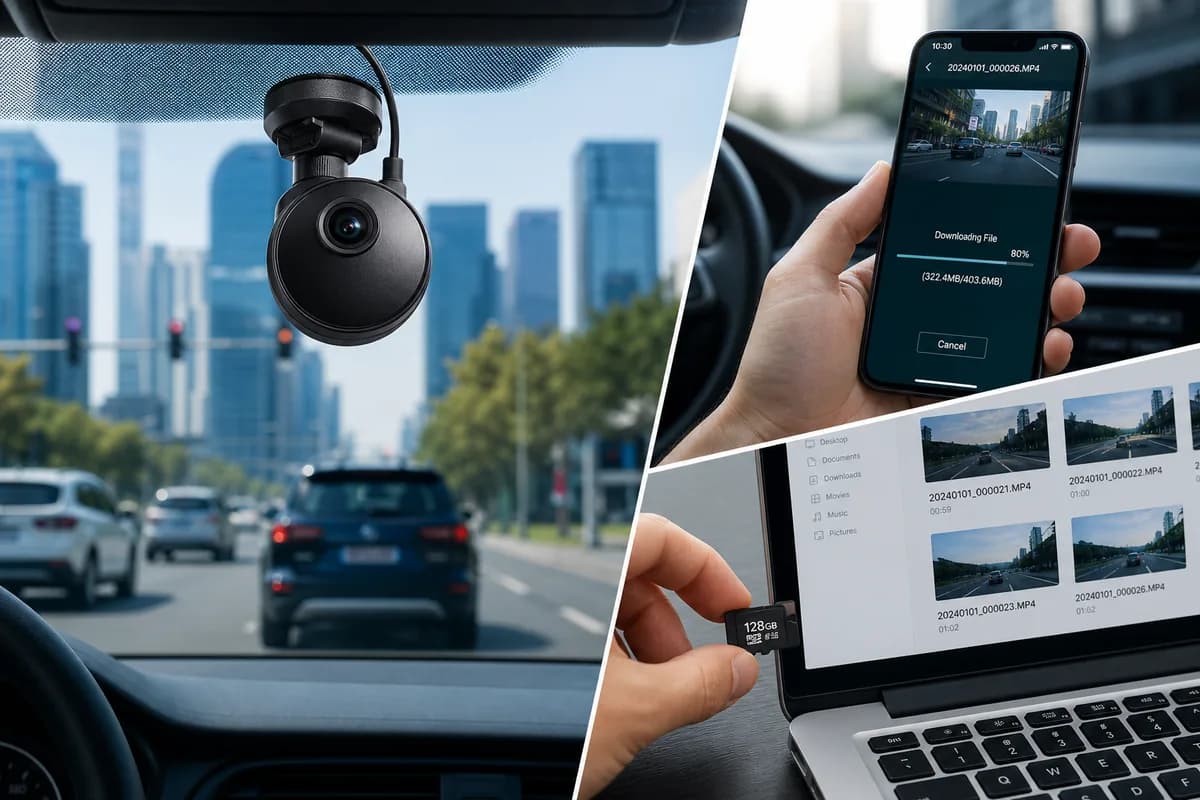
DDPAI dashcams have become increasingly popular for their reliable recording quality, compact designs, and advanced features. Whether you own a DDPAI Mini series, Z50, N3, N5, or any other model, downloading your footage is essential for sharing incidents online, submitting insurance claims, or archiving important recordings.
This comprehensive guide covers every method to download videos from your DDPAI dashcam, from the traditional SD card approach to wireless app transfers. We'll also show you how to properly blur license plates and faces before sharing your footage publicly.
Why You Need to Download DDPAI Dashcam Videos
DDPAI dashcams continuously record while driving, but the footage remains on the device until you actively transfer it. Here are the most common reasons to download your DDPAI videos:
Insurance Claims: Accident footage provides crucial evidence for insurance disputes and claim processing.
Evidence Documentation: Traffic incidents, near-misses, and road rage encounters need to be preserved for potential legal proceedings.
Content Creation: Many dashcam enthusiasts share interesting footage on YouTube, TikTok, and other platforms.
Storage Management: Downloading and archiving allows you to free up SD card space for new recordings.
Backup Protection: Keeping copies of important footage ensures you don't lose critical evidence if the camera or SD card fails.
Before sharing any DDPAI footage online, remember that blurring license plates and faces is essential for privacy protection and legal compliance.
Understanding DDPAI Dashcam Video Storage
All DDPAI dashcam models store video footage on microSD cards, typically using these specifications:
Supported Cards: Class 10 or higher, UHS-I recommended Capacity Range: 16GB to 256GB depending on model Video Format: MOV or MP4 files File Structure: Organized by date and recording type (normal, event, parking mode)
DDPAI Model Storage Details:
- DDPAI Mini series: Typically stores 30-60 minutes on 16GB, 6-12 hours on 128GB
- DDPAI Z50: Higher resolution requires more space—expect 4-8 hours on 128GB
- DDPAI N3/N5: Dual-channel recording uses approximately double the storage
- DDPAI Mola series: Compact models with similar storage patterns to Mini series
The dashcam uses loop recording, automatically overwriting the oldest footage when the card fills up. Emergency recordings triggered by G-sensor events are protected from deletion.
Method 1: Download DDPAI Videos via SD Card
The most universal and reliable method works with all DDPAI models.
What You'll Need
- MicroSD card reader (USB or built-in to computer)
- Computer (Windows, Mac, or Linux)
- Your DDPAI dashcam's microSD card
Step-by-Step Process
Step 1: Power Off the Dashcam
Always turn off your DDPAI dashcam before removing the SD card. For hardwired installations, disconnect the power or turn off your vehicle's ignition and wait 30 seconds for the camera to complete its shutdown sequence.
Step 2: Locate and Remove the SD Card
DDPAI models have different SD card access points:
- DDPAI Mini series: Card slot typically on the right or bottom side
- DDPAI Z50: Rear-facing slot behind protective cover
- DDPAI N3/N5: Main unit houses the SD card, usually on the side
Gently press the card inward until it clicks and releases. Pull it out carefully.
Step 3: Insert Card into Computer
Use a microSD card reader or adapter to connect the card to your computer. Wait for the drive to appear in your file explorer.
Step 4: Navigate to Video Files
Open the SD card drive and locate the DCIM or VIDEO folder. DDPAI organizes files by date and type:
- Normal: Continuous loop recordings
- Event: G-sensor triggered recordings
- Parking: Parking mode captures
Step 5: Copy Videos to Your Computer
Select the files you want and copy them to a folder on your computer. Don't move or delete files directly from the card while it's connected—always copy first, then format the card in the camera if needed.
Step 6: Safely Eject and Reinstall
Use your operating system's "safely remove" function before unplugging the card reader. Reinsert the card into your DDPAI dashcam, ensuring it clicks into place.
Advantages of SD Card Method
- Works with all DDPAI models
- No battery drain or WiFi required
- Fastest transfer for large files
- Direct access to all recordings
- No app installation needed
Limitations
- Requires physical access to the camera
- Need card reader hardware
- Must remove and reinstall card each time
Method 2: Download DDPAI Videos Using the DDPAI App (WiFi Transfer)
DDPAI's companion app enables wireless video transfer for compatible models.
Compatible DDPAI Models
WiFi transfer is available on:
- DDPAI Mini series (Mini 2, Mini 3, Mini 5)
- DDPAI Z50
- DDPAI N3 Pro
- DDPAI Mola series
- Most models released after 2020
Check your model's specifications or manual to confirm WiFi capability.
Setup Requirements
One-Time Setup:
- Download the DDPAI app from App Store (iOS) or Google Play (Android)
- Enable WiFi on your smartphone
- Power on your DDPAI dashcam
- Wait for the camera's WiFi network to activate (typically 30-60 seconds after boot)
Step-by-Step WiFi Transfer Process
Step 1: Connect to DDPAI WiFi Network
Go to your phone's WiFi settings and look for a network named "DDPAI_XXXXX" (where XXXXX is your camera's unique ID). Connect to this network using the password from your camera's manual or label (default is often printed on the camera or in documentation).
Step 2: Open the DDPAI App
Launch the DDPAI app on your smartphone. It should automatically detect the connected camera. If not, tap the connection icon and select your camera model.
Step 3: Browse Recorded Videos
The app displays a gallery of recorded videos organized by date and recording type:
- Timeline view: Browse by date/time
- Event view: See only G-sensor triggered recordings
- Download view: Access previously saved videos
Step 4: Preview and Select Videos
Tap any video to preview it within the app. You can:
- Play the video at normal or increased speed
- View GPS data and speed information (if equipped)
- Check recording timestamp and duration
Select the videos you want to download by tapping the checkbox on each file.
Step 5: Download to Smartphone
Tap the download icon (typically a downward arrow) and choose:
- Download to App: Saves within DDPAI app storage
- Save to Camera Roll: Transfers to your phone's photo/video gallery
For multiple files, the app will download them sequentially.
Step 6: Transfer Time Expectations
WiFi transfer speeds vary by model:
- 1-minute 1080p video: 30-60 seconds
- 1-minute 1440p/2K video: 60-90 seconds
- 1-minute 4K video: 2-3 minutes
Longer videos take proportionally more time. Keep your phone close to the dashcam during transfer.
Advantages of DDPAI App Method
- No need to remove SD card
- Transfer videos while parked without tools
- Preview footage before downloading
- Access GPS and speed data
- Convenient for quick transfers
Limitations
- Slower than direct SD card transfer
- Drains dashcam battery (if equipped)
- Limited to WiFi-enabled DDPAI models
- Connection can be finicky in some vehicles
- May disconnect if phone moves too far from camera
Method 3: Computer Direct Connection (USB)
Some DDPAI models support direct USB connection to computers.
Compatible Models
This method works with:
- DDPAI Mini 3
- DDPAI Z50
- Select newer models with USB data transfer capability
Note: Many DDPAI models use the USB port only for power, not data transfer. Check your manual to confirm if your model supports USB file transfer.
Step-by-Step USB Transfer
Step 1: Power Off and Disconnect
Turn off your dashcam and remove it from the mount if necessary.
Step 2: Connect USB Cable
Use the included USB cable to connect your DDPAI dashcam directly to your computer's USB port. Use a USB-A to USB-C or micro-USB cable depending on your model.
Step 3: Power On in Transfer Mode
Some DDPAI models automatically enter mass storage mode when connected to a computer. Others may require you to select "PC Mode" or "Mass Storage" from the camera's settings menu.
Step 4: Access Files
Your computer should recognize the dashcam as a removable drive. Open it in file explorer and navigate to the video folder structure.
Step 5: Copy Videos
Select and copy the desired video files to your computer, just as you would with an SD card reader.
Advantages
- No SD card removal needed
- Direct connection to computer
- Works without WiFi
Limitations
- Only available on select DDPAI models
- Requires compatible USB cable
- Camera must support data transfer mode
How to Blur License Plates and Faces in DDPAI Footage Before Sharing
Once you've downloaded your DDPAI dashcam videos, blurring sensitive information is crucial before posting online.
Why Blur DDPAI Dashcam Videos?
Privacy Protection: Other drivers and pedestrians didn't consent to appear in your footage.
Legal Compliance: GDPR in Europe and various US state laws require protecting personally identifiable information.
Platform Guidelines: YouTube, TikTok, and other platforms may remove videos showing identifiable information without consent.
Avoid Liability: Publishing someone's license plate could expose them to stalking, harassment, or doxxing.
Using BGBlur for DDPAI Dashcam Video Privacy
BGBlur is specifically designed to handle dashcam footage with automatic license plate and face detection. If your DDPAI clips also need broader redaction—signage, other vehicles' fleet numbers, or any object beyond plates and faces—see our guide to object and region blur for video privacy.
Step 1: Upload Your DDPAI Video
Visit bgblur.com and drag your downloaded DDPAI video file into the upload area. The platform accepts all common formats (MP4, MOV, AVI).
Step 2: Select Detection Targets
Choose what you want to blur:
- License Plates Only: For car-focused footage
- Faces Only: For pedestrian protection
- Both: Comprehensive privacy protection (recommended)
Step 3: AI Processing
BGBlur's AI automatically scans every frame, detecting and tracking:
- License plates from all angles
- Faces of drivers, passengers, and pedestrians
- Moving objects across the entire video
Processing typically takes 2-5 minutes for a 10-minute DDPAI video.
Step 4: Preview and Adjust
Review the processed video to ensure all plates and faces are properly blurred. The motion tracking follows vehicles and people throughout the footage, even as they move.
Step 5: Download Protected Video
Export your privacy-protected video at original quality. It's now safe to share on social media, YouTube, or submit for insurance claims without compromising anyone's privacy.
BGBlur Advantages for DDPAI Footage
- Automatic Detection: No manual frame-by-frame work
- Motion Tracking: Blur follows moving vehicles and people
- High Accuracy: AI trained specifically on dashcam scenarios
- Batch Processing: Handle multiple DDPAI clips at once
- Quality Preservation: Maintains original video resolution
DDPAI Model-Specific Download Tips
DDPAI Mini Series (Mini 2, Mini 3, Mini 5)
Best Download Method: WiFi app transfer for quick clips, SD card for full downloads
WiFi Setup: Long-press the WiFi button for 3 seconds to activate
Storage Tip: Use 64GB or 128GB cards for best performance
Common Issue: If WiFi won't connect, restart both camera and phone, then reconnect
DDPAI Z50
Best Download Method: SD card (fastest for 1440p/1600p files)
Rotation Feature: The rotating lens is great, but verify card is locked before removal
Storage Tip: Use high-speed UHS-I cards for reliable 1600p recording
Common Issue: Large file sizes mean slower WiFi transfers—SD card recommended for regular downloads
DDPAI N3/N5 Dual Channel
Best Download Method: SD card (dual-channel creates large files)
File Organization: Front and rear footage stored in separate folders
Storage Tip: 128GB or 256GB recommended for dual-channel recording
Common Issue: Both channels must finish writing before SD removal—wait 30 seconds after power-off
DDPAI Mola Series
Best Download Method: WiFi app (compact design makes SD access tight)
WiFi Setup: Automatically activates when powered on in parking mode
Storage Tip: 32GB or 64GB sufficient for most users
Common Issue: Small card slot—use tweezers if needed for careful removal
Troubleshooting Common DDPAI Download Issues
SD Card Not Recognized by Computer
Solutions:
- Try a different card reader or USB port
- Check if the card is locked (sliding switch on adapter)
- Format the card in the DDPAI camera (backs up files first!)
- Test with another computer to rule out hardware issues
WiFi Connection Drops During Transfer
Solutions:
- Move phone closer to dashcam (within 3 feet)
- Disable mobile data on phone to prevent auto-switching
- Close other apps using WiFi
- Restart both camera and phone
- Update DDPAI app to latest version
Videos Won't Play After Download
Solutions:
- Use VLC Media Player (supports more formats than default players)
- Download latest codec pack for Windows Media Player
- Check if file transfer completed (partial downloads won't play)
- Try copying files again—corruption can occur during transfer
DDPAI App Won't Detect Camera
Solutions:
- Verify your model has WiFi capability
- Confirm WiFi is enabled on camera (check for WiFi LED indicator)
- Forget the DDPAI network and reconnect
- Reinstall the DDPAI app
- Check for firmware updates for your camera
Slow Transfer Speeds via WiFi
Solutions:
- Reduce video quality settings if possible before recording
- Use SD card method for large batch downloads
- Transfer files in smaller batches
- Ensure phone isn't downloading other content simultaneously
"Card Error" Message on DDPAI
Solutions:
- Format card in the camera (backup files first)
- Use a Class 10 or higher card
- Replace the card if it's damaged or very old
- Update camera firmware (may fix compatibility issues)
Best Practices for Managing DDPAI Dashcam Footage
Regular Download Schedule
Weekly: For daily drivers who want to archive interesting footage
After Events: Immediately download accident or incident recordings
Monthly: For casual users who mainly rely on emergency recordings
Before Long Trips: Clear space and backup important files before road trips
File Organization System
Create a folder structure on your computer:
Dashcam Footage/
├── 2026/
│   ├── 01-January/
│   │   ├── Events/
│   │   └── Regular/
│   ├── 02-February/
│   └── ...
├── Insurance/
├── Share-Ready/ (blurred videos)
└── Archive/
Storage Recommendations
Short-Term (in camera): Use 64-128GB cards for 1-2 weeks of footage
Mid-Term (computer): Keep recent 3-6 months accessible on hard drive
Long-Term (archive): Move old footage to external drives or cloud storage
Important Events: Keep multiple backup copies in different locations
Format SD Card Regularly
Format your DDPAI's SD card monthly in the camera (not on computer) to:
- Prevent file system errors
- Maintain optimal write speeds
- Reduce risk of corruption
- Extend card lifespan
Always backup important footage before formatting.
Sharing DDPAI Footage Responsibly
Before Posting Online
- Download the original: Keep unedited footage private
- Blur sensitive information: Use BGBlur to protect privacy
- Trim unnecessary parts: Remove boring or irrelevant sections
- Add context if needed: Explain what viewers are seeing
- Check platform guidelines: Ensure compliance with terms of service
Where to Share DDPAI Videos
YouTube: Ideal for longer compilations and detailed incident videos
Reddit (r/Dashcam, r/IdiotsInCars): Active dashcam communities with submission guidelines
TikTok/Instagram Reels: Short, dramatic clips work best
Facebook Groups: Local driving groups appreciate area-specific footage
Insurance Companies: Secure submission portals for claims
Always use blurred versions for public sharing.
Legal Considerations
Two-Party Consent States: Some US states require consent to record audio—disable audio recording if uncertain
Privacy Laws: GDPR in EU, various state laws in US require protecting identifiable information
Defamation Risk: Avoid adding inflammatory commentary to shared footage
Copyright: Your footage is your copyright, but public recording has limitations
Insurance Use: Original unedited footage may be required for official claims
Frequently Asked Questions
How long does DDPAI keep recorded videos?
DDPAI dashcams use loop recording, continuously overwriting the oldest footage when the SD card fills. A 128GB card typically stores 6-12 hours of footage depending on video quality. Emergency recordings triggered by G-sensor events are protected from automatic deletion until you manually remove them.
Can I download DDPAI videos directly to my iPhone?
Yes, if your DDPAI model has WiFi capability, use the DDPAI app from the App Store to connect wirelessly and download videos directly to your iPhone's camera roll. For non-WiFi models, you'll need to use a computer with SD card reader, then transfer to iPhone.
What video format does DDPAI use?
Most DDPAI models record in MOV or MP4 format using H.264 or H.265 compression. These formats are widely compatible with computers and smartphones. If videos won't play on your device, try VLC Media Player which supports virtually all formats.
Do I need special software to view DDPAI videos?
No special software is required. DDPAI videos play in standard media players like VLC, Windows Media Player, QuickTime, and built-in smartphone video players. GPS data overlays may require the DDPAI app or compatible GPS data software.
How do I download videos from DDPAI parking mode?
Parking mode videos are stored in a separate "Parking" or "Event" folder on the SD card. Download them using the same SD card or WiFi app methods described above. The DDPAI app typically highlights parking mode recordings with a special icon.
Can DDPAI videos be used as evidence in court?
Yes, dashcam footage is admissible in most jurisdictions. Keep the original unedited file with metadata intact. Some courts may require GPS and timestamp data verification. Consult with legal counsel for specific cases.
How do I protect DDPAI videos from being overwritten?
Use the DDPAI's protection feature (usually a button press during or after an incident) to lock important files. Protected files won't be deleted during loop recording. Download and backup protected files regularly to free up space.
What's the best SD card size for DDPAI dashcams?
For most users, 64GB or 128GB provides the best balance. This gives several hours of footage before loop recording overwrites. Higher resolution models (1440p, 4K) benefit from 128GB or 256GB cards. Always use Class 10 or UHS-I cards.
Can I download DDPAI videos without removing from the windshield?
Yes, if your model has WiFi, use the DDPAI app for wireless transfer without dismounting. For USB-capable models, some users install longer USB cables for computer connection without removing the camera.
Why is my DDPAI WiFi transfer so slow?
WiFi transfer speeds depend on video resolution, file size, and WiFi signal strength. 4K videos transfer much slower than 1080p. Keep your phone within 3 feet of the camera and close unnecessary apps. For large files or batch downloads, SD card method is significantly faster.
Conclusion
Downloading videos from your DDPAI dashcam is straightforward whether you prefer the universal SD card method, convenient WiFi app transfer, or direct USB connection. Each method has its advantages—SD cards offer speed and reliability, WiFi provides convenience, and USB enables direct computer connection on compatible models.
Remember that downloading is just the first step. Before sharing any DDPAI footage online, protecting privacy with automatic license plate and face blurring is essential for legal compliance and responsible content creation.
Start by choosing the download method that works best for your DDPAI model and workflow, then establish a regular routine for backing up important footage. With proper management, you'll always have access to crucial recordings when you need them.
Related Resources
DDPAI Dashcam Resources:
Privacy Protection Tools:
- BGBlur - Automatic License Plate Blur
- BGBlur - Face Blur for Dashcam Videos
- How to Blur Faces and License Plates in Dashcam Videos
Dashcam Content Creation:
- Top 10 Tools for Dashcam Content Creators
- Why You Should Blur License Plates in Videos
- Legal Guide to Showing License Plates in Videos
Ready to share your DDPAI footage safely? Start with BGBlur for automatic AI-powered license plate and face blurring—free to try, with professional results in minutes.