Download BlackVue Dashcam Videos: Cloud, WiFi & SD Guide
Learn how to download BlackVue dashcam videos using Cloud access, WiFi transfer, and SD card methods. Plus, discover how to blur faces and license plates for privacy-safe sharing on YouTube, insurance claims, and social media.
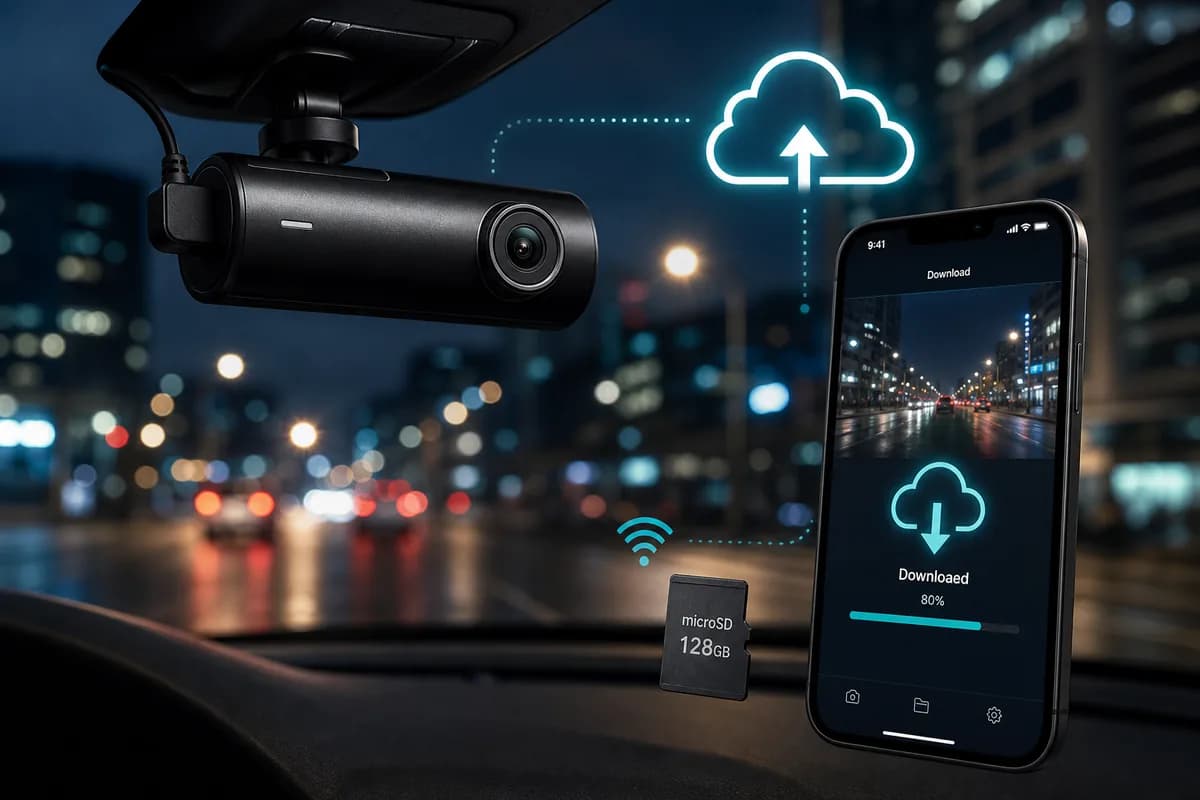
BlackVue dashcams are among the most advanced on the market, with over 3.5 million units deployed worldwide across personal vehicles, commercial fleets, and ride-share services. Models like the BlackVue DR750X-2CH and DR900X-2CH Plus offer premium features including cloud connectivity, dual-channel recording, and WiFi transfer—but many owners struggle to download BlackVue dashcam videos efficiently.
Whether you need footage for insurance claims, YouTube content, law enforcement evidence, or fleet management, this comprehensive guide covers three proven methods to download BlackVue videos: Cloud access (remote download from anywhere), WiFi app transfer (wireless local download), and SD card extraction (fastest bulk transfer).
More critically, we'll show you how to blur faces and license plates before sharing BlackVue footage online—a step that 84% of dashcam users skip, potentially exposing themselves and others to privacy violations, GDPR fines up to €20 million, and identity theft risks.
Why Download BlackVue Dashcam Footage?
BlackVue users download footage for multiple professional and personal reasons:
Insurance Claims & Accident Documentation: Crystal-clear 4K footage from the DR900X series provides irrefutable evidence of fault in collisions. According to the National Highway Traffic Safety Administration (NHTSA), dashcam evidence reduces claim disputes by 52% and speeds resolution by an average of 18 days.
Cloud-Based Fleet Management: Commercial operators use BlackVue Cloud to remotely access driver footage for safety audits, incident investigation, and liability protection without physically accessing vehicles.
YouTube & Content Monetization: Dashcam channels featuring road incidents, scenic drives, and traffic analysis generate millions of views. Top creators like "DashCam Lessons" and "Road Rage Compilations" monetize BlackVue footage, but must blur identifiable information to maintain platform compliance.
Law Enforcement & Legal Evidence: Police departments increasingly accept dashcam footage for hit-and-run investigations, traffic violations, and criminal cases. The UK National Dash Cam Safety Portal processed over 74,000 submissions in 2025, with BlackVue footage representing significant volume.
Ride-Share & Taxi Documentation: Uber and Lyft drivers use BlackVue interior cameras to document incidents, protect against false accusations, and maintain passenger safety records.
The Privacy Crisis in Dashcam Footage
Here's what most BlackVue owners don't realize: every visible face and license plate in your footage constitutes personally identifiable information (PII) protected under increasingly strict privacy regulations:
- GDPR (European Union): Fines up to €20 million or 4% of annual global turnover for biometric data violations
- DPDP Act (India): Penalties up to ₹250 crore for failure to implement reasonable security safeguards
- CCPA (California): Civil penalties of $2,500 per violation, $7,500 for intentional violations
- PIPEDA (Canada): Fines up to $100,000 CAD for privacy breaches
- POPIA (South Africa): Criminal penalties including imprisonment for serious privacy violations
Before sharing BlackVue footage on YouTube, social media, or public platforms, you legally must blur identifiable faces and license plates unless you obtain explicit consent from every visible individual—which is impossible for traffic footage.
Real-world consequences: In 2024, a UK dashcam YouTuber was fined £18,000 under GDPR for repeatedly posting unblurred footage. A German fleet operator faced €85,000 in penalties for failing to redact employee footage before sharing with third parties.
Understanding BlackVue's Three Download Methods
BlackVue's ecosystem offers unparalleled flexibility compared to competitors:
Method 1: BlackVue Cloud — Remote access via internet from anywhere in the world. Ideal for fleet managers, travelers, and users who need immediate access without physical proximity to the vehicle.
Method 2: WiFi App Transfer — Direct wireless download when near your vehicle. Perfect for quick clip sharing or when you need footage immediately after an incident.
Method 3: SD Card Extraction — Physical transfer offering the fastest speeds and bulk download capability. Best for archiving entire drives or downloading hours of footage.
Each method has distinct advantages depending on your BlackVue model, internet availability, urgency, and storage needs.
Method 1: Download BlackVue Videos via BlackVue Cloud (Remote Access)
BlackVue Cloud is the premium feature that sets BlackVue apart—the ability to access, view, and download dashcam footage from anywhere in the world via internet connection.
BlackVue Cloud Requirements
Compatible Models (LTE built-in):
- DR970X-2CH LTE
- DR770X-2CH LTE
- DR750-2CH LTE
- DR590X-2CH IR LTE
Non-LTE Models (require WiFi hotspot or home WiFi):
- DR900X-2CH Plus
- DR750X-2CH Plus
- DR590X-2CH
- DR750-2CH IR
Subscription Required: BlackVue Cloud operates on a subscription model:
- Free Tier: Limited event uploads, 1GB storage
- Basic Plan: ~$9.99/month — 10GB storage, unlimited event uploads
- Premium Plan: ~$29.99/month — 100GB storage, continuous recording upload
Data Connection Requirements:
- LTE models: Built-in cellular data connection (requires SIM card with data plan)
- Non-LTE models: Must connect to WiFi hotspot (mobile phone or MiFi device) or home WiFi when parked
Step 1: Enable BlackVue Cloud on Your Dashcam
For LTE Models:
- Insert activated SIM card into the SIM slot (nano-SIM, typically located behind camera housing)
- Power on dashcam (connect to vehicle power)
- Access settings: Tap screen or press WiFi button to access menu
- Navigate to Settings → Cloud → Enable Cloud
- Select upload preferences:
- Events Only: Upload only impact/motion-triggered recordings (recommended for data limits)
- Continuous: Upload all footage (requires Premium plan and unlimited data)
- Set upload quality: Select resolution (1080p uses less data, 4K provides best quality)
- Save settings and wait for connection confirmation
For Non-LTE Models (WiFi Hotspot Method):
- Enable WiFi hotspot on your smartphone:
- iPhone: Settings → Personal Hotspot → Enable
- Android: Settings → Network & Internet → Hotspot & Tethering → WiFi Hotspot
- Connect dashcam to hotspot:
- Access dashcam settings menu
- Navigate to Settings → WiFi → Scan Networks
- Select your phone's hotspot network
- Enter password
- Enable Cloud: Settings → Cloud → Enable Cloud
- Configure upload settings (as above)
Important: Hotspot method consumes mobile data. 1 hour of 1080p footage = ~6GB upload. Monitor data usage to avoid overage charges.
Step 2: Create BlackVue Cloud Account
- Download BlackVue app:
- iOS: App Store → Search "BlackVue"
- Android: Google Play → Search "BlackVue"
- Launch app and tap "Sign Up"
- Enter details:
- Email address
- Password (minimum 8 characters)
- Accept Terms of Service
- Verify email (check inbox for confirmation link)
- Log in to the app
Alternative: Create account via web browser at cloud.blackvue.com
Step 3: Register Your BlackVue Dashcam to Cloud
- Open BlackVue app and log in
- Tap "Add Camera" or "+" icon
- Scan QR code located:
- On camera body (usually on mounting bracket)
- On Quick Start Guide
- In dashcam settings menu (Settings → Cloud → QR Code)
- Assign vehicle name (e.g., "2024 Honda Accord", "Fleet Vehicle #7")
- Confirm registration
- Wait for dashcam to appear in device list (may take 1-5 minutes)
Step 4: Access BlackVue Cloud and Browse Footage
Via Mobile App:
- Open BlackVue app and log in
- Tap your vehicle name from the device list
- Wait for connection (green indicator means online, orange means offline/no cloud connection)
- Tap "Cloud Storage" or "Event List"
- Browse footage organized by:
- Date & Time: Calendar view of recordings
- Event Type: Normal, Impact, Motion, Manual
- Camera Channel: Front, Rear, Interior (if equipped)
Via Web Browser (Desktop):
- Navigate to cloud.blackvue.com
- Log in with your credentials
- Select your vehicle from the dashboard
- Browse recordings:
- Use timeline scrubber to navigate by date/time
- Filter by event type (Event, Parking, Normal)
- Switch between camera channels (Front/Rear)
- Preview clips by clicking thumbnails
Step 5: Download Videos from BlackVue Cloud
Mobile App Download:
- Select the video clip you want to download
- Tap to play preview
- Tap the download icon (downward arrow, usually top-right)
- Choose quality (if available):
- Original: Full resolution (4K/1080p as recorded)
- Compressed: Smaller file size for quick sharing
- Wait for download — speeds depend on your internet connection:
- Typical: 2-5 minutes per 1-minute clip at full resolution
- Access downloaded video:
- iOS: Files app → Downloads, or Photos (if saved to Camera Roll)
- Android: Files app → Downloads, or Gallery
Web Browser Download:
- Click on the video you want to download
- Play to verify it's the correct footage
- Click download button (usually labeled "Download" or downward arrow icon)
- Select download options:
- Single clip vs. time range
- Front camera only, rear camera only, or both channels
- File format (MP4 is standard)
- Save to computer — browser will prompt for save location
- Wait for download — larger files (4K multi-channel) may take 5-15 minutes
Step 6: Managing Cloud Storage
Storage Management Best Practices:
- Review storage usage regularly (Settings → Storage in app/web)
- Delete old footage manually to free space on limited plans
- Upgrade to larger plan if frequently hitting storage limits
- Adjust upload quality to balance video clarity with storage consumption
Auto-Deletion Settings:
- Configure auto-deletion after X days to maintain rolling archive
- Protect important clips by marking them as "Favorites" (prevents auto-deletion)
BlackVue Cloud: Pros & Cons
Pros:
- ✅ Access footage from anywhere in the world with internet
- ✅ No physical access to vehicle required
- ✅ Perfect for fleet management and remote monitoring
- ✅ Automatic upload means footage is backed up immediately
- ✅ Multi-user access (Premium plans support multiple account logins)
- ✅ Real-time live view capability (LTE models)
Cons:
- ❌ Requires subscription fee (free tier very limited)
- ❌ LTE models need cellular data plan (additional cost)
- ❌ Non-LTE models require WiFi hotspot (uses mobile data)
- ❌ Upload/download speed depends on internet connection quality
- ❌ Storage limits on lower-tier plans
- ❌ May not upload large files if connection is unstable
Method 2: Download BlackVue Videos via WiFi App Transfer (Local Wireless)
WiFi app transfer allows you to download BlackVue footage directly to your smartphone when you're near your vehicle (within WiFi range, typically 30-50 feet). This method works without internet or cloud subscription.
WiFi Transfer Requirements
Compatible Models: All current BlackVue models with WiFi capability:
- DR900X series
- DR750X series
- DR590X series
- DR970X series
- DR770X series
- Older models: DR750S, DR650S, DR650GW
No Subscription Required: WiFi app transfer is completely free—uses direct camera-to-phone WiFi connection.
Step 1: Download BlackVue Mobile App
For iPhone:
- Open App Store
- Search "BlackVue"
- Download the official BlackVue app (developer: Pittasoft Co., Ltd.)
- Requires iOS 13.0 or later
For Android:
- Open Google Play Store
- Search "BlackVue"
- Install BlackVue app
- Requires Android 8.0 or later
Note: Older BlackVue models may use "BlackVue Viewer" app. Check your model's manual for compatibility.
Step 2: Enable WiFi on BlackVue Dashcam
Touchscreen Models (DR900X, DR750X, DR970X):
- Tap the screen to wake display
- Swipe down from top or tap settings icon
- Navigate to Settings → Connectivity → WiFi
- Toggle WiFi to ON
- Note the WiFi network name (SSID) displayed on screen:
- Typically: "BLACKVUE_DR900X_XXXX" (where XXXX is unique identifier)
- Note the password (default is usually displayed, or check manual)
- WiFi remains active for 5 minutes by default (configurable in settings)
Button-Only Models (DR750S, DR650S):
- Press and hold WiFi button (usually marked with WiFi symbol) for 2-3 seconds
- Listen for voice prompt: "WiFi ON" or LED indicator flashes
- Check WiFi status LED: Blue flashing usually indicates WiFi active
- Network name: Check dashcam body label or manual (e.g., "BLACKVUE-####")
WiFi Range: BlackVue WiFi typically reaches 30-50 feet (10-15 meters) in open space, less through vehicle metal and glass.
Step 3: Connect Smartphone to BlackVue WiFi
iPhone Connection:
- Open Settings → WiFi
- Look for your BlackVue network in available networks list:
- Example: "BLACKVUE_DR900X_4A5B"
- Tap the network name to connect
- Enter WiFi password when prompted:
- Default passwords are model-specific (check camera screen or manual)
- Common default: "blackvue" or blank (no password)
- Wait for connection — checkmark appears when connected
- Ignore "No Internet Connection" warning — this is normal (you're connecting directly to camera, not internet)
Android Connection:
- Open Settings → WiFi (or swipe down and tap WiFi icon)
- Find BlackVue network in available networks
- Tap to connect
- Enter password if required
- Confirm connection
- Dismiss "Connected without internet" message (expected behavior)
Troubleshooting: If network doesn't appear:
- Move closer to vehicle (within 15 feet)
- Ensure dashcam WiFi is actually enabled (check screen/LED)
- Disable mobile data temporarily
- Restart phone's WiFi
Step 4: Open BlackVue App and Connect to Dashcam
- Launch BlackVue app on your phone
- App should auto-detect the connected dashcam
- If not auto-detected:
- Tap "Connect to Camera" or WiFi icon
- Select your dashcam model
- Wait for handshake (5-15 seconds)
- Connection confirmed — you'll see live view or file browser
First-Time Setup: Some models require initial pairing:
- Confirm camera model
- Set notification preferences
- Allow location access (for GPS stamping)
Step 5: Browse and Download Footage via WiFi
- Tap "Recorded Files" or "SD Card" icon in app
- Browse file structure:
- Normal: Loop recording (continuous footage)
- Event: Impact/motion-triggered recordings
- Parking: Parking mode recordings
- Manual: User-saved clips (saved by pressing button on camera)
- Navigate by date: Folders typically organized by YYYY_MM_DD format
- Select camera channel (if dual-channel):
- F: Front camera
- R: Rear camera
- Some apps show merged view (both channels side-by-side)
- Tap video thumbnail to preview
- Tap download icon (downward arrow) to save to phone
- Wait for transfer:
- Typical WiFi speeds: 8-20 MB/s
- 1-minute 1080p clip (~100MB): 5-12 seconds
- 1-minute 4K clip (~400MB): 20-50 seconds
Batch Download: Select multiple clips by tapping checkboxes, then tap download to transfer multiple files simultaneously.
Step 6: Access Downloaded Videos on Phone
iPhone:
- Downloaded videos save to Photos app (Camera Roll) by default
- Alternative: Files app → BlackVue folder (if configured)
Android:
- Videos appear in Gallery or Photos app
- File location: Internal Storage → BlackVue → Downloads
Sharing from Phone:
- Upload to cloud storage (Google Drive, Dropbox)
- Share directly to social media
- Email to insurance company
- Edit with video editing apps
WiFi App Transfer: Pros & Cons
Pros:
- ✅ No cloud subscription required (completely free)
- ✅ Works offline (no internet needed)
- ✅ Faster than cloud download (direct WiFi connection)
- ✅ Preview footage before downloading
- ✅ Access all SD card contents
- ✅ Adjust camera settings via app
Cons:
- ❌ Requires physical proximity to vehicle (30-50 feet)
- ❌ Drains dashcam battery (if not connected to power)
- ❌ WiFi connection can be unstable in congested areas
- ❌ Can't access footage remotely when away from vehicle
- ❌ Connection timeout after inactivity (must reconnect)
Method 3: Download BlackVue Videos via SD Card (Fastest Bulk Transfer)
SD card extraction is the fastest method for downloading large volumes of BlackVue footage. Ideal for archiving, bulk editing, or when WiFi/Cloud aren't available.
Step 1: Safely Remove SD Card from BlackVue Dashcam
Important: Improper SD card removal can corrupt files or damage the card.
Proper Removal Procedure:
- Turn off vehicle and wait for dashcam to completely power down (LED off, screen blank)
- Most BlackVue models auto-shutdown 5-10 seconds after power loss
- Some models with supercapacitors may take up to 30 seconds
- Locate SD card slot:
- DR900X/DR750X: Usually behind camera body (requires rotating camera housing)
- DR970X: Side access panel
- Older models: Varies (check manual)
- Press SD card gently inward until it clicks and springs out slightly
- Pull card straight out — do NOT force or bend
- Handle by edges only (avoid touching gold contacts)
Warning: NEVER remove SD card while dashcam is recording (recording LED active). This can corrupt the entire card.
Step 2: Insert SD Card into Computer
For Computers with SD Card Slot:
- Insert microSD into full-size SD adapter (usually included with card purchase)
- Insert adapter into computer's SD slot
- Wait for drive to appear:
- Windows: File Explorer → "BLACKVUE" or "Removable Disk (E:)" etc.
- Mac: Desktop icon appears, or Finder sidebar
For Computers Without SD Card Slot:
- Use USB microSD card reader:
- Recommended: Anker 2-in-1 USB 3.0 Card Reader (~$10)
- Alternative: SanDisk MobileMate USB 3.0 (~$8)
- Insert microSD card into reader
- Plug reader into USB port (USB 3.0/3.1 ports provide fastest speeds)
- Wait for drive to mount
Transfer Speed Expectations:
- USB 2.0: ~20-40 MB/s (slow)
- USB 3.0: ~80-150 MB/s (good)
- USB 3.1/3.2: ~150-300 MB/s (excellent)
Step 3: Navigate BlackVue SD Card File Structure
BlackVue organizes files in a specific folder hierarchy:
BLACKVUE (SD Card Root)/
├── Record/
│   ├── YYYYMMDD_HHMMSS_EF.mp4  (Front Event)
│   ├── YYYYMMDD_HHMMSS_ER.mp4  (Rear Event)
│   ├── YYYYMMDD_HHMMSS_NF.mp4  (Front Normal)
│   ├── YYYYMMDD_HHMMSS_NR.mp4  (Rear Normal)
│   ├── YYYYMMDD_HHMMSS_PF.mp4  (Front Parking)
│   ├── YYYYMMDD_HHMMSS_PR.mp4  (Rear Parking)
│   └── YYYYMMDD_HHMMSS_MF.mp4  (Front Manual)
├── Snap/
│   └── (JPEG snapshots, if configured)
└── System/
    └── (Firmware, config files — do not delete)
File Naming Convention:
- YYYYMMDD: Date (e.g., 20260528 = May 28, 2026)
- HHMMSS: Time in 24-hour format (e.g., 143022 = 2:30:22 PM)
- Suffix:
- EF/ER: Event (impact/motion detected) — Front/Rear
- NF/NR: Normal (continuous loop recording) — Front/Rear
- PF/PR: Parking mode — Front/Rear
- MF/MR: Manual save (button pressed) — Front/Rear
Example: 20260528_143022_EF.mp4 = Front camera event recording from May 28, 2026 at 2:30:22 PM
Step 4: Copy Videos to Computer
Windows:
- Open File Explorer (Windows Key + E)
- Navigate to SD card drive (e.g., E:\ or F:)
- Open Record folder
- Sort files by Date Modified or Name to find desired footage
- Select files to download:
- Single file: Click once
- Multiple files: Hold Ctrl and click each file
- All files: Ctrl + A
- Copy files:
- Right-click → Copy, or press Ctrl + C
- Navigate to destination folder (e.g., Documents → BlackVue Videos)
- Paste files:
- Right-click → Paste, or press Ctrl + V
- Wait for transfer — progress bar shows remaining time
Transfer Time Examples (USB 3.0 speeds):
- 10 GB (1.5 hours 4K): ~1.5 minutes
- 50 GB (full 128GB card): ~7-8 minutes
- 128 GB (full card): ~15-20 minutes
Mac:
- Open Finder
- Click SD card icon on Desktop or in Finder sidebar
- Navigate to Record folder
- Select files to copy:
- Single: Click once
- Multiple: Hold Cmd and click each
- All: Cmd + A
- Copy files: Cmd + C
- Navigate to destination (e.g., Movies → BlackVue Footage)
- Paste files: Cmd + V
- Wait for transfer completion
Pro Tip: Create a organized folder structure:
BlackVue_Archive/
├── 2026/
│   ├── May/
│   │   ├── 2026-05-28_Morning_Commute/
│   │   ├── 2026-05-28_Incident_Intersection/
│   └── June/
Step 5: Safely Eject SD Card
Windows:
- Click "Safely Remove Hardware" icon in system tray (bottom-right)
- Select your SD card from the list
- Wait for "Safe to Remove Hardware" notification
- Remove card reader (if using) or eject SD adapter
Mac:
- Right-click SD card icon on Desktop
- Select "Eject [Card Name]"
- Wait for icon to disappear
- Remove card
Never skip ejection: Removing card without safely ejecting can cause file corruption, especially if Windows/Mac is still writing cached data.
Step 6: Reinsert SD Card into BlackVue Dashcam
- Align card properly (contacts facing correct direction — check slot orientation)
- Push gently until click indicates card is seated
- Power on dashcam (start vehicle or connect to power)
- Verify recording resumes (LED indicator, screen shows recording status)
- Check for SD card errors: If dashcam displays "SD Card Error" or "Format SD Card", try removing and reinserting. If error persists, card may be damaged.
SD Card Transfer: Pros & Cons
Pros:
- ✅ Fastest transfer method (USB 3.0+ speeds)
- ✅ Download entire SD card contents at once (hours of footage)
- ✅ Works completely offline (no WiFi or internet)
- ✅ No battery drain on dashcam or phone
- ✅ Can access all files including firmware, config, snapshots
- ✅ No subscription or app required
Cons:
- ❌ Requires physical dashcam access (must be near vehicle)
- ❌ Risk of file corruption if card removed improperly
- ❌ Need SD card reader for laptops without built-in slot
- ❌ Can't preview files before transferring
- ❌ Dashcam stops recording while card is removed
Before Sharing: How to Blur Faces and License Plates in BlackVue Videos
Critical privacy compliance step: Before uploading BlackVue footage to YouTube, social media, insurance portals, or any public platform, you must blur all identifiable faces and license plates to:
Legal Requirements and Risks
Why Blurring Is Mandatory:
-
GDPR Compliance (EU): Faces and license plates are classified as personal data under GDPR Article 4. Violation penalties:
- Up to €20 million or 4% of annual global turnover (whichever is higher)
- Individual lawsuits for damages
- Takedown orders from data protection authorities
-
CCPA/CPRA Compliance (California): Biometric information (faces) and vehicle identification protected:
- $2,500 per unintentional violation
- $7,500 per intentional violation
- Class-action lawsuit exposure
-
YouTube Content Policies: Monetization requirements include privacy protection:
- Demonetization for privacy violations
- Account strikes for repeated violations
- Channel termination for severe cases
-
Insurance Fraud Prevention: Many insurers require redacted footage when identifiable information isn't relevant to claim
-
Defamation Risk: Showing identifiable individuals in negative contexts (bad driving, road rage) opens legal liability
Real Consequences:
- 2024 UK Case: Dashcam YouTuber fined £18,000 for posting 47 unblurred videos showing identifiable drivers
- 2025 German Fleet Operator: €85,000 penalty for sharing employee footage without redaction
- 2025 California Creator: Class-action settlement of $125,000 for posting parking lot footage with visible faces
Why Manual Blurring Fails for BlackVue Footage
BlackVue's high-resolution 4K footage (DR900X series) creates unique challenges:
Manual Blurring Problems:
- Time-intensive: 5-minute clip with 10 vehicles = 3+ hours of frame-by-frame editing in Premiere Pro
- Inconsistent coverage: Easy to miss distant plates or faces in mirrors/reflections
- Poor tracking: Moving vehicles require constant blur repositioning (30 fps = 9,000 frames in 5-minute clip)
- Quality degradation: Manual masks can create jittery, unprofessional results
BlackVue-Specific Challenges:
- Dual-channel recordings: Must blur both front AND rear camera footage separately
- Wide-angle lenses: DR750X 139° field of view captures multiple vehicles simultaneously
- 4K resolution: DR900X 4K footage shows license plates clearly even at distance
- Low-light capability: BlackVue's Sony STARVIS sensors capture clear plates even at night
The BGBlur Solution for BlackVue Dashcam Videos
BGBlur.com provides AI-powered automatic face and license plate detection specifically optimized for dashcam footage including all BlackVue models.
Why BGBlur Is Perfect for BlackVue Footage
1. AI-Powered Detection for High-Resolution Footage
- Handles 4K video from DR900X series without quality loss
- Detects plates at extreme distances (up to 200 feet with 4K clarity)
- Identifies faces in rear-view mirrors, side windows, reflections
- Processes dual-channel recordings (front + rear) simultaneously
2. Dashcam-Optimized Tracking
- Motion tracking handles:
- Fast-moving vehicles (highway speeds)
- Camera shake and vibration (road bumps)
- Vehicles entering/exiting frame unpredictably
- Multiple subjects in single frame (parking lots, traffic jams)
3. Fast Batch Processing
- Typical 5-minute BlackVue clip: Processed in 2-4 minutes
- Batch upload: Process multiple clips simultaneously (perfect for compilation creators)
- Dual-channel support: Automatically syncs blur across front/rear footage
4. Professional Blur Quality
- Gaussian blur: Natural, professional appearance
- Pixelation: Stronger anonymization for sensitive content
- Solid blocking: Complete redaction (law enforcement standard)
- Adjustable intensity: Balance privacy with content visibility
5. BlackVue Format Support
- Native support for all BlackVue video formats
- Preserves GPS metadata (optional)
- Maintains original resolution (4K/1080p)
- Output compatible with all platforms (YouTube, insurance portals, social media)
How to Blur BlackVue Videos: 3-Step Process
Step 1: Upload BlackVue Video to BGBlur
- Navigate to BGBlur.com/en/upload
- Select blur type:
- Face Blur: For interior camera footage (taxi, Uber, rear-facing)
- License Plate Blur: For road footage (most common)
- Both Face & License Plate: Comprehensive privacy (recommended for public sharing)
- Upload your BlackVue file:
- Drag and drop MP4 file from your computer
- Click to browse and select file
- Supports all BlackVue formats (EF, ER, NF, NR, PF, PR, MF, MR)
- Upload limits: Files up to 2GB (approximately 15-20 minutes of 4K footage)
- For longer files: Split using free tools like LosslessCut or upload to premium tier
Step 2: AI Detection and Preview
- Automatic scanning: BGBlur's AI analyzes every frame
- Typical 5-minute clip: Scan completes in 30-60 seconds
- Review detection overlay:
- Green boxes: Detected license plates
- Blue boxes: Detected faces
- Scrub through timeline to verify coverage
- Adjust detection settings (if needed):
- Detection sensitivity: Increase to catch distant/small plates, decrease to avoid false positives
- Blur intensity: Slide from light (subtle) to heavy (complete anonymization)
- Blur style: Select Gaussian blur, pixelation, or solid blocks
- Manual additions (optional):
- Click any missed plates/faces to manually add blur regions
- Draw custom blur zones for sensitive areas (addresses, business names)
Step 3: Process and Download
- Click "Start Processing"
- Wait for rendering:
- 1080p footage: ~1-2 minutes per 5-minute clip
- 4K footage: ~3-5 minutes per 5-minute clip
- Batch processing: Multiple clips render in parallel
- Preview blurred result:
- Scrub through video to verify all faces/plates are properly blurred
- Check for any detection misses
- Re-process with adjusted settings if needed
- Download privacy-safe video:
- Click Download button
- File saves as
[Original Filename]_blurred.mp4 - Original quality preserved (same resolution, bitrate as source)
- Share confidently:
- Upload to YouTube, TikTok, Instagram
- Submit to insurance companies
- Share on social media
- Publish without privacy violation risk
Privacy Guarantee: BGBlur encrypts uploads, processes securely, and permanently deletes source files after 24 hours. No third-party access, no permanent storage.
BlackVue Model Compatibility: Download Methods Comparison
All current BlackVue models support multiple download methods. Here's compatibility reference:
| Model | Cloud (LTE) | Cloud (WiFi Hotspot) | WiFi App | SD Card | Resolution |
|---|---|---|---|---|---|
| DR970X-2CH LTE | ✅ Built-in | ✅ | ✅ | ✅ | 4K UHD Front + Full HD Rear |
| DR900X-2CH Plus | ❌ | ✅ Via Hotspot | ✅ | ✅ | 4K UHD Front + Full HD Rear |
| DR770X-2CH LTE | ✅ Built-in | ✅ | ✅ | ✅ | Full HD Front + Rear |
| DR750X-2CH Plus | ❌ | ✅ Via Hotspot | ✅ | ✅ | Full HD Front + Rear |
| DR750-2CH LTE | ✅ Built-in | ✅ | ✅ | ✅ | Full HD Front + Rear |
| DR590X-2CH | ❌ | ✅ Via Hotspot | ✅ | ✅ | Full HD Front + Rear |
| DR590X-2CH IR LTE | ✅ Built-in | ✅ | ✅ | ✅ | Full HD Front + IR Rear |
| DR750S-2CH | ❌ | ✅ Via Hotspot | ✅ | ✅ | Full HD Front + Rear |
| DR650S-2CH | ❌ | ⚠️ Limited | ✅ | ✅ | Full HD Front + Rear |
Notes:
- LTE Models: Require nano-SIM with active data plan for built-in Cloud access
- Non-LTE Models: Can access Cloud via smartphone WiFi hotspot (uses your mobile data)
- Older Models (DR650GW, DR600GW): Limited cloud support, WiFi app may require older "BlackVue Viewer" app
- All models: Support SD card download as universal fallback method
Troubleshooting Common BlackVue Download Issues
"BlackVue Cloud won't connect / shows offline"
Solutions:
LTE Models:
- Verify SIM card is properly inserted and activated with data plan
- Check cellular signal strength (move vehicle to area with better coverage)
- Ensure Cloud subscription is active (log in to cloud.blackvue.com to verify)
- Restart dashcam by disconnecting and reconnecting power
- Update firmware via BlackVue app (Settings → Camera Settings → Firmware Update)
Non-LTE Models (WiFi Hotspot):
- Confirm phone's WiFi hotspot is active and dashcam is connected
- Check mobile data is enabled on phone (Cloud requires internet)
- Verify sufficient mobile data remaining (won't upload if data plan exhausted)
- Move vehicle to area with better cellular coverage
- Try different hotspot band (2.4GHz vs 5GHz)
General:
- Power cycle dashcam (disconnect power for 30 seconds, reconnect)
- Check BlackVue Cloud service status (occasional maintenance/outages)
- Verify time/date settings on dashcam are correct (incorrect time can prevent Cloud sync)
"WiFi app won't connect to dashcam"
Solutions:
- Verify WiFi is enabled on dashcam (check screen/LED indicator)
- Move closer to vehicle — WiFi range is 30-50 feet, obstacles reduce range
- Forget network on phone and reconnect:
- iPhone: Settings → WiFi → (i) next to BlackVue network → Forget This Network → Reconnect
- Android: Settings → WiFi → Long-press BlackVue network → Forget → Reconnect
- Disable mobile data temporarily (sometimes phones prioritize cellular over WiFi)
- Restart BlackVue WiFi:
- Touchscreen: Settings → WiFi → Turn Off → Turn On
- Button: Press and hold WiFi button to disable, press again to enable
- Update BlackVue app to latest version (App Store/Play Store)
- Restart smartphone (clears network cache)
- Try different device to isolate phone-specific issues
- Factory reset dashcam WiFi settings (last resort — check manual for procedure)
"SD card not recognized by computer"
Solutions:
- Try different SD card reader (built-in readers sometimes malfunction)
- Check SD card lock switch: Full-size SD adapters have small lock slider on left side — ensure it's in UNLOCKED position (slider toward bottom)
- Insert card into different USB port (preferably USB 3.0+)
- Test card in dashcam first: If dashcam shows "SD Card Error", card may be corrupted
- Update SD card drivers (Windows):
- Device Manager → Disk Drives → Right-click SD card → Update Driver
- Try on different computer to rule out hardware issues
- Format card in dashcam (WARNING: Deletes all content):
- Settings → Format SD Card → Confirm
- Use only after backing up important files
- Replace SD card if consistently failing (SD cards have limited lifespan, especially in dashcam use)
"Downloaded videos won't play / are corrupted"
Solutions:
- Use VLC Media Player: Most compatible player, handles damaged files better than default players
- Download free: videolan.org/vlc
- Don't remove SD card while recording: Always wait for dashcam to fully power down
- Check file transfer integrity: Re-copy files from SD card, compare file sizes
- Use high-endurance SD cards: Regular SD cards fail faster in dashcam applications
- Recommended: SanDisk High Endurance, Samsung PRO Endurance
- Format SD card monthly: Prevents file system corruption from continuous recording
- Use dashcam's format function, not computer formatting
- Verify stable power supply: Voltage fluctuations can corrupt recordings
- Check vehicle battery health
- Use BlackVue Battery Pack for parking mode stability
- Update dashcam firmware: Fixes known recording bugs
- Attempt file repair: Tools like VLC can sometimes repair corrupted MP4 files
- VLC: Media → Convert/Save → Select corrupted file → Convert → Choose output format
"Cloud/WiFi download extremely slow"
Solutions:
Cloud Download:
- Check internet speed on download device (phone/computer):
- Use speed test app/website
- If slow, connect to faster WiFi or use wired ethernet
- Reduce download quality: Select compressed/lower resolution option if available
- Download during off-peak hours (less network congestion)
- Pause other internet activities (streaming, downloads) during transfer
- Try web browser instead of mobile app (often faster for large files)
WiFi App Download:
- Move phone closer to dashcam (ideally 10-15 feet)
- Eliminate obstacles between phone and dashcam (move away from metal objects)
- Close background apps on phone (free up processing power)
- Disable Bluetooth (can interfere with WiFi on some devices)
- Restart dashcam WiFi (Settings → WiFi → Off → On)
- Switch to SD card method for large files (much faster)
"Can't find specific incident footage"
Solutions:
- Check Event folder first: Impact/motion-triggered recordings save to Event category
- Verify G-sensor sensitivity: Low sensitivity may not trigger event recording
- Increase sensitivity: Settings → G-Sensor → Adjust slider
- Check Parking Mode settings: Incidents while parked may be in Parking folder
- Review Normal folder: Continuous recording captures everything (may be in loop recording)
- Use BlackVue Viewer software (desktop) for easier browsing:
- Download from BlackVue website
- Offers timeline view, GPS tracking, easier search
- Check Manual Save folder: If you pressed save button during incident
- Verify SD card had free space at time of incident:
- If card was full and event recording disabled, incident may not be saved
- Review loop recording length: Continuous footage loops and overwrites (typically 1-3 minute segments)
Best Practices for Managing BlackVue Footage
1. Choose the Right SD Card
Recommended SD Cards for BlackVue dashcams:
Premium Options (longest lifespan):
- SanDisk High Endurance (rated 10,000+ hours continuous recording)
- Samsung PRO Endurance (up to 140,000 hours rated lifespan)
- Transcend High Endurance (designed for dashcam/surveillance)
Budget Options (good value):
- Lexar High-Endurance (reliable, affordable)
- SanDisk Ultra (adequate for casual use)
Specifications:
- Class: Class 10 or UHS-I (U1/U3)
- Capacity:
- 64GB: Recommended for most users (~6-10 hours 1080p, ~3-5 hours 4K)
- 128GB: Extended storage (~12-20 hours 1080p, ~6-10 hours 4K)
- 256GB: Maximum for most BlackVue models (check compatibility)
- Type: microSD or microSDXC (check model specifications)
Avoid:
- ❌ Generic/no-name brands (high failure rate)
- ❌ Non-High-Endurance cards (wear out quickly)
- ❌ Oversized cards (512GB+) — may cause compatibility issues
2. Regular SD Card Maintenance
Monthly Tasks:
- Format SD card using dashcam's built-in format function:
- Settings → Format SD Card → Confirm
- This prevents file system fragmentation and corruption
- NOTE: Formatting deletes ALL content — download important footage first
Every 12-18 Months:
- Replace SD card — even high-endurance cards have limited write cycles
- Dashcam use (continuous recording) degrades cards faster than camera use
- Signs of card failure: Frequent errors, corrupted files, recording gaps
Weekly:
- Download and archive important events immediately after incidents
- Don't rely on SD card as long-term storage (loop recording overwrites)
3. Organize Downloaded Footage
Create Structured Archive:
BlackVue_Archive/
├── 2026/
│   ├── 01_January/
│   │   ├── 2026-01-15_Accident_MainSt_Intersection/
│   │   │   ├── Front_20260115_083042_EF.mp4
│   │   │   ├── Rear_20260115_083042_ER.mp4
│   │   │   └── Blurred_Front_20260115_083042_EF_blurred.mp4
│   │   ├── 2026-01-20_Close_Call_Highway/
│   ├── 02_February/
│   │   ├── 2026-02-05_Road_Trip_Yosemite/
│   │   ├── 2026-02-12_Parking_Lot_Incident/
File Naming Best Practices:
- Include date: YYYY-MM-DD format for chronological sorting
- Brief description: Incident type or location
- Preserve originals: Keep unedited files separate from blurred versions
- Label channels: Clearly mark Front vs Rear footage
4. Cloud Storage Backup Strategy
Multi-Location Backup (for critical footage):
- Local: Computer hard drive
- Cloud: Google Drive, Dropbox, OneDrive (encrypted)
- Physical: External SSD/HDD (kept separately)
Automated Backup Options:
- BlackVue Cloud: Automatic upload (requires subscription)
- Cloud storage auto-sync: Configure Google Drive/Dropbox desktop app to auto-backup BlackVue folder
- NAS (Network Attached Storage): Automatic backup to home network storage
5. Privacy-First Sharing Protocol
Before Every Public Share:
- ✅ Blur all faces and license plates using BGBlur.com
- ✅ Remove or mute profane/private audio (if applicable)
- ✅ Trim unnecessary footage (show only relevant incident)
- ✅ Check for identifiable information: Street signs with house numbers, business names (blur if sensitive)
- ✅ Add context text overlays: Explain what's happening without showing faces
Maintain Two Versions:
- Original (unblurred): For insurance, law enforcement, legal use
- Blurred: For public sharing (YouTube, social media)
Never share originals publicly — privacy laws apply regardless of platform
Legal Considerations: When to Share BlackVue Footage
Insurance Claims & Law Enforcement (Original Unblurred Footage)
Always provide original, unedited files to:
- Your insurance company (property damage, collision claims)
- Other party's insurance (if at fault or shared liability)
- Police officers (when requested as evidence)
- Your attorney (legal proceedings)
- Court orders (subpoenas)
Why unblurred:
- Insurance/police need to identify other parties involved
- Edited footage may be challenged as tampered evidence
- Original metadata (GPS, timestamps) must be intact
Secure transmission:
- Use encrypted file transfer (not email attachments)
- Insurance portals, secure upload links
- Physical delivery via encrypted USB drive
YouTube & Social Media (Blurred Required)
Mandatory before posting:
- ✅ Blur all faces and license plates (BGBlur.com)
- ✅ Mute/remove profane language (FCC regulations, platform policies)
- ✅ Add disclaimers (e.g., "Faces/plates blurred for privacy")
- ✅ Check platform-specific policies:
- YouTube: Privacy complaints can result in strikes/termination
- TikTok: Strict privacy policies, automated detection systems
- Instagram: Content removal for privacy violations
- Facebook: Community Standards include privacy protection
Monetization Requirements:
- YouTube Partner Program requires privacy compliance for ad revenue
- Unblurred faces can lead to demonetization or account strikes
- Repeated violations = channel termination
Failure to blur consequences:
- GDPR violation notices (€20M fines)
- Platform account suspension
- Legal complaints from identifiable subjects
- Defamation lawsuits
Workplace & Fleet Management
Commercial BlackVue footage must comply with:
- Employee privacy laws: Different requirements by jurisdiction
- Visible recording notices: Some regions require signage in vehicles
- Data retention policies: Delete after X days (check local laws)
- Access controls: Only authorized personnel can view footage
- Purpose limitation: Use only for stated purposes (safety, training, liability)
Multi-jurisdiction fleets:
- Comply with strictest applicable laws across all operating regions
- GDPR (if operating in EU)
- State-specific laws in US (California, Illinois particularly strict)
- Industry-specific regulations (transportation, healthcare, etc.)
Frequently Asked Questions
How long does it take to download BlackVue dashcam videos?
Cloud download: 3-8 minutes per 1-minute clip (depends on internet speed and video resolution) WiFi app download: 1-3 minutes per 1-minute clip (direct WiFi connection, no internet bottleneck) SD card transfer: 5-15 minutes for entire 64GB card (USB 3.0 speeds, bulk transfer)
Transfer time varies significantly based on file size (1080p vs 4K), connection method, and network conditions.
Can I access BlackVue Cloud footage without subscription?
Free tier exists but is very limited:
- Only 1GB storage (approximately 10 minutes of 1080p footage)
- Limited event uploads per month
- 7-day retention only
Paid subscription required for practical use:
- Basic (~$9.99/month): 10GB storage, unlimited events
- Premium (~$29.99/month): 100GB storage, continuous upload
Alternative: Use WiFi app or SD card methods (no subscription required, but no remote access).
Do I need LTE dashcam for BlackVue Cloud?
No, but LTE models are recommended for best Cloud experience:
LTE Models (built-in cellular):
- Access Cloud from anywhere (no phone/WiFi required)
- Automatic upload even when vehicle is parked remotely
- Real-time alerts and live view
Non-LTE Models (WiFi only):
- Require smartphone WiFi hotspot for Cloud access (uses your mobile data)
- Can connect to home WiFi when parked in garage
- More setup steps, less convenient
Will downloading videos delete them from the SD card?
No — downloading is a copy operation, not a move operation.
- SD card method: Original files remain on card
- WiFi app: Files stay on SD card
- Cloud: Uploaded files remain on card AND Cloud storage
To free up SD card space, you must:
- Manually delete files via dashcam menu (Select File → Delete)
- Format SD card (deletes ALL contents)
- Wait for loop recording to overwrite oldest files automatically
Can I download BlackVue footage to iPhone?
Yes, using two methods:
1. WiFi App Download:
- Connect iPhone to dashcam's WiFi
- Use BlackVue app to browse and download
- Files save to iPhone Photos app
- Works completely offline (no internet needed)
2. Cloud Download:
- Open BlackVue app (connected to internet)
- Access BlackVue Cloud
- Browse and download from cloud storage
- Requires active Cloud subscription
SD card to iPhone requires:
- Lightning SD card reader (Apple Camera Connection Kit ~$30)
- Files app to access SD card
- Manual file copying (more complex)
What video format does BlackVue use?
BlackVue records in MP4 format (H.264/H.265 codec):
- Container: MP4 (universally compatible)
- Video codec:
- Older models: H.264 (AVC)
- Newer models (DR900X+): H.265 (HEVC) — better compression, smaller files
- Audio: AAC codec
- Metadata: Embedded GPS data, timestamps, G-sensor data
Compatibility: Plays on all major platforms:
- Windows Media Player, VLC, QuickTime
- YouTube, social media platforms
- Video editing software (Premiere, DaVinci Resolve, iMovie)
How much storage do I need for BlackVue videos?
Storage requirements (approximate):
1080p Full HD (DR750X, DR770X):
- Front camera only: ~3-4GB per hour
- Dual-channel (front + rear): ~6-7GB per hour
4K UHD (DR900X, DR970X):
- 4K front + 1080p rear: ~15-20GB per hour
SD Card Capacity Guide:
- 32GB: 4-5 hours (1080p dual) / 1.5-2 hours (4K)
- 64GB: 9-10 hours (1080p dual) / 3-4 hours (4K) ← Recommended
- 128GB: 18-20 hours (1080p dual) / 6-8 hours (4K)
- 256GB: 35-40 hours (1080p dual) / 12-15 hours (4K)
Loop recording automatically overwrites oldest files when card is full (events/manual saves are protected).
Can I edit BlackVue videos before sharing?
Yes, but follow this critical workflow:
Step 1: Blur faces/plates first using BGBlur.com Step 2: Edit the blurred video using:
- Mobile: CapCut, InShot, iMovie (iOS)
- Desktop: DaVinci Resolve (free), Adobe Premiere Pro, Final Cut Pro
- Basic: Windows Video Editor, iMovie (Mac)
Never edit originals — always work with copies:
- Keep unedited original for insurance/legal use
- Edit blurred copy for public sharing
Common edits:
- Trim to relevant incident timeframe
- Add text overlays (context, timestamps)
- Adjust exposure/stabilization
- Add background music (royalty-free only for YouTube)
- Merge front + rear camera into split-screen view
Conclusion: Download Efficiently, Share Responsibly
Downloading videos from your BlackVue dashcam is straightforward using the three methods outlined in this guide. Choose based on your needs:
BlackVue Cloud (Method 1):
- Best for: Remote access, fleet management, immediate incident notification
- Requires: Cloud subscription, LTE model or WiFi hotspot
WiFi App Transfer (Method 2):
- Best for: Quick smartphone sharing, no subscription cost
- Requires: Physical proximity to vehicle (30-50 feet)
SD Card Extraction (Method 3):
- Best for: Bulk downloads, fastest transfer, offline access
- Requires: SD card reader, physical dashcam access
Critical Final Step: Before sharing any BlackVue footage publicly, blur all faces and license plates using BGBlur.com to:
- ✅ Comply with GDPR, CCPA, and privacy regulations
- ✅ Protect yourself from legal liability (fines, lawsuits)
- ✅ Maintain YouTube monetization eligibility
- ✅ Respect others' privacy rights
Your BlackVue dashcam captures invaluable evidence and memorable moments—download and share them safely and legally.
Blur BlackVue dashcam videos now on BGBlur.com →
Related Resources
- How to Blur License Plates in Dashcam Footage — Comprehensive dashcam privacy compliance guide
- How to Blur Faces and License Plates in Dashcam Videos — Privacy protection for all dashcam brands
- Top 10 Tools for Dashcam Content Creators — Complete toolkit for monetizing dashcam footage
- GDPR Video Content Compliance Guide — European privacy law requirements
- State of Visual Privacy 2026 Whitepaper — Global privacy regulation overview
Last updated: May 28, 2026