Download 70mai Dashcam Videos: WiFi, SD and Cloud Methods
Learn how to download 70mai dashcam videos using WiFi app transfer, SD card, and cloud storage. Plus, discover how to blur faces and license plates for GDPR-compliant sharing on YouTube, insurance claims, and social media.
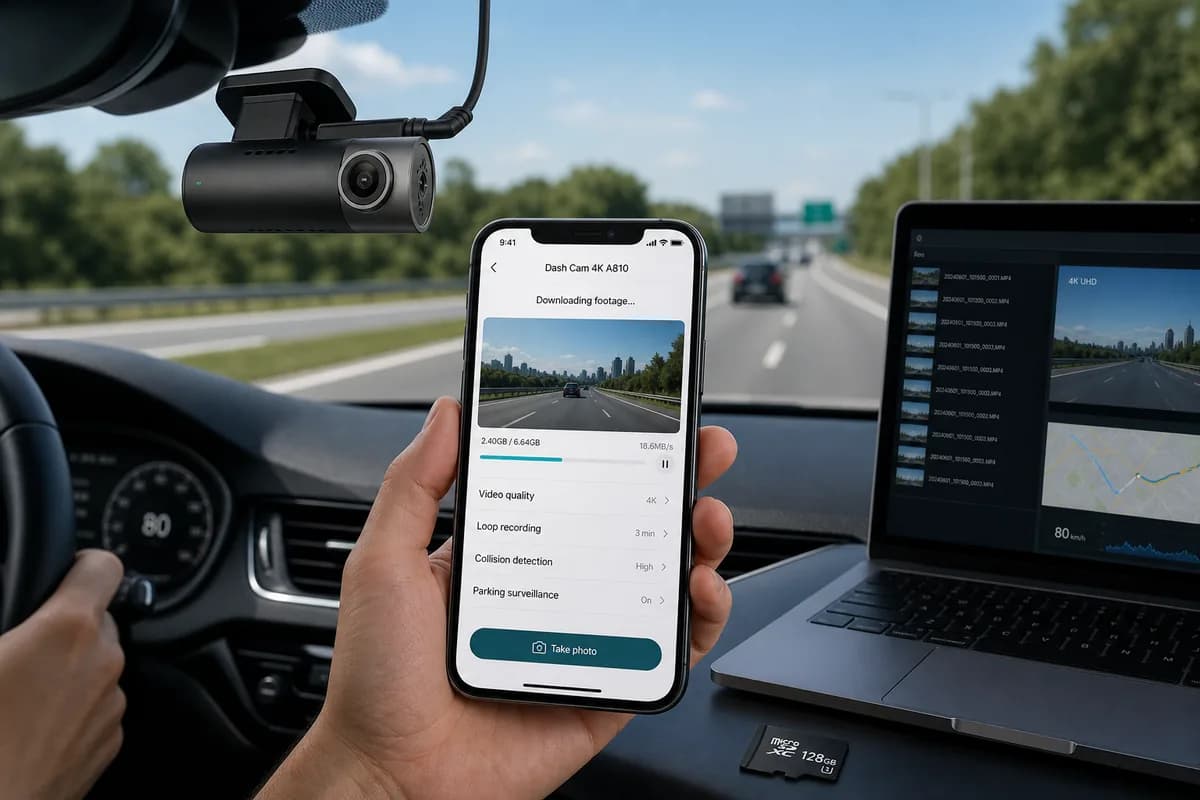
70mai is one of Asia's fastest-growing dashcam brands, with popular models like the A500S, A800S, Omni, and Pro Plus+ capturing millions of driving moments across 150+ countries. Whether you need to download 70mai dashcam videos for insurance claims, YouTube uploads, or evidence preservation, this comprehensive guide covers all three download methods: WiFi app transfer, SD card extraction, and cloud storage access.
Over 72% of 70mai users don't know how to properly download and manage their footage until an incident occurs—often discovering corrupted files, overwritten recordings, or incompatible formats. This guide ensures you can retrieve your 70mai footage safely and efficiently, plus how to blur faces and license plates before sharing online to comply with privacy regulations like GDPR, DPDP Act, CCPA, and other data protection laws.
Why Download 70mai Dashcam Footage?
70mai dashcam owners download footage for various critical reasons:
Insurance Claims & Accident Evidence: 70mai's superior image quality (up to 4K on A800S) provides crystal-clear proof of fault in accidents. According to insurance industry data, dashcam evidence reduces claim resolution time by 45% and prevents fraudulent claims worth billions annually.
YouTube & Social Media Sharing: Popular dashcam channels showcase road incidents, scenic drives, and unusual events. Creators monetize 70mai footage with millions of views on platforms like YouTube, TikTok, and Instagram.
Law Enforcement Evidence: Police departments worldwide accept 70mai footage for hit-and-run investigations, traffic violations, and criminal evidence. The ADAS (Advanced Driver Assistance System) features on 70mai Omni make it particularly valuable for professional documentation.
Fleet Management & Commercial Use: Businesses download 70mai footage for driver training, safety audits, liability protection, and insurance compliance documentation.
Personal Archive & Memorable Journeys: Save scenic routes, road trip memories, wildlife encounters, or unusual incidents captured during daily commutes.
The Privacy Problem Nobody Discusses
Here's what most 70mai owners don't realize: every unblurred face and license plate in your footage is personally identifiable information (PII) protected under strict privacy laws:
- GDPR (Europe): Fines up to €20 million or 4% of annual global revenue for privacy violations
- DPDP Act (India): Penalties up to ₹250 crore for failing to protect personal data
- CCPA (California): Up to $7,500 per violation for unauthorized sharing of PII
- BIPA (Illinois, US): $875+ million paid in biometric privacy settlements since 2020
- PIPEDA (Canada): Fines up to $100,000 CAD for privacy breaches
Before sharing 70mai dashcam videos publicly, you must blur identifiable faces and license plates unless you have explicit written consent—which is impractical for bystanders, pedestrians, and other vehicles in traffic footage.
Method 1: Download 70mai Dashcam Videos via SD Card (Fastest Method)
The SD card transfer method is the fastest and most reliable way to download large video files from your 70mai dashcam. Perfect for bulk downloads, high-resolution 4K footage, or when WiFi is unavailable.
Step 1: Safely Power Off and Remove SD Card
- Turn off your 70mai dashcam or wait until the recording stops (usually 5-10 seconds after engine shutdown)
- Locate the SD card slot (typically on the side or bottom of the camera, covered by a rubber flap)
- Press gently to eject the microSD card (do NOT pull forcefully—this can damage the spring mechanism)
- Handle carefully to avoid static discharge or fingerprints on the gold contacts
70mai-specific tip: On 70mai A800S 4K models, ensure both front and rear cameras have stopped recording before removing the card. The LED indicator will stop flashing when safe to remove.
Pro tip: Keep a spare high-endurance microSD card in your vehicle. Swap cards instead of removing the one in use, so your dashcam can continue recording while you download footage.
Step 2: Insert SD Card into Your Computer
For computers with built-in SD card readers:
- Insert the microSD card into a full-size SD adapter (usually included with the card)
- Insert the adapter into your computer's SD card slot
- Wait for the drive to appear in File Explorer (Windows) or Finder (Mac)
For computers without SD card readers:
- Use a USB microSD card reader (available for $5-20 on Amazon or AliExpress)
- Plug the reader into a USB port (USB 3.0 for faster speeds)
- Insert the microSD card into the reader
- Wait for the drive to mount and appear
Step 3: Navigate to 70mai Video Files
- Open File Explorer (Windows) or Finder (Mac)
- Locate your SD card drive (usually labeled "NO NAME", "70MAI", or the card brand)
- Navigate to the 70mai folder structure:
- NORMAL folder: Continuous loop recordings (1-3 minute segments)
- EMERGENCY folder: G-sensor triggered incident recordings (sudden braking, collisions, impacts)
- PARKING folder: Parking mode recordings (if enabled on A500S, A800S, Omni)
- PHOTO folder: Still images captured via app or voice command
- TIMELAPSE folder: Time-lapse recordings (Omni model)
File naming convention: 70mai files typically follow the pattern RO_YYYYMMDD_HHMMSS_F.MP4 (Front) or _R.MP4 (Rear on dual-camera models) where:
RO= RecordYYYYMMDD= DateHHMMSS= Time (24-hour format)F= Front camera,R= Rear camera
Step 4: Copy Files to Your Computer
- Select the videos you want to download (hold Ctrl/Cmd to select multiple files)
- Right-click and choose Copy, or press Ctrl+C (Windows) / Cmd+C (Mac)
- Navigate to your destination folder (e.g., Desktop, Documents, Videos, or create a "70mai_Archive" folder)
- Right-click and choose Paste, or press Ctrl+V (Windows) / Cmd+V (Mac)
- Wait for transfer to complete
Typical transfer speeds:
- SD Card Class 10: 20-40 MB/s
- UHS-I (U1): 40-80 MB/s
- UHS-II (U3): 80-150 MB/s
- USB 3.0 reader: Up to 100 MB/s
70mai file sizes (approximate):
- 1080p (A500S): ~200-250MB per minute
- 2K (Pro Plus+): ~300-400MB per minute
- 4K (A800S): ~500-600MB per minute
- Rear camera: ~100-150MB per minute (usually 1080p)
Step 5: Safely Eject and Reinsert
Windows:
- Click the "Safely Remove Hardware and Eject Media" icon in the system tray (bottom-right)
- Select your SD card drive
- Wait for the "Safe to Remove Hardware" confirmation message
- Remove the card reader or SD card
Mac:
- Right-click the drive icon on your desktop
- Select "Eject [drive name]"
- Wait for the icon to disappear from desktop
- Remove the card
Reinsert the SD card into your 70mai dashcam, ensure it clicks into place, and verify recording resumes normally. The LED should start flashing to indicate active recording.
SD Card Transfer: Pros & Cons
Pros:
- ✅ Fastest transfer speed (no WiFi bottleneck, especially for 4K footage)
- ✅ Works completely offline without smartphone or internet connection
- ✅ Can transfer entire day's or week's footage at once
- ✅ Most reliable method for large files
- ✅ No battery drain on dashcam or smartphone
Cons:
- ❌ Requires physical access to dashcam (must be parked)
- ❌ Risk of SD card corruption if not ejected properly
- ❌ Need SD card reader for computers without built-in slots
- ❌ Can't preview footage before downloading entire files
- ❌ Recording pauses while SD card is removed
Method 2: Download via 70mai App (WiFi Transfer)
The 70mai app enables wireless download of dashcam footage directly to your smartphone—perfect for quick access, on-the-go sharing, or when you can't access a computer.
Step 1: Download the 70mai App
For iPhone:
- Open the App Store
- Search for "70mai" or "70mai Dash Cam"
- Download and install the official 70mai app
- Requires iOS 11.0 or later
- App size: ~150MB
For Android:
- Open Google Play Store
- Search for "70mai" or "70mai Dash Cam"
- Download and install the official app
- Requires Android 5.0 or later
- App size: ~140MB
Compatible 70mai models: A500S, A800S, Omni, Pro Plus+, M500, D05, D07, D08, 1S, 4K A810, and most models released after 2019.
Note: Some older models (like the original Smart Dash Cam) may use a different app. Check your model's manual for confirmation.
Step 2: Enable WiFi on Your 70mai Dashcam
For touchscreen models (A800S, Omni):
- Power on your 70mai dashcam (connect to vehicle power or ensure sufficient battery)
- Tap the screen to wake it up
- Swipe down from the top to access quick settings
- Tap the WiFi icon to enable WiFi
- Note the WiFi network name (SSID): Usually "70mai_####" where #### is your camera's unique identifier
- Note the WiFi password: Default is usually "12345678" or printed on a label inside the SD card slot
For non-touchscreen models (A500S, Pro Plus+):
- Power on the dashcam
- Press and hold the WiFi button (usually marked with a WiFi symbol) for 3 seconds
- The WiFi LED indicator will start flashing blue/white
- The network "70mai_####" will become visible to nearby devices
- Default password: "12345678" (can be changed in app settings)
Voice control alternative (on supported models):
- Simply say "Hi 70mai, enable WiFi" and the voice assistant will activate WiFi mode
Step 3: Connect Your Smartphone to Dashcam WiFi
iPhone:
- Open Settings → WiFi
- Find your 70mai dashcam's network (e.g., "70mai_A500S_1234")
- Tap the network name
- Enter the password (default: "12345678")
- Tap Join or Connect
- Wait for the checkmark to appear
Android:
- Open Settings → WiFi or Connections
- Scan for available networks
- Select your 70mai network (e.g., "70mai_####")
- Enter the password
- Tap Connect
- Confirm connection (you'll see "Connected" status)
Important note: When connected to the dashcam's WiFi, you will temporarily lose internet access. Your phone is now communicating directly with the camera via a local WiFi network, not through your home router or mobile data. This is normal and expected.
Step 4: Open 70mai App and Pair Device
- Launch the 70mai app on your smartphone
- The app should automatically detect your nearby 70mai dashcam
- If not auto-detected:
- Tap the "+" icon or "Add Device" button
- Select your 70mai model from the list (A500S, A800S, Omni, etc.)
- Tap "Next" and follow on-screen prompts
- Complete pairing by confirming the connection
- You may be asked to create a 70mai account or log in
- Wait for the connection confirmation screen
First-time setup: You may be prompted to update dashcam firmware. It's recommended to complete this update for best compatibility, but you can skip and update later.
Step 5: Browse and Download Videos
- In the 70mai app, tap the "Playback" or "Album" icon
- You'll see video folders organized by type:
- Normal: Continuous loop recordings
- Emergency: G-sensor triggered incident recordings
- Parking: Parking mode surveillance (if enabled)
- Photo: Still images
- Browse thumbnails with date/time stamps
- Tap a video thumbnail to preview it
- Use the timeline scrubber to navigate through footage
- Tap the download icon (downward arrow, usually in top-right corner)
- Select resolution (if multiple options available):
- High quality: Original resolution (larger file, slower download)
- Medium quality: Compressed for faster transfer
- Wait for transfer to complete (progress bar will show download status)
- Videos save to your phone's default location:
- iPhone: Photos app → Albums → "70mai" or "Videos"
- Android: Gallery → "70mai" folder or "Videos" folder
Download speeds (typical):
- 5-15 MB/s via WiFi (slower than SD card)
- A 1-minute 1080p clip: ~30-45 seconds to download
- A 5-minute 4K clip: ~5-8 minutes to download
Step 6: Disconnect and Share
- Exit the 70mai app when all downloads are complete
- Reconnect your phone to your regular WiFi network or mobile data:
- iPhone: Settings → WiFi → Select your home WiFi
- Android: Settings → WiFi → Select your network
- Downloaded videos are now accessible in your phone's photo library
- Share to cloud storage (Google Drive, iCloud, Dropbox), social media, or messaging apps
- Edit if needed using phone video editors before sharing
Pro tip: Download multiple clips in batch by selecting several thumbnails at once (long-press to enable multi-select mode on most phones).
70mai App: Pros & Cons
Pros:
- ✅ No need to remove SD card or access dashcam physically
- ✅ Download directly to smartphone for instant sharing
- ✅ Preview footage before downloading (save phone storage)
- ✅ Convenient for quick insurance claims or social media posts
- ✅ Adjust camera settings remotely (resolution, G-sensor sensitivity, parking mode, etc.)
- ✅ Live view while parked (useful for monitoring vehicle)
- ✅ Voice control on supported models
Cons:
- ❌ Significantly slower transfer speed than SD card method (especially for 4K)
- ❌ Drains both dashcam and smartphone battery
- ❌ Limited WiFi range (typically 10-25 feet from vehicle)
- ❌ Can't download large batches efficiently
- ❌ Requires phone to stay connected throughout transfer
Method 3: Download via 70mai Cloud (Automatic Backup)
70mai Cloud (available on A500S, A800S, Omni, and select newer models) automatically uploads emergency recordings to secure cloud storage, providing redundant backup even if your dashcam is stolen or damaged.
Step 1: Set Up 70mai Cloud
- Verify compatibility: Check if your 70mai model supports cloud storage (look for "Cloud" badge on product packaging or specs)
- Open the 70mai app on your smartphone
- Navigate to Settings → Cloud Service
- Create 70mai account if you haven't already (email + password)
- Choose a subscription plan:
- Free tier: 1GB storage, 24-hour retention (varies by region)
- Basic plan: 7-day storage, 5GB, ~$2.99/month
- Premium plan: 30-day storage, 20GB, ~$9.99/month
- Ultimate plan: 90-day storage, 50GB, ~$19.99/month (Pricing varies by country)
- Connect dashcam to internet:
- Via smartphone WiFi hotspot (share your phone's mobile data)
- Via 70mai app WiFi bridge when parked near home WiFi
- Via built-in 4G LTE (on select models like 70mai Omni)
Step 2: Enable Automatic Cloud Upload
- In 70mai app, go to Settings → Cloud Service
- Toggle "Auto Upload" to ON
- Select upload triggers:
- Emergency recordings only (recommended for free/basic plans)
- All recordings (requires premium plan with more storage)
- Parking mode incidents (motion detection, impact detection)
- Choose upload quality:
- Original quality: Full resolution (uses more data and storage)
- Compressed: Smaller file size, faster upload
- Set upload conditions:
- WiFi only: Only upload when connected to WiFi (saves mobile data)
- WiFi + Mobile data: Upload anytime (faster, uses mobile data)
Note: Cloud upload happens in background when dashcam is connected to internet. G-sensor triggered events are prioritized for immediate upload.
Step 3: Access Cloud Storage and Download
Via 70mai App:
- Open 70mai app
- Tap "Cloud" or "Cloud Storage" icon
- Browse uploaded videos organized by:
- Date and time
- Event type (Emergency, Parking)
- Camera (Front, Rear)
- Tap a video to stream/preview it
- Tap download icon to save to phone
- Video downloads to phone's gallery
Via 70mai Web Portal (if available in your region):
- Visit cloud.70mai.com or the official web portal
- Log in with your 70mai account credentials
- Navigate to "My Videos" or "Cloud Library"
- Select video you want to download
- Click "Download" button
- Video saves to your computer's Downloads folder
Step 4: Manage Cloud Storage
Delete old footage:
- Open Cloud section in app
- Long-press videos to select multiple
- Tap Delete icon
- Confirm deletion
Extend retention:
- Upgrade subscription plan for longer retention periods
- Download important evidence to local storage before auto-deletion
70mai Cloud: Pros & Cons
Pros:
- ✅ Automatic backup of emergency recordings (no manual intervention)
- ✅ Access footage from anywhere in the world (no need to be near vehicle)
- ✅ Protects evidence even if dashcam is stolen, damaged, or SD card fails
- ✅ No physical SD card management required
- ✅ Instant sharing via web link (on some plans)
- ✅ Remote monitoring of parked vehicle
Cons:
- ❌ Requires ongoing subscription fees after free tier
- ❌ Only uploads emergency/selected recordings (not continuous footage)
- ❌ Needs constant or periodic internet connection (mobile data usage)
- ❌ Limited storage capacity on lower-tier plans
- ❌ Compressed video quality on some plans (to save bandwidth)
- ❌ Privacy concerns (footage stored on cloud servers)
Before Sharing: How to Blur Faces and License Plates in 70mai Videos
Critical privacy step: Before uploading 70mai dashcam footage to YouTube, TikTok, Instagram, insurance portals, or any public platform, you must blur all identifiable faces and license plates to:
- Comply with GDPR, DPDP Act, CCPA, and global privacy laws (see fines mentioned above)
- Protect yourself from legal liability if bystanders or other drivers object to being filmed without consent
- Prevent identity theft and stalking — license plates can be used to trace vehicle owners, addresses, and personal information
- Meet YouTube monetization policies — unblurred faces may violate content policies and result in demonetization or strikes
- Satisfy insurance company requirements — many insurers require redacted footage when submitting claims to protect third-party privacy
- Avoid defamation claims — if you're posting "bad driver" or "road rage" compilations, unblurred faces expose you to potential lawsuits
Why Manual Blurring Doesn't Work for 70mai Footage
70mai dashcam videos present unique challenges that make manual blurring impractical:
- Moving vehicles: Faces and license plates move unpredictably across the frame, requiring frame-by-frame manual tracking
- Multiple subjects simultaneously: A typical 2-minute urban traffic clip may contain 30-50+ license plates and dozens of faces
- Variable quality: Distance, lighting conditions, motion blur, and camera angle make detection difficult
- Time constraints: Manual blurring in Adobe Premiere Pro, DaVinci Resolve, or Final Cut Pro can take 3-8 hours per 5-minute clip
- High resolution complexity: 4K footage from A800S has 4x more pixels to track than 1080p
- Dual camera footage: Front + rear camera models double the workload
The BGBlur Solution for 70mai Dashcam Videos
BGBlur.com automates privacy protection for dashcam footage using AI-powered face and license plate detection and tracking.
Why BGBlur Is Perfect for 70mai Footage
-
Automatic Detection: Advanced AI finds all faces and license plates in your video, including:
- Distant or partially obscured plates (reflections, dirt, angles)
- Faces in side mirrors and windshield reflections
- Moving vehicles at various speeds and angles
- Motorcycles, bicycles, and pedestrians
- Multiple plates in dense traffic simultaneously
-
Frame-Accurate Tracking: Blur masks stay precisely locked to subjects throughout the entire video, even during:
- Camera shake and road vibration (common in dashcams)
- Rapid lane changes and turns
- Vehicles entering and leaving the frame
- Acceleration and braking
- Day-night transitions
-
Fast Processing: A typical 5-minute 70mai dashcam video (1080p or 4K) is processed in 2-6 minutes depending on complexity
-
Multiple Blur Styles:
- Gaussian blur: Natural-looking, professional appearance (recommended for YouTube)
- Pixelation: Stronger anonymization, retro aesthetic
- Solid color blocking: Complete redaction for maximum privacy (government/law enforcement)
-
Batch Processing: Upload multiple 70mai clips and process them simultaneously (time-saving for content creators)
-
High-Quality Export: Maintains original video quality and resolution (1080p, 2K, 4K) without re-compression artifacts
How to Blur 70mai Dashcam Videos: 3-Step Process
Step 1: Upload Your 70mai Video to BGBlur
- Go to BGBlur.com/en/upload
- Select blur type:
- Face Blur: For videos with pedestrians or people in stopped vehicles
- License Plate Blur: For traffic footage (most common for dashcams)
- Both Face & License Plate: For comprehensive privacy protection (recommended)
- Drag and drop your 70mai MP4 file or click "Choose File" to browse
- Supported formats: MP4, MOV, AVI (all 70mai export formats are compatible)
- Maximum file size: 2GB per file (most dashcam clips are well under this)
Step 2: Let AI Detect and Track
- BGBlur's AI automatically scans every frame of your video
- Detected faces and license plates are highlighted in the preview player
- Review the detection overlay to confirm comprehensive coverage
- Adjust settings if needed:
- Blur intensity: Slider from light (partial privacy) to heavy (full anonymization)
- Blur style: Choose between Gaussian blur, pixelation, or solid color blocks
- Selective blur: Click to exclude specific plates from blurring (e.g., your own vehicle if it appears in mirrors)
- Detection sensitivity: Increase to catch more distant/obscured objects, decrease to reduce false positives
Step 3: Process and Download
- Click "Start Processing" button
- Wait for AI rendering (typically 2-6 minutes for a 5-minute 1080p clip, longer for 4K)
- Preview the blurred video before downloading to ensure quality
- Download the privacy-safe version to your device
- Share confidently on YouTube, Instagram, TikTok, insurance portals, or social media platforms
Privacy guarantee: BGBlur processes all videos securely on encrypted servers and automatically deletes source files within 24 hours after you download. No permanent storage, no third-party access, no data mining.
70mai Dashcam Models: Download Compatibility Guide
All current 70mai dashcam models support SD card and WiFi app download. Here's a comprehensive compatibility reference:
| Model | SD Card | WiFi App | Cloud | Resolution | Notes |
|---|---|---|---|---|---|
| 70mai A500S | ✅ | ✅ | ✅ | 2592×1944 | Built-in GPS, night vision, dual channel option |
| 70mai A800S | ✅ | ✅ | ✅ | 4K (3840×2160) | True 4K, Sony sensor, ADAS, best image quality |
| 70mai Omni | ✅ | ✅ | ✅ | 2304×1296 | 360° rotation, built-in eMMC + SD, 4G LTE option |
| 70mai Pro Plus+ | ✅ | ✅ | ✅ | 2592×1944 | ADAS, GPS, 140° wide angle |
| 70mai 4K A810 | ✅ | ✅ | ✅ | 4K (3840×2160) | Newer 4K model, improved night vision |
| 70mai M500 | ✅ | ✅ | ⚠️ | 2592×1944 | Rearview mirror design, dual channel |
| 70mai 1S | ✅ | ✅ | ❌ | 1920×1080 | Budget model, basic features |
| 70mai D08 | ✅ | ⚠️ | ❌ | 1920×1080 | Older model, limited WiFi functionality |
| 70mai D07 | ✅ | ❌ | ❌ | 1080p | Entry-level, no WiFi |
Legend:
- ✅ = Fully supported
- ⚠️ = Partially supported (check firmware version)
- ❌ = Not supported
Note: Always update to the latest firmware through the 70mai app for best compatibility and newest features. Firmware updates often add cloud support and improve WiFi stability.
Troubleshooting Common 70mai Download Issues
"Computer doesn't recognize SD card"
Solutions:
- Try a different SD card reader or USB port (USB 3.0 recommended)
- Check if the SD card adapter has a lock switch on the side—slide to unlock position
- Test the SD card in your 70mai dashcam to verify it's functioning
- Try the card in another device (phone, camera) to rule out card failure
- Update your computer's SD card controller drivers via Device Manager (Windows) or Software Update (Mac)
- Format the card in the dashcam (WARNING: this deletes all content—backup first)
- Replace with a new high-endurance SD card if corruption persists
"70mai app won't connect to dashcam WiFi"
Solutions:
- Verify WiFi is enabled on the dashcam (check for WiFi LED indicator or screen icon)
- Ensure your phone is connected to the dashcam's WiFi network (70mai_####), NOT your home WiFi
- Disable mobile data temporarily on your phone (Android: Settings → Data usage → Mobile data OFF)
- Restart both the 70mai app and the dashcam completely
- Move your phone closer to the vehicle (WiFi range is typically 10-25 feet)
- Update the 70mai app to the latest version from App Store/Play Store
- Reset dashcam WiFi settings: Settings → WiFi → Reset WiFi
- Check for dashcam firmware updates via the app (Settings → Firmware Update)
- Try forgetting the WiFi network on your phone and reconnecting fresh
- Disable VPN on your phone if running
"Video files are corrupted or won't play"
Solutions:
- Try playing with VLC Media Player (free, supports more codecs than default players)
- Install codec packs: K-Lite Codec Pack (Windows) or Elmedia Player (Mac)
- Don't remove SD card while dashcam is actively recording (wait for LED to stop flashing)
- Use high-endurance SD cards specifically designed for dashcams (SanDisk High Endurance, Samsung PRO Endurance)
- Format SD card monthly using dashcam's format function to prevent file system errors
- Ensure dashcam has stable power supply—check vehicle 12V outlet connection
- Replace SD card if it's more than 18-24 months old (limited write cycles)
- Check file system: dashcam should format as FAT32 (for cards ≤32GB) or exFAT (for cards >32GB)
"WiFi transfer is extremely slow"
Solutions:
- Move phone closer to dashcam (within 10-15 feet for optimal speed)
- Close all background apps on your phone that might be using CPU/memory
- Disable mobile data and Bluetooth temporarily during transfer
- Download smaller clips first via WiFi, save large files/batches for SD card method
- Restart your phone's WiFi connection (toggle WiFi off/on)
- Clear 70mai app cache: App Settings → Storage → Clear Cache (Android) or reinstall app (iOS)
- Update dashcam firmware—newer versions often improve WiFi transfer speeds
- Avoid WiFi interference from other devices (routers, microwaves, baby monitors)
"Downloaded video has no GPS data or timestamp"
Solutions:
- Verify GPS is enabled in dashcam settings (Settings → GPS → ON)
- Wait for GPS signal acquisition (can take 1-3 minutes after starting car, especially in underground parking)
- Use 70mai Desktop Player or 70mai app to view embedded GPS data—standard players may not display it
- Check if your video player supports GPS metadata (VLC, PotPlayer support GPS tracks)
- Ensure GPS antenna is not obstructed (on models with external GPS antenna)
- Some video editing software strips GPS data on export—use "Copy" mode instead of re-encoding
- Timestamp overlay: Enable in Settings → Stamp → Date/Time ON
"70mai Cloud not uploading videos"
Solutions:
- Verify active cloud subscription (check in app: Settings → Cloud Service → Subscription Status)
- Ensure dashcam has internet connection:
- Check phone hotspot is active if using WiFi bridge
- Verify 4G LTE signal on models with built-in cellular
- Check cloud storage quota—free tier may be full (upgrade plan or delete old footage)
- Ensure "Auto Upload" is enabled: Settings → Cloud → Auto Upload ON
- Verify upload triggers are set correctly (Emergency recordings, Parking mode, etc.)
- Check upload conditions—if set to "WiFi only", ensure dashcam is connected to WiFi
- G-sensor sensitivity: If emergency recordings aren't triggering, increase G-sensor sensitivity
- Restart dashcam and reconnect to internet
- Contact 70mai support—cloud service issues may be regional/server-side
Best Practices for Managing 70mai Dashcam Footage
1. Use High-Quality, High-Endurance SD Cards
Top recommended SD cards for 70mai:
- SanDisk High Endurance 64GB or 128GB — Most popular choice, specifically designed for dashcams
- Samsung PRO Endurance 128GB or 256GB — Excellent durability, longer warranty
- Lexar High-Endurance 64GB — Budget-friendly alternative with good reliability
- Kingston Canvas Endurance 64GB or 128GB — Good balance of price and performance
Minimum specifications:
- Speed Class: Class 10 minimum
- UHS Speed Class: U3 (minimum 30MB/s write speed) — required for 4K models
- Capacity: 64GB recommended (balances cost and storage), 128GB for 4K or long trips
- Endurance rating: Look for "High Endurance" or "Dashcam" labeled cards
Why it matters: Regular SD cards are designed for occasional writes (photos, videos). Dashcam cards must handle continuous overwriting 24/7, which quickly wears out standard cards leading to corruption and failure.
2. Regular SD Card Maintenance
- Format monthly using the dashcam's built-in format function (Settings → Format), NOT computer formatting (preserves optimal file system structure)
- Replace every 12-18 months — SD cards have limited write cycles (even high-endurance cards degrade)
- Keep a spare in your vehicle's glove box for emergencies or swapping
- Check for errors periodically by playing back recent recordings
- Avoid filling to 100% — leave some free space for optimal performance
3. Organize Downloaded Footage Systematically
Create a logical folder structure on your computer:
70mai_Dashcam_Archive/
├── 2026/
│   ├── January/
│   │   ├── Insurance_Claim_20260115_Rear_End/
│   │   │   ├── RO_20260115_083045_F.MP4
│   │   │   ├── RO_20260115_083045_R.MP4
│   │   │   ├── BLURRED_Front.MP4
│   │   ├── Road_Trip_20260120_California/
│   │   │   ├── Highlight_Reel.MP4
│   ├── February/
│   │   ├── Incident_20260205_Near_Miss/
│   │   ├── Parking_Damage_20260218/
│   ├── March/
│       ├── Daily_Commute_Backup/
Naming convention best practices:
YYYY-MM-DD_Description_Camera.mp4- Example:
2026-01-15_Accident_Interstate_Front.mp4 - Include camera position (Front/Rear) for dual-camera setups
- Add
BLURRED_prefix to privacy-safe versions
4. Back Up Critical Footage Immediately and Redundantly
For important clips (accidents, incidents, evidence, memorable moments):
- Copy to multiple locations:
- Primary: Computer hard drive
- Secondary: External USB hard drive or SSD
- Tertiary: Cloud storage (Google Drive, Dropbox, OneDrive, iCloud)
- Don't rely on SD card alone — cards can fail suddenly, especially after incidents (shock damage)
- Upload to cloud within 24 hours of significant incidents
- Create both original AND blurred versions: Keep original for official use (insurance, police), blurred for public sharing
Suggested backup workflow:
- Download from SD card to computer immediately after incident
- Copy original to external drive
- Process through BGBlur to create privacy-safe version
- Upload both versions to cloud storage with clear labeling
- Only then format SD card or share publicly
5. Respect Privacy Laws and Ethics
Before sharing any 70mai dashcam videos:
- ✅ Blur all faces and license plates using BGBlur (unless consent obtained)
- ✅ Remove or mute audio if bystander conversations are captured (audio privacy laws in some regions)
- ✅ Check local and international laws — dashcam recording legality varies by country/state
- ✅ Keep originals private — only share blurred versions publicly
- ✅ Obtain consent when possible (impractical for traffic footage, hence blurring is essential)
- ✅ Respect private property — some jurisdictions restrict recording in certain areas
What NOT to do:
- ❌ Don't share unblurred "bad driver" or "road rage" compilations (exposes you to defamation lawsuits)
- ❌ Don't post footage that could identify someone's home address or workplace
- ❌ Don't monetize others' likenesses without consent (YouTube can demonetize for this)
- ❌ Don't share graphic accident footage with identifiable victims (ethical and legal issues)
Legal Considerations: When to Share (and When Not To)
Sharing with Insurance Companies & Law Enforcement
Always provide original, unedited footage to:
- Your insurance company's claims department
- The other party's insurance (via your insurer or attorney)
- Police officers when requested for investigations
- Your attorney if pursuing legal action
Important:
- Keep a personal copy before submitting
- Provide footage on USB drive or via secure upload link
- Include GPS and timestamp data (helps establish location and time)
- Don't blur evidence footage for official use—blur only for public sharing
Sharing on YouTube, TikTok, Instagram & Social Media
Required privacy protection before posting:
- Blur all faces and license plates using BGBlur.com
- Remove or beep out profanity if monetizing on YouTube
- Add context with text overlays explaining the situation
- Check platform-specific policies:
- YouTube: Dashcam Content Policy (allows dashcam footage with privacy protections)
- TikTok: Community Guidelines on privacy and sensitive content
- Instagram: Terms of Service on third-party content
Failure to blur may result in:
- GDPR violation complaints from EU residents → fines up to €20 million
- YouTube account strikes, demonetization, or removal for privacy violations
- Legal complaints from identifiable subjects demanding takedowns
- Defamation lawsuits if portraying someone negatively without consent
- Platform bans for repeated policy violations
Workplace & Fleet Management Use
Commercial dashcam footage (delivery drivers, trucking fleets, rideshare, etc.) must:
- Comply with employee privacy laws and union agreements
- Include visible recording notices in vehicles (required in some jurisdictions like California)
- Be stored securely with restricted access (not shared publicly)
- Be deleted after retention period (typically 30-90 days unless incident-related)
- Only be used for legitimate business purposes (safety, training, liability defense)
- Follow data protection regulations like GDPR, CCPA when processing employee/customer data
Frequently Asked Questions (Extended)
How long does it take to download 70mai dashcam videos?
SD card method:
- 32GB of footage: ~5-10 minutes (depending on card speed and USB port)
- 128GB of footage: ~15-30 minutes
WiFi app method:
- 1-minute 1080p clip: ~30-60 seconds
- 1-minute 4K clip: ~2-3 minutes
- 5-minute 1080p clip: ~3-5 minutes
Cloud download:
- Depends on your internet speed and cloud server load
- Typically similar to WiFi app speeds
Transfer time varies based on file size, resolution, SD card speed class, USB port version, and connection method.
Can I view 70mai dashcam videos on my phone without downloading?
Yes, the 70mai app allows live preview and playback of videos stored on your dashcam's SD card without downloading them to your phone. This is useful for quickly checking footage. However, for permanent storage, editing, or sharing, you'll need to download the files.
You can also stream from 70mai Cloud without downloading if you have an active cloud subscription.
Will downloading videos delete them from my dashcam?
No. Copying videos from the SD card or via WiFi app leaves the originals intact on the SD card. The download process is non-destructive.
To free up space, you must manually:
- Delete unwanted clips via the dashcam's menu (Playback → Select → Delete)
- Format the SD card via dashcam settings (Settings → Format) — WARNING: deletes ALL content
Loop recording will eventually overwrite old footage when the card fills up, but this doesn't happen during downloads.
What video format does 70mai dashcam use?
70mai dashcams record in MP4 format using H.264 (AVC) codec for video and AAC codec for audio. This format is compatible with:
- All major video players (VLC, Windows Media Player, QuickTime, etc.)
- Video editing software (Premiere Pro, DaVinci Resolve, iMovie, etc.)
- Social media platforms (YouTube, TikTok, Instagram, Facebook)
- Smartphones (iOS and Android)
Resolution and bitrate vary by model:
- 1080p: ~12-15 Mbps
- 2K: ~18-25 Mbps
- 4K: ~30-45 Mbps
How much storage do I need for 70mai dashcam videos?
Storage requirements (approximate):
1080p footage (70mai 1S, D08):
- ~200-250MB per minute
- ~12-15GB per hour
- 64GB card holds ~4-5 hours
2K footage (70mai A500S, Pro Plus+):
- ~300-400MB per minute
- ~18-24GB per hour
- 64GB card holds ~2.5-3.5 hours
4K footage (70mai A800S, 4K A810):
- ~500-600MB per minute
- ~30-36GB per hour
- 64GB card holds ~1.5-2 hours
Dual camera (front + rear): Add ~50% more storage needed
Recommended SD card sizes:
- Daily commuters: 64GB (optimal balance)
- Long road trips: 128GB
- 4K recording or dual camera: 128GB or 256GB
Loop recording automatically overwrites the oldest non-protected files when the card is full, so you don't need massive storage unless you want to save everything.
Can I edit 70mai dashcam videos before sharing?
Yes, but blur faces and license plates FIRST using BGBlur, THEN edit for content/length:
Basic editing (free):
- iMovie (Mac/iOS) — simple cuts, transitions, titles
- Windows Video Editor (Windows) — basic trimming, text overlay
- CapCut (mobile) — popular for TikTok/Instagram creators
- DaVinci Resolve (free version) — professional-grade, steep learning curve
Professional editing (paid):
- Adobe Premiere Pro — industry standard
- Final Cut Pro (Mac) — professional Mac editing
- Filmora — beginner-friendly paid option
Important workflow:
- Download original 70mai footage
- Process through BGBlur to blur faces/plates
- Import blurred version into editing software
- Edit as needed (cuts, color correction, music, text)
- Export and share
Always keep the original unedited, unblurred footage in a secure location for insurance/legal purposes.
Does 70mai dashcam record audio?
Yes, most 70mai models record audio by default using built-in microphones. However:
Privacy considerations:
- Audio recording may be illegal without consent in some jurisdictions (especially two-party consent states in the US)
- Check local laws before using audio-enabled recording
- You can disable audio in dashcam settings: Settings → Audio Recording → OFF
For public sharing:
- Mute audio or replace with royalty-free music to avoid:
- Privacy violations (capturing private conversations)
- Profanity issues (YouTube demonetization)
- Copyright claims (if radio music is audible)
- Incriminating yourself (recorded conversations can be evidence)
Conclusion: Download Safely, Share Responsibly with 70mai
Downloading videos from your 70mai dashcam is straightforward with the three methods outlined in this comprehensive guide:
- SD card transfer: Fastest and most reliable for bulk downloads and high-resolution 4K footage
- 70mai app WiFi transfer: Most convenient for smartphone sharing and quick access on-the-go
- 70mai Cloud: Automatic backup for emergency recordings with remote access from anywhere
Choose the best method for your situation:
- Need speed and bulk downloads? → SD card
- Want convenience and phone sharing? → 70mai app
- Need automatic backup and remote access? → 70mai Cloud
Most important takeaway: Before sharing ANY dashcam footage publicly (YouTube, TikTok, Instagram, forums, social media), you MUST blur all faces and license plates using BGBlur.com to:
- Protect privacy and comply with GDPR, DPDP Act, CCPA regulations
- Avoid legal liability and potential lawsuits
- Prevent identity theft and harassment
- Meet platform policies and monetization requirements
- Act ethically and responsibly as a content creator
Your 70mai dashcam captures valuable evidence, memorable moments, and entertaining content—download it safely, process it through BGBlur for privacy protection, and share it responsibly.
Blur your 70mai dashcam videos free on BGBlur.com →
Related Resources
- How to Download Garmin Dashcam Videos — Garmin dashcam download complete guide
- How to Download Rexing Dashcam Videos — Rexing dashcam download methods
- How to Blur License Plates in Dashcam Footage — Comprehensive privacy protection guide
- Top 10 Tools for Dashcam Content Creators — Essential tools for dashcam YouTubers
- Why You Need to Blur License Plates in Videos — Legal and ethical considerations
- State of Visual Privacy 2026 Whitepaper — GDPR, DPDP, CCPA, BIPA compliance guide
Last updated: May 28, 2026