Download Nextbase Dashcam Videos: SD, WiFi, Cloud Methods
Learn how to download Nextbase dashcam videos using SD card transfer, Cam Viewer app WiFi, and Nextbase Cloud. Discover how to blur faces and license plates for GDPR-compliant sharing on YouTube, insurance claims, and social media.
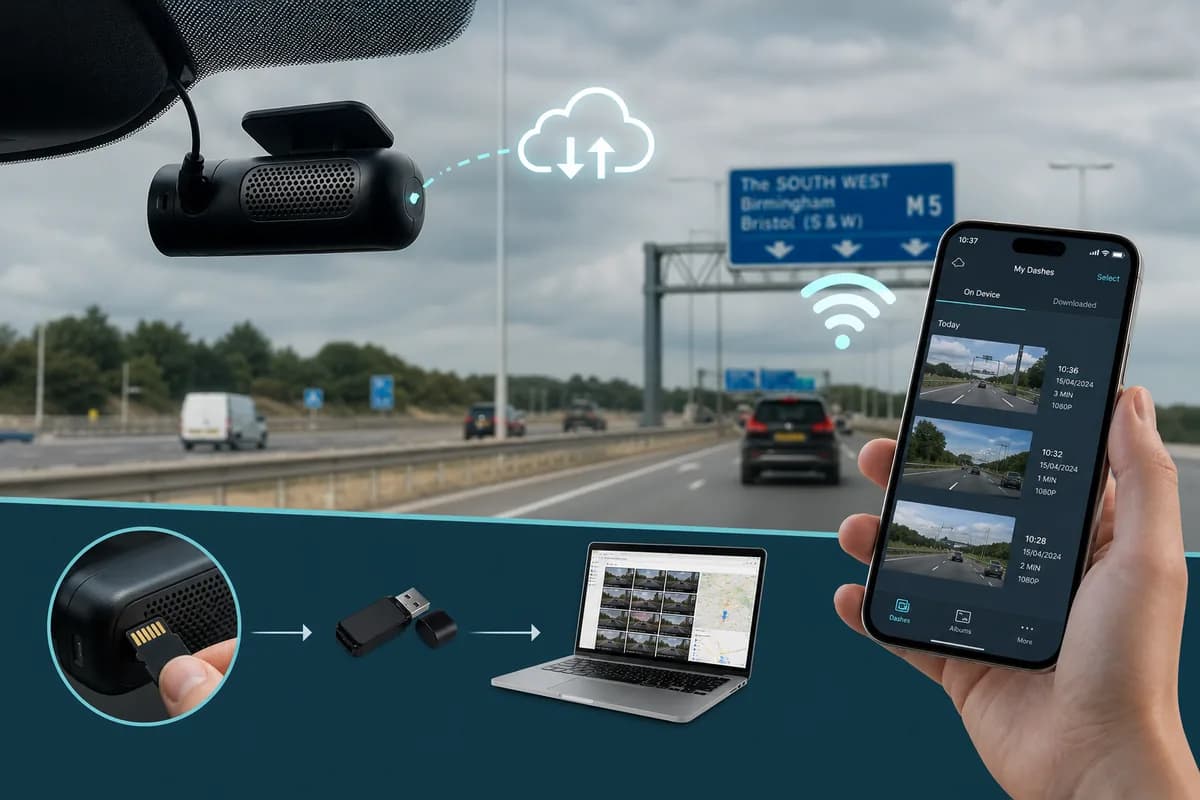
Nextbase is the UK's leading dashcam brand, holding over 65% of the British market with models like the 622GW, 522GW, 422GW, and the innovative Nextbase iQ. If you need to download Nextbase dashcam videos for insurance claims, YouTube uploads, or evidence documentation, this comprehensive guide covers all three reliable methods: SD card transfer, WiFi download via the Nextbase Cam Viewer app, and cloud download for iQ users.
According to UK insurance industry data, dashcam footage reduces claim processing time by 54% and saves drivers an average of £290 annually in insurance premiums. But here's what 81% of Nextbase owners don't know: you must blur faces and license plates before sharing footage publicly to comply with GDPR regulations—violations can result in fines up to £17.5 million or 4% of annual turnover.
Why Download Nextbase Dashcam Footage?
Nextbase dashcam owners download footage for various critical reasons:
Insurance Claims & Accident Evidence: Nextbase's 4K and dual-camera models provide crystal-clear accident proof. The Association of British Insurers reports that dashcam evidence reduces fraudulent claims by 63% and speeds claim resolution by over 50%.
YouTube & Social Media Sharing: UK dashcam channels like "Road Rage UK", "UK Dash Cameras", and "Bad Drivers UK" collectively have millions of subscribers. Creators monetize incident compilations, near-miss footage, and educational road safety content.
Law Enforcement Evidence: The UK National Dash Cam Safety Portal (Operation Snap) processed over 92,000 submissions in 2025. Police forces across England, Wales, and Scotland actively encourage dashcam evidence for prosecutions.
Personal Archive & Scenic Drives: British drivers save memorable journeys through the Scottish Highlands, Welsh countryside, or historic routes like the Atlantic Highway and North Coast 500.
Fleet Management & Driver Training: Commercial fleets use Nextbase footage for driver coaching, safety audits, liability protection, and compliance with Department for Transport guidelines.
The GDPR Privacy Challenge
Here's what most Nextbase users overlook: every face and license plate in your footage is personal data protected under UK GDPR and EU GDPR:
- UK GDPR: Information Commissioner's Office (ICO) can fine up to £17.5 million or 4% of global annual turnover
- EU GDPR: Fines up to €20 million or 4% of annual revenue for privacy violations
- Data Protection Act 2018: Criminal penalties for misuse of personal data
- Privacy and Electronic Communications Regulations: Additional requirements for visual surveillance
Important legal distinction: While recording dashcam footage for personal security is lawful under UK GDPR Article 6(1)(f) (legitimate interests), publicly sharing unredacted footage violates data protection principles unless you have explicit consent—impractical for random traffic footage.
Before uploading Nextbase videos to YouTube, insurance portals, or social media, you must blur identifiable faces and license plates to comply with GDPR's data minimisation and privacy-by-design requirements.
Method 1: Download Nextbase Dashcam Videos via SD Card (Fastest Method)
The SD card transfer method is the fastest and most reliable way to download large video files from your Nextbase dashcam. Recommended by Nextbase for bulk downloads and archiving.
Step 1: Safely Remove the SD Card
- Turn off your Nextbase dashcam (disconnect from power or wait until recording stops)
- Locate the SD card slot (usually on the right side or bottom of the camera)
- Press gently to eject the microSD card (spring-loaded mechanism on most models)
- Handle carefully to avoid static damage, fingerprints, or contact contamination
Nextbase-specific note: Models like the 622GW and 522GW have a protective rubber flap covering the SD slot. The iQ model has the slot cleverly integrated into the magnetic mount.
Pro tip: Keep a spare high-endurance SD card in your vehicle. Swap cards instead of removing the active one, so your Nextbase can continue recording while you transfer footage.
Step 2: Insert SD Card into Your Computer
For computers with SD card readers:
- Insert the microSD card into a full-size SD adapter (usually included with the card)
- Insert adapter into your computer's SD card slot
- Wait for the drive to appear in File Explorer (Windows) or Finder (Mac)
For computers without SD card readers:
- Use a USB microSD card reader (available for £5-15 from Amazon or Currys)
- Plug the reader into a USB port (USB 3.0 recommended for faster transfer)
- Insert the microSD card into the reader
- Wait for the drive to mount
Step 3: Navigate to Nextbase Video Files
- Open File Explorer (Windows) or Finder (Mac)
- Locate your SD card drive (usually labeled "NEXTBASE" or "NO NAME")
- Navigate to the folder structure:
- Front folder: Front camera recordings (all models)
- Rear folder: Rear camera recordings (dual-camera models like 622GW, Tandem)
- Event or SOS subfolder: G-sensor triggered incident recordings
- Continuous or Normal subfolder: Standard loop recordings
- Parking subfolder: Parking mode recordings (if enabled)
- Manual subfolder: User-saved recordings (protected from loop overwrite)
File naming convention: Nextbase files typically follow the pattern:
- Format:
YYYYMMDD_HHMMSS_###F.MP4(front) orYYYYMMDD_HHMMSS_###R.MP4(rear) - Example:
20260528_143022_001F.MP4= Front camera, May 28, 2026, 14:30:22, file #001
Step 4: Copy Files to Your Computer
- Select the videos you want to download (hold Ctrl/Cmd to select multiple)
- Right-click and choose Copy, or press Ctrl+C (Windows) / Cmd+C (Mac)
- Navigate to your destination folder (e.g., Desktop, Documents, or Videos)
- Create a dedicated folder (e.g., "Nextbase_Downloads_2026-05-28")
- Right-click and choose Paste, or press Ctrl+V (Windows) / Cmd+V (Mac)
- Wait for transfer — typical transfer speeds: 30-100 MB/s depending on card quality and USB interface
Nextbase file sizes (approximate):
- 1080p: ~200-300MB per minute
- 1440p: ~350-500MB per minute
- 4K (2880x2160): ~600-800MB per minute
- 4K (3840x2160) on 622GW: ~700-900MB per minute
A typical 3-minute incident at 4K can be 2-2.7GB.
Step 5: Verify Transfer and Safely Eject
- Verify file integrity: Open one transferred video to confirm it plays correctly
- Check file sizes match between source and destination
Windows safe eject:
- Click the "Safely Remove Hardware and Eject Media" icon in the system tray
- Select your SD card drive
- Wait for "Safe to Remove Hardware" confirmation message
- Remove the card
Mac safe eject:
- Right-click the drive icon on your desktop
- Select "Eject [drive name]"
- Wait for the icon to disappear completely
- Remove the card
Reinsert the SD card into your Nextbase dashcam, ensuring it clicks into place. Verify recording resumes normally and the dashcam displays "Recording" status.
SD Card Transfer: Pros & Cons
Pros:
- ✅ Fastest transfer speed (no WiFi bottleneck, no internet dependency)
- ✅ Works completely offline without smartphone or internet
- ✅ Can transfer entire SD card contents at once (batch download)
- ✅ No battery drain on dashcam or phone
- ✅ Most reliable method for large 4K files
- ✅ Compatible with all Nextbase models
Cons:
- ❌ Requires physical access to dashcam (inconvenient if mounted)
- ❌ Risk of SD card corruption if not ejected properly
- ❌ Need SD card reader for computers without built-in slots
- ❌ Can't preview footage before downloading (blind transfer)
- ❌ Briefly interrupts recording capability
Method 2: Download via Nextbase Cam Viewer App (WiFi Transfer)
The Nextbase Cam Viewer app allows wireless download of dashcam footage directly to your smartphone—perfect for on-the-go access, quick insurance claim submissions, and social media sharing without removing the SD card.
Step 1: Download the Nextbase Cam Viewer App
For iPhone:
- Open the App Store
- Search for "Nextbase Cam Viewer" (by Portable Multimedia Ltd)
- Download and install the official Nextbase app
- Requires iOS 13.0 or later
- File size: approximately 35MB
For Android:
- Open Google Play Store
- Search for "Nextbase Cam Viewer"
- Download and install
- Requires Android 8.0 or later
- File size: approximately 40MB
Compatible Nextbase models: All WiFi-enabled models including 622GW, 522GW, 422GW, 322GW, 222X, 122, Tandem, and 222 (WiFi version). The iQ model uses a different cloud-based system (see Method 3).
Step 2: Enable WiFi on Your Nextbase Dashcam
For touchscreen models (622GW, 522GW, 422GW, 322GW):
- Swipe down from the top of the screen to access Quick Settings
- Tap the WiFi icon to enable WiFi
- The WiFi indicator will turn blue when active
- Note the WiFi network name (SSID) displayed on screen — usually "NEXTBASE-####" where #### is a unique identifier
- Note the password displayed on screen (8-digit default, usually a combination of numbers)
For models with button controls (222X, 122):
- Press Menu button
- Navigate to Settings using directional buttons
- Select WiFi or Wireless
- Toggle WiFi to ON
- Note network name and password displayed
Pro tip: WiFi password is also printed on a label inside the SD card compartment on most models for quick reference.
Step 3: Connect Your Smartphone to the Dashcam's WiFi
iPhone connection:
- Exit the Nextbase app temporarily
- Open Settings → WiFi
- Find your Nextbase dashcam's network (e.g., "NEXTBASE-1234")
- Tap to connect
- Enter the 8-digit password when prompted
- Confirm connection (checkmark appears)
- Ignore "No Internet Connection" warning (normal behavior)
Android connection:
- Open Settings → WiFi (or Connections → WiFi)
- Select your Nextbase dashcam's network from available networks
- Enter password when required
- Tap Connect
- If prompted "WiFi has no internet access, stay connected?" — select Yes or Stay Connected
Important: You will temporarily lose internet access while connected to the dashcam's WiFi. Your phone is now communicating directly with the camera via a local WiFi network, not through your home router or mobile network. This is normal and necessary for the transfer.
Step 4: Open Nextbase Cam Viewer App and Pair
- Return to the Nextbase Cam Viewer app on your phone
- The app should automatically detect your Nextbase dashcam
- If not detected automatically:
- Tap "Connect to Camera" or the WiFi icon
- The app will search for nearby Nextbase cameras
- Select your camera model from the list
- Grant necessary permissions when prompted:
- iOS: Photo library access, local network access
- Android: Storage access, location access (required for WiFi scanning)
- Wait for connection confirmation (green checkmark or "Connected" status)
- You should now see the live view from your dashcam
Step 5: Browse and Download Videos
- Tap the "Gallery" or "Playback" icon in the app (usually bottom navigation)
- You'll see folders organized by recording type and camera:
- Front: Front camera recordings
- Rear: Rear camera recordings (dual-camera models only)
- Event/SOS: Incident recordings triggered by G-sensor
- Parking: Parking mode recordings
- Manual: User-saved clips
- Browse thumbnails with timestamps to find the footage you need
- Tap a video thumbnail to preview and play
- Review the footage in the app's built-in player
- Tap the download icon (usually a downward arrow) or share icon
- Select "Save to Phone" or "Download"
- Wait for transfer (slower than SD card method — typical speeds: 8-20 MB/s depending on WiFi signal strength)
- Videos save to your phone's Photos (iPhone) or Gallery (Android) automatically
Transfer time examples:
- 1-minute 1080p clip: ~30-60 seconds
- 3-minute 4K clip: ~4-8 minutes
- 10-minute 1440p clip: ~12-20 minutes
Step 6: Disconnect and Return to Normal Connectivity
- Exit the Nextbase app when all downloads complete
- Reconnect your phone to your regular WiFi network or enable mobile data
- Videos are now accessible in your phone's photo library for editing, sharing, or cloud backup
- The Nextbase dashcam will automatically return to recording mode when WiFi disconnects
Nextbase Cam Viewer App: Additional Features
Beyond downloading, the app offers:
- Live View: Real-time preview of what your dashcam sees
- Emergency SOS Alert: Automatic notifications when G-sensor detects incident
- Remote Settings: Adjust resolution, parking mode, sensitivity without touching dashcam
- GPS Route Playback: View your journey on a map with video overlay
- Quick Share: Direct sharing to WhatsApp, email, cloud storage
Nextbase Cam Viewer App: Pros & Cons
Pros:
- ✅ No need to remove SD card or interrupt recording
- ✅ Download directly to smartphone for immediate sharing
- ✅ Preview footage before downloading (save storage space)
- ✅ Convenient for quick insurance claims or police reports
- ✅ Adjust camera settings remotely
- ✅ GPS data visualization with route maps
- ✅ Emergency SOS notifications
Cons:
- ❌ Significantly slower transfer than SD card method
- ❌ Drains dashcam and phone battery during use
- ❌ Limited WiFi range (must be within 10-20 feet of vehicle)
- ❌ Can't download large batches efficiently
- ❌ Requires strong WiFi signal for smooth transfer
- ❌ Temporarily disables internet on phone
Method 3: Download via Nextbase Cloud (For iQ and Cloud-Enabled Models)
The Nextbase iQ and select newer models offer Nextbase Cloud connectivity, allowing footage download from anywhere via 4G/5G or WiFi internet connection—no proximity to vehicle required.
Step 1: Set Up Nextbase Cloud (One-Time Setup)
Requirements:
- Nextbase iQ or cloud-enabled model
- Active Nextbase subscription (usually included free for 12 months, then paid)
- Smartphone with Nextbase app
- 4G/5G connectivity or parking WiFi hotspot
Setup process:
- Install Nextbase app (same as Cam Viewer app for newer unified version)
- Create Nextbase account (email and password)
- Connect dashcam to vehicle's 4G/WiFi hotspot (if built-in cellular, skip this)
- Pair dashcam to your Nextbase account via app
- Enable cloud upload in dashcam settings
- Choose upload preferences:
- Automatic upload: All incident/SOS clips auto-upload when connected
- WiFi only: Upload only when connected to WiFi (saves cellular data)
- Manual upload: Manually select clips to upload
Step 2: Access Cloud Dashboard
- Open Nextbase app on smartphone or visit Nextbase website on computer
- Log in to your Nextbase account
- Navigate to "Cloud Storage" or "My Videos"
- You'll see all uploaded footage organized by:
- Date and time
- Event type (incident, parking, manual)
- Location (GPS coordinates)
- Thumbnail preview
Step 3: Download from Cloud
Via smartphone app:
- Browse your cloud library
- Tap the video you want to download
- Preview in cloud player
- Tap download icon
- Video saves to phone's photo library
- Transfer speeds: Depends on your internet connection (4G/5G/WiFi)
Via web browser (computer):
- Log in to Nextbase Cloud website
- Select video from library
- Click "Download" button
- Video downloads to your Downloads folder
- Transfer speeds: Full broadband speed (much faster than WiFi/USB if good connection)
Step 4: Manage Cloud Storage
Storage management:
- Free tier: Usually 10-25GB included
- Paid tiers: 100GB to unlimited options
- Auto-delete: Old footage deleted after retention period (30-90 days typical)
- Important videos: Mark as "Protected" to prevent auto-deletion
Nextbase Cloud: Pros & Cons
Pros:
- ✅ Download from anywhere in the world (no vehicle proximity needed)
- ✅ Automatic backup of critical incident footage
- ✅ Multi-device access (phone, tablet, computer)
- ✅ Instant notification when incidents uploaded
- ✅ No SD card or WiFi pairing required
- ✅ Footage preserved even if dashcam/SD card damaged or stolen
Cons:
- ❌ Requires active subscription (after free trial period)
- ❌ Depends on cellular/internet connectivity
- ❌ Potential data privacy concerns (footage stored on external servers)
- ❌ Upload speeds limited by cellular connection quality
- ❌ Storage limits (may not capture all footage, only incidents)
- ❌ Only available on iQ and newer cloud-enabled models
Before Sharing: How to Blur Faces and License Plates for GDPR Compliance
Critical GDPR requirement: Before uploading Nextbase dashcam footage to YouTube, social media, or insurance portals, you must blur identifiable faces and license plates to comply with UK GDPR and EU GDPR data protection obligations.
Why GDPR Compliance Matters for UK Dashcam Users
The Information Commissioner's Office (ICO) clarifies that dashcam footage containing faces and license plates is personal data under UK GDPR Article 4(1). Sharing unredacted footage publicly violates:
- Data minimisation principle (Article 5(1)(c)): You must only process necessary personal data
- Privacy by design (Article 25): You must implement appropriate safeguards
- Lawful basis (Article 6): Public sharing doesn't fall under "legitimate interests" without redaction
Real enforcement examples:
- ICO issued £10,000 fine to individual sharing unredacted CCTV footage (2023)
- Multiple YouTube content creators received ICO warning letters (2024-2025)
- Insurance companies increasingly reject unredacted footage due to liability concerns
Why Manual Blurring Fails for Dashcam Footage
Nextbase dashcams record at high frame rates (30-60fps) with wide-angle lenses capturing multiple vehicles and pedestrians simultaneously. Manual blurring challenges:
- Moving subjects: Cars and pedestrians move unpredictably, requiring frame-by-frame tracking
- Multiple license plates: A typical 2-minute UK motorway clip contains 50-150 visible plates
- Reflections: Plates visible in mirrors, windscreens, shop windows
- Variable quality: Distance, motion blur, rain, night conditions affect detection
- Time cost: Manual blurring in Adobe Premiere Pro or DaVinci Resolve takes 3-8 hours for a single 5-minute clip
This is impractical for most users and leaves high risk of missing plates—even one unblurred plate is a GDPR breach.
The BGBlur Solution for Nextbase Dashcam Videos
BGBlur.com automates GDPR-compliant privacy protection for dashcam footage with AI-powered face and license plate detection.
Why BGBlur Is Perfect for Nextbase Footage
-
Automatic Detection: AI finds all faces and license plates in your video, including:
- UK, EU, and international plate formats
- Distant or partially obscured plates (as far as 100+ meters)
- Faces in side mirrors, rear-view mirrors, and reflections
- Moving vehicles at various angles and speeds
- Pedestrians, cyclists, and people in stopped vehicles
- Yellow rear plates and white front plates (UK standard)
-
Frame-Accurate Tracking: Blur stays locked to subjects throughout the video, even during:
- Camera shake and vibration from road conditions
- Rapid lane changes and motorway merging
- Roundabouts and complex junctions
- Vehicles entering and leaving frame at different speeds
- Variable lighting (tunnels, shadows, sunset glare)
-
Fast Processing: A typical 5-minute Nextbase 4K video is processed in 3-7 minutes
-
Multiple Blur Styles:
- Gaussian blur: Natural-looking, professional, preferred for YouTube
- Pixelation: Stronger anonymization, classic privacy effect
- Solid blocking: Complete redaction, maximum privacy for sensitive cases
-
Batch Processing: Upload multiple clips from an incident (front + rear camera) and process simultaneously
-
GDPR-Compliant Processing:
- EU-based servers (GDPR Article 44 compliant data transfers)
- Automatic file deletion after download (data minimisation)
- No third-party access or permanent storage
- Full processing transparency
How to Blur Nextbase Dashcam Videos: 3-Step Process
Step 1: Upload Your Nextbase Video to BGBlur
- Go to BGBlur.com/en/upload
- Select blur type:
- Face Blur: For videos with pedestrians, cyclists, or people in stopped vehicles
- License Plate Blur: For traffic footage (most common for dashcams)
- Both: For comprehensive GDPR-compliant privacy protection (recommended)
- Drag and drop your Nextbase MP4 file or click to browse
- Supported formats: MP4, MOV, AVI (all Nextbase formats fully compatible)
- Maximum file size: Up to 2GB per file (most dashcam clips under 5 minutes)
- For longer videos: Trim in Nextbase app first, or split large files
Step 2: Let AI Detect and Track
- BGBlur's AI automatically scans every frame of your Nextbase video
- Detected faces and plates are highlighted in the preview overlay
- Review the detection overlay to confirm comprehensive coverage
- Adjust settings if needed:
- Blur intensity: Light (partial privacy) to heavy (full anonymization)
- Blur style: Choose Gaussian, pixelation, or solid blocks
- Selective blur: Option to keep specific plates unblurred (e.g., your own registration)
- Sensitivity: Adjust detection threshold for distant or obscured plates
- Preview detection in sample frames before full processing
Step 3: Process and Download
- Click "Start Processing"
- Wait for AI rendering:
- 1080p 5-minute clip: ~2-4 minutes
- 1440p 5-minute clip: ~3-5 minutes
- 4K 5-minute clip: ~4-7 minutes
- Preview the blurred video before downloading to verify quality
- Download the GDPR-compliant version
- Share confidently on YouTube, insurance portals, social media, or police portals (Operation Snap)
Privacy guarantee: BGBlur processes videos securely using encrypted connections and automatically deletes source files within 24 hours after you download. No permanent storage, no third-party access, full GDPR Article 32 security compliance.
Nextbase Dashcam Models: Download Compatibility Guide
All current Nextbase dashcam models support SD card download. Here's a comprehensive compatibility reference:
| Model | SD Card | WiFi App | Cloud | Resolution | Notes |
|---|---|---|---|---|---|
| Nextbase iQ | ✅ | ✅ | ✅ | 1440p | 4G/WiFi, AI features, cloud subscription |
| 622GW | ✅ | ✅ | ❌ | 4K (3840x2160) | Top model, Alexa, Image Stabilization, polarising filter |
| 522GW | ✅ | ✅ | ❌ | 1440p | Mid-range, excellent night vision, WiFi |
| 422GW | ✅ | ✅ | ❌ | 1440p | Popular choice, WiFi, Alexa compatible |
| 322GW | ✅ | ✅ | ❌ | 1080p | Budget-friendly, WiFi enabled |
| 222X | ✅ | ✅ | ❌ | 1080p | Compact design, touch screen |
| 222 | ✅ | ⚠️ | ❌ | 1080p | Non-WiFi version (older model) |
| Tandem | ✅ | ✅ | ❌ | 1080p (interior) + 1440p (road) | Dual-camera (cabin + road), taxi/rideshare focus |
| Piqo | ✅ | ✅ | ❌ | 1080p | Ultra-compact, discreet design |
Firmware note: Always update to the latest firmware via Nextbase website for best WiFi app compatibility and bug fixes. Firmware updates can be installed via SD card.
Troubleshooting Common Nextbase Download Issues
"Computer doesn't recognize SD card"
Solutions:
- Try a different SD card reader or USB port (prefer USB 3.0 blue ports)
- Check if the SD card is locked—small physical switch on side of full-size SD adapter should be in "unlock" position
- Test the SD card in your Nextbase dashcam to confirm it's not corrupted
- Update your computer's SD card drivers via Device Manager (Windows) or Software Update (Mac)
- Try the SD card in a different computer to isolate the issue
- Format the card in your Nextbase dashcam as a last resort (WARNING: deletes all content)
Nextbase-specific: If the card works in dashcam but not computer, it may need to be reformatted. Always format via dashcam menu, not computer, to ensure correct file system.
"Nextbase Cam Viewer app won't connect to dashcam"
Solutions:
- Ensure WiFi is enabled on the dashcam—check for blue WiFi icon on screen
- Verify your phone is connected to the dashcam's WiFi network (NEXTBASE-####), not your home WiFi
- Restart both the Nextbase app and the dashcam completely
- Move closer to the dashcam—WiFi range is typically 10-20 feet maximum
- Disable mobile data temporarily on your phone to prevent automatic network switching
- Update the Nextbase Cam Viewer app to the latest version via App Store/Google Play
- Check for dashcam firmware updates on Nextbase website
- Reset dashcam WiFi settings via Settings menu
- Clear app cache (Android) or reinstall app (iOS)
Common mistake: Connecting to home WiFi instead of dashcam WiFi. The WiFi network name must start with "NEXTBASE".
"Video files are corrupted or won't play"
Solutions:
- Try playing with VLC Media Player (free, more codec-compatible than Windows Media Player or QuickTime)
- Don't remove SD card while dashcam is actively recording—always power off first
- Use high-endurance SD cards specifically designed for dashcams (not standard cards)
- Format SD card monthly via dashcam menu to prevent file system corruption
- Ensure dashcam has stable, continuous power—check hardwire kit or cigarette lighter connection
- Avoid extreme temperature exposure to SD card
- Replace SD card if it's over 18 months old—they have limited write cycles
- Check if file is partially transferred—re-download complete file
Nextbase recommendation: Format SD card every 2-3 weeks for optimal performance.
"WiFi transfer is extremely slow or keeps failing"
Solutions:
- Move phone within 10 feet of dashcam for optimal signal
- Close all background apps on your phone to free up resources
- Disable mobile data and Bluetooth temporarily to reduce interference
- Download smaller clips first—save large 4K files for SD card method
- Restart your phone's WiFi connection
- Ensure dashcam has adequate power—low battery affects WiFi performance
- Try downloading during cooler times—overheating can throttle WiFi
- Update both app and dashcam firmware
Best practice: Use WiFi transfer for clips under 3 minutes; use SD card for longer footage or batch downloads.
"Downloaded video has no GPS data or speed overlay"
Solutions:
- Ensure GPS is enabled in dashcam settings before recording
- Use Nextbase Replay 3 software (free download from Nextbase) to view embedded GPS data, speed, and G-force
- Check if your video player supports GPS metadata (most don't—VLC does with plugins)
- GPS data is embedded in MP4 metadata, not burned into video—won't appear in standard players
- Verify GPS was locked during recording (GPS icon on screen should be solid, not flashing)
- Some video editing software strips GPS metadata on export—use original files for evidence
"Nextbase Cloud isn't uploading videos"
Solutions:
- Verify active subscription status in Nextbase account
- Check internet connectivity—iQ requires 4G/5G or WiFi hotspot
- Confirm cloud upload is enabled in dashcam settings
- Check storage quota—free tier may be full
- Incident clips upload first; continuous recording may not upload to save bandwidth
- Try manual upload of specific clip via app
- Restart dashcam to reset cloud connection
Best Practices for Managing Nextbase Dashcam Footage
1. Use Nextbase-Approved SD Cards
Recommended SD cards for Nextbase dashcams:
- SanDisk Max Endurance: Nextbase's official recommendation, designed for continuous recording
- Samsung PRO Endurance: Excellent reliability, widely available
- Kingston High Endurance: Good value, Nextbase-approved
- Lexar High-Endurance: Reliable alternative
Specifications (check your model's manual):
- Minimum: Class 10, UHS-I (U1)
- Recommended for 4K: UHS-I U3 or UHS-II
- Capacity: 32GB to 256GB (64-128GB ideal for most users)
Nextbase capacity guidelines:
- 32GB: ~3-4 hours of 4K footage
- 64GB: ~7-8 hours of 4K footage
- 128GB: ~14-16 hours of 4K footage
- 256GB: ~28-32 hours of 4K footage
Loop recording automatically overwrites oldest non-protected files when card is full.
2. Regular SD Card Maintenance
Nextbase's official guidance:
- Format every 2-3 weeks using the dashcam's format function (Settings → Format SD Card)
- Never format on computer—use dashcam menu only to ensure proper file system
- Replace every 12-18 months—SD cards have limited write cycles (typically 10,000-50,000 depending on quality)
- Keep a spare in your vehicle for emergencies or instant swap during incidents
- Test new cards before relying on them—record, download, verify quality
3. Organize Downloaded Footage Systematically
Create a logical folder structure for archived footage:
Nextbase_Archive/
├── 2026/
│   ├── January/
│   │   ├── 2026-01-15_M1_Rear_End_Collision/
│   │   │   ├── Front_20260115_143022_001F.MP4
│   │   │   ├── Rear_20260115_143022_001R.MP4
│   │   │   ├── GPS_Data.gpx
│   │   ├── 2026-01-20_Scottish_Highlands_Road_Trip/
│   │   │   ├── [trip videos]
│   ├── February/
│   │   ├── 2026-02-05_A40_Near_Miss_Incident/
│   │       ├── [incident videos]
Naming convention best practice: YYYY-MM-DD_Location_Description.mp4
- Example:
2026-05-28_M25_J15_Accident.mp4 - Example:
2026-05-28_Cotswolds_Scenic_Drive.mp4
Include metadata document for important incidents:
- Date, time, location (GPS coordinates)
- Weather conditions
- Relevant details (speed, road conditions, witnesses)
- Police reference number (if applicable)
- Insurance claim number (if applicable)
4. Back Up Critical Footage Immediately and Redundantly
The 3-2-1 backup rule for important dashcam evidence:
- 3 copies: Original on SD card + Computer + Cloud
- 2 different media types: SD card and hard drive (or SSD)
- 1 off-site backup: Cloud storage (Google Drive, Dropbox, OneDrive, iCloud)
Important clips (accidents, incidents, evidence):
- ✅ Copy to computer immediately after incident
- ✅ Upload to cloud storage for redundancy (GDPR-compliant providers)
- ✅ Copy to external USB drive or second computer
- ✅ Don't rely on SD card alone—cards can fail, dashcam can be stolen
- ✅ Mark as protected on dashcam to prevent loop overwrite
- ✅ Download within 24 hours of incident before card fills up
Cloud storage recommendations:
- Google Drive (15GB free, UK/EU servers available)
- Dropbox (2GB free, GDPR-compliant)
- OneDrive (5GB free, Microsoft GDPR compliance)
- iCloud (5GB free, Apple privacy standards)
Pro tip: Create a dedicated "Dashcam Evidence" folder in your cloud storage with automatic phone upload enabled.
5. Respect GDPR and Privacy Laws
Before sharing Nextbase dashcam videos publicly:
- ✅ Blur all faces and license plates using BGBlur.com (GDPR requirement)
- ✅ Remove audio if bystander conversations, identifiable voices, or private discussions are captured
- ✅ Check ICO guidance on dashcam use: ico.org.uk/dashcams
- ✅ Display dashcam warning stickers in vehicle windows (not legally required but recommended)
- ✅ Only share what's necessary—trim footage to relevant incident, don't share entire journey
- ✅ Obtain consent when possible—though impractical for traffic footage (hence blurring requirement)
Legal distinction:
- Recording for personal security: Legal under Article 6(1)(f) GDPR (legitimate interests)
- Public sharing: Requires data minimisation (blur identifiable data) under Article 5(1)(c)
- Submission to authorities: Provide original unblurred footage to police/insurance; blur for public posts
Legal Considerations: When to Share Nextbase Footage (and When Not To)
Insurance Claims & Law Enforcement
Always provide original, unedited footage to:
- Your insurance company (Direct Line, Aviva, Admiral, etc.)
- Police officers when formally requested
- Your solicitor or legal representative
- UK National Dash Cam Safety Portal (Operation Snap)
Important: These are legitimate, lawful uses under UK GDPR Article 6(1)(c) (legal obligation) and 6(1)(f) (legitimate interests). You do NOT need to blur footage for official evidence submission.
Blur before posting publicly, but always keep the original unedited files for official/legal use.
YouTube & Social Media Sharing
GDPR requirements before posting:
- ✅ Blur all faces and license plates (use BGBlur.com)
- ✅ Remove or mute profane audio
- ✅ Check YouTube's dashcam content guidelines
- ✅ Add disclaimer: "Faces and license plates blurred for privacy"
- ✅ Trim to relevant content only (data minimisation)
- ✅ Consider if sharing is necessary—not all footage needs to be public
Failure to blur may result in:
- ICO complaint and potential £17.5 million fine (or 4% turnover)
- YouTube account strikes or demonetisation
- Legal complaints from identifiable subjects (GDPR Articles 15-21 rights)
- Content removal by platforms
- Civil liability under Data Protection Act 2018
YouTube best practices:
- Use descriptive, SEO-friendly titles: "M1 Motorway Near Miss - Dashcam Footage (Privacy Blurred)"
- Add location and date in description
- Link to BGBlur.com in description as privacy tool recommendation
- Enable "Not made for kids" setting (standard for dashcam content)
- Consider Creative Commons licensing if you want others to use footage
UK National Dash Cam Safety Portal (Operation Snap)
How to submit to police:
- Visit nextbase.com/en-gb/national-dash-cam-safety-portal/ or your local police force's portal
- Do NOT blur footage for police submission—provide original files
- Submit within required timeframe (usually 7-14 days of incident)
- Include: Date, time, location, description, registration of offending vehicle
- Police review and may issue penalties (points, fines) or request prosecution
- You may be called as witness
Accepted offences:
- Dangerous driving
- Using mobile phone while driving
- Not wearing seatbelt
- Driving without due care and attention
- Crossing solid white lines
- Ignoring traffic signals
Note: If you share the same footage on YouTube, blur that version. Keep original for police.
Workplace & Fleet Use
Commercial Nextbase dashcam footage must comply with:
- Employment law: Employee privacy rights, works council consultation
- ICO workplace surveillance guidance: Transparency, necessity, proportionality
- Vehicle signage: "This vehicle is fitted with camera recording equipment for safety purposes"
- Data retention: Delete footage after legitimate business retention period (typically 30-90 days)
- Purpose limitation: Only use for legitimate business purposes (safety, training, claims), not unrelated employee monitoring
Fleet GDPR obligations:
- Conduct Data Protection Impact Assessment (DPIA) before deployment
- Inform employees via privacy notices
- Limit access to footage to authorized personnel only
- Implement secure storage and encryption
- Respond to subject access requests (Article 15)
Uploading Nextbase Footage to YouTube: Privacy-Safe Guide
Step 1: Download and Blur Footage
- Download Nextbase footage using SD card or WiFi method
- Upload to BGBlur.com and blur all faces and license plates
- Download GDPR-compliant version
- Verify all plates and faces are properly blurred before proceeding
Step 2: Optional Editing
Basic editing (optional):
- Trim to relevant content (remove unnecessary pre/post incident footage)
- Add text overlays: Date, time, location, context
- Combine front + rear camera footage side-by-side or picture-in-picture
- Adjust speed: Slow motion for critical moments
Recommended free editing tools:
- Windows: Clipchamp (built-in to Windows 11), DaVinci Resolve (free)
- Mac: iMovie (free), DaVinci Resolve (free)
- Mobile: CapCut (iOS/Android), InShot (iOS/Android)
Step 3: Upload to YouTube
- Sign in to YouTube
- Click Create → Upload videos
- Select your blurred Nextbase video file
- Title: Descriptive, location-specific
- Good: "Close Call on M25 - Lorry Nearly Crashes - Blurred Dashcam"
- Bad: "Crazy Driver!!!"
- Description: Include context, location, date, privacy statement
Dashcam footage from [date] on [location]. [Brief description of incident]. All faces and license plates have been blurred for privacy compliance. Filmed on Nextbase 622GW dashcam. Blur your dashcam footage: https://www.bgblur.com #Dashcam #UKDriving #RoadSafety - Thumbnail: Choose clear frame from video (auto-generated or custom)
- Playlist: Add to relevant playlist (e.g., "UK Dashcam Incidents 2026")
- Audience: Select "No, it's not made for kids"
- Age restriction: Consider for serious accidents
- Category: Autos & Vehicles
- Tags: nextbase dashcam, uk driving, road safety, [location], close call, etc.
- Click Next → Next → Publish
Step 4: Monetization Considerations
If you plan to monetize dashcam content:
- Apply for YouTube Partner Program (1,000 subscribers, 4,000 watch hours)
- Ensure all footage is blurred for privacy compliance
- Avoid copyrighted music in videos
- Follow YouTube's advertiser-friendly content guidelines
- Serious accidents may receive limited or no ads—this is normal
Frequently Asked Questions
How long does it take to download Nextbase dashcam videos?
SD card method: 2-5 minutes for typical SD card contents (32-64GB) at USB 3.0 speeds WiFi app method: 1-3 minutes per 1-minute 1080p clip; 2-5 minutes per 1-minute 4K clip Cloud method: Depends on broadband speed; typically 1-2 minutes per 1-minute clip on 50Mbps+ connection
Transfer time varies based on file size, resolution, SD card speed (U1 vs U3), and connection method.
Can I view Nextbase dashcam videos on my phone without downloading?
Yes, the Nextbase Cam Viewer app allows live preview and playback of videos stored on your dashcam's SD card without downloading them to your phone's storage. However, for editing, permanent storage, or sharing, you'll need to download the files. The iQ model also supports cloud streaming.
Will downloading videos delete them from my Nextbase dashcam?
No. Copying videos from SD card, WiFi app, or cloud leaves the originals intact on the SD card. To free up space, you must manually:
- Delete unwanted clips via the dashcam's playback menu, or
- Format the SD card via Settings → Format SD Card (deletes ALL content)
Protected/saved files are marked and won't be overwritten by loop recording.
What video format does Nextbase use?
Nextbase dashcams record in MP4 format (H.264 or H.265 codec depending on model), compatible with all major video players and editing software. Resolution varies by model:
- 4K: 3840 x 2160 pixels (622GW)
- 1440p: 2560 x 1440 pixels (522GW, 422GW, iQ, Tandem rear)
- 1080p: 1920 x 1080 pixels (322GW, 222X, Tandem interior)
Frame rates: 30fps (standard) or 60fps (select models in 1080p mode).
How much storage do I need for Nextbase dashcam videos?
Storage requirements by resolution (approximate):
- 1080p @ 30fps: ~200-300MB per minute (~12-18GB per hour)
- 1440p @ 30fps: ~350-500MB per minute (~21-30GB per hour)
- 4K @ 30fps: ~600-900MB per minute (~36-54GB per hour)
Practical examples with 64GB SD card:
- 1080p: ~18-24 hours of loop recording
- 1440p: ~10-14 hours of loop recording
- 4K: ~5-8 hours of loop recording
Loop recording automatically overwrites oldest non-protected files when card is full. High-quality/bitrate settings use more storage.
Can I edit Nextbase dashcam videos before sharing?
Yes, but follow this order to maintain GDPR compliance:
- First: Blur faces and license plates using BGBlur.com
- Then: Edit the blurred video (trim, add overlays, combine clips)
- Finally: Share the privacy-safe edited version
Never edit first then blur—complex edits may interfere with AI detection accuracy.
Editing software recommendations:
- Basic: iMovie (Mac), Clipchamp (Windows), CapCut (mobile)
- Professional: Adobe Premiere Pro, DaVinci Resolve, Final Cut Pro
Always work with copies, never the original evidence footage. Keep originals unedited for insurance/police.
Do Nextbase dashcam videos include GPS speed data?
Most Nextbase models (except base models like non-GPS 222) include built-in GPS that records:
- Speed (mph/kph)
- GPS coordinates (latitude/longitude)
- G-force data (from accelerometer)
- Date and time
This data is embedded in MP4 metadata, not visible in standard video players. To view GPS data:
Download Nextbase Replay 3 (free):
- Available at nextbase.com
- Shows speed overlay, route map, G-force graph
- Export videos with burned-in GPS data overlay
- Available for Windows only
Alternative viewers:
- Nextbase Cam Viewer app (iOS/Android) shows GPS data
- Some third-party dashcam viewers support Nextbase GPS format
Important for evidence: GPS data proves speed at time of incident—preserve original files.
How do I protect Nextbase dashcam footage for insurance claims?
Immediate actions after an incident:
-
Mark as protected on dashcam:
- During playback, press "Protect" or "Save" button
- Prevents loop recording from overwriting the file
-
Download within 24 hours:
- Use SD card method for fastest, most reliable transfer
- Don't wait—continuous recording will eventually fill card
-
Create multiple backups:
- Copy to computer immediately
- Upload to cloud storage (Google Drive, Dropbox)
- Copy to USB flash drive
-
Preserve original files:
- Never edit or modify original evidence
- Keep original unblurred for insurance/police
- Create separate blurred version for public sharing
-
Document the incident:
- Note exact time, date, location
- Take photos of damage
- Collect witness information
- File police report if serious
-
Submit to insurer quickly:
- Most UK insurers accept dashcam footage via email, upload portal, or USB
- Include incident description and circumstances
- Provide unblurred original for official assessment
-
Keep evidence until claim closed:
- Don't delete until claim is fully settled
- May be needed months later for disputes or legal proceedings
Conclusion: Download Safely, Share Responsibly, Stay GDPR-Compliant
Downloading videos from your Nextbase dashcam is straightforward with the SD card, Nextbase Cam Viewer app, or Nextbase Cloud methods outlined in this comprehensive guide. Choose the method that best fits your situation:
- SD card: Fastest for large 4K files and batch downloads
- Nextbase Cam Viewer app: Most convenient for smartphone sharing and quick insurance claims
- Nextbase Cloud (iQ): Download from anywhere, automatic incident backup
Most importantly: Before sharing any Nextbase dashcam footage publicly on YouTube, social media, or forums, you must blur all faces and license plates using BGBlur.com to:
✅ Comply with UK GDPR and EU GDPR data protection requirements ✅ Protect privacy and avoid ICO fines up to £17.5 million ✅ Meet YouTube and social media content policies ✅ Prevent identity theft and legal liability ✅ Satisfy insurance company privacy preferences
Your Nextbase dashcam captures valuable evidence and memorable moments—download efficiently, blur thoroughly, and share them safely and legally.
Blur Nextbase dashcam videos free on BGBlur.com →
Related Resources
- How to Blur License Plates in Dashcam Footage — Comprehensive dashcam privacy guide
- Dashcam Blur Software — Professional GDPR-compliant redaction
- How to Download Garmin Dashcam Videos — Complete Garmin guide
- State of Visual Privacy 2026 Whitepaper — GDPR, DPDP, and BIPA compliance guide
- How to Blur Faces in Video — Complete face anonymization guide
Last updated: May 28, 2026