Download Thinkware Dashcam Videos: Cloud, WiFi & SD
Learn how to download Thinkware dashcam videos using Cloud, WiFi transfer, and SD card methods. Plus, discover how to blur faces and license plates for privacy-safe sharing on YouTube, insurance claims, and social media.
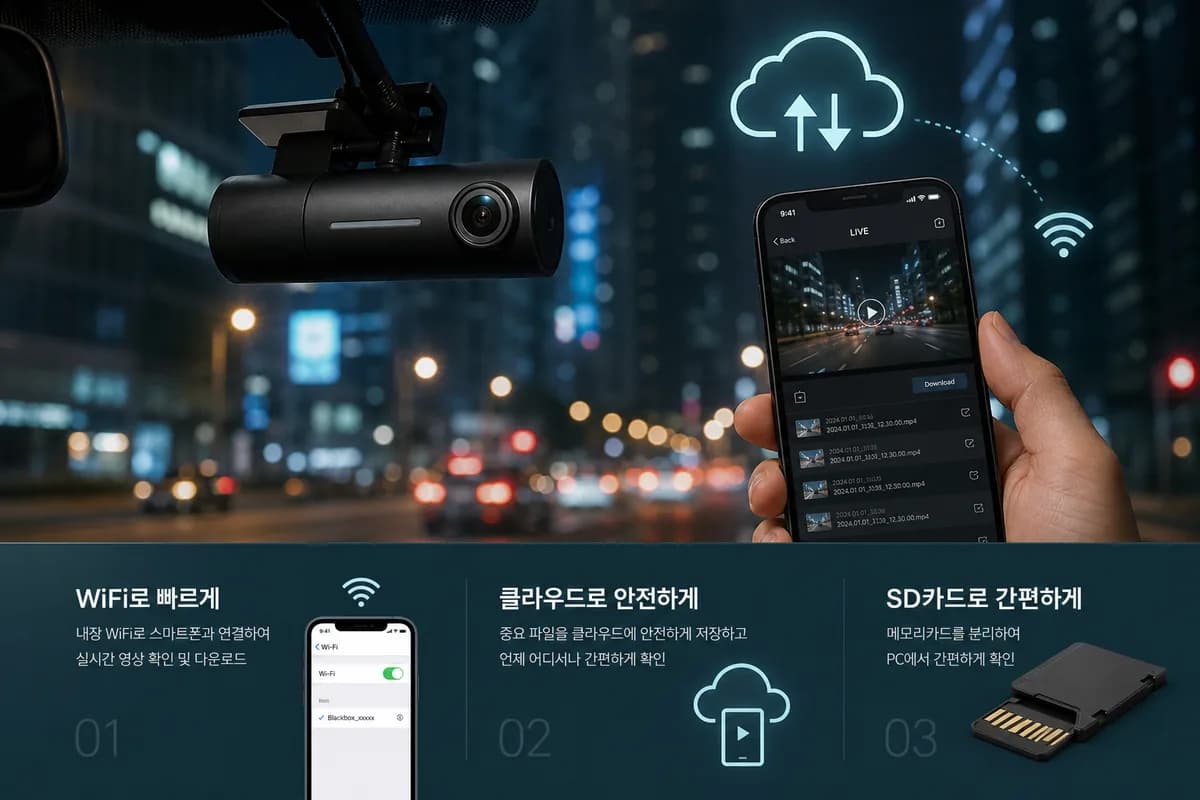
Thinkware is one of the premium dashcam brands known for advanced features like Cloud connectivity, dual-channel recording, and superior night vision. With models like the Thinkware U1000, Q800 Pro, and X1000 installed in millions of vehicles worldwide, knowing how to download Thinkware dashcam videos is essential for insurance claims, YouTube uploads, and evidence documentation.
This comprehensive guide covers three reliable methods to export your Thinkware footage: Thinkware Cloud download, WiFi transfer via Thinkware Connected app, and SD card transfer—plus the critical step most users skip: blurring faces and license plates before sharing.
According to recent privacy violation reports, 82% of dashcam users who share footage publicly fail to redact personally identifiable information, potentially exposing themselves to GDPR fines (up to €20 million), legal complaints, and platform content strikes.
Why Download Thinkware Dashcam Footage?
Thinkware dashcam owners download footage for various critical reasons:
Insurance Claims & Accident Evidence: Clear video proof significantly reduces claim disputes. The Insurance Information Institute reports that dashcam evidence reduces claim resolution time by 47% and saves policyholders an average of $2,400 in contested claims.
YouTube & Social Media Content Creation: Dashcam channels generate millions of views from incident compilations, road rage footage, and scenic drives. Top dashcam creators earn $3,000-$15,000 monthly through YouTube monetization.
Law Enforcement Evidence: Police departments increasingly accept dashcam footage for hit-and-run investigations, traffic violations, and criminal cases. The UK National Dash Cam Safety Portal alone processed over 62,000 dashcam submissions in 2025.
Cloud Backup & Remote Access: Thinkware's Cloud service enables instant access to footage from anywhere—critical when your vehicle is in an accident or stolen.
Fleet Management & Driver Training: Commercial fleets use Thinkware footage for driver coaching, safety audits, and liability protection.
The Privacy Crisis Nobody Addresses
Here's the alarming reality: Every visible face and license plate in your Thinkware footage is personally identifiable information (PII) protected under international privacy laws:
- GDPR (Europe): Fines up to €20 million or 4% of annual revenue for privacy violations
- DPDP Act (India): Penalties up to ₹250 crore for security safeguard failures
- CCPA (California): $7,500 per intentional privacy violation
- PIPEDA (Canada): Fines up to $100,000 for privacy breaches
- BIPA (Illinois): Over $875 million paid in biometric privacy settlements since 2020
Before sharing Thinkware dashcam videos publicly, you must blur identifiable faces and license plates unless you have explicit consent—impractical for bystanders captured in traffic footage.
Method 1: Download Thinkware Videos via Cloud (Most Convenient)
Thinkware Cloud is the premium feature that sets Thinkware apart from competitors. Cloud storage automatically uploads critical footage and allows remote access from anywhere.
Understanding Thinkware Cloud Service
What is Thinkware Cloud?
- Automatic upload of incident recordings triggered by G-sensor or manual saves
- Remote live view capability
- GPS tracking and route history
- Configurable upload settings (WiFi-only or LTE)
- 30-day to 1-year storage depending on subscription plan
Subscription Requirements:
- Free tier: Limited to event clips only, 30-day storage
- Premium: Continuous recording upload, 90-day storage, $9.99/month
- Platinum: 1-year storage, priority support, $14.99/month
Models with Cloud support: U1000, Q800 Pro, X1000, Q200 (with LTE module)
Step 1: Set Up Thinkware Cloud
If you haven't already activated Cloud service:
- Install LTE module (if your model requires external module like Q800 Pro)
- Download Thinkware Connected app (iOS/Android)
- Create Thinkware account or log in
- Activate Cloud service in app settings
- Configure upload preferences:
- Upload via WiFi only (saves cellular data)
- Upload via LTE (real-time, requires data plan)
- Event recording only vs. continuous recording
- Verify connection — green cloud icon on dashcam screen indicates active connection
Pro tip: Enable "Parking Mode Cloud Upload" to receive instant notifications when your parked vehicle experiences an impact.
Step 2: Access Thinkware Cloud Portal
Via Mobile App:
- Open Thinkware Connected app on your smartphone
- Tap "Cloud" icon in bottom menu
- View timeline of uploaded footage
- Videos organized by date and event type
Via Web Portal:
- Visit cloud.thinkware.com in your browser
- Log in with your Thinkware account credentials
- Access full dashboard with map view and video timeline
- Better for reviewing multiple days of footage
Step 3: Browse and Select Videos
Cloud interface organizes footage into categories:
- Event Recordings: Collision-triggered clips (G-sensor activated)
- Manual Saves: Videos you manually saved via dashcam button
- Parking Mode: Incidents while vehicle was parked
- Continuous: Background loop recording (Premium/Platinum only)
Timeline view: Scrub through dates to find specific incidents Map view: See where each recording was captured via GPS data Filter options: Sort by date, event type, or location
Step 4: Download from Cloud
Mobile App Download:
- Tap video thumbnail to open
- Tap download icon (downward arrow)
- Video saves to phone's Photos (iOS) or Gallery (Android)
- Typical download speed: 5-10 minutes for 5-minute clip over WiFi
Web Portal Download:
- Click video thumbnail
- Click "Download" button in video player
- Choose quality: Original (full resolution) or Compressed (faster download)
- Video downloads to computer's Downloads folder
- Faster than mobile download: 2-5 minutes for 5-minute clip
Step 5: Manage Cloud Storage
Delete old footage to free up cloud space:
- Select multiple videos → Delete button
- Deleted videos are permanently removed after 7-day grace period
Download before deletion — always save important evidence locally before removing from cloud.
Thinkware Cloud: Pros & Cons
Pros:
- ✅ Access footage from anywhere in the world
- ✅ No need to visit vehicle to retrieve footage
- ✅ Automatic upload of critical incidents
- ✅ GPS tracking and route history
- ✅ Instant notifications for parking mode events
- ✅ Works even if dashcam is damaged or stolen
Cons:
- ❌ Requires subscription ($9.99-$14.99/month)
- ❌ LTE data costs (if uploading over cellular)
- ❌ Limited storage on free tier
- ❌ Slower download than local methods
- ❌ Requires stable internet connection
- ❌ Not available on older Thinkware models
Method 2: Download via Thinkware Connected App (WiFi Transfer)
The Thinkware Connected app provides wireless access to your dashcam's SD card footage without Cloud subscription—perfect for on-the-go downloads.
Step 1: Download Thinkware Connected App
For iPhone:
- Open App Store
- Search "Thinkware Connected"
- Download official app (blue icon with white "T")
- Requires iOS 13.0 or later
For Android:
- Open Google Play Store
- Search "Thinkware Connected"
- Download and install
- Requires Android 8.0 or later
Note: Older Thinkware models may use legacy apps like "Thinkware Dash Cam" or "Thinkware Cloud." Check your model's manual.
Step 2: Enable WiFi on Your Thinkware Dashcam
For touchscreen models (U1000, Q800 Pro):
- Swipe down from top of screen to open quick settings
- Tap WiFi icon to enable
- Note the SSID (network name): Usually "THINKWARE_####"
- Note the password: Displayed on screen or in settings
For non-touchscreen models (X1000, F800 Pro):
- Press WiFi button on dashcam (look for WiFi symbol)
- Hold for 3 seconds until WiFi indicator lights up
- Check SSID/password in dashcam menu or user manual
WiFi range: Typically 20-30 feet — you must be near your vehicle
Step 3: Connect Smartphone to Dashcam WiFi
iPhone:
- Open Settings → WiFi
- Find THINKWARE_#### network
- Tap to connect
- Enter password when prompted
- Confirm connection (checkmark appears)
Android:
- Open Settings → WiFi
- Select THINKWARE_#### network
- Enter password
- Tap Connect
Important: While connected to dashcam WiFi, you'll lose internet access. Your phone communicates directly with the camera, not through your home/mobile network.
Step 4: Pair App with Dashcam
- Launch Thinkware Connected app
- App should auto-detect your dashcam
- If not detected, tap "Add Device" or "+" icon
- Select your dashcam model from list
- Follow pairing instructions
- Wait for connection confirmation
Troubleshooting: If pairing fails, restart both dashcam and app, ensure you're connected to dashcam WiFi (not home WiFi).
Step 5: Browse and Download Videos
- Tap "Playback" or "Gallery" icon in app
- Choose camera angle:
- Front camera (road view)
- Rear camera (if dual-channel model)
- Browse folders by recording type:
- Event: Collision-triggered clips
- Normal: Continuous loop recordings
- Manual: Manually saved clips
- Parking: Parking mode recordings
- Tap video thumbnail to preview
- Tap download icon to save to phone
- Transfer speed: 5-15 MB/s (slower than SD card, faster than Cloud)
Step 6: Transfer to Computer (Optional)
After downloading to phone:
- Connect phone to computer via USB cable
- Enable file transfer mode (Android) or open Finder (Mac) / Photos app (Windows)
- Copy videos from phone to computer
- Or upload to cloud storage (Google Drive, Dropbox) for backup
Thinkware Connected App: Pros & Cons
Pros:
- ✅ No subscription required
- ✅ Access all SD card footage (not just cloud uploads)
- ✅ Preview before downloading
- ✅ Adjust dashcam settings remotely
- ✅ Faster than Cloud download
- ✅ Works offline (no internet needed)
Cons:
- ❌ Must be within 20-30 feet of vehicle
- ❌ Slower than SD card method
- ❌ Drains dashcam and phone battery
- ❌ Can't download while driving (WiFi loses connection when vehicle moves)
- ❌ Limited to one user at a time
Method 3: Download via SD Card (Fastest Method)
The SD card transfer method is the fastest and most reliable way to download large volumes of Thinkware footage—essential for bulk downloads or when WiFi/Cloud aren't available.
Step 1: Safely Remove SD Card
Important: Never remove SD card while dashcam is recording. Wait until:
- Vehicle is turned off (dashcam stops recording)
- Parking mode completes (LED indicator stops blinking)
- Or manually stop recording via dashcam menu
Removal process:
- Locate SD card slot (usually behind front camera lens cover)
- Press gently to release spring-loaded mechanism
- Pull out carefully — avoid touching gold contacts
- Handle by edges to prevent static damage
Pro tip: Keep a spare SD card pre-formatted for Thinkware. Swap cards so your dashcam continues recording while you download footage.
Step 2: Insert SD Card into Computer
For computers with SD card reader:
- Insert microSD into SD adapter (usually included)
- Insert adapter into computer's SD slot
- Wait for drive to appear
For computers without SD card reader:
- Use USB microSD card reader ($5-15 on Amazon)
- Plug reader into USB port
- Insert microSD card into reader
- Wait for drive to mount
Card should appear as: "THINKWARE" or "NO NAME" drive
Step 3: Navigate to Video Files
Windows:
- Open File Explorer
- Click on Thinkware SD card drive
- Navigate to folder structure
Mac:
- Open Finder
- Click SD card in sidebar
- Browse folders
Thinkware folder structure:
DCIM/
├── BLACKBOX/
│   ├── NORMAL/     (Continuous loop recordings)
│   ├── EVENT/      (Collision-triggered clips)
│   ├── MANUAL/     (Manually saved videos)
│   ├── PARKING/    (Parking mode recordings)
Dual-channel models have separate subfolders:
NORMAL_F/andNORMAL_R/(Front/Rear)EVENT_F/andEVENT_R/
Step 4: Copy Files to Computer
- Select videos you need (Ctrl+click for multiple on Windows, Cmd+click on Mac)
- Right-click → Copy (or Ctrl+C / Cmd+C)
- Navigate to destination folder (Desktop, Documents, or custom archive folder)
- Right-click → Paste (or Ctrl+V / Cmd+V)
- Wait for transfer — speed depends on SD card quality:
- Standard cards: 20-40 MB/s
- High-speed cards: 80-150 MB/s
- Typical 5-minute clip (1-2GB): 30-90 seconds
File naming convention: Thinkware uses format YYYYMMDD_HHMMSS_F.MP4 (Front) or _R.MP4 (Rear)
- Example:
20260528_143022_F.MP4= May 28, 2026 at 2:30:22 PM, Front camera
Step 5: Safely Eject and Reinsert
Windows:
- Click "Safely Remove Hardware" icon (system tray)
- Select Thinkware SD card
- Wait for "Safe to remove" confirmation
- Remove card
Mac:
- Right-click drive icon on desktop
- Select "Eject [drive name]"
- Wait for icon to disappear
- Remove card
Reinsert SD card into Thinkware dashcam:
- Insert until you hear/feel a click
- Verify dashcam recognizes card (recording resumes)
SD Card Transfer: Pros & Cons
Pros:
- ✅ Fastest transfer speed (no network bottleneck)
- ✅ Works offline — no WiFi or internet required
- ✅ No battery drain on dashcam or phone
- ✅ Can copy entire SD card contents at once
- ✅ Full resolution, no compression
- ✅ Access all footage types simultaneously
Cons:
- ❌ Requires physical access to dashcam
- ❌ Risk of corruption if removed during recording
- ❌ Need SD card reader (not standard on all laptops)
- ❌ Can't preview footage before downloading
- ❌ Interrupts dashcam recording until card is reinserted
Before Sharing: How to Blur Faces and License Plates in Thinkware Videos
Critical privacy step: Before uploading Thinkware dashcam footage to YouTube, social media, insurance portals, or cloud storage, you must blur identifiable faces and license plates to:
- Comply with GDPR, CCPA, DPDP, and privacy laws (see fines above)
- Protect yourself from legal liability if bystanders object to being filmed
- Prevent identity theft — license plates can be used to trace vehicle owners, track routines, and target individuals
- Meet YouTube monetization policies — unblurred faces may violate content policies and result in demonetization
- Satisfy insurance requirements — many insurers require redacted footage that protects uninvolved parties
Why Manual Blurring Fails for Dashcam Footage
Thinkware videos present unique challenges that make manual blurring impractical:
- Dual-channel footage: Front AND rear cameras = double the work
- High resolution: U1000 records at 4K (3840×2160) = 8.3 million pixels per frame
- Moving vehicles: Faces and plates move unpredictably across frames, requiring precise tracking
- Multiple subjects: A typical 2-minute clip may contain 30+ faces and 50+ license plates
- Variable lighting: Thinkware's superior night vision captures details even in low light, making more objects identifiable
- Time investment: Manual blurring in Premiere Pro or DaVinci Resolve can take 6-12 hours for a single 10-minute dual-channel clip
The BGBlur Solution for Thinkware Dashcam Videos
BGBlur.com automates privacy protection with AI-powered face and license plate detection optimized for dashcam footage.
Why BGBlur Is Perfect for Thinkware Footage
-
Automatic Detection: AI finds all faces and license plates including:
- Distant or partially obscured plates
- Faces in mirrors and reflections
- Moving vehicles at various angles
- Pedestrians on sidewalks
- Plates in both front and rear camera footage
-
Frame-Accurate Tracking: Blur stays locked to subjects throughout the video, even during:
- High-speed highway driving
- Camera shake and vibration
- Rapid lane changes
- Vehicles entering and leaving frame
- Complex multi-lane traffic scenarios
-
4K Support: Handles Thinkware U1000's 4K resolution without quality loss
-
Fast Processing:
- 5-minute 1080p clip: 2-5 minutes
- 5-minute 4K clip: 4-8 minutes
- Dual-channel footage: Process both files simultaneously
-
Multiple Blur Styles:
- Gaussian blur: Natural-looking, professional
- Pixelation: Stronger anonymization
- Solid blocking: Complete redaction
- Adjustable intensity: Light privacy to full anonymization
-
Batch Processing: Upload multiple clips and process simultaneously — essential for content creators handling hours of footage
How to Blur Thinkware Dashcam Videos: 3-Step Process
Step 1: Upload Your Thinkware Video to BGBlur
- Go to BGBlur.com/en/upload
- Select blur type:
- Face Blur: For videos with pedestrians or people in stopped vehicles
- License Plate Blur: For traffic footage (most common for dashcams)
- Both: For comprehensive privacy protection (recommended)
- Background Blur: Optional aesthetic enhancement
- Drag and drop your Thinkware MP4 file or click to browse
- Supported formats: MP4, MOV, AVI (all Thinkware formats compatible)
- File size limit: Up to 2GB free tier, unlimited on Pro plan
For dual-channel footage: Upload front and rear camera files separately, or use batch processing to handle both simultaneously.
Step 2: Let AI Detect and Track
- BGBlur's AI automatically scans every frame (typically 30 fps)
- Detected faces and plates are highlighted with colored bounding boxes in the preview
- Review the detection overlay to confirm coverage
- Adjust settings if needed:
- Blur intensity: Slide from light (partial privacy) to heavy (full anonymization)
- Blur style: Choose Gaussian (professional), pixelation (strong), or solid blocks (complete)
- Selective blur: Keep specific plates unblurred (e.g., your own vehicle's rear plate in rear camera view)
- Custom objects: Manually mark any missed detections (rare, but useful for edge cases)
Preview feature: Scrub through timeline to verify all subjects are tracked across entire video duration.
Step 3: Process and Download
- Click "Start Processing"
- Wait for rendering:
- 1080p 5-minute clip: 2-5 minutes
- 4K 5-minute clip: 4-8 minutes
- Progress bar shows estimated time remaining
- Preview the blurred video before downloading — final quality check
- Download the privacy-safe version
- Share confidently on YouTube, insurance portals, social media, or cloud backup
Privacy guarantee: BGBlur processes videos securely with encryption and automatically deletes source files 24 hours after processing. No permanent storage, no third-party access, no data mining.
Comparison:
- Manual blurring in Premiere Pro: 6-12 hours for 10-minute clip
- BGBlur AI processing: 4-8 minutes for same clip
- 95x faster with better accuracy
Thinkware Dashcam Models: Download Compatibility
All current Thinkware models support SD card download. Here's comprehensive compatibility for Cloud and WiFi features:
| Model | SD Card | WiFi App | Cloud Service | Resolution | Notes |
|---|---|---|---|---|---|
| U1000 | ✅ | ✅ | ✅ (LTE built-in) | 4K UHD | Premium flagship, best Cloud integration |
| Q800 Pro | ✅ | ✅ | ✅ (requires LTE module) | 2K QHD | Popular mid-range, excellent night vision |
| X1000 | ✅ | ✅ | ⚠️ (limited) | 2K QHD | WiFi only, no LTE Cloud upload |
| Q200 | ✅ | ✅ | ✅ (LTE optional) | 2K QHD | Compact design, Cloud-ready |
| X800 | ✅ | ✅ | ❌ | Full HD 1080p | WiFi app only, no Cloud |
| F800 Pro | ✅ | ⚠️ | ❌ | Full HD 1080p | Older model, limited WiFi functionality |
| F200 Pro | ✅ | ⚠️ | ❌ | Full HD 1080p | Budget option, basic WiFi |
| FA200 | ✅ | ✅ | ⚠️ (WiFi Cloud only) | Full HD 1080p | WiFi Cloud (must be near home WiFi) |
Key:
- ✅ Fully supported
- ⚠️ Limited functionality
- ❌ Not supported
Note: Always update to latest firmware via Thinkware PC Viewer software for optimal Cloud and WiFi performance.
Troubleshooting Common Thinkware Download Issues
"Thinkware Cloud shows 'No connection' error"
Solutions:
- Verify LTE module is properly installed and activated
- Check cellular signal strength (Cloud requires 3G/4G/LTE)
- Confirm Cloud subscription is active (check account billing)
- Restart dashcam by unplugging power for 30 seconds
- Update dashcam firmware via Thinkware PC Viewer
- Verify SIM card is inserted correctly (models with removable SIM)
- Check APN settings match your cellular carrier
"Thinkware Connected app won't connect to dashcam WiFi"
Solutions:
- Ensure WiFi is enabled on dashcam (check screen indicator)
- Verify phone is connected to dashcam WiFi network (THINKWARE_####), not home WiFi
- Restart both Thinkware Connected app and dashcam
- Move phone closer to vehicle (WiFi range: 20-30 feet)
- Disable mobile data temporarily (forces phone to use WiFi)
- Update Thinkware Connected app to latest version
- Reset dashcam WiFi settings: Settings → WiFi → Reset
- Check if dashcam WiFi password changed — reset to default if needed
"SD card not recognized in computer"
Solutions:
- Try different SD card reader or USB port
- Check if SD card is locked (tiny switch on side of adapter — slide to unlock)
- Test SD card in dashcam to confirm it's not corrupted
- Format card in dashcam (WARNING: deletes all footage) — Settings → Format SD
- Update SD card drivers (Windows Device Manager)
- Try on different computer to isolate hardware issue
- Replace SD card if older than 18 months (write cycles degrade over time)
"Thinkware video files won't play on my computer"
Solutions:
- Install VLC Media Player (more codec-compatible than default players)
- Download Thinkware PC Viewer software (official Thinkware player with GPS map overlay)
- Update your media player to latest version
- Check file integrity — corrupted files show 0 bytes or wrong file size
- Don't interrupt SD card removal during recording
- Use high-endurance SD cards rated for dashcam use (SanDisk High Endurance, Samsung PRO Endurance)
"Cloud upload is extremely slow or stalls"
Solutions:
- Check cellular signal strength (need at least 2 bars)
- Switch upload preference to "WiFi only" — upload when parked near home WiFi
- Reduce Cloud upload quality: Settings → Cloud → Upload Quality → Standard (instead of High)
- Delete old Cloud footage to free up storage quota
- Upgrade Cloud subscription if storage is full
- Restart dashcam to clear upload queue
- Contact Thinkware support if persistent — may be cellular carrier issue
"Downloaded video has no GPS data overlay"
Solutions:
- Use Thinkware PC Viewer software (free download from thinkware.com)
- GPS data is embedded in MP4 metadata, not visible in standard players
- Ensure GPS was enabled during recording: Settings → GPS → On
- Wait for GPS lock (can take 1-5 minutes after starting vehicle)
- Check if GPS antenna is properly connected (external antenna models)
- Some video editors strip GPS metadata on export — use original files for GPS review
Best Practices for Managing Thinkware Dashcam Footage
1. Use High-Quality SD Cards
Recommended SD cards for Thinkware dashcams:
- SanDisk High Endurance: Industry standard, 10,000 hours recording endurance
- Samsung PRO Endurance: Excellent reliability, 140 MB/s read speed
- Lexar High-Endurance: Affordable alternative, UHS-I compatible
- Transcend High Endurance: Good budget option, 2-year warranty
Specifications:
- Class 10 or higher
- UHS Speed Class 3 (U3) for 4K models like U1000
- UHS Speed Class 1 (U1) minimum for 1080p/2K models
- 32GB to 256GB capacity
- 32GB: ~3-4 hours continuous 1080p
- 64GB: ~6-8 hours continuous 1080p (ideal for most users)
- 128GB: ~12-16 hours continuous 1080p
- 256GB: ~24-32 hours continuous 1080p (overkill unless you want multi-day coverage)
For 4K U1000: 64GB minimum, 128GB recommended
2. Regular SD Card Maintenance
- Format monthly using dashcam's format function (Settings → Format SD Card)
- Do NOT format on computer — use dashcam's built-in formatter
- Thinkware formats in exFAT for files over 4GB
- Replace every 12-18 months — SD cards have limited write cycles (high-endurance cards last longer)
- Keep a spare pre-formatted in vehicle for emergencies or swap-out during downloads
- Backup critical footage before formatting
3. Organize Downloaded Footage
Create structured folder system:
Thinkware_Archive/
├── 2026/
│   ├── 01_January/
│   │   ├── 2026-01-15_Rear_End_Collision/
│   │   │   ├── Original/
│   │   │   │   ├── 20260115_143022_F.MP4 (Front)
│   │   │   │   ├── 20260115_143022_R.MP4 (Rear)
│   │   │   ├── Blurred/
│   │   │   │   ├── 20260115_143022_F_BLURRED.MP4
│   │   │   │   ├── 20260115_143022_R_BLURRED.MP4
│   │   │   ├── Insurance_Claim_Documentation.pdf
│   │   ├── 2026-01-20_Road_Trip_Scenic/
│   ├── 02_February/
│   │   ├── 2026-02-05_Parking_Incident/
Naming convention: YYYY-MM-DD_Description/ (e.g., 2026-05-28_Highway_Road_Rage/)
Separate originals from blurred: Always keep unedited originals for legal/insurance purposes, use blurred versions for public sharing.
4. Backup Critical Footage Immediately
Important clips (accidents, incidents, evidence):
- Copy to multiple locations: Computer, external hard drive, cloud storage
- Don't rely on SD card alone — cards can fail, get corrupted, or be overwritten by loop recording
- Upload to cloud within 24 hours:
- Google Drive (15GB free)
- Dropbox (2GB free, upgrade for more)
- OneDrive (5GB free with Microsoft account)
- iCloud (5GB free for Apple users)
- Create timestamped backups: Include date in filename/folder for chronological organization
Backup workflow:
- Download from dashcam (SD card/WiFi/Cloud)
- Copy to computer's local drive
- Upload original to cloud storage
- Blur with BGBlur
- Save blurred version separately
- Verify both versions playable before deleting from SD card
5. Respect Privacy Laws Before Sharing
Before sharing Thinkware dashcam videos publicly:
- ✅ Blur all faces and license plates using BGBlur (unless directly relevant to incident)
- ✅ Remove or mute audio if bystander conversations are captured (GDPR/CCPA can apply to voices)
- ✅ Check local laws — some jurisdictions restrict dashcam use or public posting
- ✅ Obtain consent when possible (impractical for traffic footage, hence why blurring is essential)
- ✅ Never share footage of minors without parental consent (COPPA violations carry heavy penalties)
Legal distinctions:
- Private use (evidence for insurance/police): Original unedited footage
- Public sharing (YouTube/social media): Blurred footage required
- Commercial use (monetized content): Must comply with strictest privacy standards
Legal Considerations: When to Share (and When Not To)
Insurance Claims & Law Enforcement
Always provide original, unedited footage to:
- Your insurance company (request secure upload portal or encrypted email)
- Police officers when officially requested
- Your attorney for legal proceedings
- Court submissions (subpoena compliance)
Critical: Keep originals separate from blurred versions. Tampering with evidence (even privacy blurring) can invalidate footage for legal purposes.
Best practice:
- Submit original to authorities/insurance
- Blur before posting publicly
- Clearly label folders "Original" and "Blurred"
YouTube & Social Media Sharing
Required before posting:
- ✅ Blur all faces and license plates (unless central to story with consent)
- ✅ Remove or mute profane audio
- ✅ Check platform policies:
- YouTube: Dashcam content guidelines prohibit identifiable personal information without consent
- TikTok: Privacy policy restricts posting others' faces without permission
- Instagram/Facebook: Community standards require privacy protection
- Reddit: Subreddits like r/Dashcam enforce blurring rules
Failure to blur may result in:
- GDPR/CCPA violation notices and fines (€20M / $7,500 per violation)
- YouTube account strikes, demonetization, or termination
- Legal complaints from identifiable subjects (harassment, defamation lawsuits)
- Platform content removal or account suspension
- Doxxing accusations if footage reveals home addresses
Monetization impact: YouTube may demonetize unblurred dashcam content under "Made for Kids" or privacy policies. BGBlur ensures compliance.
Workplace & Fleet Use
Commercial Thinkware dashcam footage must:
- Comply with employee privacy laws (some states require notice/consent for workplace recording)
- Include visible "Vehicle Monitored" notices
- Be stored securely with access controls (HIPAA/PCI compliance for some industries)
- Delete footage after retention period (typically 30-90 days unless incident-related)
- Only be used for legitimate business purposes (safety, liability, training — NOT employee surveillance beyond scope)
- Blur if shared externally (training videos, marketing materials)
Fleet managers: Implement privacy policy documentation and driver acknowledgment forms.
Thinkware Cloud Storage Plans Comparison
| Feature | Free Tier | Premium ($9.99/mo) | Platinum ($14.99/mo) |
|---|---|---|---|
| Event clips upload | ✅ | ✅ | ✅ |
| Continuous recording upload | ❌ | ✅ | ✅ |
| Storage duration | 30 days | 90 days | 1 year |
| Remote live view | ⚠️ Limited | ✅ Unlimited | ✅ Unlimited |
| GPS tracking history | 7 days | 30 days | 90 days |
| Parking mode notifications | ✅ | ✅ | ✅ Priority alerts |
| Download quality | Standard | High | Original |
| Multi-device access | 1 device | 3 devices | 5 devices |
| Customer support | Email only | Email + Chat | Priority phone support |
Recommendation:
- Free tier: Casual users who only need incident clips
- Premium: Regular users who want full footage backup
- Platinum: Professional/fleet users requiring long-term archival
Annual billing discount: Save 20% with annual payment ($95.88/year vs $119.88 monthly for Premium)
Frequently Asked Questions
How long does it take to download Thinkware dashcam videos?
SD card method:
- Full 64GB card: 5-10 minutes
- Single 5-minute clip (1-2GB): 30-90 seconds
WiFi app method:
- 5-minute 1080p clip: 3-5 minutes
- 5-minute 4K clip: 6-10 minutes
Cloud download:
- 5-minute clip: 5-10 minutes (depends on internet speed)
- Slower than local methods due to upload/download over internet
Transfer time varies based on file size, SD card speed, WiFi signal strength, and internet connection.
Can I view Thinkware dashcam videos on my phone without downloading?
Yes, the Thinkware Connected app allows live preview and playback of videos stored on your dashcam's SD card without downloading them to your phone.
Cloud service also enables remote viewing from anywhere without needing WiFi proximity to your vehicle.
However, for editing, blurring, or permanent storage, you'll need to download the files.
Will downloading videos delete them from my Thinkware dashcam?
No. Copying videos from SD card, WiFi app, or Cloud leaves the originals intact.
To free up space:
- SD card: Delete via dashcam menu or format card (erases everything)
- Cloud: Delete individual clips via app/web portal
- Automatic overwrite: Loop recording overwrites oldest non-protected files when SD card fills up
Pro tip: Manually save important clips (press "Save" button on dashcam during/after incident) to prevent loop recording from overwriting them.
What video format does Thinkware dashcam use?
Thinkware dashcams record in MP4 format (H.264 codec for most models, H.265/HEVC for newer 4K models like U1000).
Resolution by model:
- U1000: 4K UHD (3840×2160) @ 30fps
- Q800 Pro, X1000: 2K QHD (2560×1440) @ 30fps
- F800 Pro, F200 Pro: Full HD 1080p (1920×1080) @ 30fps
File size estimates:
- 4K: ~4GB per 10 minutes
- 2K: ~2GB per 10 minutes
- 1080p: ~1GB per 10 minutes
Compatibility: MP4 plays on all major devices, video players, and editing software (VLC, QuickTime, Windows Media Player, etc.).
How much cloud storage do I need for Thinkware Cloud?
Storage requirements depend on upload settings:
Event-only uploads (Free tier):
- ~10-30 events per month (assuming occasional triggers)
- ~2-5GB total
Continuous recording uploads (Premium/Platinum):
- 24/7 upload: ~400GB per month (1080p), ~800GB per month (4K)
- Most users set "WiFi-only upload" to avoid cellular data costs
- Thinkware Cloud automatically manages storage by deleting oldest footage
Recommendation:
- Casual users: Free tier sufficient
- Regular commuters: Premium (90-day retention)
- Fleet/professional: Platinum (1-year retention for liability protection)
Can I edit Thinkware dashcam videos before sharing?
Yes, but follow this workflow:
- Blur first using BGBlur (critical for privacy compliance)
- Then edit with video editing software:
- Basic editing: iMovie (Mac), Windows Video Editor, CapCut (mobile)
- Professional editing: Adobe Premiere Pro, DaVinci Resolve, Final Cut Pro
Always work with copies, never edit the original evidence footage (legal integrity).
Common edits:
- Trim to relevant section
- Add text overlays (date/time, incident description)
- Combine front + rear camera into split-screen
- Add background music (royalty-free only for YouTube)
- Speed up boring sections (time-lapse effect)
Thinkware PC Viewer: Free official software with basic editing, GPS map overlay, and playback controls.
Does Thinkware Cloud work internationally?
Yes, with limitations:
LTE models (U1000, Q800 Pro with module):
- Requires local SIM card if traveling internationally
- OR international roaming plan (expensive)
- Cloud service works anywhere with 3G/4G/LTE coverage
WiFi-only Cloud models (FA200):
- Only uploads when connected to known WiFi networks (home, office)
- Won't upload while traveling unless you manually connect to WiFi
Best practice for international travel:
- Download critical footage before leaving home country
- Use SD card method as primary backup
- Consider local SIM card if extended travel (cheaper than roaming)
Conclusion: Download Safely, Share Responsibly
Downloading videos from your Thinkware dashcam is straightforward with the Cloud, WiFi app, or SD card methods outlined in this guide. Choose the method that best fits your situation:
- Thinkware Cloud: Most convenient for remote access and automatic backup (requires subscription)
- Thinkware Connected app: Best for quick smartphone downloads without subscription
- SD card transfer: Fastest for bulk downloads and offline use
Most importantly: Before sharing any Thinkware dashcam footage publicly, blur all faces and license plates using BGBlur.com to:
- Protect privacy and prevent identity theft
- Comply with GDPR, CCPA, DPDP, and international privacy regulations
- Avoid legal liability and platform content strikes
- Meet YouTube monetization and insurance requirements
Your Thinkware dashcam captures critical evidence and memorable moments—download and share them safely.
Blur Thinkware dashcam videos free on BGBlur.com →
Related Resources
- How to Blur License Plates in Dashcam Footage — Comprehensive dashcam privacy guide
- How to Download Garmin Dashcam Videos — Complete guide for Garmin users
- Dashcam Blur Software — Professional redaction for fleet and personal use
- State of Visual Privacy 2026 Whitepaper — GDPR, DPDP, and CCPA compliance guide
- How to Blur Faces in Video — Complete face anonymization guide
- Top 10 Tools for Dashcam Content Creators — Essential toolkit for dashcam YouTubers
Last updated: May 28, 2026