Remove Objects from Video with AI: Complete Guide [2026]
Unwanted objects in your footage can ruin an otherwise perfect shot. In 2026, AI-powered object removal tools let you erase distracting elements, watermarks, and background clutter in minutes—no frame-by-frame editing required. This guide covers the best tools and workflows for removing objects from video using AI.
You framed the perfect shot. The lighting was right, the subject was nailing it—and then you notice it in post: a brand logo on a T-shirt, a stranger walking through the background, a distracting piece of equipment in the corner of the frame, or an accidental timestamp burned into the footage. One object. Entire clip potentially unusable.
For most of video production history, fixing this meant either reshooting or spending hours in a compositing tool, manually masking every frame. In 2026, AI has changed that entirely. Tools can now analyze what a background should look like beneath an unwanted object and reconstruct it automatically—across every frame, in minutes.
This guide covers everything you need to know about removing objects from video using AI: how the technology works, which tools perform best, step-by-step instructions for BGBlur, and the use cases where object removal is now an essential part of the workflow.
TL;DR — Quick Tool Comparison
| Feature | BGBlur | Runway Gen-3 | CapCut | Manual (Premiere/AE) |
|---|---|---|---|---|
| Browser-based | Yes | Yes | Yes (app) | No |
| AI inpainting | Yes | Yes | Basic | No |
| Moving objects | Yes | Yes | Limited | Yes (slow) |
| Free tier | 3 videos/mo | Limited credits | Free | Software cost |
| 4K support | Yes (Business) | Yes | 1080p max | Yes |
| Privacy (no upload storage) | Yes (24hr delete) | Cloud stored | Cloud stored | Local |
| API access | Yes (Business) | Yes | No | No |
| Watermark removal | Yes (own content) | Yes | Yes | Yes |
| Time per clip | Minutes | Minutes | Minutes | Hours |
What Is AI Object Removal (Inpainting)?
AI object removal uses a technique called video inpainting. When you mark an object for removal, the AI:
- Analyzes the pixels surrounding the object in each frame
- Uses a neural network trained on millions of images to predict what the background should look like beneath the object
- Reconstructs that background patch with texture, color, and lighting that matches the surrounding scene
- Applies temporal consistency algorithms to ensure the reconstructed area doesn't flicker or shift between frames
The result is a video where the object appears to have never existed. The quality of inpainting depends heavily on background complexity — simple, repeating textures (walls, grass, pavement) are reconstructed nearly perfectly, while complex backgrounds with unique details require more processing.
Research from Netflix's VOID project (Video Object Interaction Deletion) demonstrated that transformer-based inpainting models can achieve photorealistic reconstruction even on dynamic backgrounds, a major leap from earlier convolutional approaches. You can read more about the VOID research and its implications for video object deletion.
Step-by-Step: Remove Objects from Video with BGBlur
BGBlur runs entirely in your browser — no installation, no software subscription beyond the service itself. Here is the full workflow:
Step 1: Upload your video
Go to bgblur.com and upload your MP4, MOV, or M4V file. BGBlur supports files up to 4K resolution. Uploads are processed securely and files are deleted automatically within 24 hours.
Step 2: Select the Object Blur / Removal tool
From the editing dashboard, choose "Object & Region Blur" or "Object Removal." BGBlur uses the same AI pipeline for both — blur keeps the object's silhouette visible but obscured, while removal replaces it with reconstructed background.
Step 3: Draw a selection around the object
Use the brush or bounding box tool to mark the object you want removed. For static objects, a single selection on the first frame is often sufficient. For moving objects, BGBlur's AI tracking will follow the object across subsequent frames automatically — you can adjust the tracking path manually if needed.
Step 4: Preview the result
BGBlur generates a preview so you can check the inpainting quality before committing to an export. If the reconstruction looks off in certain frames, you can refine the selection mask or adjust the tracking path.
Step 5: Export
Export at your desired resolution: 720p (free tier), 1080p (Pro, $12/mo), or 4K (Business, $29/mo).

Use Cases: Who Uses AI Object Removal?
Content Creators and Vloggers
The most common need: removing accidental brand logos, product labels, or bystanders who wandered into a shot. For YouTube creators, this is often the difference between publishing on time and reshooting an entire segment. Common removals include visible brand names on clothing, intrusive lower-third graphics added accidentally in capture software, and phone notifications that appeared on a screen share.
News and Journalism
News organizations increasingly use object removal to protect source confidentiality — removing identifying objects from environments that could inadvertently identify a whistleblower's location. It is also used to remove broadcast logos and chyrons from archival footage being repurposed for new packages.
Real Estate and Property Video
Real estate walkthrough videos are particularly well-suited to AI object removal. Common objects removed include: client personal belongings that weren't staged out before filming, contractor equipment left in frame, temporary fixtures, and old dates burned into security footage used as reference. The goal is showing the space, not the current occupant's life.
Surveillance and Security Review
Security teams reviewing surveillance footage often need to remove or blur objects that are irrelevant to the incident being investigated — reducing distraction and protecting bystanders' privacy simultaneously. For formal GDPR and privacy compliance workflows, read our complete guide to object and region blur for video privacy protection.
Film and Commercial Production
Even professional productions use AI object removal in post to fix continuity errors — a prop that changed position between takes, a modern car parked outside a period-set scene, a visible crew member reflected in a window. These fixes once required expensive VFX compositing work; AI inpainting makes them accessible to any production budget.
License Plate and Personal Data Redaction
For vehicle-forward content — dashcam footage, drone video, traffic documentation — removing or blurring license plates before publishing protects third-party privacy and avoids legal exposure. BGBlur's AI detects license plates automatically. See also our full guide to AI license plate blurring and GDPR compliance for video content.
Why AI Inpainting Beats Manual Masking
Let's be direct about what manual frame-by-frame masking actually costs:
A 60-second clip at 30fps contains 1,800 frames. If an object moves across 40 seconds of that clip, you are masking and filling approximately 1,200 individual frames. Even at 30 seconds per frame — which assumes clean, simple edges — that is 10 hours of work. For a 60-second clip.
AI inpainting reduces this to a workflow that takes under 10 minutes for most clips, including upload, selection, processing, and export. The output quality for simple-to-moderate backgrounds is now comparable to skilled manual work.
The remaining advantage of manual work is in highly complex, information-dense backgrounds where the AI has less reference data to reconstruct from. In those cases, a hybrid workflow — AI inpainting as a first pass, manual touch-up for problem frames — still saves 80-90% of the time.
What BGBlur Can and Cannot Remove
Works well:
- Static objects against relatively uniform backgrounds (signs, props, equipment)
- People or objects against sky, grass, plain walls, pavement
- Text overlays and watermarks on your own original content
- Moving objects with consistent background behind them
- Small-to-medium objects occupying less than 30% of the frame
More challenging:
- Objects covering the majority of the frame (reconstruction has less reference data)
- Fast-moving objects with significant motion blur
- Highly complex or information-dense backgrounds (cluttered cityscapes, intricate patterns)
- Objects that are tightly integrated with other foreground elements
Object Removal vs Object Blur: Which Should You Use?
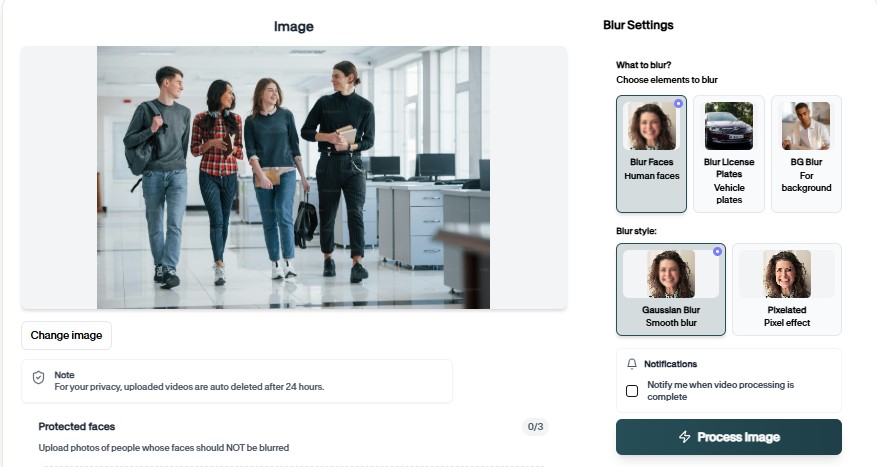
Object removal (inpainting) replaces the object with reconstructed background. Object blur obscures the object while preserving its silhouette. Which to use depends on your goal:
Use removal when:
- The object should never have been in the shot (accidents, continuity errors)
- You want the cleanest possible output for a professional production
- The background is relatively simple and inpainting quality will be high
Use blur when:
- You are protecting privacy (faces, license plates, personal data)
- Legal or compliance requirements require demonstrable anonymization rather than deletion
- The background is complex and removal artifacts would be visible
- You want to preserve evidence that something was there (journalism, legal documentation)
For privacy and compliance workflows specifically, blurring is generally the safer legal choice. Read our face anonymization vs face blur comparison for a deeper analysis of when each approach is appropriate.
Pricing Summary
BGBlur offers three tiers:
- Free: 3 video exports per month, up to 720p resolution. Object removal included.
- Pro ($12/month): Unlimited exports, up to 1080p resolution, priority processing.
- Business ($29/month): 4K resolution, API access for automated workflows, team features.
All tiers include file deletion within 24 hours of processing.
Frequently Asked Questions
Can I remove objects from video without downloading software?
Yes. BGBlur runs entirely in your browser. There is nothing to install — just upload your video, select the object, and export. This works on Mac, Windows, Linux, and mobile browsers.
How long does AI object removal take?
Processing time depends on clip length, resolution, and the complexity of the object selection. Most clips under 2 minutes process in 3-8 minutes. 4K clips may take longer.
Is the object removal permanent?
The export you download has the object removed. Your original file is unchanged and is deleted from BGBlur's servers within 24 hours of upload. Always keep a backup of your original footage before processing.
Does BGBlur remove audio associated with the removed object?
Object removal affects the visual track only. If you also need to remove or modify audio (for example, removing a voice or background sound), BGBlur's voice anonymization features handle audio separately.
Can I use the API for automated object removal workflows?
Yes, on the Business plan ($29/month). The BGBlur API supports programmatic object removal and blurring, allowing you to integrate the workflow into content pipelines, CMS platforms, or batch processing systems.
AI object removal has moved from an expensive compositing specialty to an accessible, browser-based workflow available to any creator or production team. Whether you are cleaning up accidental logos, protecting privacy, or fixing continuity errors, BGBlur's AI inpainting engine handles the heavy lifting — letting you focus on the content, not the cleanup.