Blur Background in Zoom and Google Meet Recordings [2026]
A practical guide to blurring backgrounds in already-recorded Zoom and Google Meet sessions, covering why live built-in blur isn't enough, a 4-step post-production workflow, and privacy compliance tips.
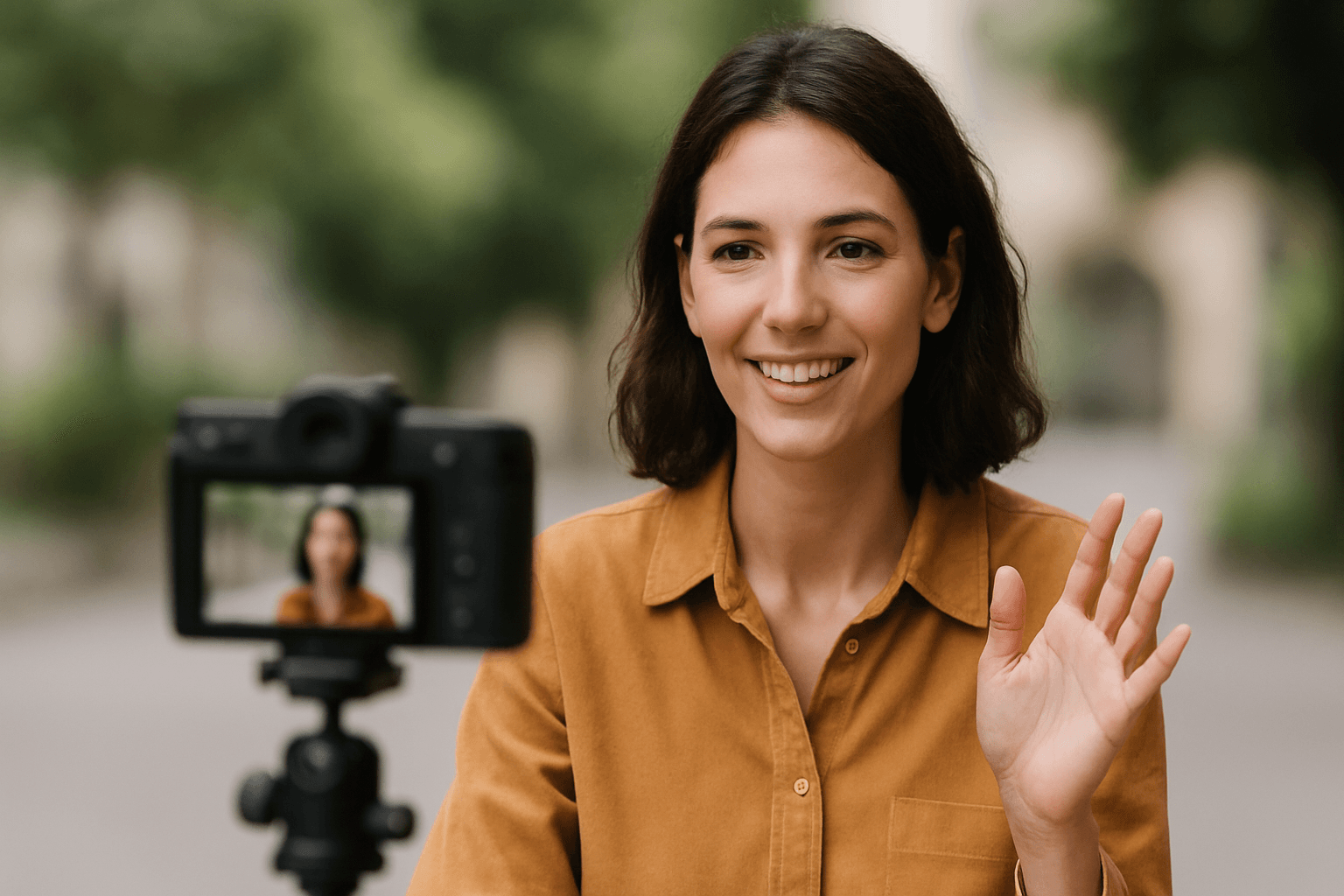
Recording virtual meetings has become essential for remote teams and content creators. Whether you're creating a Loom video, capturing a Google Meet session, or doing a screen recording, protecting privacy in your video recording has never been more critical. This guide shows you exactly how to implement video background blur in your meeting recordings while maintaining professional quality.
TL;DR: Blurring Zoom and Google Meet Recordings
| Question | Answer |
|---|---|
| Does Zoom's live blur apply to my saved recording? | Only if it was turned on during the call—it can't be added afterward inside Zoom |
| Can I blur a recording after the meeting ends? | Yes, with a post-production tool like BGBlur |
| What can I blur? | Faces, license plates, or the entire background |
| How long does it take? | A few minutes for most meeting-length recordings |
| Is my recording stored afterward? | No—files are deleted within 24 hours |
| Does it work with Loom, Bandicam, or screen recorder Chrome exports? | Yes, any standard MP4/MOV export |
Why Background Blur Matters for Meeting Recordings
When you record your screen during virtual meetings, you're often capturing more than intended. Personal spaces, family members walking by, confidential documents on walls, or sensitive information visible through windows can accidentally appear in your Zoom recording or Google Meet capture.
Privacy concerns extend beyond personal spaces. Many professionals use tools like Bandicam or a screen recorder Chrome extension to capture meetings for documentation purposes. However, these recordings might inadvertently expose colleague faces without consent, proprietary information on backgrounds, or GDPR-sensitive data that requires anonymization before sharing.
The legal landscape around recording video has tightened significantly. European GDPR regulations and similar privacy laws worldwide now require explicit consent for capturing and sharing identifiable information. A simple face blur can transform a problematic recording into compliant content suitable for training materials, social media, or internal documentation. For the full legal picture, see our GDPR video content compliance guide, which covers what counts as personal data in recorded footage and how blurring satisfies data minimization requirements.
Professional presentation matters too. When you record your screen for tutorials or client presentations, a cluttered background distracts viewers from your core message. Video background blur helps maintain focus on what matters while creating that polished, professional aesthetic viewers expect from quality content.
The Best Solution for Post-Meeting Background Blur
Unlike built-in Zoom or Google Meet blur features that only work during live calls, post-production video background blur gives you complete control over your recordings. After you've finished your macbook screen recording or captured footage with any screen recorder chrome tool, you need a reliable solution that can handle the complexity of meeting videos.
BgBlur specializes in automated video background blur for recorded content. The AI-powered platform automatically detects and blurs backgrounds, faces, and sensitive objects without requiring manual editing skills. This becomes particularly valuable when you've already recorded your Zoom recording or Google Meet session and need to prepare it for wider distribution.
The technology works seamlessly with various recording formats. Whether you've used Loom video for quick captures, Bandicam for longer sessions, or your macbook screen recording feature, BgBlur processes them all with consistent quality. The intelligent motion tracking ensures blur effects follow moving subjects throughout your recording video, maintaining privacy protection even in dynamic meeting scenarios.
Live Blur vs. Post-Production Blur: What's the Difference?
Zoom and Google Meet's built-in blur only affects what happens during the call itself—if it wasn't toggled on before you hit record, there's no way to add it retroactively inside either platform. That's the gap post-production tools fill.
| Feature | Zoom/Meet Live Blur | BGBlur Post-Production |
|---|---|---|
| Works on already-recorded files | No | Yes |
| Blurs faces of specific participants | No (whole background only) | Yes, selectively |
| Blurs license plates in shared screen/window footage | No | Yes |
| Batch process multiple recordings | No | Yes |
| Requires the recording to be re-made | Yes, if blur wasn't on live | No |
If you only need one participant's identity protected—say, a guest who joined without consent to be filmed—selective face blur is often a better fit than blurring the entire background, since it keeps the rest of the room and shared materials visible for context.
How to Blur Your Meeting Recordings in 4 Simple Steps
Step 1: Upload Your Video
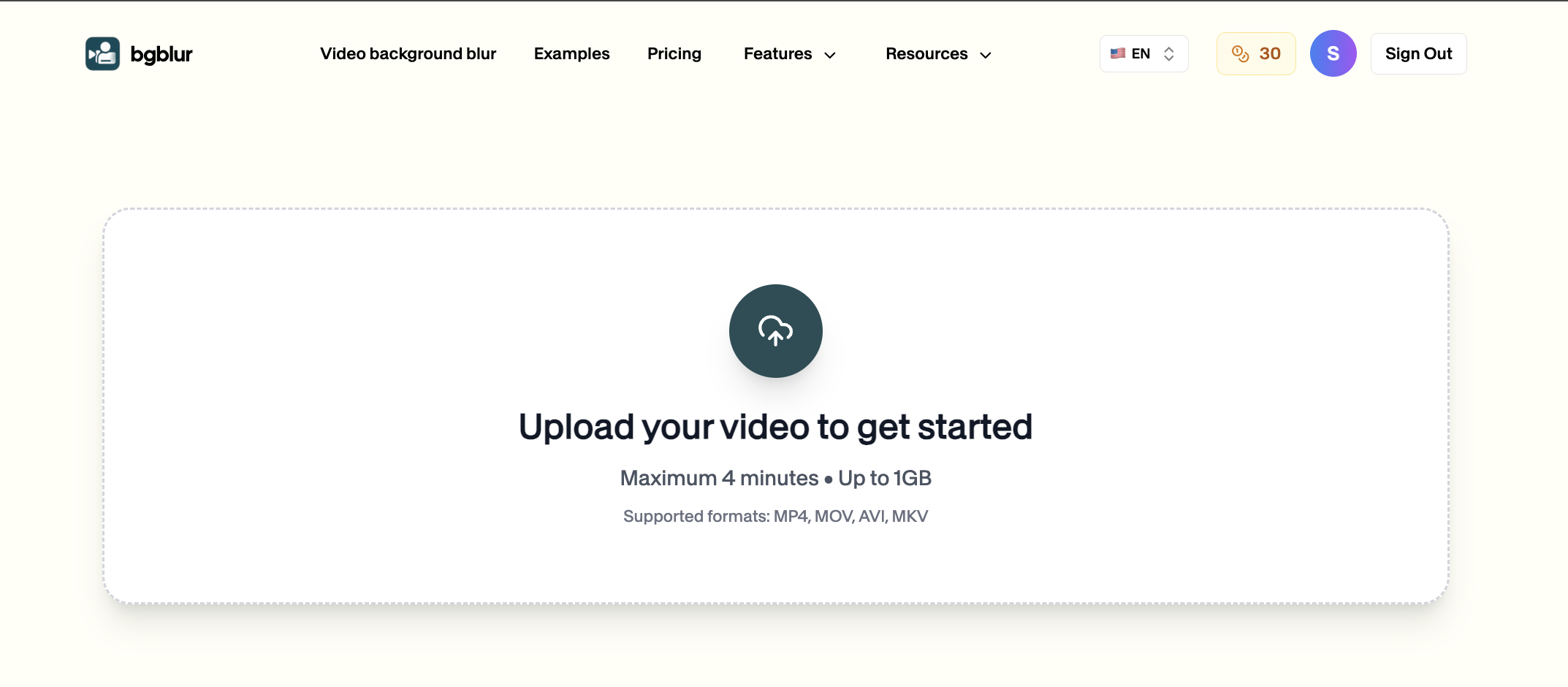
After completing your Zoom recording or Google Meet capture, visit BgBlur and upload your video file. The platform accepts all common formats from various screen recorder chrome tools, Loom video exports, or standard MP4/MOV files from macbook screen recording. Your uploaded videos are automatically deleted after 24 hours for complete privacy protection.
Step 2: Choose What to Blur
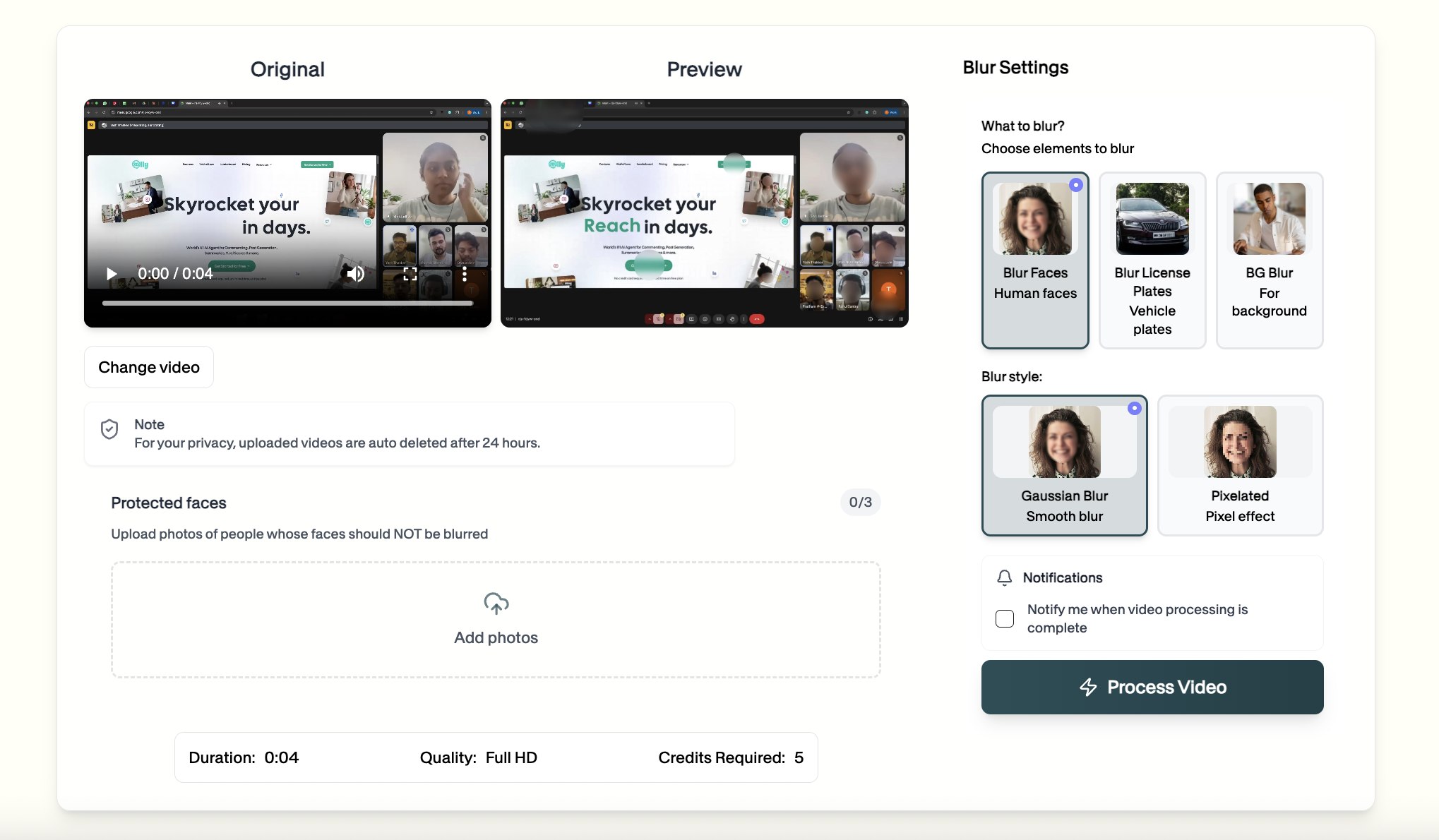
BgBlur offers three intelligent blur options for your video recording. Select "Blur Faces" to automatically detect and anonymize all human faces in your meeting capture—perfect for protecting participant identities in training videos. Choose "Blur License Plates" if your recording video captures vehicle information through windows or outdoor settings. For complete privacy, pick "BG Blur" to blur the entire background while keeping your main subject sharp and focused.
Step 3: Process and Download
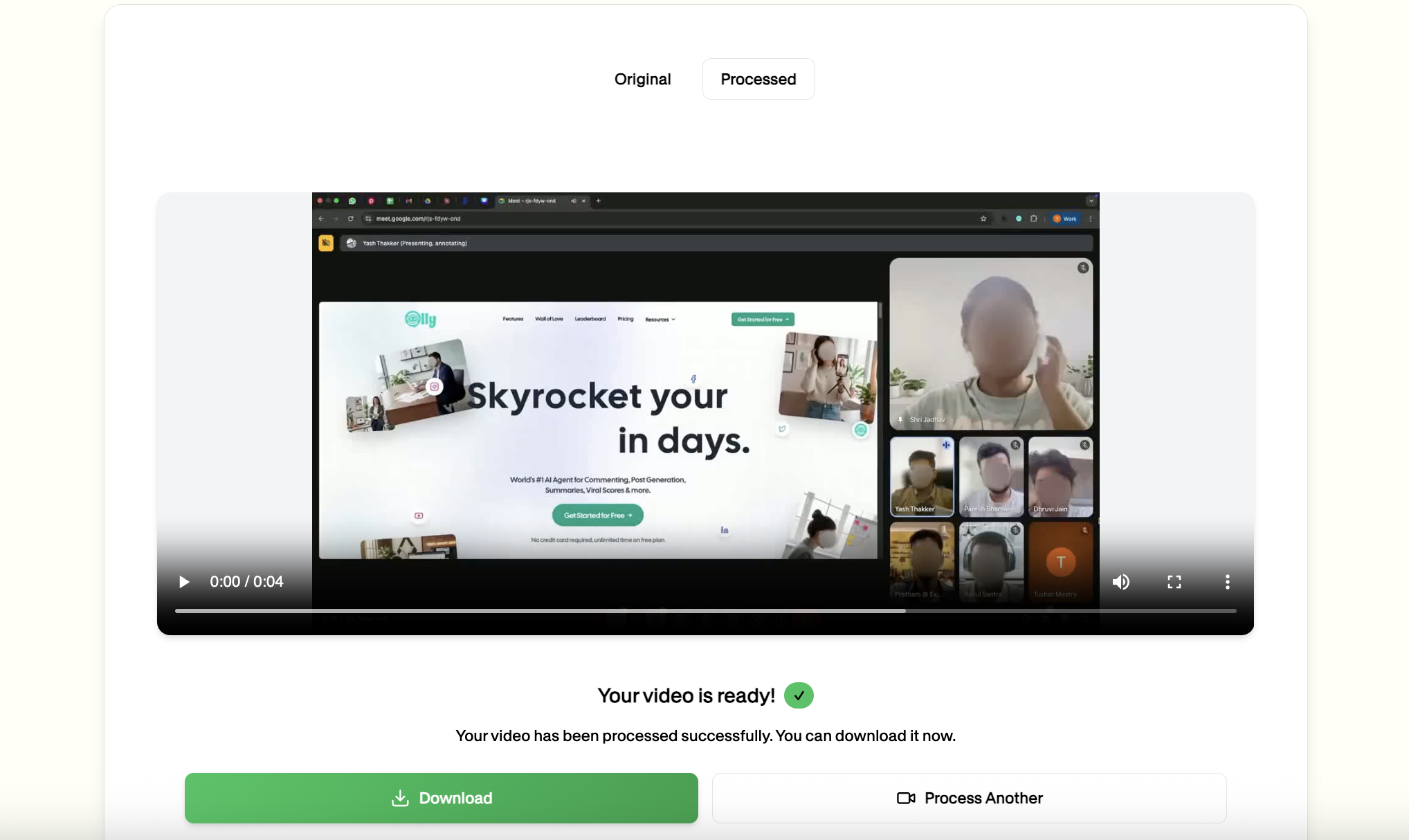
Click the "Process Video" button and let BgBlur's AI technology work its magic. The platform processes your screen recording in just minutes, applying consistent blur effects throughout the entire video with intelligent motion tracking. Once complete, download your protected Zoom recording or Google Meet capture, ready for sharing without privacy concerns.
Additional Privacy Tips for Meeting Recordings
Always announce when you're about to record your screen during meetings. Even with face blur capabilities, transparency builds trust with participants and ensures legal compliance with recording consent requirements.
Consider your recording tool carefully. While Bandicam and various screen recorder chrome extensions offer robust features, choose tools that allow easy export to standard formats compatible with post-production video background blur solutions.
For macbook screen recording or Loom video captures intended for public sharing, establish a consistent workflow. Record first, blur later approach ensures you never accidentally share unprotected content while maintaining flexibility in how you use your recording video files.
Test your video background blur settings with a short sample before processing lengthy recordings. This quality check ensures your final output meets both privacy requirements and professional standards, whether you're editing Zoom recording archives or preparing Google Meet captures for training materials.
Making Privacy Protection Effortless
Professional video recording workflows now demand privacy-conscious editing. The combination of reliable recording tools like Loom video or your standard screen recorder chrome extension with post-production video background blur technology creates a sustainable system for creating shareable meeting content.
Whether you're documenting team meetings through Zoom recording, creating tutorials via screen recording, or building training materials from Google Meet sessions, automated video background blur removes privacy concerns from your content creation process. This allows you to focus on creating valuable content while knowing your recording video protects everyone's privacy.
Start implementing face blur and background anonymization in your meeting recordings today. Your participants will appreciate the privacy consideration, and you'll build a library of shareable content that meets modern privacy standards without sacrificing professional quality.