Blur License Plates in Canva for Photos and Video Guide
Canva can hide a plate on a still photo with manual blur, but dashcam and street video needs AI plate detection. This guide covers Canva methods, the BGBlur Canva app, and BGBlur.com for automatic license plate blur.
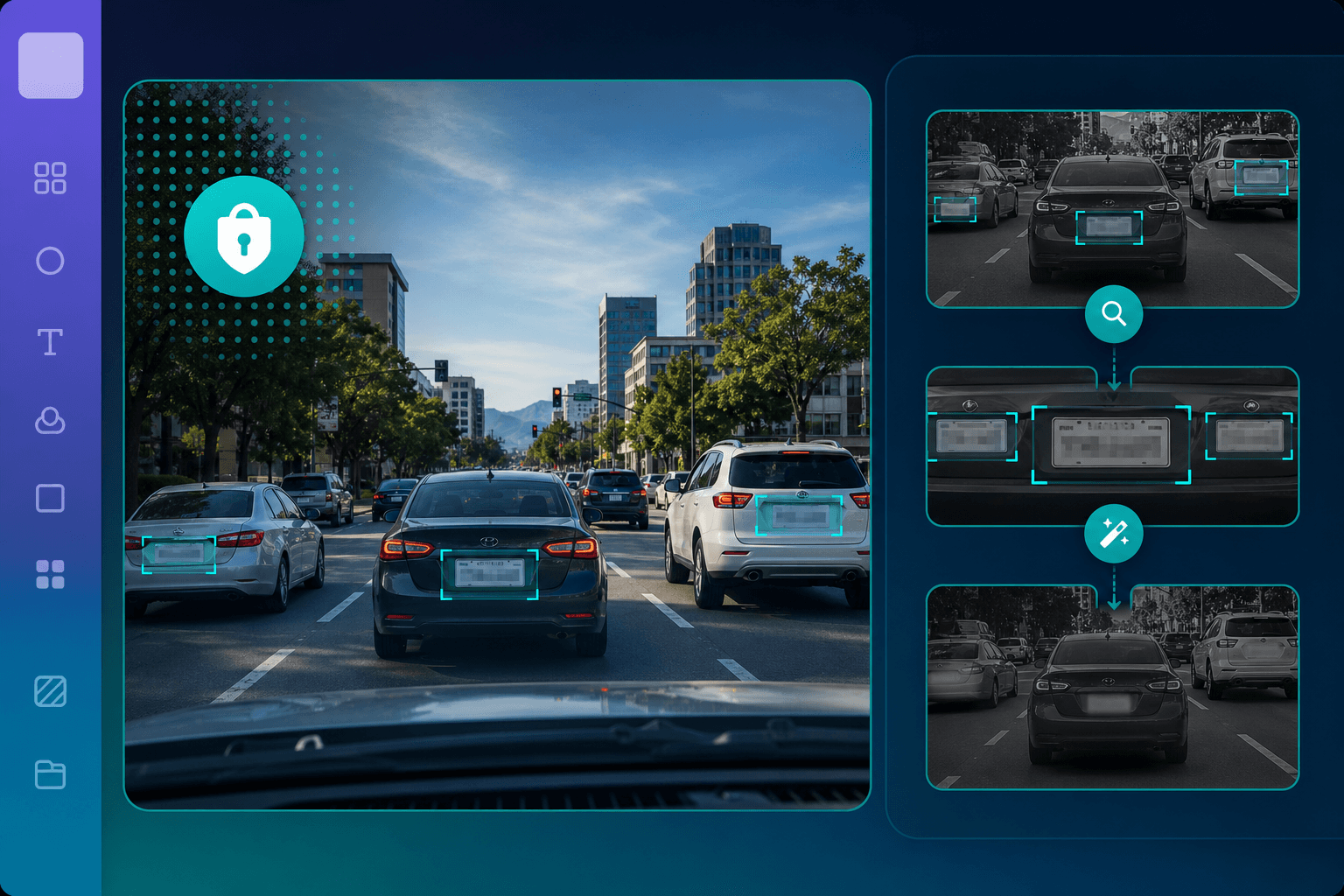
If you edit dashcam clips, parking lot photos, dealership walkarounds, or fleet incident footage inside Canva, you will eventually need to blur license plates before sharing. Readable plates can identify vehicle owners—a privacy and compliance risk on YouTube, Instagram, client reports, and insurance documentation.
Canva is excellent for layout and branding. It is not built for automatic license plate detection across moving video. This guide covers three approaches: manual Canva blur for simple stills, the BGBlur License Plate Blur Canva app, and BGBlur.com—the fastest way to redact plates at scale.
Why License Plate Blur Matters
Plates are personally identifiable in many jurisdictions. Creators and businesses blur them when:
- Posting dashcam or bodycam-style driving clips
- Sharing real estate exterior photos with cars in the driveway
- Publishing fleet safety or near-miss training video
- Uploading dealership inventory walkarounds
- Submitting insurance or legal documentation externally
- Complying with GDPR-style expectations for public video
A Canva template does not remove plate numbers—you must redact the pixels.
Method Comparison
| Method | Best for | Auto plate detection | Video tracking | Logo replacement |
|---|---|---|---|---|
| Canva manual blur | 1 plate, 1 photo | ❌ | ❌ | ❌ |
| BGBlur Canva app | Canva-native workflow | ✅ | ✅ | ✅ Optional |
| BGBlur.com | Dashcam, fleet, long video | ✅ | ✅ | Via blur styles |
Method 1: Manually Blur License Plates in Canva (Photos Only)
Use this when you have one vehicle, one clear plate, and no motion.
Step 1: Upload your image
- Open Canva and create a design (Instagram Post, Presentation, or custom size)
- Go to Uploads → upload your dashcam still or parking lot photo
- Drag the image onto the canvas
Step 2: Cover the plate with a blurred overlay
Option A — Blurred duplicate crop (recommended):
- Duplicate the photo layer
- Crop the duplicate tightly around the license plate
- Select the crop → Edit photo → Adjust → increase Blur to maximum readable redaction
- Align the blurred patch over the plate on the base layer
- Optionally add a semi-transparent ** rectangle** behind the blur for stronger coverage
Option B — Canva Elements blur shape:
- Search Elements for "blur" or use a soft-edged rectangle
- Place over the plate
- Match Transparency and Blur on the element
- Fine-tune size and rotation to match plate angle
Step 3: Handle angled or partial plates
Plates are rarely perfectly square in dashcam footage:
- Rotate the blurred layer to match plate perspective
- Use Crop handles to match trapezoid shape
- Zoom in—plates read at surprising distances
Step 4: Multiple vehicles
Each visible plate needs its own blurred overlay. For a parking lot with ten cars, expect ten layers—and significant alignment time.
Step 5: Export and verify
- Share → Download → PNG or JPG
- Zoom to 100% and confirm no characters are readable
- Check reflection and shadow areas—plates sometimes remain visible in glossy bumpers
When manual Canva blur fails
- Video with moving cars
- Multiple plates entering and leaving frame
- Night footage with glare and low contrast
- Fleet batches processed weekly
- YouTube dashcam channels publishing daily
→ Use Method 2 or 3.
Method 2: BGBlur License Plate Blur Canva App
BGBlur publishes a License Plate Blur integration for Canva's Apps marketplace. It connects Canva to the same AI engine that powers BGBlur.com.
What the app can do
- Detect license plates automatically in images and video
- Track plates across frames in moving footage
- Apply blur (Gaussian or pixel styles)
- Replace plates with your logo (upload a brand mark to swap onto detected plate regions)
- Process within Canva's editor after BGBlur login
Step-by-step walkthrough
Step 1: Open Canva and your design
Start a new design or open a project containing fleet, dashcam, or real estate media.
Step 2: Install / open the app
- Click Apps in the left sidebar
- Search BGBlur or License Plate Blur
- Select BGBlur License Plate Blur
- Click to open the app panel
Step 3: Connect BGBlur
- Click Connect or Login
- Authenticate with the same account you use on BGBlur.com
- Confirm credits display in the panel
Step 4: Upload media
- Click Upload your image or video
- Select MP4, MOV, PNG, JPEG, WebP, or GIF from your device
- Review limits: typically 1GB max video, 4 minutes max duration, 25MB max image
Step 5: Choose blur style
- Open Style settings
- Pick Gaussian Blur for natural redaction or Pixel Blur for stronger anonymization
- Adjust Intensity slider to taste
Step 6 (optional): Replace plates with a logo
- Click Upload Logo
- Choose a PNG with transparency (dealership or fleet brand)
- Enable Replace Plates with Logo if you want branded plate covers instead of pure blur
Step 7: Process
- Click Blur License Plates (or Replace Plates with Logo)
- Wait for detection and rendering—status updates appear in the panel
- Keep the app open until completion
Step 8: Add result to your Canva design
- Insert the processed asset into your canvas
- Replace the raw dashcam layer
- Add captions, arrows, or training callouts in Canva as needed
- Export final MP4 or PNG
Pros and cons
Pros:
- AI finds plates you might miss manually
- Works inside Canva for social-ready fleet posts
- Logo replacement for branded fleet content
- Same BGBlur credits as the website
Cons:
- Duration and file-size caps in the Canva integration
- Processing UI is smaller than full BGBlur.com
- Not ideal for ten raw dashcam files in one sitting
Method 3: BGBlur.com (Recommended for Dashcam & Fleet)
For dashcam YouTube channels, insurance adjusters, fleet safety teams, and real estate videographers, BGBlur.com is the fastest reliable workflow:
- Upload raw clip to BGBlur
- AI blurs every plate with frame tracking
- Download safe master
- Import into Canva for titles, logos, and branding only
Why BGBlur.com beats manual Canva for plates
- Detects dozens of plates in one pass (intersections, parking lots)
- Tracks motion—plates stay blurred during pans and merges
- Handles glare, rain, and night better than manual boxes
- Re-process quickly if you change blur intensity
- Combine face + plate blur when pedestrians appear in dashcam footage
Step-by-step: BGBlur.com
Step 1: Open the plate blur upload page
Visit BGBlur.com/en/upload?select=blur-plate.
Step 2: Upload your file
Drag and drop MP4, MOV, WebM, or AVI dashcam / fleet footage—or upload a still for a Canva carousel source image.
Step 3: AI detection preview
BGBlur highlights detected plates. Scan the preview for missed angles (partial plates, motorcycles, trailers).
Step 4: Select blur type and intensity
- Gaussian for natural-looking redaction
- Pixelation for maximum anonymization
- Tune strength for YouTube compression (slightly stronger blur survives re-encoding)
Step 5: Process and download
- Start processing
- Typical five-minute dashcam clip: 2–5 minutes on BGBlur
- Download the redacted file
Step 6: Import to Canva
- Upload blurred master to Canva Uploads
- Build your training slide, social post, or report cover
- Export—plates stay redacted through Canva's export pipeline
Use Cases by Industry
Dashcam YouTube creators
Process full clips on BGBlur.com before any Canva thumbnail or end-card work. YouTube's privacy guidelines expect plate redaction on public driving content.
Real estate marketing
Exterior walkaround videos often capture neighbor vehicles. Blur plates on BGBlur, then use Canva for property details and agent branding.
Fleet and logistics safety
Near-miss and incident clips for internal training: redact plates (and faces) on BGBlur, then Canva slides for lesson summaries.
Insurance documentation
External adjusters need redacted copies. BGBlur produces shareable exports; Canva formats them into client-facing PDFs.
Dealership inventory
Batch-process lot walkarounds on BGBlur.com weekly; use Canva templates for consistent Instagram inventory posts.
Canva + BGBlur Workflow Diagram
Raw dashcam / fleet MP4
        ↓
   BGBlur.com (plate + optional face blur)
        ↓
   Safe master MP4/PNG
        ↓
   Canva (text, brand, layout)
        ↓
   Publish to YouTube / client / LMS
Never publish the unredacted layer from Canva if a duplicate still exists in the project file—archive safe masters separately.
Troubleshooting
Plate still readable after manual Canva blur
Increase blur strength, add a second overlapping layer, or switch to BGBlur AI detection—glare often fools manual boxes.
BGBlur missed a motorcycle or trailer plate
Re-upload with higher source resolution; extremely angled plates may need a second pass with adjusted intensity.
Canva compressed my video and plates reappeared
Export from Canva at highest quality; start from a stronger blur on BGBlur to survive compression.
Need both faces and plates blurred
Run face blur and plate blur on BGBlur.com (or use combined workflows)—then import once into Canva.
Legal & Platform Notes (High Level)
- GDPR / UK GDPR: Vehicle plates can be personal data in context—blur before broad publication.
- YouTube: Driving compilations routinely require plate (and often face) redaction.
- Insurance & legal: Redacted copies are standard for third-party sharing.
- Always confirm with qualified counsel for your jurisdiction—this guide is technical, not legal advice.
Time & Cost Comparison
| Scenario | Manual Canva | BGBlur Canva app | BGBlur.com |
|---|---|---|---|
| 1 photo, 1 plate | 8 min | 2 min | 1 min |
| Parking lot still (8 cars) | 60+ min | 3 min | 2 min |
| 3-min dashcam video | Not practical | 5–15 min | 3–6 min |
| 10 fleet clips / week | Unsustainable | Slow | Batch-friendly |
Conclusion
- One still, one plate? Manual Canva (Method 1) can work.
- Staying in Canva for a short clip or logo swap? BGBlur Canva app (Method 2).
- Dashcam, fleet, real estate video, or anything public? BGBlur.com (Method 3).
Canva makes your message look professional. BGBlur makes your footage safe to show. Blur plates first—then design.
Blur license plates on BGBlur.com →
Related Resources
- How to Blur Faces in Canva — Face blur workflows in Canva
- Blur License Plates Dashcam Feature — Product page
- Dashcam Blur Software — Fleet and driving footage
- BGBlur vs Canva — When to use each tool
Last updated: May 27, 2026