How to Blur Faces in Video Without Uploading It [2026]
Most AI face blur tools require you to upload your footage first, which is a problem for training recordings, patient videos, witness footage and anything under a vendor-security review. This guide compares three ways to blur faces in video, then walks through a fully local workflow where frames never leave your computer.
Most AI face-blur tools work the same way: you upload your video, a server finds the faces, and you download the result. That is fine for a birthday clip. It is a problem for a recorded HR interview, a patient education video, witness footage, or anything a security team has to approve before it can leave the building. The cheapest way to protect footage is to never send it anywhere.
This guide shows how to blur faces in video without uploading it. It compares three methods, explains what "local" really means (and where the fine print sits), and walks through a step-by-step workflow using a desktop tool that processes frames on your own computer. If you only need a quick blur on non-sensitive footage, the browser version at BGBlur is faster; the rest of this article is for footage you would rather keep on your machine.
TL;DR: Blurring Faces Without Uploading
| Question | Answer |
|---|---|
| Can it be done without uploading? | Yes, three ways: manual editor masking, a local AI tool, or your own scripted pipeline |
| Fastest method? | A local AI desktop tool that detects faces automatically |
| Most accurate method? | Manual masking, frame by frame, but very slow |
| Do local tools work offline? | Not always. BGBlur's desktop app processes locally but needs an internet sign-in per job |
| Does it satisfy GDPR by itself? | No, but it removes a processor from the chain |
| Biggest risk? | Missed faces. Always review the export |
Why Blur Faces Without Uploading the Video?
Because uploading creates obligations. When a cloud service processes your footage, that vendor becomes a data processor. You need a data processing agreement, a security assessment, a retention review, and a plan for what happens if they are breached. The GDPR's data-minimization principle in Article 5(1)(c) asks you to limit personal data to what is necessary, and Article 28 governs any processor handling it for you. Keeping the blur step on your own hardware removes one party from that chain for the most sensitive step.
There is a plain practical reason too: speed and size. A 1.5 GB training recording does not need to finish uploading before you can start. Detection runs locally, and you export to a folder you choose. For the wider legal picture, read our GDPR guide to blurring faces and license plates.
What Are Your Options for Blurring Faces Locally?
| Method | How it works | Speed | Accuracy | Skill needed | Cost |
|---|---|---|---|---|---|
| Manual masking in a video editor | Draw a blur mask and keyframe it along each face | Very slow | High if you are careful | Moderate | Editor cost only |
| Open-source pipeline (your own script) | Run a face detector and blur with your own code | Fast once built | Depends on model | High (developer) | Free plus engineering time |
| Local AI desktop tool | App detects and blurs faces automatically on your CPU | Fast | Good, with limits | Low | Varies |
| Cloud AI tool | Upload, server processes, download | Fast | Good to very good | Low | Varies |
The first three keep frames on your machine. The fourth does not, which is why it is the one to avoid for sensitive footage. Manual masking is the gold standard for a handful of short clips and legal work where every frame must be checked. For anything longer than a few minutes, automatic detection is the only practical approach. For background on how automatic detection and tracking work, see our complete guide to blurring faces in video with AI.
How Do I Blur Faces Locally With the BGBlur Desktop App?
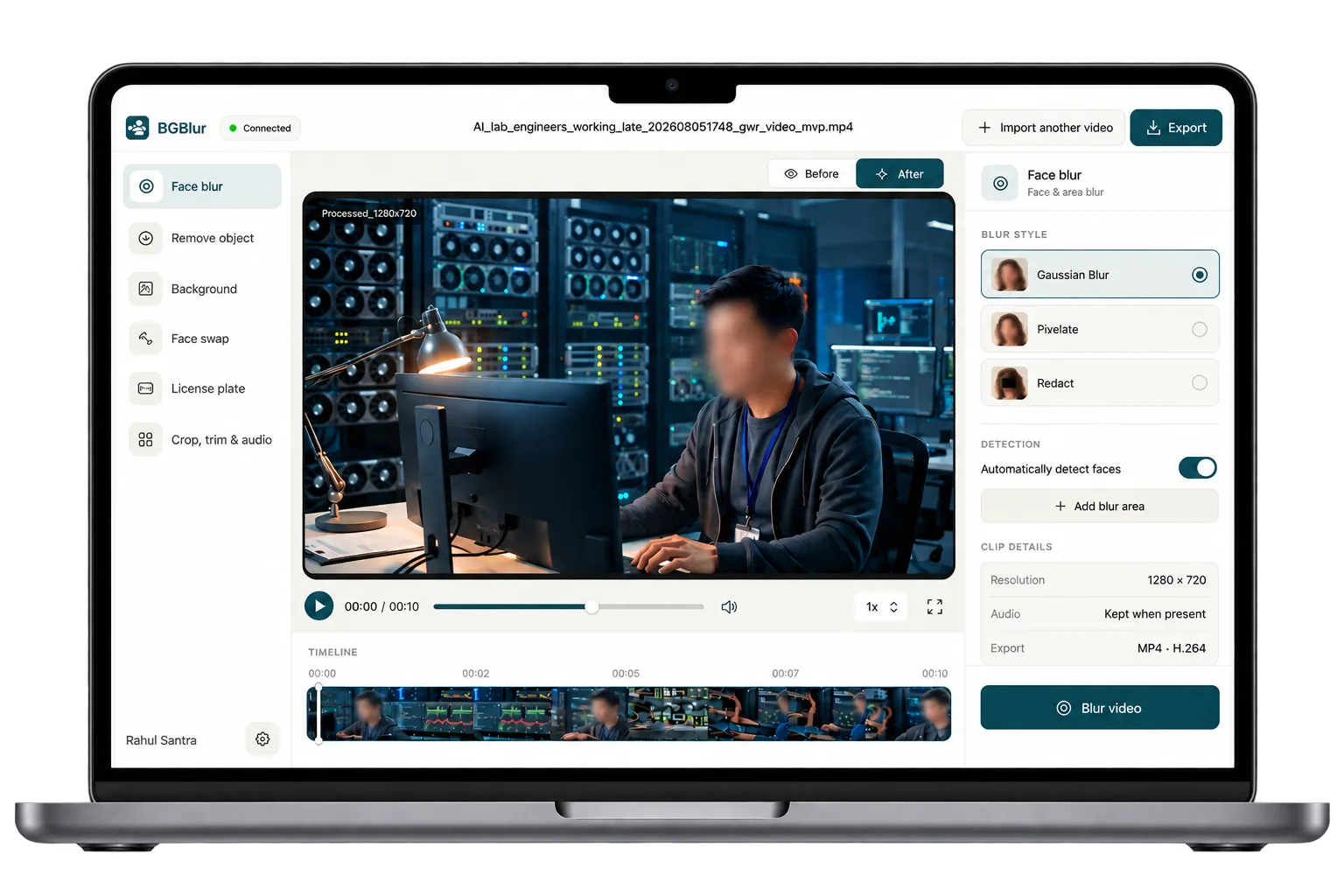
BGBlur's macOS desktop app is one example of the third method. It detects faces on every frame using the open-source YuNet face detector running through ONNX Runtime on your CPU.
Step 1: Download and install
Get the macOS build from bgblur.com/download. The current download is an Apple Silicon build; a Windows version is listed as coming soon.
Step 2: Sign in
Open the app and connect your BGBlur account. Sign-in opens in your normal browser and returns to the app once you approve it. The desktop session lasts at most seven days.
Step 3: Import your video
Drop in an MP4, MOV or MKV (up to 2 GB and one hour) or a JPG or PNG image. Detection runs across every frame.
Step 4: Choose a treatment and add manual areas
Pick Gaussian blur, pixelate or a solid redact cover. If the automatic pass missed a face, click Add blur area and place a circle or square. You can add up to 12.
Step 5: Review before and after
Toggle Before and After and scrub the full timeline. This is the step that decides whether the file is safe to share. Zoom in on crowds, background figures and moments when someone turns their head.
Step 6: Export
Export to a folder you choose. Video saves as H.264 MP4 with AAC audio, and fresh outputs drop the source's EXIF, GPS and container metadata. The app never overwrites your original or an existing file.
The sidebar in the screenshot also lists object removal, background, face swap and license plate tools. Those run on BGBlur's cloud models and use plan credits; only face blur runs locally in this release.
What Actually Leaves Your Computer?
Your video does not. A small authorization request does. Before each job the app makes an HTTPS request to bgblur.com to confirm your account and plan. If that request fails, the job does not start. According to the app's published security notes, the processing worker has no upload, model-download or cloud code, runs with a cleared environment, and receives file paths and options only, never your credentials. The notes also state that no image crops, face coordinates, media names, file paths, frames or file hashes are sent to BGBlur.
Two consequences follow:
- It is not air-gapped. You need internet access and a signed-in account to start a job. If your policy requires a fully offline environment, use a manual editor or your own pipeline instead.
- Sign-in is real access control. Login runs through your system browser with PKCE, and sessions can be revoked server-side.
How Do I Choose Between the Methods?
Match the method to the footage rather than to the tool you already have open.
- Under ten minutes, a few faces, high stakes (a witness clip, a legal exhibit): mask manually and review frame by frame. Speed matters less than certainty.
- Long recordings, many faces, sensitive content (training sessions, clinical education, site footage): use a local AI tool and budget review time for the whole timeline.
- Non-sensitive clips you need quickly (a vlog, a street shot): a cloud or browser tool is faster and requires no install.
- You have a developer and unusual requirements: a scripted open-source pipeline gives full control, at the cost of building and maintaining it.
- A strictly offline, air-gapped environment: manual editing or your own pipeline, since BGBlur's desktop app needs an internet sign-in for each job.
What Should IT and Security Teams Check Before Approving a Local Tool?
Local doesn't automatically mean safe, so a security review should still ask questions. Based on BGBlur's published security notes for the desktop app, here is what is documented, and what you should verify yourself:
- Integrity checks. The app pins the detection model's size and SHA-256 hash and checks the worker files against embedded hashes before each launch; tampered or missing files fail closed.
- No worker networking. The processing worker has no upload, model-download or cloud code, and ONNX Runtime telemetry is disabled before initialization.
- Signed updates. Updates use the Tauri updater with an embedded signature-verification key and a fixed BGBlur release feed, and installation requires a user action.
- Session handling. The desktop session lasts at most seven days and can be revoked server-side. The token is stored in an owner-only file in the app's data directory.
- Metadata stripping. Fresh outputs omit source EXIF, GPS and container metadata.
- Known gaps. The notes state that the worker is not inside an OS-level sandbox, that a decoder vulnerability could exceed the intended file boundary, and that dependency scans are not a penetration test.
Treat these as claims to test in your own environment. Ask the vendor for the current security documentation, run the app on a representative sample, and confirm what network traffic you observe.
Which Workflows Benefit Most From Local Blur?
HR and training teams: Recorded meetings often include people who never agreed to be shared. Blur them before the recording reaches an internal portal. See how meeting recordings leak workplace privacy.
Healthcare and clinical education: Patient-adjacent footage is sensitive by default, and a managed workstation avoids another vendor in the chain.
Legal and compliance: Witness and bystander footage can be prepared for sharing without first handing it to a third party. Our body cam redaction guide covers the law-enforcement side, and the redaction software comparison covers enterprise suites for very large archives.
Journalists: Source protection is easier when raw footage stays on the editing machine. See protecting privacy at protests.
Field video teams: Customer sites and retail floors capture bystanders. Blur them before a client sees the cut.
What Are the Limits of Local Face Blur?
I would rather you hear these here than discover them in a review:
- Detection isn't perfect. At a 640-pixel detection input, distant, crowded, profile, occluded, fast-moving and low-light faces can be missed. The app labels a zero-detection result explicitly. Review every export.
- Manual areas don't track. The 12 manual regions stay where you place them for the whole clip.
- Early release. The desktop app is version 0.1.1 and is documented as an initial build, without reference-face exemptions, identity tracking or GPU acceleration.
- Input limits. 8-bit SDR video, one video track, at most one mono or stereo audio track, 1 to 120 FPS, even dimensions.
- Platform and sandboxing. macOS only for now. The worker runs with your user's permissions and is not inside an OS-level sandbox.
- Voice stays identifiable. A blurred face with an unaltered voice can still identify someone. See our guide to voice anonymization.
The Bottom Line
To blur faces in video without uploading it, keep the detection step on your own machine: mask manually for short, critical clips, script your own pipeline if you have the engineering time, or use a local AI tool for everything in between. BGBlur's macOS desktop app does the last one: frames stay on your computer, three blur styles cover common needs, and exports strip metadata. It still needs an internet sign-in per job and can miss faces, so pair it with a human review before anything is shared. To try the local workflow, download the BGBlur desktop app; for non-sensitive clips, the browser version is quicker.