Blur Background in HeyGen AI Avatar Videos with BGBlur
HeyGen makes great AI avatar videos, but its background tools have limits. Export your clip and use BGBlur.com to blur the background with AI tracking—no green screen, no manual masking.
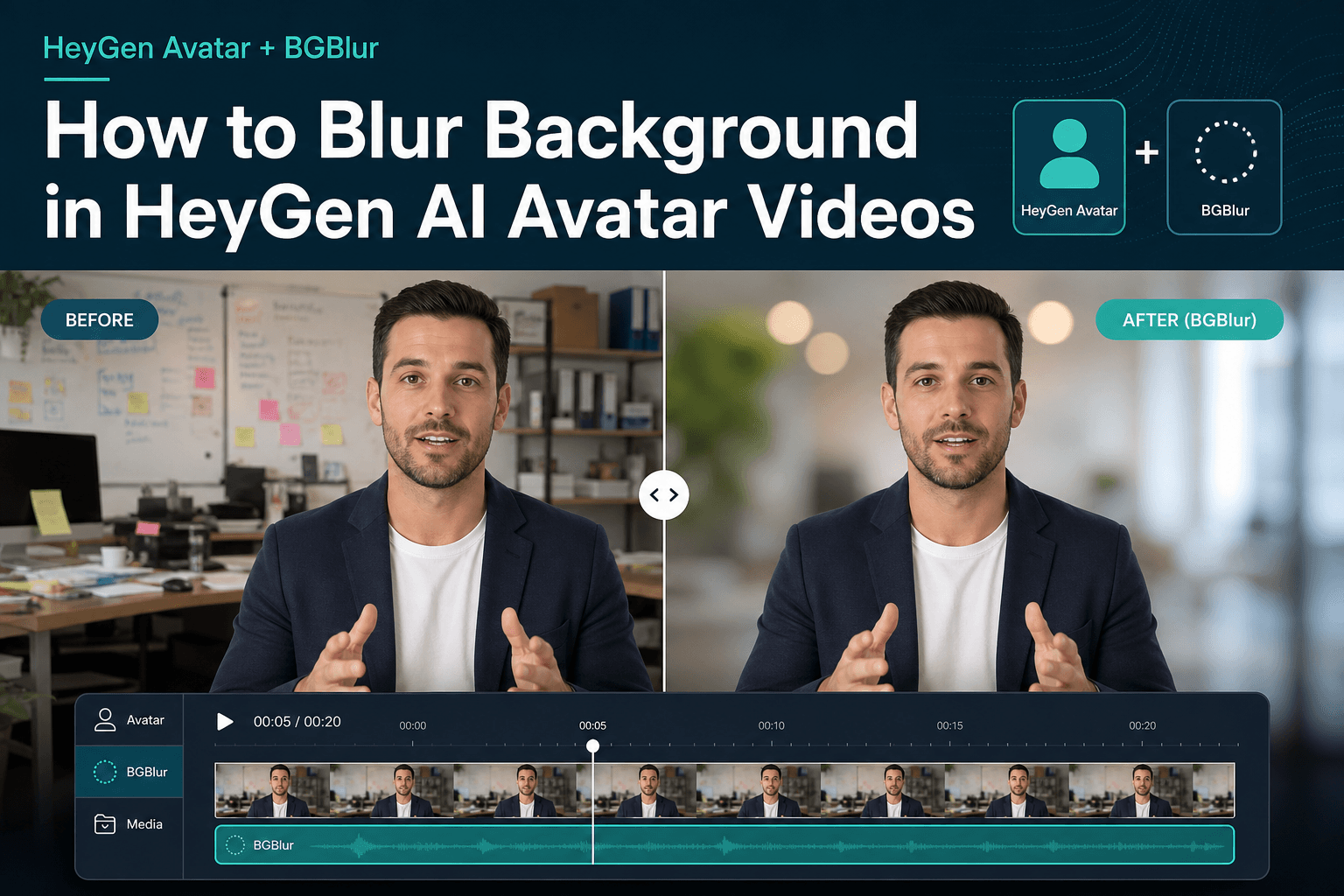
HeyGen has become one of the most popular platforms for AI avatar videos—digital twins, multilingual spokespeople, training modules, and sales explainers rendered in minutes. The avatar looks sharp. The script is perfect. Then you watch the export and notice the background: a generic stock office, visible green-screen fringe, a cluttered home office from your twin training clip, or a branded wall you do not want in the final cut.
HeyGen gives you background removal and replacement inside the editor. What many creators actually want is background blur—that soft, cinematic bokeh that keeps the speaker in focus and makes the video feel like it was shot on a professional camera. That is exactly why teams export from HeyGen and finish the clip on BGBlur.com.
This guide explains when HeyGen's native background tools are enough, when they fall short, and how to blur background in HeyGen avatar videos in a fast post-export workflow using BGBlur—the same approach creators already use for Zoom recordings, webinar replays, and talking-head content.
Why Background Blur Matters for HeyGen Avatar Videos
HeyGen excels at generating realistic AI presenters. Background treatment is a separate creative decision—and it affects how trustworthy and polished the final video feels.
Common reasons creators blur HeyGen backgrounds
1. Stock backgrounds feel generic
HeyGen's library of office, studio, and outdoor scenes works for quick drafts. For client-facing sales videos or paid courses, a soft blurred background often looks more premium than an obvious stock photo behind the avatar.
2. Custom digital twins inherit real-world clutter
If you trained a HeyGen digital twin from footage filmed at home or in a real office, that environment is baked into some avatar looks. Background blur lets you keep your face and delivery while hiding bookshelves, family photos, or messy desks—without re-recording training footage.
3. Green-screen and matting artifacts
HeyGen supports background removal and transparent WebM export on avatars trained with matting. In practice, many users still see color bleed or rough edges around hair and shoulders—especially on green-screen training clips. A post-export background blur on BGBlur reduces the visual harshness of a bad key without forcing you to rebuild the project inside HeyGen.
4. Reuse one HeyGen export across brands
Marketing teams often render one master avatar script, then need different visual treatments for landing pages, ads, and internal L&D. Blurring the background on BGBlur creates a neutral, reusable master you can pair with graphics in Canva, Premiere, or HeyGen's own caption overlays.
5. Privacy in the frame
Avatar videos can still show whiteboards, monitors, window reflections, or bystanders in custom backgrounds. Background blur lowers the risk of accidental data exposure while keeping the presenter readable—similar to how remote workers blur home offices on Zoom.
What HeyGen Offers for Backgrounds (Native Options)
Before post-processing, it helps to know what HeyGen can do inside the platform.
Background types in HeyGen
When you create a video in HeyGen, avatar settings typically let you:
- Keep the original background from the avatar look (common with custom twins)
- Replace the background with a solid color, uploaded image, or stock scene
- Remove the background on supported avatars (matting-enabled digital twins)
- Export WebM with alpha transparency for compositing elsewhere (API and select plans)
HeyGen's docs describe output_format: webm for transparent backgrounds and remove_background for twins trained with matting. That is powerful for motion designers who composite avatars in After Effects.
What HeyGen does not specialize in
HeyGen is an avatar generation platform, not a depth-of-field video editor. It does not offer:
- Adjustable Gaussian / bokeh blur on an existing rendered scene
- Fine control over blur intensity while keeping a visible (but soft) environment
- One-click cinematic portrait mode on arbitrary exported MP4s
- Batch post-blur across dozens of localized avatar renders
That gap is where BGBlur background blur fits naturally into the HeyGen workflow.
Method Comparison: HeyGen Native vs BGBlur Post-Export
| Approach | Best for | Cinematic blur | Fixes bad matting | Works on finished MP4 |
|---|---|---|---|---|
| HeyGen stock background swap | Quick drafts | ❌ No real blur | Partially | N/A (in-editor) |
| HeyGen background removal + WebM | Compositing in AE/Resolve | ❌ (you blur elsewhere) | ✅ If matting is clean | WebM only |
| Manual blur in Premiere/DaVinci | Editors with time | ✅ Yes | ✅ With rotoscoping | ✅ Yes |
| BGBlur.com background blur | Fast polish on any HeyGen export | ✅ Yes | ✅ Softens edges | ✅ Yes |
For most HeyGen users—founders, L&D teams, agencies, solo creators—export MP4 → upload to BGBlur is the fastest path to a professional blurred background.
Method 1: Blur Background Using HeyGen's Built-In Tools
Use HeyGen-native options when you have not exported yet and a full replacement (not blur) is acceptable.
Step 1: Open your HeyGen project
- Log in to HeyGen
- Open an existing Avatar Video or create a new project
- Select your avatar look (stock or custom digital twin)
Step 2: Adjust avatar background settings
- Click the avatar on the timeline or canvas
- Open Avatar settings or Background (UI labels vary by HeyGen version)
- Choose one of:
- Remove background — best for twins with matting; pair with a solid color or uploaded brand backdrop
- Replace background — pick stock office/outdoor scenes or upload your own image
- Solid color — clean, minimal; avoids stock-photo look
Step 3: Preview and generate
- Preview lip sync and framing
- Generate the video at 1080p (or 4K if your plan and source footage support it)
- Download MP4
When this is enough: Internal drafts, videos where a flat brand color behind the avatar is fine, or workflows where you composite WebM in another tool.
When this is not enough: You want soft bokeh while still hinting at an environment, or your twin's original room/green-screen edges look cheap on full replacement.
Method 2: Blur Background in HeyGen Videos with BGBlur.com (Recommended)
This is the workflow HeyGen creators already use when they need true video background blur without learning manual masking.
Why BGBlur is the top solution for HeyGen avatar clips
AI subject separation — BGBlur detects the avatar as the foreground subject and blurs everything else, frame by frame. No green screen required.
Motion tracking — Avatars move, nod, and gesture. BGBlur maintains sharp edges on the speaker while the background stays consistently blurred throughout the clip.
Browser-based speed — No plugins, no timeline skills. Upload, blur, download—often in minutes for typical HeyGen lengths (30 seconds to five minutes).
Works on the file you already have — Skip re-rendering in HeyGen. Take the MP4 you already approved and polish it.
Pairs with other redaction — Need to blur a face in the background or a license plate in B-roll cutaways? BGBlur handles face blur and license plate blur on the same platform.
Step-by-step: HeyGen export → BGBlur background blur
Step 1: Export your HeyGen avatar video
- In HeyGen, finish script, voice, captions, and avatar selection
- Generate the final video
- Download as MP4 (recommended for BGBlur)
- Note resolution: 1080p exports give the best balance of quality and processing time
Tip: If you already generated the video, you do not need to change anything in HeyGen—just download the existing export.
Step 2: Open BGBlur background blur
- Go to BGBlur.com
- Open the background blur upload page directly, or choose Blur Background from the feature menu
- You can also start from the AI background blur feature page for examples and use cases
Step 3: Upload your HeyGen MP4
- Drag and drop your HeyGen export, or click to browse
- Supported formats include common video containers HeyGen outputs (MP4, MOV, WebM in most cases)
- Wait for upload—typical HeyGen clips (1–3 minutes) upload quickly on a normal connection
Step 4: Let AI detect the subject
BGBlur analyzes the video and separates:
- Foreground: your HeyGen avatar (face, hair, shoulders, upper body)
- Background: stock scene, office, green-screen remnants, or custom twin environment
You do not need to draw masks manually. The model tracks the avatar as they move.
Step 5: Adjust blur strength (if available)
Depending on the current BGBlur UI:
- Choose blur intensity—subtle blur for a natural office look, stronger blur for a portrait / interview aesthetic
- Preview a short segment to confirm edges around hair and hands look clean
Step 6: Process and download
- Start processing
- Preview the full result when ready
- Download the blurred-background version
- Import into HeyGen (for caption-only re-export), your LMS, YouTube, LinkedIn, or ad platforms
Total time: For a 60–90 second HeyGen clip, many users finish in under five minutes including upload—far faster than keyframing blur in a traditional NLE.
Method 3: Transparent WebM from HeyGen + Blur in Another Tool
Advanced users sometimes export WebM with alpha from HeyGen (requires matting-enabled avatars) and composite in Premiere Pro, DaVinci Resolve, or After Effects.
Workflow:
- Generate HeyGen video with
remove_backgroundor WebM output - Place avatar on a separate layer over background footage
- Apply gaussian blur to the background layer only
Pros: Maximum control for motion graphics teams.
Cons: Requires NLE skills, asset management, and render time. For marketing and L&D teams without dedicated editors, Method 2 (BGBlur) remains faster.
If you are not compositing daily, skip WebM complexity and blur the MP4 on BGBlur instead.
Use Cases: Who Blurs HeyGen Avatar Backgrounds?
Sales and marketing
Replace obvious HeyGen stock offices with soft bokeh so prospects focus on the offer, not the backdrop. Especially useful for multilingual avatar campaigns where one script becomes ten locale variants—you blur once per export or apply the same BGBlur settings across a batch workflow.
Learning & development
Training avatars explain compliance, HR policies, or software walkthroughs. Blurring backgrounds reduces visual noise so employees retain the message. Pair with GDPR-aware redaction workflows if slides or screens in the background contain sensitive data.
Agencies delivering HeyGen to clients
Agencies render HeyGen for clients who film twins in imperfect home studios. BGBlur is a safety net: deliver polished blur even when the source twin look is noisy or cluttered.
Creators repurposing avatar content
Short-form cuts from long HeyGen explainers benefit from background blur before posting to TikTok, Reels, and Shorts—viewers associate blurred backgrounds with higher production value.
Privacy-conscious teams
Blur does not replace legal review, but it lowers risk when a custom twin accidentally includes PII in the environment (certificates on walls, monitor reflections, window views).
Tips for Better Results: HeyGen + BGBlur
Film twins with blur in mind (before HeyGen)
HeyGen recommends filming digital twin training footage against a solid wall or green screen for cleaner cutouts. Even if you blur later on BGBlur:
- Use even lighting on the face
- Leave space between subject and background (depth helps AI separation)
- Avoid busy patterns directly behind the shoulders
Export at the highest practical resolution
1080p from HeyGen gives BGBlur enough detail to separate hair from background. Avoid upscaling low-res drafts before blur.
Check edges on the first export
If you see halos from HeyGen matting, stronger background blur on BGBlur often hides artifacts better than a hard stock replacement.
Keep a clean master archive
Store:
- Raw HeyGen export (no blur)
- BGBlur blurred master
- Final cut with captions/branding
That separation saves time when legal or brand teams request changes.
Combine blur with captions
HeyGen burns captions into many exports. Background blur on BGBlur runs on the full rendered frame—captions remain sharp if they sit in the foreground. If captions look cluttered, regenerate captions in HeyGen after blur, or add text in your design tool.
HeyGen Background Blur vs Face Blur: Which Do You Need?
| Goal | Tool |
|---|---|
| Soften office / stock / room behind avatar | Background blur |
| Hide a person walking behind the avatar in custom footage | Face blur |
| Hide a plate in B-roll inserted into HeyGen | License plate blur |
| Anonymize webinar-style multi-speaker footage | Blur faces in webinars |
Most HeyGen avatar clips need background blur only because the avatar is the intended visible speaker.
Troubleshooting
"The background blur eats into the avatar's hair or shoulders"
- Re-export from HeyGen at higher resolution
- Reduce blur strength slightly
- Ensure the avatar is not cropped too tightly—HeyGen exports with a little shoulder room separate more cleanly
"HeyGen green-screen edges still show"
- Use BGBlur background blur instead of a hard background swap in HeyGen—the soft falloff hides green spill better than a crisp replacement
"I already removed background in HeyGen—now it's a flat color"
BGBlur blurs visible background pixels. On a solid flat color, blur has little effect. For flat colors, stay in HeyGen; for real environments, export and use BGBlur.
"Video is very long (10+ minutes)"
Upload in sections or contact BGBlur support for enterprise-length processing. Most HeyGen marketing and training clips stay under five minutes.
Time Estimates
| Task | HeyGen native swap | Manual NLE blur | BGBlur.com |
|---|---|---|---|
| 30-sec avatar clip | 5 min (re-render) | 20–40 min | 2–4 min |
| 2-min training video | 8 min (re-render) | 45–90 min | 4–8 min |
| 10 localized variants | 10× HeyGen renders | Hours in NLE | Minutes each on BGBlur |
Privacy & Compliance Note
HeyGen's terms govern avatar generation and voice cloning. BGBlur's privacy policy governs video processing on bgblur.com. For regulated industries, confirm retention and deletion policies for both platforms. Background blur reduces environmental PII but does not anonymize the avatar speaker—use face anonymization only when the speaker themselves must be obscured.
Conclusion
HeyGen is excellent at creating AI avatar videos. For cinematic background blur—the polished bokeh look viewers expect from modern talking-head content—export your clip and finish on BGBlur.com.
- Need a quick solid or stock background? Use HeyGen's in-editor replacement (Method 1).
- Need true depth-of-field blur on a finished avatar video? BGBlur background blur (Method 2)—fast, AI-tracked, no green screen required.
- Compositing for broadcast motion graphics? WebM + NLE (Method 3).
Generate in HeyGen. Blur on BGBlur. Publish with confidence.
Blur background on BGBlur.com →
Related Resources
- AI Background Blur Feature — Product overview and examples
- How to Blur Messy Room Backgrounds in Videos — Same blur tech for home offices
- How to Blur Faces in Canva — Pair blurred HeyGen exports with Canva graphics
- Blur Faces in Zoom Calls & Recordings — Similar workflow for meeting footage
- AI Blur Background Video Guide — Deep dive on background blur technology