Privacy Scan Before Sharing a Video
Use Video Intelligence to review an uploaded video for faces, plates, screens, addresses, documents, and other sensitive details before you share it.
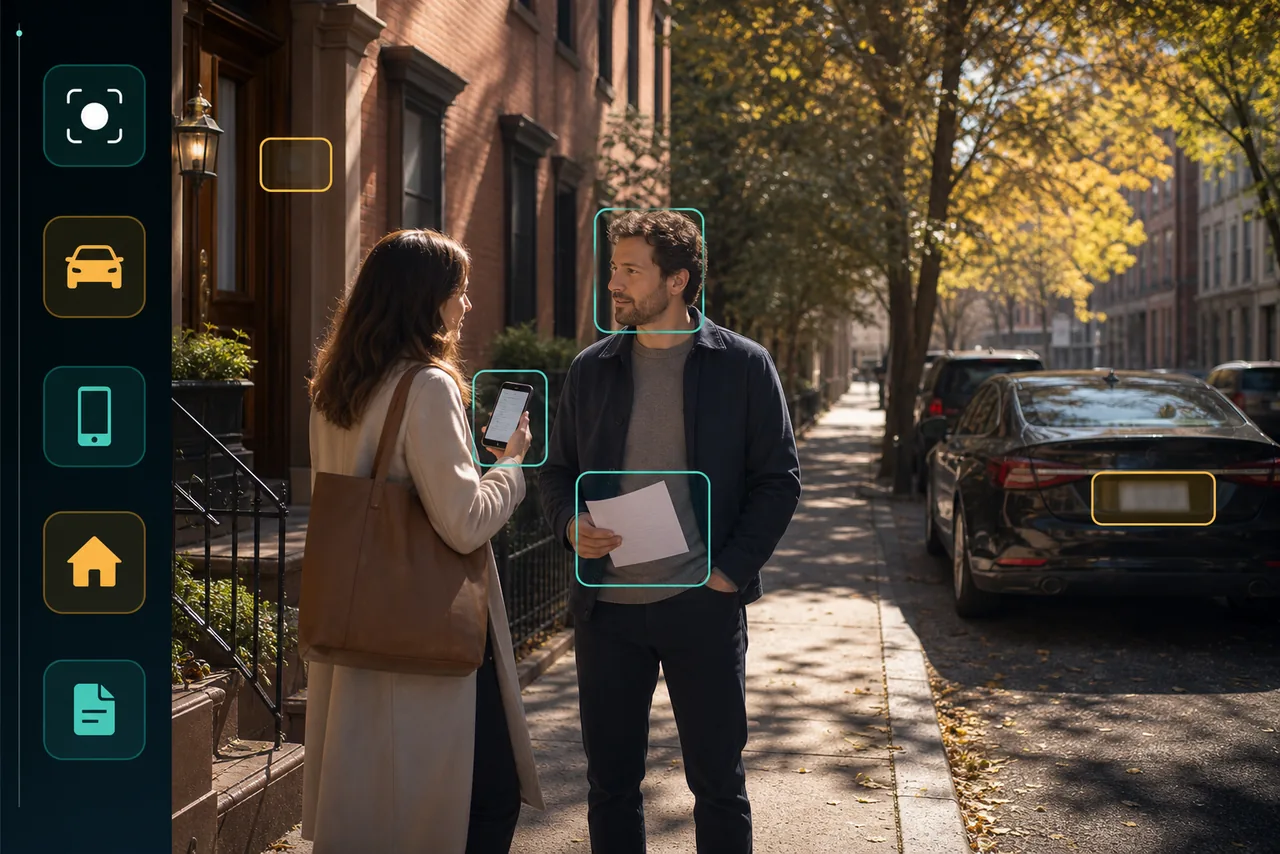
Scan an Uploaded Video for Private Details
Upload a clip to Video Intelligence and ask for a privacy-focused review before sharing. It can list details that may expose a person, vehicle, location, account, or document so you know what to inspect in the source video.
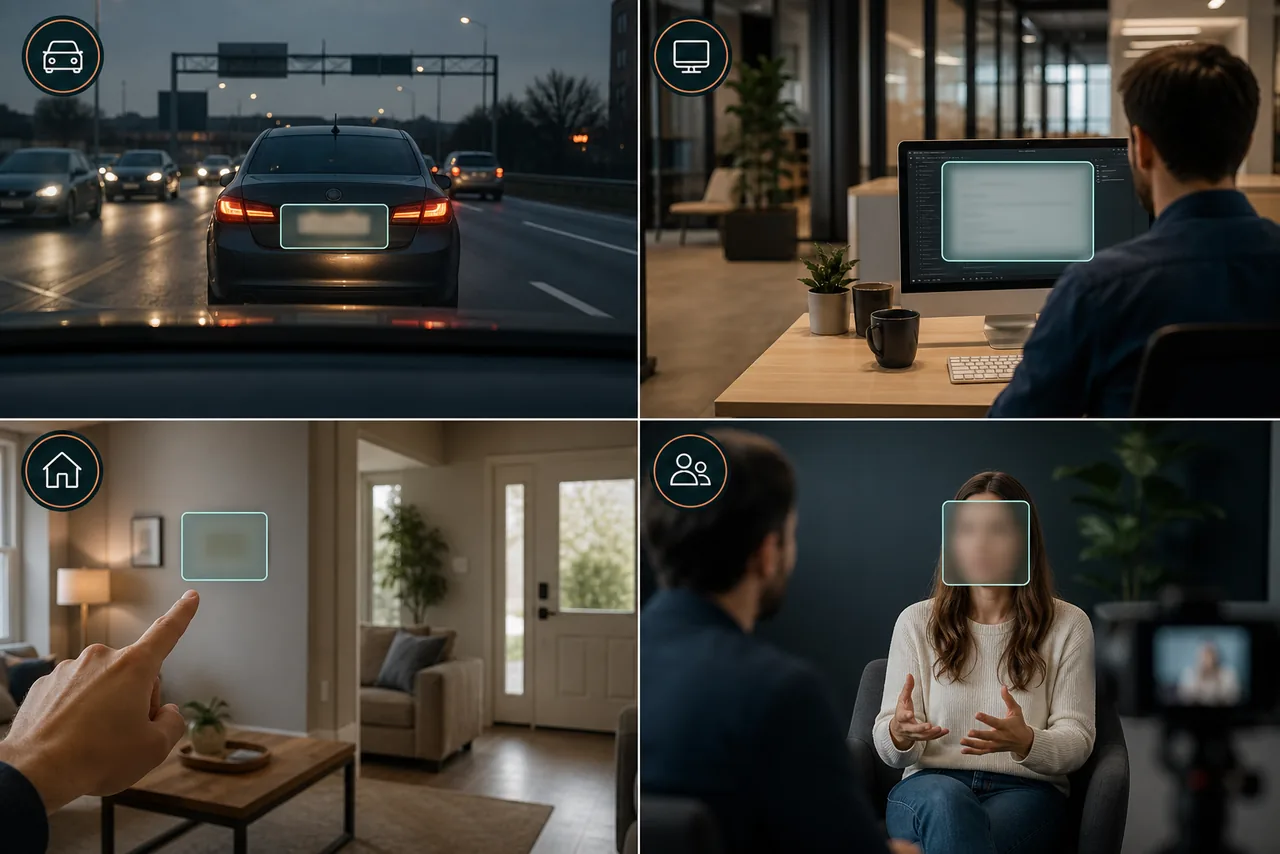
Look for Faces, Plates, Screens, Addresses, and Documents
The scan covers common privacy risks across dashcam, CCTV, interviews, property tours, workplace recordings, and creator footage. It surfaces possible findings for review rather than claiming that every sensitive detail was detected.
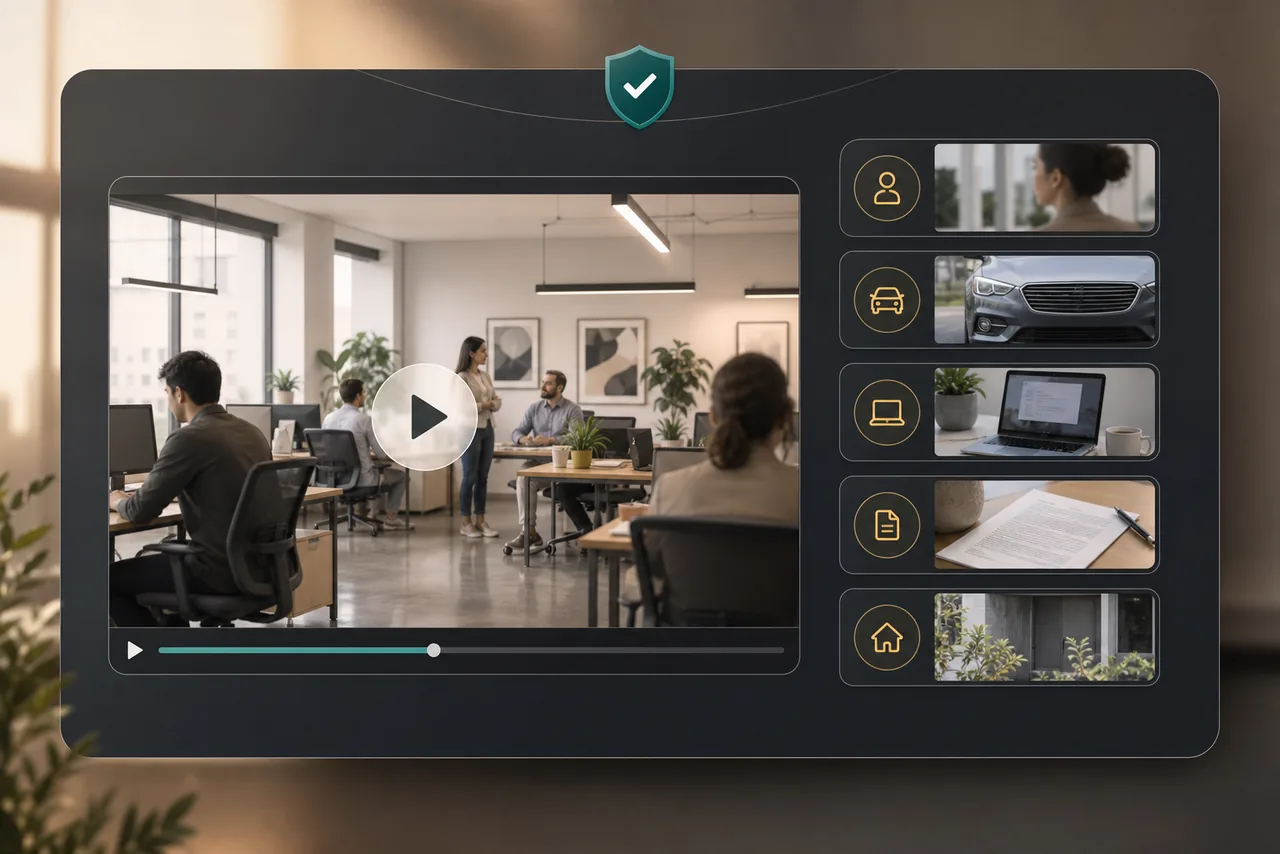
Review Every Finding Before Editing
Inspect each listed finding in the source footage, dismiss anything irrelevant, and decide what actually needs protection. Human review remains essential when the footage has blur, glare, occlusion, or fast movement.
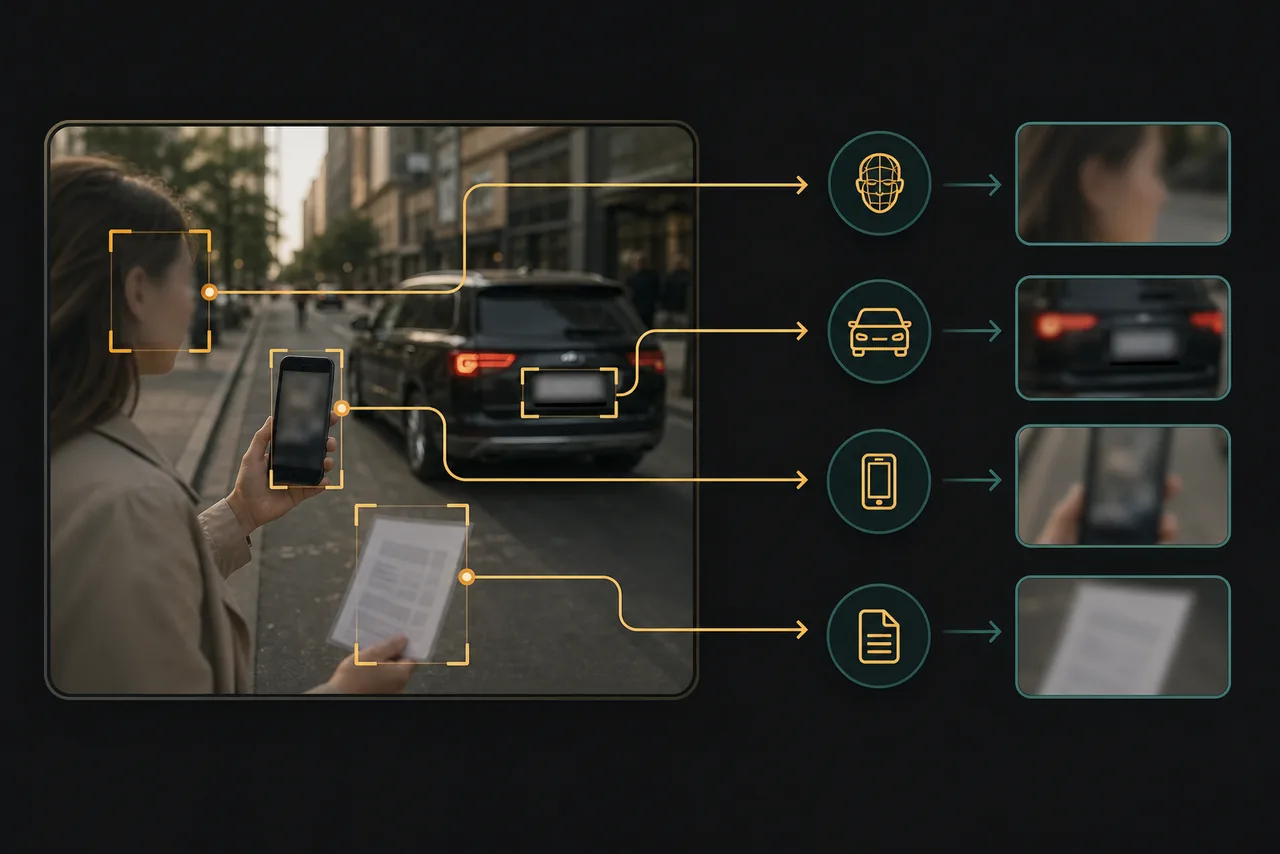
Choose the Right Blur Workflow
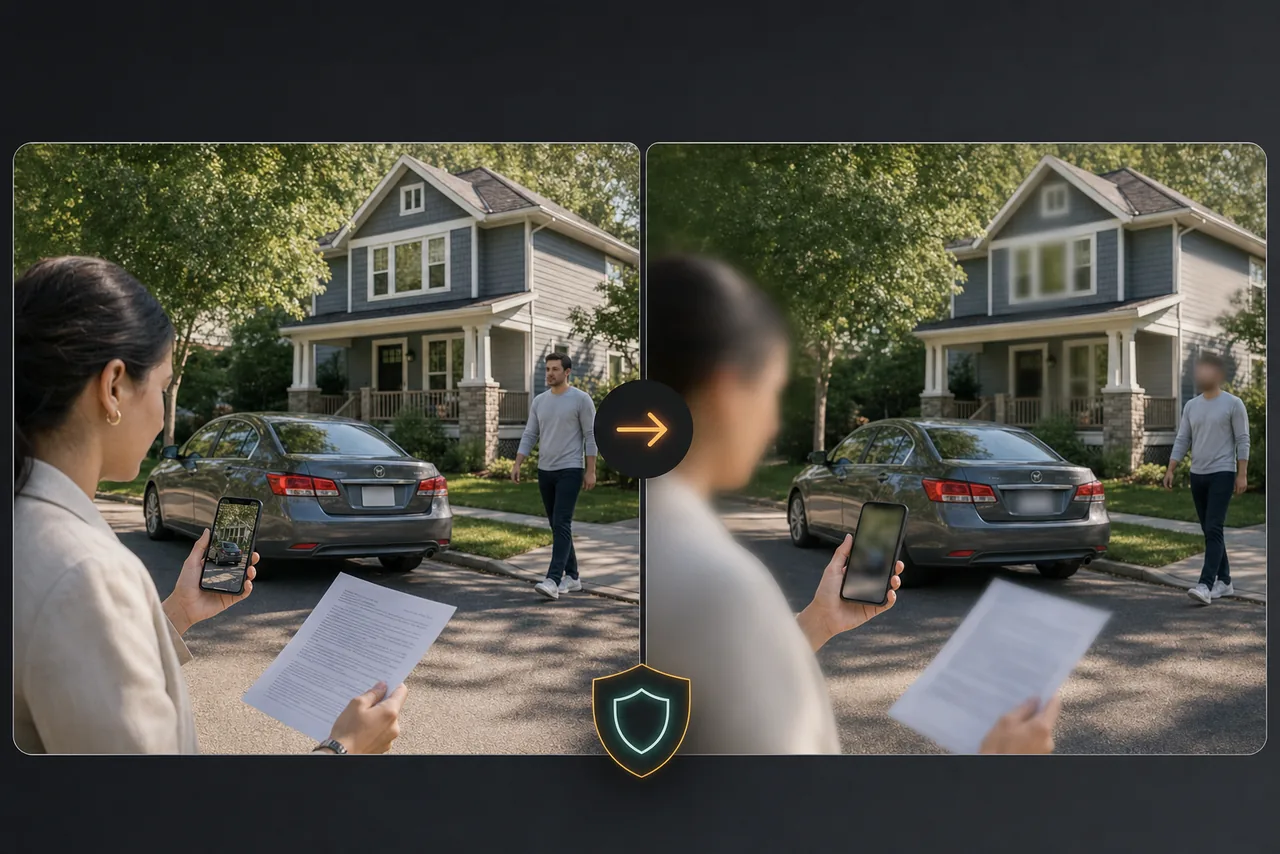
Video Intelligence recommends the relevant next step: face blur for faces, license-plate blur for plates, or selective object blur for screens, documents, addresses, and other regions. It does not automatically blur footage or transfer findings into those tools.
Create a More Privacy-Conscious Copy
Open the recommended blur workflow separately, apply and verify the appropriate masks, then export a derivative copy for sharing while preserving the original video separately.
Privacy Scan Before Sharing FAQs
Yes. Use Video Intelligence to scan an uploaded clip and list possible private details. The face, plate, and selective blur workflows remain separate and must be opened and applied manually.
It can surface possible faces, license plates, screens, addresses, documents, IDs, account details, and other private regions visible in the uploaded video.
No. Small, hidden, blurred, briefly visible, or unusual details may be missed. Users must review the complete source and edited export before sharing.
No. It locates possible faces or private regions for review; it does not use the scan to determine who a person is.
No. It lists findings and recommends the appropriate BGBlur workflow. You must open the face, license-plate, or selective blur tool separately and review the result yourself.
Yes, BGBlur's AI automatically tracks moving objects, faces, and vehicles. You do not need to manually mask every frame; the motion-aware tracker keeps the blur locked onto the subject as it moves.
BGBlur is a completely web-based tool. You can upload any video or image, select the Face Blur tool, and apply pixelation or blur instantly inside your browser without downloading any apps or plugins.
Absolutely. Our AI is trained specifically to detect and blur license plates in driving footage, dashcams, and street-view videos. It helps creators and transport fleets stay compliant with privacy laws.
Your privacy is our priority. BGBlur leverages advanced client-side technologies to process videos securely. Your files are processed locally in your browser and are never uploaded or stored permanently on external servers.
Yes! BGBlur is fully responsive and optimized for mobile browsers. You can easily blur a video background or pixelate faces directly on your iPhone, iPad, or Android phone.
Limits depend on the feature. Standard video blur tools such as face blur, license plate blur, background blur, blur anything, screen blur, NSFW blur, and face anonymization support up to 200MB and 10 minutes on the free plan, while Pro users get unlimited blur processing with longer video support. Object Remover supports MP4 and MOV videos up to 1GB and 10 seconds per clip. Voice Anon direct uploads support up to 100MB, while the upload/URL workflow supports audio or video files up to 500MB and under 10 minutes.
User Reviews
Share your experience and help others make informed decisions
Write a Review
Community Score
0.0
/ 5
Based on 0 reviews
All Reviews (0)
No reviews yet
Be the first to share your experience and help others make informed decisions!
Ready to blur your video content?
Start protecting privacy and creating professional video blur effects today with our AI-powered tool. No downloads required - blur directly in your browser.
Run a Privacy Scan