Remove Unwanted Objects from Video Online [2026]
A practical guide to erasing unwanted people, cars, watermarks, and clutter from video using BGBlur's browser-based AI Object Remover — no editing software, no reshoots, with motion tracking that follows moving objects across frames.
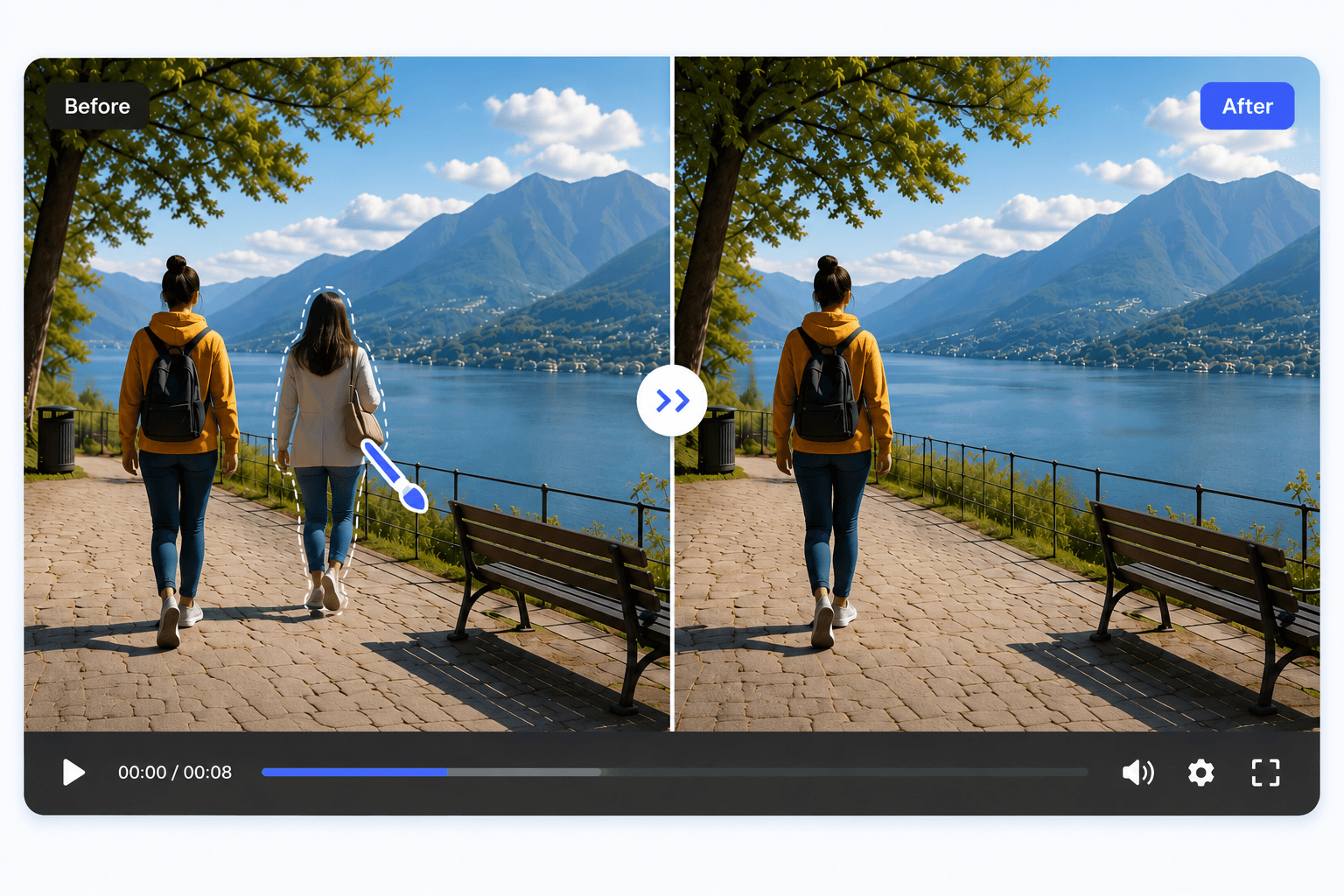
You got the shot the right light, the right angle, the right moment — and then you look closer and there's a stranger walking through the frame, a parked car in the corner, or a crowd of tourists behind you at the landmark you traveled hours to see.
A few years ago, fixing that meant reshooting, cloning pixels frame by frame in a desktop editor, or just accepting the clutter. Today, an ai object remover can detect the unwanted item, erase it, and rebuild what should be behind it — automatically, in a browser, with no editing skills required.
This guide covers how AI object removal works, how to do it with BGBlur's AI Video Object Remover, and where it's most useful for creators — travel videos, drone footage, and any clip with clutter you'd rather not see.
Table of Contents
- What Is an AI Object Remover?
- How to Remove an Object from a Video with BGBlur
- Real-World Uses for AI Object Removal
- Object Remover vs. Background Remover
- Free vs. Paid: What BGBlur's Free Plan Covers
- Frequently Asked Questions
- Conclusion
TL;DR: Removing Objects from Video with AI
| What you want to remove | How BGBlur handles it |
|---|---|
| A tourist or stranger walking through your shot | Brush over them, AI tracks and removes them across frames |
| A parked car in a static shot | Smooth Fill or Clone Patch rebuilds the road/ground behind it |
| A watermark, logo, or timestamp | Brush over the mark, Smooth Fill or Clone Patch erases it |
| Multiple people or objects in one clip | Select several objects in a single pass, different methods per object |
| Power lines, signs, or gear in drone footage | Same brush-and-track workflow, works on any footage type |
| A crowd filling the entire backdrop | Better suited to a dedicated background swap (see below) |
What Is an AI Object Remover?
An object removal ai tool identifies the pixels that make up an unwanted item across every frame, then generates new pixels to fill that space — matching the surrounding lighting, texture, and motion so the fix isn't obvious.
BGBlur's AI Video Object Remover does this with a simple brush-based workflow: paint over whatever you want gone — a person, a vehicle, an animal, text, a sign, a pole, a wire, or a whole distracting element — and the AI handles detection, tracking, and reconstruction with frame-accurate removal. If you'd rather hide an object instead of erasing it entirely, our object and region blur guide covers that alternative approach.
Photo vs. Video Object Removal
Removing an object from a single remove object from photo ai request only requires reconstructing one static frame. Video is harder — the AI has to keep the fix consistent across every frame, or the removed area will flicker or smear as the camera or subject moves. That's why BGBlur's tool includes motion tracking: you select the object once, and the AI follows it as it moves, rotates, or changes size throughout the clip, which is what separates a clean ai remove object result on video from a shaky one.
How to Remove an Object from a Video with BGBlur
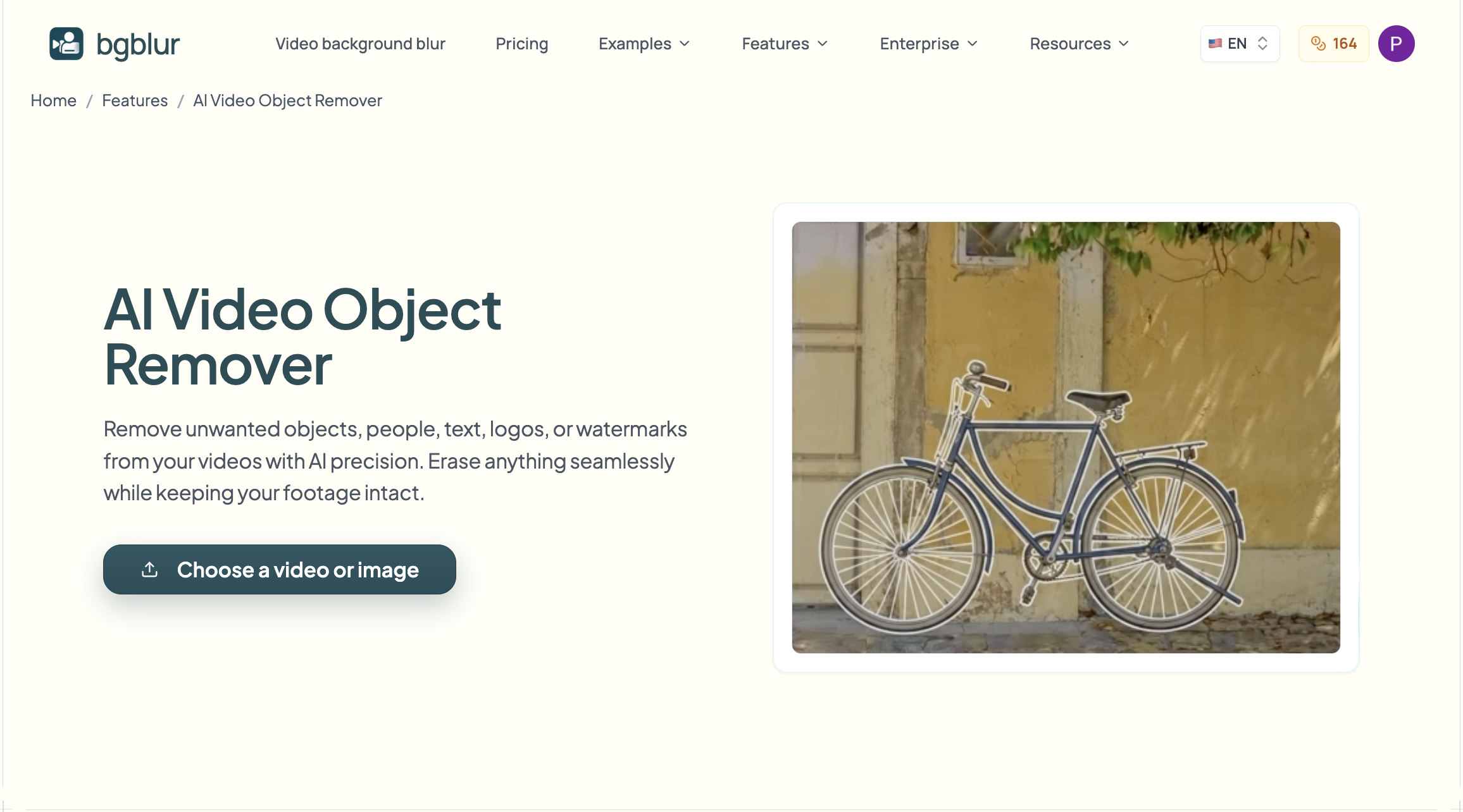
BGBlur's AI Video Object Remover runs entirely in the browser in three steps:
How to Remove Objects from a Video
-
Upload your video. Supports MP4 and MOV files.
-
Select what to remove. Choose the method that works best for your video:
- Brush Tool – Paint over the object you want to remove.
- Bounding Box – Draw a box around the object for quick selection.
- Text Prompt – Describe what you want to remove, such as "remove the person", "remove the car", or "remove the watermark".
If the object appears throughout the video, adjust the timeline so the selection covers its entire duration.

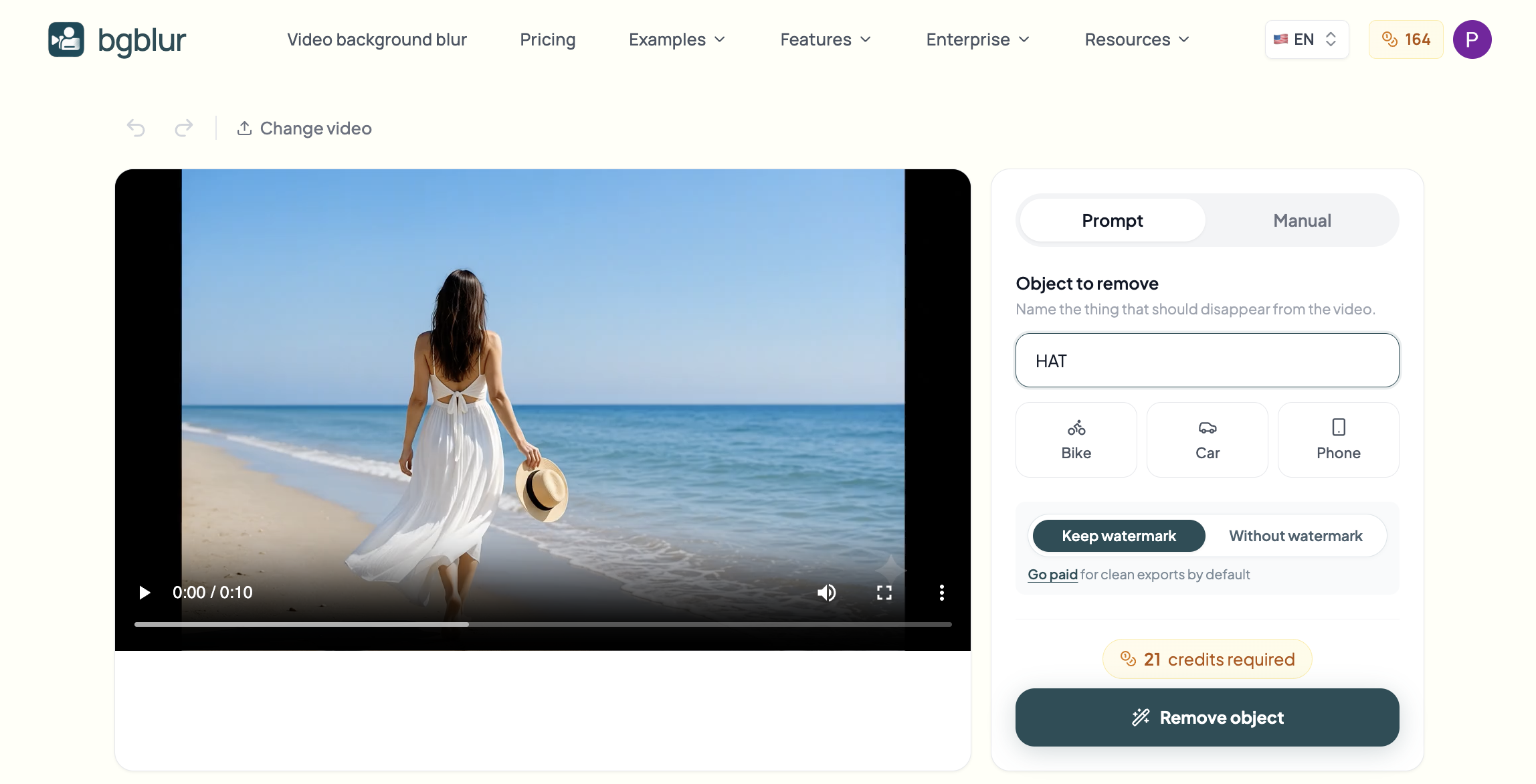
- Export your video. Preview the result
Real-World Uses for AI Object Removal
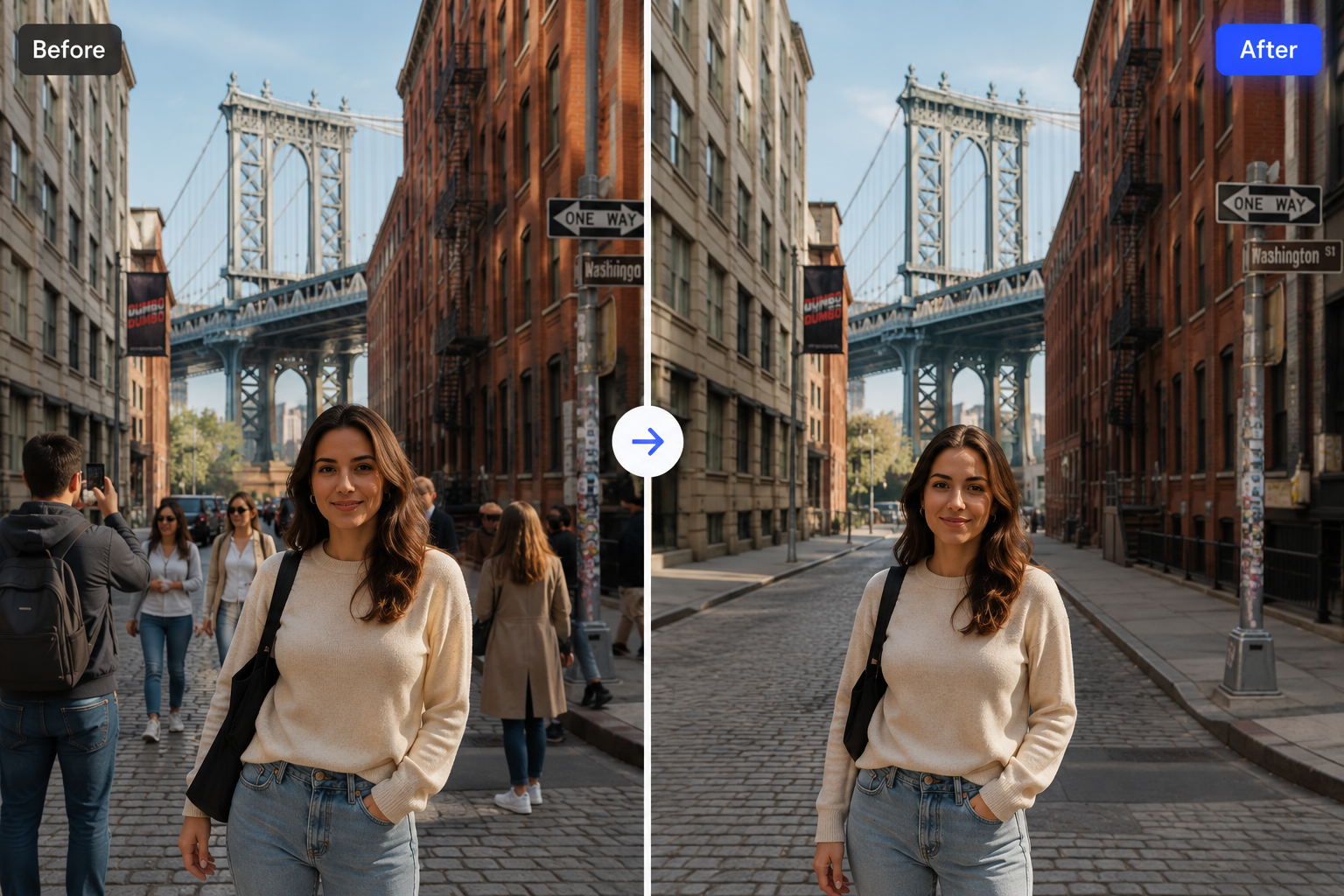
Remove People from Travel Videos
Landmarks rarely photograph empty. Brush over a stranger walking through your shot of a plaza, temple, or beach, and BGBlur's motion tracking follows them across the clip so you don't have to wait for a gap in foot traffic or reshoot the scene.
Remove Tourists from Videos
Same idea, sharper focus: tour groups, other travelers with cameras, and clusters of people right at the best viewpoint. BGBlur lets you select multiple objects in a single pass, each with its own removal method, so you can clear out several people from the same clip without running the tool over and over.
Remove Cars from Videos
Parked cars, delivery trucks, and passing traffic are some of the most common unwanted objects in street-level and real estate video. Clone Patch or Smooth Filling reconstructs the road, curb, or driveway behind the vehicle so the fix holds up even as the camera pans.
Remove Crowds from Video
When the "crowd" is more than a person or two — a packed street, a festival, a busy storefront — brushing over each individual gets slow. BGBlur can still select multiple people in one pass, but if the crowd fills the entire backdrop behind your subject, it's often faster to swap the whole background instead — that's a job for BGRemover.video, BGBlur's sister tool for full background removal.
Remove Unwanted Objects from Drone Footage
Aerial shots pick up power lines, construction equipment, parked vehicles, and crew gear that a ground-level eye wouldn't notice until the footage is reviewed. BGBlur's object remover works the same way on drone and aerial footage — brush over the item and let the AI track and remove it — though fast camera sweeps and small object size can make precise selection harder, so slowing down the timeline while selecting helps.
Object Remover vs. Background Remover
These two tool categories solve different problems, and BGBlur's ecosystem covers both:
- Object remover (BGBlur): Erases one specific item — a person, car, watermark, sign — while leaving the rest of the scene completely untouched. Best when the unwanted thing is a small part of an otherwise good shot.
- Background remover (BGRemover.video): Cuts out your main subject and replaces or removes everything behind them. Best when the entire backdrop — not just one thing in it — is the problem, like a fully crowded street behind someone talking to camera.
If it's one tourist, one car, one watermark: reach for BGBlur's object remover. If your entire backdrop is the issue: BGRemover's background swap is the faster fix.
Free vs. Paid: What BGBlur's Free Plan Covers
BGBlur's ai object remover free tier is genuinely usable for everyday cleanup:
- Processing time: Most videos process within minutes, with real-time progress you can track before downloading.
- Quality: Your original resolution is preserved outside the areas you select — there's no platform-wide quality downgrade for using the free plan.
- Privacy: BGBlur processes video with client-side technologies in the browser, so files aren't uploaded or stored permanently on external servers.
For quick fixes — one stray tourist, one parked car, a watermark on a downloaded clip — the free plan covers it. For longer footage or bulk projects, check current plan details on bgblur.com/en/pricing.
Frequently Asked Questions
What is an AI object remover?
An AI object remover is a tool that detects an unwanted person, car, sign, or other item in a photo or video, then fills the space behind it so the removal looks seamless. BGBlur's AI Video Object Remover works this way — brush over the object, and the AI erases it and rebuilds the background using blur, smooth fill, color fill, or clone patch.
Is there a free AI object remover for video?
Yes. BGBlur's AI Video Object Remover is free to use directly in the browser, supporting MP4 and MOV clips with no editing software required.
Can AI remove a moving object from a video, not just a photo?
Yes. BGBlur uses motion tracking to follow an object across frames as it moves, rotates, or changes size — you select it once with the brush tool, and the AI keeps the removal locked on throughout the clip.
How do I remove people from the background of a travel video?
Upload the clip to BGBlur's AI Video Object Remover, brush over the person or people you want gone, choose a removal method like smooth fill or clone patch, and the AI erases them while tracking their movement across the frame.
Can AI remove cars from a video without leaving a blurry patch?
Yes, if you use a fill-based method rather than blur. BGBlur offers Smooth Filling, Color Filling, and Clone Patch specifically for this — they reconstruct the road or background behind the car instead of just obscuring it, which gives a cleaner result than a blurred patch.
Does removing objects from a video reduce its quality?
No. BGBlur preserves your original video resolution and quality — only the areas you select are processed, while the rest of the footage stays untouched.
What's the difference between an object remover and a background remover?
An object remover erases a specific item from a scene while keeping everything else intact — that's what BGBlur's AI Video Object Remover does. A background remover replaces or removes everything behind your subject at once, which is a separate tool (BGRemover.video) built for a different job.
Can I remove unwanted objects from drone footage?
Yes. BGBlur's object remover works on any footage, including aerial and drone shots — brush over power lines, parked vehicles, or equipment and the AI tracks and removes them across frames, though fast camera movement can make very small objects harder to select precisely.
Does BGBlur remove watermarks and logos too?
Yes. The same AI Video Object Remover used for people and objects also removes watermarks, logos, and timestamps — including TikTok and YouTube watermarks — by brushing over the mark and choosing smooth fill or clone patch.
Conclusion
Whether it's a stranger walking through your travel shot, a parked car in a landscape frame, a watermark on a downloaded clip, or clutter picked up by a drone, AI has made it possible to clean up footage without touching an editing timeline. Brush over what you don't want, pick a removal method, and let the tracking handle the rest.
BGBlur's AI Video Object Remover handles all of this directly in your browser — free to start, no watermark, no installs. For clips where the whole backdrop (not just one object) needs to go, its sister tool BGRemover.video handles the full background swap.