Protect Your Privacy in Game Devlogs and Streams [2026]
Devlogs, game jam streams, and screen recordings leak more personal information than most indie developers realize. This guide covers what to blur before publishing and how BGBlur handles it in the browser.
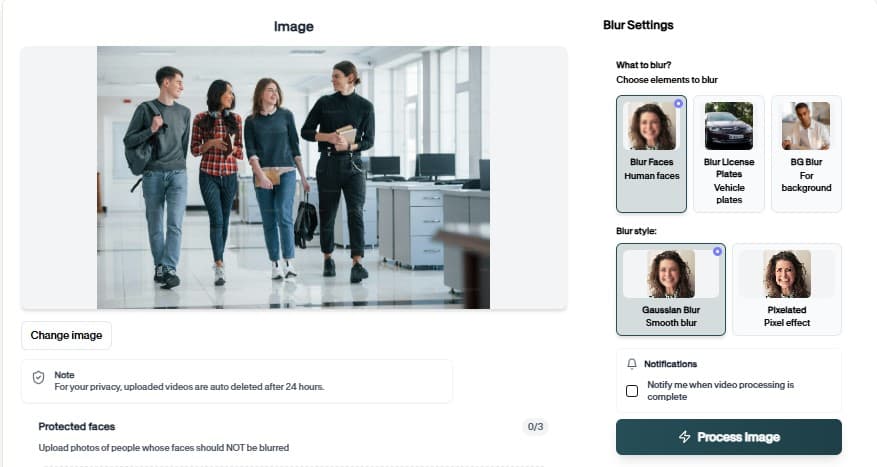
Posting a devlog or streaming a game jam session is one of the best ways for an indie developer to build an audience — but it's also an easy way to leak personal information you didn't mean to share. Facecams show your home, browser tabs flash email previews, and desktop notifications pop up mid-recording with messages you never intended to publish. Once that footage is on YouTube or Twitch VOD, it's effectively permanent.
BGBlur exists for exactly this gap: a browser-based tool that blurs faces, backgrounds, or specific regions of a video before you hit publish, without needing an editing suite.
What Devlog and Stream Footage Actually Exposes
Facecam webcam overlays
Most devlog and Twitch stream setups include a facecam in the corner. If you'd rather stay anonymous — or just don't want your face permanently searchable next to your project — that overlay needs to go before publishing, not after someone screenshots it.
Desktop notifications and browser tabs
Screen recordings for coding sessions or asset-generation demos routinely catch Slack pings, email previews, and browser tabs open in the background. A single frame with a notification banner is enough to leak a name, a subject line, or an account balance.
Background clutter in a home office
Mail on a desk, a whiteboard with personal notes, a window showing a street sign or license plate — these are the details streamers rarely think to check because they're not the "subject" of the shot.
Why This Risk Is Easy to Miss
Most indie developers think about privacy in terms of obvious things — not posting their home address, not showing a driver's license on camera. The leaks that actually happen are almost always incidental: a browser tab left open in the background during a screen recording, a notification that pops up at the exact wrong second, a whiteboard behind a facecam with a to-do list that includes a phone number. None of these are things a developer sets out to show. They're artifacts of recording in a real workspace instead of a sterile studio, and that's true for almost everyone streaming from a home office or bedroom setup.
The reason this matters more for game developers specifically is that devlogs and streams are often the only public-facing content a solo developer or small studio produces regularly. A single trailer might get one privacy review before launch. A weekly devlog series, recorded quickly between actual development work, rarely gets that same scrutiny — and it's exactly the kind of recurring content where a small mistake in one episode can sit online indefinitely.
The permanence problem
Unlike a live stream that disappears once it ends, most devlogs and stream VODs are uploaded, archived, and often mirrored by fans or aggregators. Once a video with an exposed detail is public, deleting the original upload doesn't guarantee it's gone — clips get re-uploaded, screenshots get shared, and search engines cache thumbnails. The only reliable fix is catching the issue before the first publish, not after.
Community and Discord clips carry someone else's information too
It's easy to focus on your own exposure and forget that devlog and stream content frequently includes other people — Discord community members whose messages get read on stream, playtesters whose reactions get shown, collaborators who appear on a call. Blurring isn't only a personal privacy tool; it's also how you avoid publishing someone else's username, face, or message without them realizing it's now part of a public video.
How to Blur a Devlog Before You Publish
Step 1: Upload Your Recording
Go to bgblur.com and drag in your devlog or stream export (MP4, MOV, or M4V, up to 4K).
Step 2: Select the Region to Blur
Use object or region blur to draw a box around your facecam overlay, a notification banner, or a background window — the AI tracks that region across the whole clip, even as it moves in frame.
Step 3: Export and Publish
Preview the result, export as MP4, MOV, or WebM, and upload. BGBlur deletes your file within 24 hours, so nothing lingers on a server after processing.
What to Blur Depending on the Platform
| Content type | What to check for |
|---|---|
| YouTube devlog | Facecam, browser tabs, desktop notifications, visible file paths with your real name |
| Twitch VOD | Chat overlay usernames if reacting to messages, donation alerts with real names, webcam background |
| Game jam submission trailer | Any accidental capture of your desktop between recording takes |
| Discord community clips | Other members' usernames and avatars if you didn't get consent to share |
Where This Fits Into a Solo Dev's Toolchain
Indie devs already stack several browser-based tools across a project: something to prototype assets, something to record and edit, something to protect privacy before publishing. On the asset side, a tool like bunpav.com lets a solo developer generate 3D models, sprite sheets, and playable prototypes for a game jam directly in the browser — useful if you're recording a "how I built this" devlog and want to show the asset-generation step without a long detour into a traditional 3D modeling package. BGBlur covers the other end of that same workflow: making sure whatever you capture while doing that work is safe to publish.
Building a Pre-Publish Checklist
The most reliable fix for this problem isn't remembering to check every time — it's building a five-minute pass into your publishing routine so it happens automatically, the same way you'd check audio levels or export settings before uploading. A simple checklist works better than relying on memory, especially when you're publishing on a weekly devlog schedule and rushing to hit a deadline.
- Scrub the first and last ten seconds separately. Recording software often catches the moment before you're "ready" and the moment after you think you've stopped — these are the two spots most likely to have an unintentional capture.
- Check every cut to a new scene or window. Alt-tabbing during a screen recording is when a stray notification or open tab is most likely to appear on screen.
- Watch with sound on, once. Notification sounds often precede the visual pop-up by a frame or two, so an audio cue can flag a moment worth rewinding to check.
- Ask whether anyone else appears without consent. Community members, collaborators, or family walking into frame all count.
- Run the export through BGBlur before uploading if step 1 through 4 turned up anything — better to spend two minutes blurring a region than to take a video down and re-upload after it's already been seen.
Frequently Asked Questions
Do indie game devs really need to blur their devlogs? If a devlog or stream shows your face, home address details, or desktop notifications, you're exposing personal information to a public audience. Most devs skip a privacy pass before publishing, which is how addresses, email previews, and family members end up permanently indexed on YouTube.
What should I blur in a game jam livestream? Webcam facecam if you want to stay anonymous, any browser tabs with email or banking open, desktop notification pop-ups, personal notes visible in the background, and any window or mirror showing your street or license plate.
Can BGBlur blur just my webcam and leave the game footage untouched? Yes. Object and region blur lets you draw a box around your facecam overlay or a specific area and blur only that region, leaving the rest of the capture at full clarity.
Does blurring a video reduce its YouTube or Twitch quality? No. BGBlur processes at up to 4K and exports to MP4, MOV, or WebM — only the blurred region is affected.
Is BGBlur free for editing a devlog before upload? Yes, the free tier covers videos up to 200MB and 10 minutes with 720p export, which handles most short devlog clips. Longer streams or 4K exports need the Pro plan.
Conclusion
A devlog is meant to show your work, not your home address or your inbox. Running a quick privacy pass with BGBlur before you publish takes a few minutes and permanently removes the risk of a facecam, notification, or background detail turning into a problem later. Try BGBlur on your next devlog export, or read more on face anonymization and object and region blur for other footage types worth checking before you hit publish.
This article reflects BGBlur's features and pricing as of July 2026.