Blur Faces in Video Free: Complete AI Guide [2026]
A complete comparison of seven free ways to blur faces in video, from BGBlur's AI-powered browser tool to YouTube Studio, CapCut, and DaVinci Resolve. Includes best practices, common mistakes, and guidance on when free tools stop being enough.
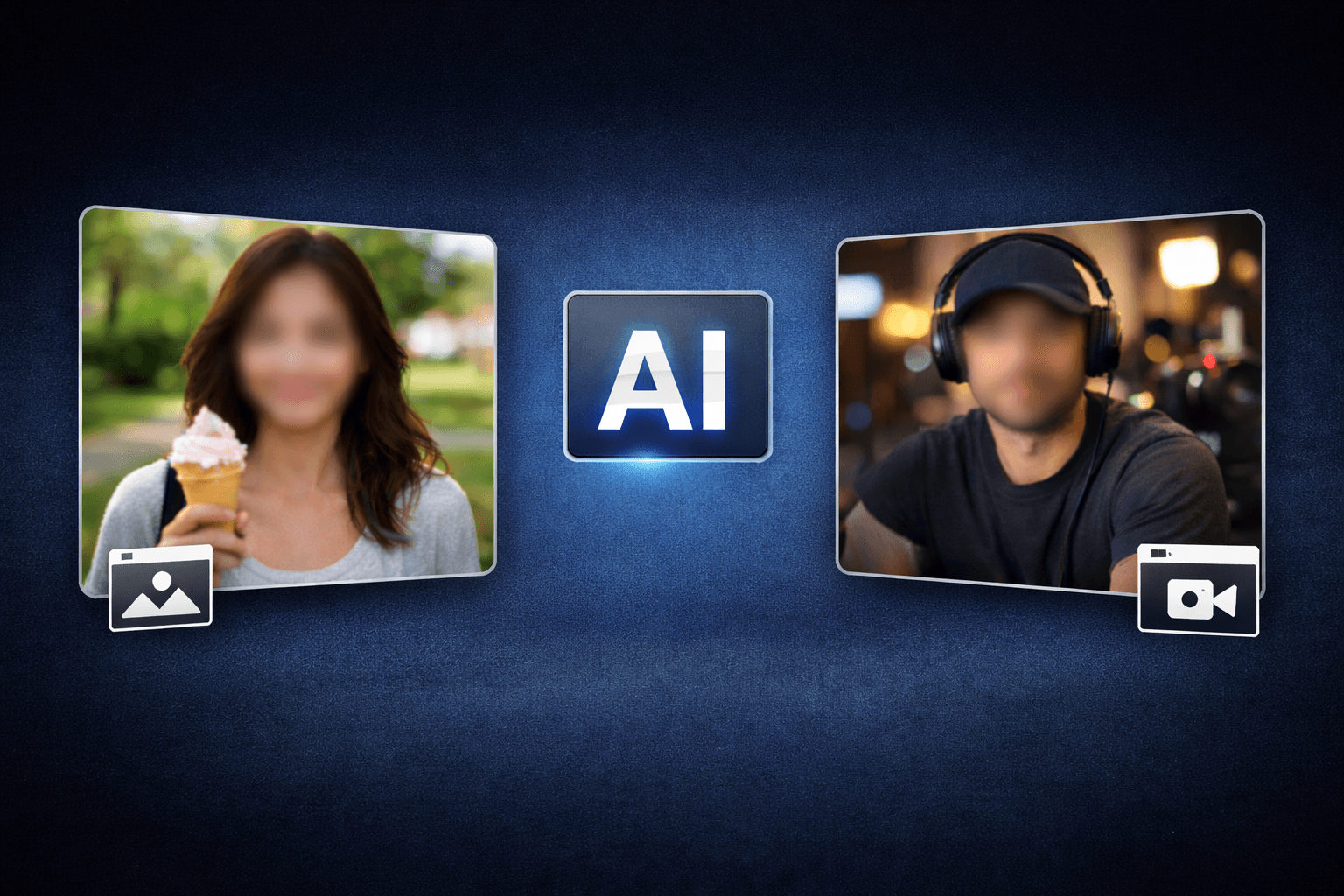
Whether you're protecting someone's privacy, complying with GDPR, or simply keeping bystanders anonymous in your content, knowing how to blur faces in video is an essential skill in 2026. The good news? You don't need expensive software or technical expertise—free tools powered by AI can handle the job automatically.
This comprehensive guide covers every method to blur faces in video for free, from browser-based tools to mobile apps and desktop software. For a deeper look at AI detection accuracy and paid-tier features, see our complete guide to blurring faces in video.
Why You Need to Blur Faces in Video
Before diving into the how, let's understand the why. Face blurring has become essential across multiple contexts:
Legal Requirements
- GDPR Compliance: European privacy law requires consent before publishing identifiable individuals — see our GDPR video compliance guide for the full legal breakdown
- HIPAA in Healthcare: Patient faces must be protected in medical content
- FERPA for Education: Student privacy requires protection in school recordings
- State Privacy Laws: California, Virginia, and 18+ other US states have specific requirements
Ethical Considerations
- Bystander Protection: People in public spaces didn't consent to appear in your content
- Vulnerable Populations: Children, witnesses, and at-risk individuals deserve protection
- Professional Standards: Journalism, documentary, and research ethics often require anonymization
Practical Applications
- Social Media Content: Protect people in street footage, vlogs, and public recordings
- Business Videos: Hide customers, employees, or proprietary information
- Security Footage: Share CCTV clips while protecting uninvolved parties
- Family Videos: Share memories without exposing others' children
Method 1: BGBlur - Free AI-Powered Face Blur Online
Website: bgblur.com
BGBlur offers the fastest, most accurate way to blur faces in video for free. Here's how to use it:
Step-by-Step Process
- Upload Your Video: Drag and drop or click to upload any video format
- AI Detection: The system automatically identifies all faces in every frame
- Choose Blur Style: Select from multiple blur intensities and styles
- Preview Results: Review the blurred video before downloading
- Download: Get your privacy-protected video instantly
Why BGBlur Stands Out
- Automatic Detection: AI finds faces you might miss manually
- Motion Tracking: Blur follows faces as they move through the video
- Batch Processing: Handle multiple videos efficiently
- No Watermark: Free tier includes clean exports
- Quality Preservation: Maintains video resolution after processing
Best Use Cases
- Quick social media content preparation
- GDPR compliance for European audiences
- Protecting bystanders in street photography and vlogs
- Processing dashcam or security footage
Method 2: YouTube Studio - Built-In Free Blur Tool
YouTube offers a native face blurring feature directly in YouTube Studio. If you're uploading to YouTube anyway, this is a convenient option.
How to Use YouTube's Face Blur
- Upload Video: Upload your video to YouTube (can be set to private)
- Open Editor: Go to YouTube Studio → Content → Select video → Editor
- Add Blur: Click "Blur" in the editor panel
- Choose Face Blur: Select "Face blur" option
- Select Faces: YouTube detects faces—choose which to blur
- Save Changes: Apply the blur and save
Limitations
- Only works for videos being uploaded to YouTube
- Detection isn't always accurate on smaller faces
- Limited customization options
- Processing can be slow for long videos
- Must have a YouTube account
Method 3: CapCut - Free Mobile and Desktop App
CapCut provides face blur capabilities in its free video editor, available on iOS, Android, and desktop.
Using CapCut for Face Blur
- Import Video: Add your video to a new CapCut project
- Select Effects: Navigate to the Effects panel
- Find Blur Effect: Search for "blur" or "mosaic" effects
- Apply to Face: Position the blur effect over the face area
- Keyframe if Needed: Add keyframes to track movement
- Export: Save your edited video
Pros and Cons
Pros:
- Completely free to use
- Available on all platforms
- Includes many other editing features
- No watermark on exports
Cons:
- Manual tracking required (not automatic AI detection)
- Time-consuming for videos with multiple faces
- Blur may drift from faces during movement
- Learning curve for keyframing
Method 4: DaVinci Resolve - Professional Free Option
Blackmagic's DaVinci Resolve offers professional-grade face blurring in its free version.
Face Blur in DaVinci Resolve
- Import Footage: Add video to your timeline
- Go to Color Page: Access advanced tracking tools
- Draw Power Window: Create a circular window around the face
- Enable Tracking: Use the tracker to follow the face
- Apply Blur: Add blur effect to the tracked region
- Render: Export your final video
When to Choose Resolve
- You need professional-quality results
- You're already using Resolve for editing
- You want granular control over blur appearance
- You're processing high-resolution footage (4K+)
Considerations
- Steeper learning curve than online tools
- Requires software installation
- Manual tracking setup needed
- Overkill for simple blur needs
Method 5: OpenShot - Open Source Desktop Editor
OpenShot is a free, open-source video editor that includes blur capabilities.
Blurring Faces in OpenShot
- Open Project: Create new project and import video
- Add to Timeline: Place video on the timeline
- Apply Blur Effect: Add blur effect from Effects panel
- Adjust Position: Move blur region over face
- Use Keyframes: Animate blur position for movement
- Export Video: Render final result
OpenShot Characteristics
- Completely free and open source
- Works on Windows, Mac, and Linux
- Lightweight and fast
- Manual blur positioning required
- Limited automatic detection
Method 6: Shotcut - Another Free Desktop Option
Shotcut offers similar capabilities to OpenShot with a different interface.
Face Blur Process in Shotcut
- Load Video: Import your video file
- Add Filter: Apply "Blur: Box" or "Blur: Gaussian" filter
- Use Mask: Create a mask shape over the face
- Keyframe Animation: Animate mask position
- Adjust Blur Amount: Set intensity as needed
- Export: Save your blurred video
Method 7: VSDC Free Video Editor (Windows)
VSDC provides free video editing with blur capabilities for Windows users.
Using VSDC for Face Blur
- Import Video: Add footage to VSDC project
- Select Region: Use selection tool on face area
- Apply Effect: Add pixelate or blur effect
- Track Movement: Manually keyframe for motion
- Export: Render final video
Comparing Free Face Blur Methods
| Method | Auto-Detection | Tracking | Ease of Use | Quality |
|---|---|---|---|---|
| BGBlur | ✅ AI-Powered | ✅ Automatic | ⭐⭐⭐⭐⭐ | ⭐⭐⭐⭐⭐ |
| YouTube Studio | ✅ Limited | ✅ Automatic | ⭐⭐⭐⭐ | ⭐⭐⭐ |
| CapCut | ❌ Manual | ❌ Manual | ⭐⭐⭐ | ⭐⭐⭐⭐ |
| DaVinci Resolve | ❌ Manual | ✅ Good | ⭐⭐ | ⭐⭐⭐⭐⭐ |
| OpenShot | ❌ Manual | ❌ Manual | ⭐⭐⭐ | ⭐⭐⭐ |
Best Practices for Face Blurring
Ensure Complete Coverage
- Blur should fully cover the face in every frame
- Include distinctive features like unusual hairstyles if identifying
- Check profile views and partially obscured faces
Maintain Consistency
- Use the same blur style throughout the video
- Keep blur intensity consistent across all subjects
- Ensure blur doesn't reveal face at any frame
Verify Before Publishing
- Watch the entire video at full speed
- Check slow-motion scenes carefully
- Review moments where faces enter/exit frame
- Test on different devices and screen sizes
When Free Tools Aren't Enough
While free tools handle most situations, consider paid options when you need:
- Batch processing of dozens or hundreds of videos
- License plate detection alongside faces — see our dashcam face and license plate blurring guide for that workflow
- Enterprise-grade accuracy for legal compliance
- API access for automated workflows
- Priority processing for time-sensitive content
Conclusion
Blurring faces in video for free is easier than ever in 2026. For most users, BGBlur offers the best combination of automatic AI detection, ease of use, and quality results. For those already invested in specific editing workflows, YouTube Studio, CapCut, or DaVinci Resolve provide viable alternatives.
The key is choosing a method that matches your needs: automatic AI detection for efficiency, or manual tools for precise control. Whatever you choose, protecting privacy through face blurring is both an ethical responsibility and increasingly a legal requirement.
Ready to blur faces in your videos for free? Try BGBlur for instant, AI-powered face detection and blurring—no signup required.