Blur Faces in Adobe Express Photos and Video [2026]
Adobe Express can blur a still photo with adjustment sliders, but moving faces in video need AI tracking. Learn native Express steps, the BGBlur add-on, and why BGBlur.com is the fastest full-video solution.
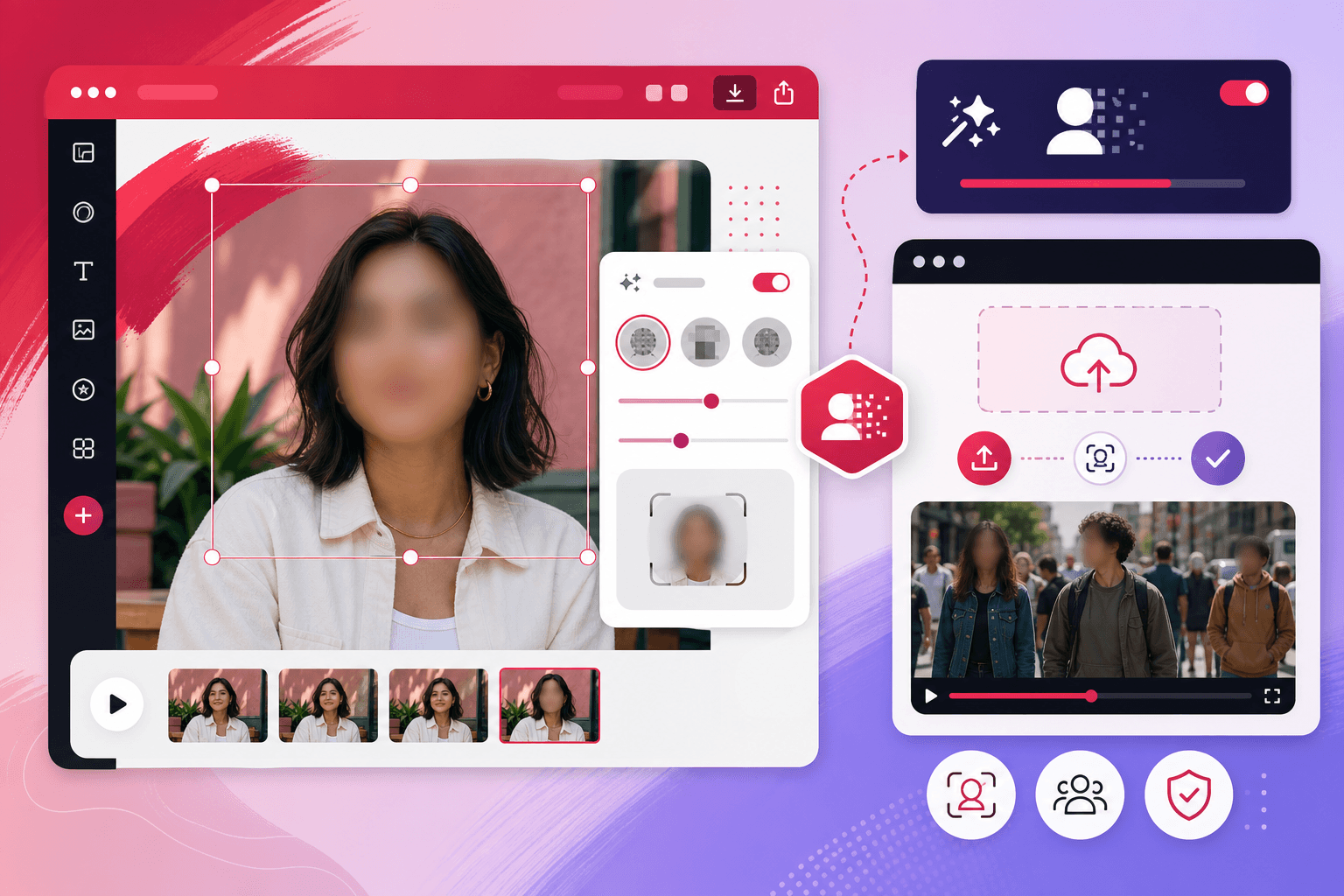
Adobe Express (formerly Adobe Spark) is the quick-create hub for social graphics, short video, PDFs, and marketing assets. Teams love it for speed and Adobe ecosystem integration—especially when paired with Firefly generative features.
When your Express project includes people—customer quotes, event coverage, classroom B-roll, or user-generated clips—you may need to blur faces before export. Express can adjust blur on a still image, but it does not offer automatic face tracking across video the way dedicated privacy AI does.
This guide covers three paths: Adobe Express native blur (simple photos), the BGBlur Adobe Express add-on (stay inside Express), and BGBlur.com (recommended for reliable, fast video anonymization).
Why Face Blur Belongs in Your Express Workflow
Adobe Express users publish:
- TikTok, Reels, and YouTube Shorts
- LinkedIn thought-leadership video
- School and nonprofit flyers with event photos
- Small business promos with customer clips
- Internal HR and training snippets
Each asset can expose identifiable faces:
- Customers who did not sign a release
- Employees in deprecated training content
- Minors at public events
- Bystanders in street footage used as B-roll
- Telehealth or coaching screenshots repurposed for marketing
Face blur is the standard technical control. For video, blur must follow motion—native Express sliders alone rarely suffice.
Method Comparison
| Method | Best for | Auto detection | Video tracking | Speed |
|---|---|---|---|---|
| Express native blur | 1 face, 1 photo | ❌ Manual | ❌ No | Slow for video |
| BGBlur Express add-on | Projects already in Express | ✅ Yes | ✅ Yes | Medium |
| BGBlur.com | Full video, batch, compliance | ✅ Yes | ✅ Yes | Fastest |
Method 1: Blur Faces with Adobe Express Built-In Tools
Adobe Express includes photo adjustment tools suitable for single-frame, single-subject redaction. This walkthrough uses the current Express web experience; menu names may shift slightly as Adobe updates the UI.
Step 1: Start a project
- Go to Adobe Express
- Sign in with Adobe ID (free or premium)
- Click + to create:
- Photo for still images
- Video for short clips (note limitations below)
- Upload your asset from device or Adobe cloud
Step 2: Blur an entire photo (fast but broad)
- Select the image layer on the canvas
- Open Adjust or Effects in the property panel
- Locate Blur and increase the slider
Caution: Whole-image blur destroys product detail, backgrounds, and text. Use only when the face dominates the frame.
Step 3: Selective face blur with duplicate layers
For one face on a busy photo:
- Duplicate the image layer (Copy / Paste or Duplicate in layers panel)
- Crop the duplicate tightly around the face
- Apply Blur adjustment to the cropped duplicate only
- Align the blurred patch over the original face
- Lock or group layers to prevent drift
- Repeat per additional face
Step 4: Use shapes as blur masks (alternative)
- Insert a circle or rectangle shape over the face
- Increase shape Blur if available, or fill with a frosted effect
- Lower Opacity slightly for softer edges
- Match rotation to head angle
Step 5: Export
- Click Download or Publish
- Choose PNG for quality or MP4 for video projects
- Inspect at 100% zoom—if pupils or jawline remain recognizable, strengthen blur or switch to BGBlur
Express video limitation (critical)
Express video editing supports trim, text, and music—but not AI face tracking. If faces move, native duplicate-and-blur layers do not move with them. After export, motion will reveal unblurred frames.
→ For any talking-head, event, or street video, use Method 2 or 3.
Method 2: BGBlur Adobe Express Add-On
BGBlur ships Adobe Express add-ons that embed the same anonymization engine as BGBlur.com inside Express's Add-ons panel—similar to how BGBlur integrates with Canva Apps.
Available BGBlur add-ons
Search Add-ons in Express for:
- BGBlur Face Blur — detect and blur faces in images and video
- BGBlur Face Anonymous — stronger anonymization options
- BGBlur Blur Anything — selective object blur beyond faces
- BGBlur License Plate Blur — when plates also appear in frame
(Listing names may vary in Adobe's marketplace; search BGBlur to see all integrations.)
Step-by-step: Face Blur add-on
Step 1: Open your Express project
Create or open a photo/video project containing footage that needs anonymization.
Step 2: Open Add-ons
- In the left or bottom toolbar, click Add-ons
- Search BGBlur or Face Blur
- Click BGBlur Face Blur to install/open
Step 3: Sign in to BGBlur
- Click Connect or Login
- Authenticate with the same credentials as BGBlur.com
- Confirm your credit balance in the add-on panel
Step 4: Upload media
- Click Upload in the add-on
- Select image or video from your device
- Supported formats typically include MP4, MOV, PNG, JPEG, WebP, GIF (see in-app limits for size and duration)
Step 5: Configure settings
- Set blur intensity
- Choose blur style (Gaussian vs. pixelated) if available
- Optional: specify a protected face reference to keep one speaker visible while blurring others
Step 6: Process
- Click the primary action (e.g., Blur Faces)
- Monitor status: upload → face detection → blur render
- Keep Express tab active until completion
Step 7: Insert into Express project
- Add processed asset to your canvas/timeline
- Remove or hide the original unblurred layer
- Continue with Express templates, Firefly backgrounds, and text
- Export final MP4 or PNG
Add-on pros and cons
Pros:
- No context switch—stay in Adobe Express
- AI detection replaces manual face boxes
- Unified BGBlur account and credits
- Works for marketing teams already on Adobe
Cons:
- Panel UI is compact vs. full BGBlur.com
- File duration/size limits apply inside add-on
- Heavy batch work is slower than direct website upload
Method 3: BGBlur.com (Recommended)
BGBlur.com is the best solution when you need:
- Reliable multi-face detection
- Frame-accurate tracking in video
- Fast upload-to-download cycles
- Longer clips without add-on friction
- Re-processing when legal asks for stronger blur
Professional Adobe shops often use this split:
Raw clip → BGBlur.com (privacy) → Adobe Express (creative polish) → Publish
Step-by-step: BGBlur.com
Step 1: Open BGBlur face blur
Navigate to BGBlur.com/en/upload?select=blur-face.
Step 2: Upload
Add your MP4, MOV, WebM, AVI, or still image (JPG/PNG).
Step 3: Preview detection
BGBlur outlines all detected faces—including partial profiles and background subjects.
Step 4: Choose blur parameters
- Gaussian for natural corporate video
- Pixelated for maximum anonymization
- Adjust intensity for your delivery platform (LinkedIn compresses differently than TikTok)
Step 5: Process and download
Most five-minute clips finish in 2–5 minutes. Download the anonymized master.
Step 6: Import to Adobe Express
- Upload blurred file to Express media library
- Build captions, brand kit colors, and Firefly-assisted backgrounds
- Export—faces remain redacted
Adobe Express + Firefly: Privacy First
Firefly generative fill and background tools are powerful—but they do not replace face redaction on real footage.
Wrong order:
- Import raw interview with identifiable customer
- Apply Firefly stylize
- Hope blur hides identity → risk remains in original layer
Right order:
- BGBlur anonymizes faces on the master
- Import safe file to Express
- Apply creative effects on already-redacted media
Use Cases
Small business testimonials
Record customer video on phone → BGBlur faces of family members in background → Express adds logo and CTA.
School newsletters
Event photos with students → BGBlur batch on photos → Express multi-page PDF layout.
Social media managers on Adobe stack
Express for brand templates; BGBlur.com tab pinned for every UGC clip before it enters the library.
HR training updates
Blur former employees in archival clips on BGBlur; Express for refreshed title cards only.
Nonprofit storytelling
Protect beneficiary identity—BGBlur anonymization is irreversible and audit-friendly.
Express vs. Canva vs. BGBlur (Quick Reference)
| Need | Adobe Express | Canva | BGBlur.com |
|---|---|---|---|
| Brand templates | ✅ Strong | ✅ Strong | ❌ |
| Firefly AI | ✅ | ❌ | ❌ |
| Auto face blur video | ⚠️ Via add-on | ⚠️ Via app | ✅ Native |
| Fastest redaction | Add-on | App | Website |
| Adobe ecosystem | ✅ | ❌ | Neutral |
Many teams use Express or Canva for design and BGBlur.com for privacy—regardless of creative tool preference.
Troubleshooting
Faces reappear mid-video after Express export
You used static blur on a video layer. Re-export source through BGBlur with tracking.
Add-on authentication failed
Sign in at BGBlur.com in a separate tab, then reconnect the add-on. Clear browser cookies if loops persist.
Firefly edited over unblurred faces
Delete raw layers from Express project; only keep BGBlur-processed masters in the timeline.
Credits exhausted
Purchase credits at BGBlur pricing—same account works in Express add-on.
Need plates blurred too
Use BGBlur license plate blur on the website or install the BGBlur License Plate add-on in Express.
Privacy & Compliance Checklist
Before publishing Express exports with people:
- All faces blurred or under signed release
- Video scrubbed at full duration
- Background subjects verified
- Safe master stored separately from editable Express file
- Legal/comms sign-off where required (GDPR, FERPA, HIPAA context)
Adobe's terms govern Express; BGBlur's privacy policy governs add-on processing—both apply when using the integration.
Time Estimates
| Task | Express native | BGBlur add-on | BGBlur.com |
|---|---|---|---|
| 1 photo, 1 face | 10 min | 2 min | 1 min |
| 1 photo, crowd | 45+ min | 3 min | 2 min |
| 90-sec Reels clip | Impractical | 5–12 min | 3–5 min |
| 8-min webinar | Not feasible | May hit limits | 5–10 min |
Conclusion
Adobe Express is a creative accelerator. It is not a privacy redaction suite.
- Single still, one face? Try Express native blur (Method 1).
- Already working in Express, short clip? BGBlur add-on (Method 2).
- Video with motion, multiple people, or compliance requirements? BGBlur.com (Method 3).
Blur first. Design second. Publish confidently.
Related Resources
- How to Blur Faces in Canva — Parallel workflow in Canva
- How to Blur License Plates in Canva — Plate redaction guide
- Complete Face Blur Feature — BGBlur product page
- Blur Faces in Zoom Recordings — Meeting footage privacy
- How to Blur Faces Using RunwayML — AI-generated video privacy workflow
- Face Anonymization AI Tools Guide — Compare anonymization approaches
- Blur Face in Photo and Video with AI — Core BGBlur face blur walkthrough
Last updated: May 27, 2026