Blur Faces in Videos Generated with Google Veo [2026]
Google Veo excels at generating cinematic video with audio, but it does not redact faces in existing footage. This guide explains Veo's capabilities, privacy workflows, and how BGBlur.com blurs faces automatically after you export.
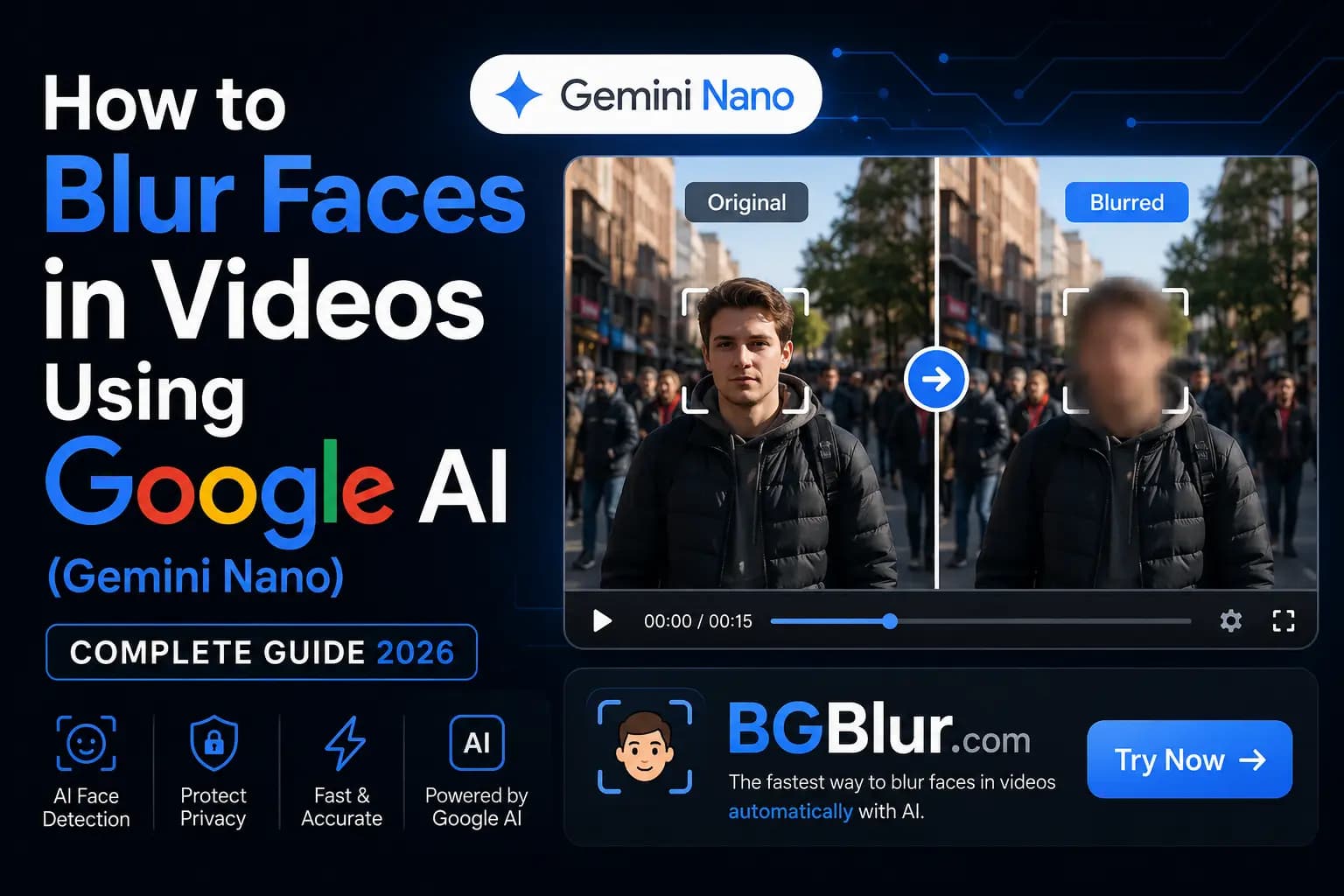
Google Veo is Google DeepMind's leading video generation model. The latest Veo 3.1 release adds native audio, improved realism, character consistency, scene extension, and professional 1080p/4K output—making it a powerful tool for filmmakers, marketers, and creators experimenting with AI video.
But here is the privacy gap most teams discover quickly: Veo generates video; it does not anonymize it. If your clip includes identifiable faces—whether from a reference image, a character-control workflow, or a realistic prompt—you still need a dedicated face blur tool like BGBlur.com before you publish, share internally, or reuse the footage in compliance-sensitive workflows.
This guide explains what Veo can do, where privacy redaction fits in, and the fastest way to blur faces in Veo-generated (and any other) video.
What Google Veo Actually Does
According to Google DeepMind's Veo page, Veo is designed to:
- Generate cinematic video with native audio from text prompts
- Maintain character consistency across scenes using reference images
- Extend clips, control camera motion, and insert or remove objects
- Output up to 1080p and 4K for production workflows
- Mark outputs with SynthID for AI content identification
You can access Veo through Gemini, Google Flow, Google AI Studio, Google Vids, and the Gemini API.
That stack is excellent for creating footage. It is not built for redacting personally identifiable information from finished video files.
Veo vs. Face Blur: Know the Difference
| Capability | Google Veo | BGBlur.com |
|---|---|---|
| Generate video from prompts | ✅ Yes | ❌ No |
| Add native audio to generated clips | ✅ Yes | ❌ No |
| Blur faces in exported MP4/MOV | ❌ No | ✅ Yes |
| Track moving faces across frames | ❌ No | ✅ Yes |
| Browser-based upload & export | ⚠️ Via Google apps | ✅ Yes |
| Privacy redaction for publishing | ❌ No | ✅ Yes |
Bottom line: Use Veo to create. Use BGBlur to protect privacy before distribution.
Why BGBlur.com Is the Best Post-Veo Face Blur Solution
After you export from Gemini, Flow, or AI Studio, BGBlur.com handles the redaction step that Veo does not offer:
1. Automatic face detection
Upload your exported clip and BGBlur's AI finds every visible face—foreground subjects, background extras, and partial profiles—without manual masking.
2. Frame-accurate tracking
Veo clips often include camera motion, character movement, and scene extensions. BGBlur maintains blur consistency across frames so faces do not flicker in and out.
3. No extra software
Process video in the browser. No After Effects timeline work, no Python pipeline, no per-frame keyframing.
4. Works on any Veo export
Whether your source is a 8-second Gemini clip or a longer Flow sequence stitched together, BGBlur accepts standard video formats.
5. Compliance-ready output
Blur is permanent and irreversible—exactly what you want for GDPR, CCPA, internal HR review, and public social posts.
Step-by-Step: Blur Faces After Using Google Veo
Step 1: Generate your clip in Veo
Create your video using one of Google's Veo surfaces:
- Gemini — quick text-to-video experiments
- Google Flow — cinematic scene building for creatives
- Google AI Studio — prompt-to-production workflows
- Gemini API — programmatic generation at scale
Example Veo prompt for a dialogue scene:
A medium shot of two colleagues reviewing footage on a laptop in a modern office.
Soft daylight, shallow depth of field, natural conversation tone.
Veo may produce realistic human characters with identifiable facial detail—even when you did not intend to depict a specific real person.
Step 2: Export the video file
Download or export your clip as MP4 or MOV. If you extended a scene in Flow or stitched multiple generations, merge them in your editor first, then export a single file.
Step 3: Upload to BGBlur.com
- Go to BGBlur.com
- Upload your Veo export
- Let AI detect all faces automatically
- Choose blur style (Gaussian, pixelated, or natural)
- Process and download the anonymized version
Typical processing time: 2–5 minutes for a 5-minute clip.
Step 4: Review before publishing
Watch the full export and confirm:
- Every face stays blurred during movement
- Background bystanders are covered
- No unblurred frames appear during scene transitions or extensions
Re-upload and adjust if needed.
When You Especially Need Face Blur With Veo
Character consistency workflows
Veo can keep a character's appearance across multiple shots using reference images. If that character resembles a real person—or you used a photo reference—you should blur before external sharing.
Realistic human prompts
Prompts describing "a woman walking through a train station" or "documentary-style interview" often produce readable faces. Treat those outputs like camera footage: blur before public release.
Marketing and social clips
Short Veo clips for ads, Reels, or YouTube Shorts still fall under platform privacy expectations. Blurring faces reduces takedown and compliance risk.
Internal review and client previews
Even pre-release drafts sent over Slack or email should avoid exposing identifiable faces unless you have consent.
Combining Veo with live-action B-roll
Teams increasingly mix AI-generated inserts with real footage. BGBlur gives you one redaction workflow for the final composite.
Prompt Ideas for Privacy Planning (Not Blurring)
Veo prompts cannot apply blur, but they help you plan what will need redaction:
Scene audit prompt (use in Gemini text mode)
Review this video concept and list every moment where a human face
would be clearly visible and would require blur before public publishing.
Safer generation prompt (reduce identifiable detail)
Wide establishing shot of a busy city plaza at golden hour.
People appear only as distant silhouettes with no readable facial detail.
Cinematic, shallow haze, no close-ups.
Post-production handoff prompt
This exported AI video includes close-up faces in seconds 0:04–0:11 and 0:22–0:28.
Recommend blur intensity for GDPR-safe social distribution.
Then execute the actual blur in BGBlur, not in the Veo prompt.
Comparing Workflows
| Workflow | Time | Privacy safety | Best for |
|---|---|---|---|
| Veo → BGBlur | ⭐⭐⭐⭐ Fast | ⭐⭐⭐⭐⭐ High | Creators, marketing, compliance |
| Veo only, no blur | ⭐⭐⭐⭐⭐ Fastest | ⭐ Low | Private drafts only |
| Manual blur in NLE | ⭐ Slow | ⭐⭐⭐ Medium | One-off artistic control |
| Avoid humans in Veo prompts | ⭐⭐⭐⭐ Fast | ⭐⭐⭐ Medium | Abstract B-roll only |
Real-World Use Cases
AI-assisted brand films
Your team generates cinematic B-roll in Flow, then blurs background extras before the cut goes to the client.
Product demo overlays
Veo creates lifestyle scenes around your product. BGBlur anonymizes any recognizable faces in the generated crowd.
Training and L&D content
HR teams use Veo for scenario-based learning videos, then blur employee-like characters before LMS upload.
Newsroom and documentary experiments
Journalists test Veo for re-enactment B-roll, then apply face blur before publishing to meet editorial privacy standards.
Developer pipelines (Gemini API + BGBlur)
Generate clips via API, store exports in your bucket, and pass finished MP4 files through BGBlur for a consistent redaction step.
Common Mistakes to Avoid
❌ Assuming SynthID replaces face blur
SynthID identifies AI-generated content. It does not anonymize people in the video.
❌ Only blurring the main subject
Veo scenes often include secondary characters. BGBlur detects all faces automatically.
❌ Manual blur on high-motion Veo clips
Camera controls and scene extension create complex motion. AI tracking saves hours versus keyframing.
❌ Publishing reference-image characters without review
If you used a real photo as a Veo reference, treat the output as sensitive until faces are blurred or you have explicit consent.
Privacy and Compliance Notes
GDPR (EU): Blurring faces supports data minimization when sharing video publicly.
CCPA (California): Reducing identifiability in consumer-facing clips lowers privacy risk.
Platform policies: YouTube, TikTok, and Meta all expect creators to respect privacy in public-facing footage— including AI-generated video.
Corporate policy: Many teams require anonymization before any external or cross-team share. BGBlur fits that checkpoint after Veo export.
Cost Snapshot
Veo generation
Pricing depends on surface (Gemini subscription, API usage, Flow access). Generation costs vary by length and resolution.
BGBlur face blur
- Free tier: Limited monthly videos for testing
- Pro: Unlimited processing for teams publishing regularly
Compared to hiring an editor for frame-by-frame redaction, automated blur after Veo export is dramatically cheaper and faster.
Getting Started Today
If you already use Google Veo:
- Generate and export your clip from Gemini, Flow, or AI Studio
- Upload the file to BGBlur.com
- Download your privacy-safe version
- Publish with confidence
Related Resources
- How to Blur Faces with Google AI (Gemini Nano) — Face detection vs. blur with Google's on-device AI
- Blur Faces in Zoom Recordings — Anonymize meeting footage
- Blur Faces in Webinars — Protect attendee privacy
- Complete Face Blur Guide — Everything about AI face anonymization
- How to Blur Faces Using RunwayML — Compare another AI video generation workflow
- AI Face Anonymizer Tools Guide — Blur vs. synthetic replacement approaches
Last updated: May 27, 2026