How to Blur Video Backgrounds: AI-Powered Guide [2026]
A step-by-step walkthrough of blurring video backgrounds with AI, covering upload, target selection, motion tracking, and export, plus when background blur matters for privacy and professional presentation.
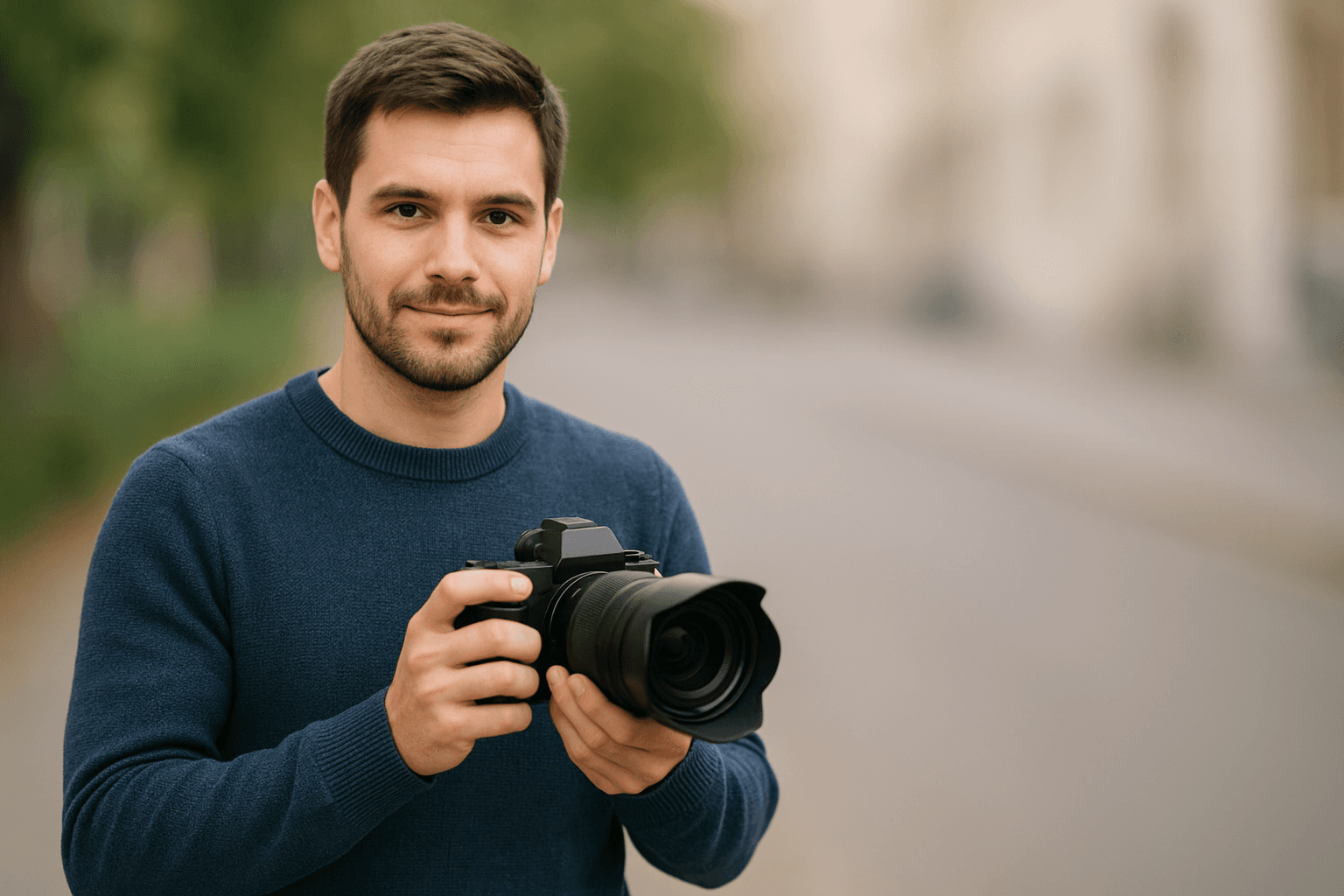
This comprehensive guide will walk you through everything you need to know about video background blurring, from basic techniques to advanced AI-powered solutions that deliver professional results with just one click.
| Question | Answer |
|---|---|
| Fastest way to blur a video background? | Upload to an AI tool like BGBlur, select background blur, and export — no manual keyframing required |
| Does it work without a green screen? | Yes — AI subject detection replaces the need for a green screen or chroma key setup |
| What formats are supported? | MP4, M4V, and MOV in; MP4, MOV, and WebM out, up to 4K resolution |
| Can I blur faces and license plates too? | Yes — selective blur targets faces, plates, or custom regions independently of the background |
| Is it GDPR-compliant for privacy use? | Yes, when sensitive elements are fully and consistently covered across every frame |
What is Video Background Blur and Why Do You Need It?
Background blur in video, also known as bokeh effect, is a technique that keeps your subject in sharp focus while making the background appear soft and out of focus. This video blur effect serves multiple purposes:
- Privacy Protection: Blur faces, license plates, and sensitive information for GDPR compliance
- Professional Aesthetics: Create cinematic depth and focus attention on your subject
- Content Enhancement: Eliminate distracting backgrounds for cleaner presentation
- Social Media Optimization: Meet platform guidelines while maintaining viewer engagement
The motion blur effect and background blur techniques have become particularly popular among vloggers, journalists, and business professionals who need to create polished content quickly and efficiently.
Traditional Methods vs. AI-Powered Video Background Blur
Manual Video Editing Approach
Traditional video editing software requires extensive technical knowledge and time investment. The process typically involves:
- Frame-by-frame manual selection
- Complex keyframing for moving subjects
- Multiple render attempts to achieve desired quality
- Hours of post-production work
Revolutionary AI Video BG Blur Solution
Modern AI bg blur technology has transformed how we approach video background blurring. Advanced artificial intelligence can automatically detect and blur backgrounds, faces, license plates, and objects with unprecedented accuracy and speed.
Manual Editing vs. AI Blur: Side-by-Side Comparison
| Factor | Manual Editing (Premiere/Resolve) | AI-Powered Background Blur |
|---|---|---|
| Setup time | Hours of keyframing per clip | Minutes from upload to export |
| Green screen needed | Often required for clean edges | Not required — AI detects the subject |
| Moving subjects | Manual re-tracking on every frame | Automatic motion tracking |
| Skill level | Requires editing software expertise | No editing experience needed |
| Batch processing | One video at a time | Multiple videos processed together |
| Cost | Editing software license or freelancer fee | Free tier available, paid plans from $12/month |
For most creators, the manual route only makes sense when a single hero shot needs frame-by-frame art direction. Everything else — vlogs, interviews, dashcam footage, meeting recordings — is faster and more consistent with an AI-powered tool.
How to Blur a Video Background: Step-by-Step Process
Step 1: Upload Your Video Content
Start by uploading your video to an AI-powered blur bg tool. Most professional platforms support:
- MP4, M4V, MOV formats
- Up to 4K resolution
- Files under 200MB
- Videos up to 10 minutes
Step 2: Select Your Blur Target
Choose what elements you want to blur:
- Background blur video: Keep subject in focus while blurring surroundings
- Blur face in video: Protect identity and privacy
- Blur part of video: Target specific objects or areas
- License plates and sensitive information
Step 3: Apply AI-Powered Processing
Advanced motion tracking technology automatically follows moving subjects throughout your video, ensuring consistent video with blurred background quality from start to finish.
Step 4: Preview and Export
Review your professionally blurred video with real-time preview before downloading in your preferred format.
Advanced Features of Professional Video Blur Tools
Smart Background Detection
AI algorithms automatically identify subjects versus backgrounds, eliminating the need for green screens or manual selection. This background blur in video technology works with any setting or lighting condition. If you would rather swap the background out entirely instead of blurring it, see this guide to background removal and replacement in video.
Motion Tracking Technology
Sophisticated tracking ensures that moving faces, objects, and backgrounds maintain consistent blur throughout your video. This addresses the common challenge of maintaining quality in dynamic scenes.
Batch Processing Capabilities
Process multiple videos simultaneously with consistent blur settings, perfect for content creators managing large volumes of material.
Multiple Export Formats
Export your blurred videos in various formats including MP4, MOV, and WebM with flexible quality options to suit different platforms and purposes.
Best Practices for Video Background Blur
Achieving Cinematic Quality
To create professional video blur effects:
- Maintain Subject Sharpness: Ensure your main subject remains in perfect focus
- Gradual Blur Transition: Avoid harsh edges between focused and blurred areas
- Consistent Lighting: Maintain even exposure across your video
- Appropriate Blur Intensity: Match blur strength to your content's purpose
Privacy Protection Guidelines
When using background blur in video for privacy:
- Ensure complete coverage of sensitive information
- Test blur effectiveness across different playback devices
- Consider additional privacy measures for highly sensitive content
- Comply with relevant data protection regulations
If your privacy needs go beyond the background, this guide to blurring faces in photos and video with AI and this object and region blur walkthrough cover targeted redaction of specific elements like faces, license plates, or documents within the frame.
Industry Applications and Use Cases
Content Creation and Social Media
Video bg blur has become essential for:
- YouTube creators maintaining privacy while vlogging
- Instagram and TikTok content with professional aesthetics
- Live streaming with background privacy protection
- Podcast recording with visual appeal
Business and Professional Use
Organizations utilize blur bg technology for:
- Corporate presentations with clean backgrounds
- Remote work video calls with privacy protection
- Marketing content with focused messaging
- Training materials with reduced distractions
Teams recording calls specifically in Zoom or Google Meet should also check this guide to blurring backgrounds in Zoom and Google Meet recordings for platform-specific setup tips, and this overview of temporal consistency in video anonymization explains why blur can flicker on lower-quality tools and how to avoid it.
Journalism and Documentation
Media professionals rely on video blur for:
- Protecting source anonymity
- Complying with privacy regulations
- Creating focus on interview subjects
- Maintaining ethical reporting standards
Technical Considerations and Quality Optimization
Resolution and File Size Management
When applying background blur video effects, consider:
- Original video resolution impacts final quality
- Blur processing may increase file sizes
- Compression settings affect visual fidelity
- Platform-specific optimization requirements
Performance and Processing Speed
Modern AI bg blur tools offer:
- Real-time processing capabilities
- Cloud-based rendering for faster results
- Batch processing for efficiency
- Mobile-optimized solutions
Common Background Blur Mistakes to Avoid
Even with AI handling the detection, a few habits separate a clean result from a distracting one.
Blurring too lightly for privacy purposes: A light bokeh-style blur looks great for aesthetics but is often reversible with sharpening filters or AI upscaling. If the goal is privacy or GDPR compliance rather than cinematic style, use a stronger blur setting and verify on a full-size screen, not just a phone preview, before publishing.
Ignoring edge flicker on moving subjects: Cheaper tools that process frame-by-frame without true motion tracking can produce a blur that "swims" or flickers at the subject's edges as they move. This is one of the more common quality complaints with budget blur software, and it is worth testing a short clip with fast movement before committing to a tool for a full project.
Skipping a re-check after export compression: Some platforms re-compress uploaded video, which can slightly soften or reveal edges differently than your local preview. Re-download and review the final exported file, especially for privacy-critical footage like license plates or bystander faces, rather than trusting only the in-browser preview.
Applying uniform blur intensity regardless of content: A talking-head video for social media can use a light aesthetic blur, while dashcam or security footage intended for public release needs maximum-strength blur on faces and plates. Match blur intensity to the actual sensitivity of what is being covered, not a single default setting for every project.
Forgetting audio in privacy-focused edits: Background blur handles the visual layer, but voices are also identifying. For footage where a face or background is being blurred for anonymity, pair it with voice distortion so the full identity — not just the visual one — is protected.
Getting Started with Professional Video Blur
Ready to transform your video content with professional blur bg effects? Modern AI-powered tools make the process simple and accessible for creators of all skill levels.
Whether you need to blur part of video content for privacy, create cinematic background blur video effects, or simply enhance your visual presentation, the right tools can deliver professional results in minutes rather than hours.
Start experimenting with video blur techniques today and discover how this powerful capability can elevate your content quality, protect privacy, and create more engaging viewer experiences across all your digital platforms.
Frequently Asked Questions
How does AI video blur technology work?
AI video blur uses advanced machine learning algorithms to automatically detect subjects, backgrounds, faces, and objects in your video. The technology applies motion tracking to maintain consistent blur effects throughout moving scenes, eliminating the need for manual keyframing or complex editing.
What video formats are supported for background blur effects?
Most professional blur tools support popular formats including MP4, M4V, MOV, WebM, and others. Videos can typically be processed up to 4K resolution with file size limits around 200MB and duration limits of 10 minutes for optimal performance.
Is there a processing limit for video blur applications?
Processing limits vary by platform and subscription level. Free tiers often include basic functionality with usage limitations, while professional subscriptions offer unlimited processing, batch capabilities, and priority rendering for high-volume users.
Can I blur specific parts of a video without affecting the entire background?
Yes, advanced AI tools offer selective blur options allowing you to target specific areas like faces, license plates, objects, or custom regions while leaving other parts of the video unaffected. This precision control ensures professional results tailored to your specific needs.
How long does it take to process video background blur effects?
Processing time depends on video length, resolution, and complexity. Most AI-powered tools can process short videos in minutes with real-time preview capabilities, while longer or higher-resolution content may require additional processing time for optimal quality results.