Anonymize Faces in Videos in 3 Simple Steps [2026]
Anonymizing faces in video used to require manual frame-by-frame editing. This guide walks through a 3-step AI workflow — upload, configure, download — plus how to choose between free and Pro tiers for privacy-safe video.
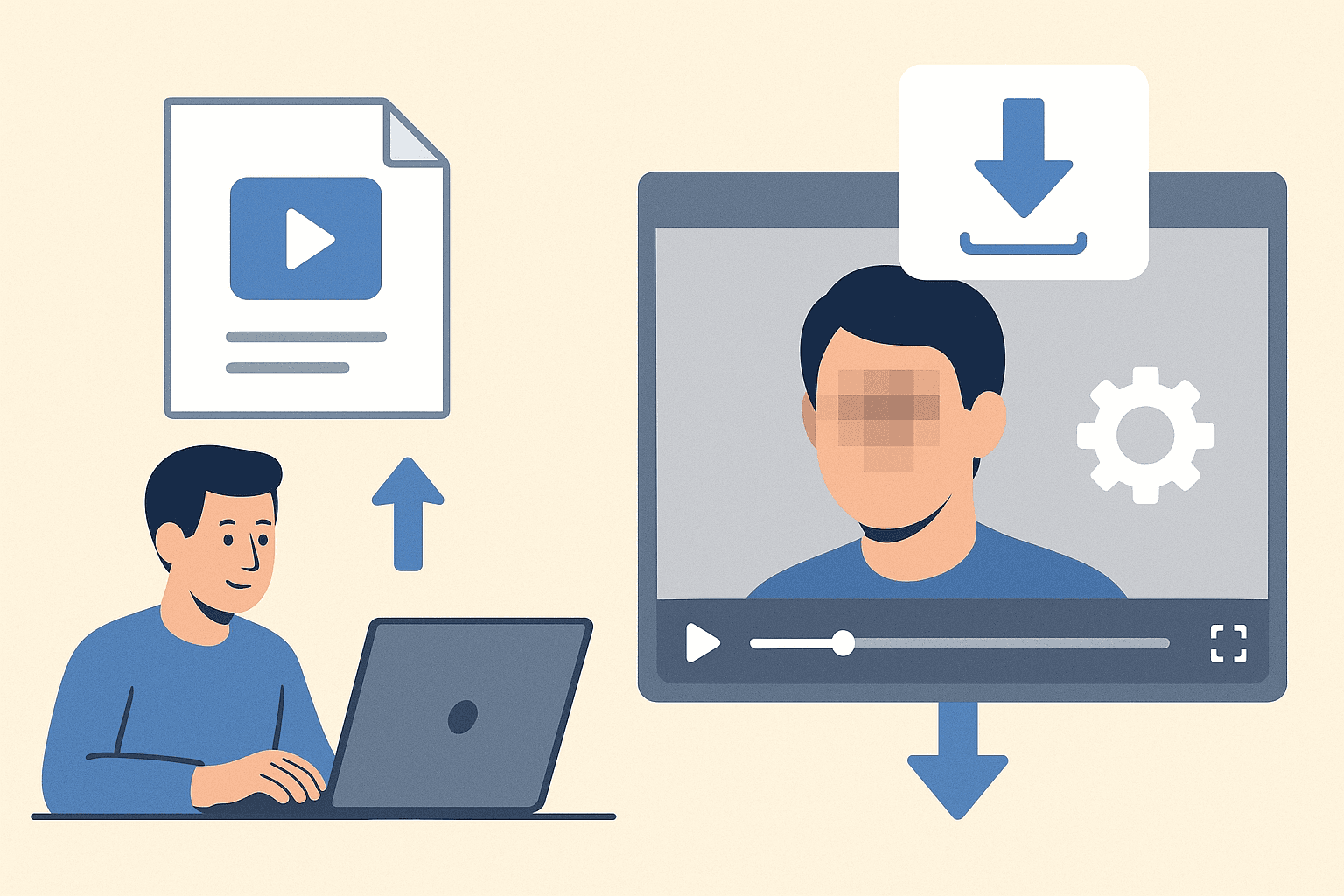
Anonymize Faces in Videos Online: 3 Simple Steps
Privacy protection has become a critical concern for content creators, journalists, and professionals sharing video content online. Whether you're creating vlogs, educational content, or managing compliance requirements, knowing how to blur face in video content is essential. This comprehensive guide will walk you through the simplest methods to anonymize faces in your videos using AI-powered tools.
Why Face Anonymization Matters in Video Content
Face replacement and anonymization aren't just about privacy—they're about legal compliance, ethical content creation, and protecting individuals' identities. Content creators on platforms like YouTube, TikTok, and Instagram often need to blur faces to:
- Protect minors and non-consenting individuals
- Comply with GDPR and privacy regulations
- Maintain journalistic ethics
- Create professional, privacy-safe content
Modern face swap video technology and blur tools have made this process accessible to everyone, regardless of technical expertise.
The 3-Step Process to Blur Faces Online
Step 1: Upload Your Video Content
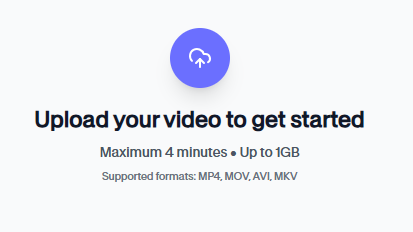
Start by selecting your video file—most platforms support major formats like MP4, MOV, and WebM. Whether you're working with a single clip or need face swap video app functionality for multiple files, AI-powered tools can handle videos up to specific size limits (typically 200MB for free users).
The blur for face detection begins automatically once your video uploads. Advanced AI algorithms scan each frame to identify human faces, even in motion, eliminating the need for manual frame-by-frame editing.
Step 2: Configure Face Detection and Blur Settings
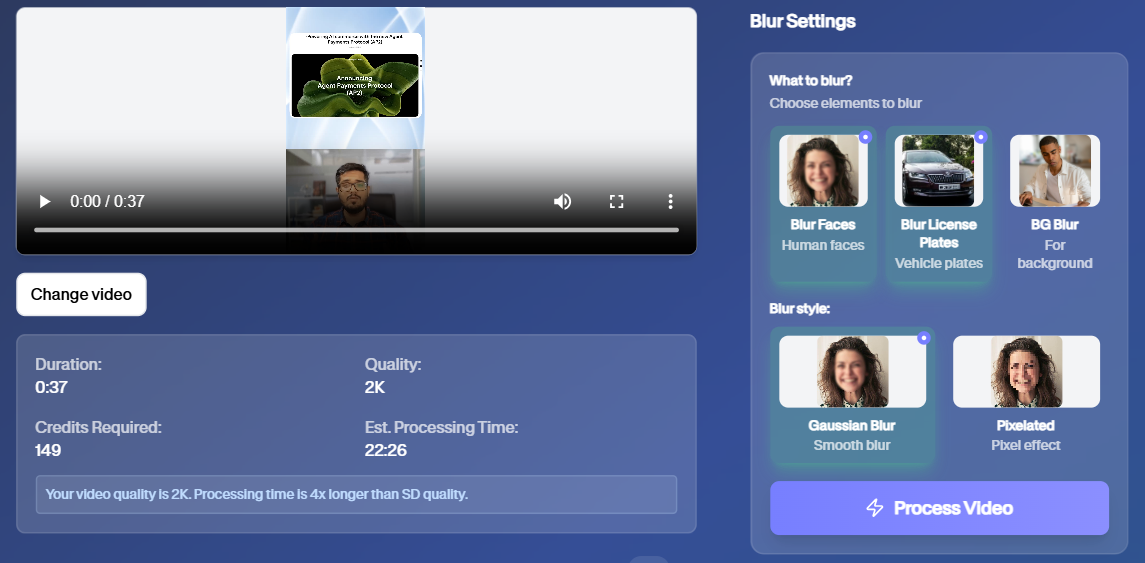
Modern face swap ai tools offer intelligent detection that tracks moving faces throughout your video. You can:
- Adjust blur intensity levels
- Select specific faces to anonymize
- Preview changes in real-time
- Fine-tune detection sensitivity
The pixelated blur effect can be customized to match your content style—from subtle privacy protection to complete anonymization. Some tools even offer pixel blur patterns that maintain video quality while ensuring faces remain unrecognizable.
Step 3: Download Your Privacy-Protected Video
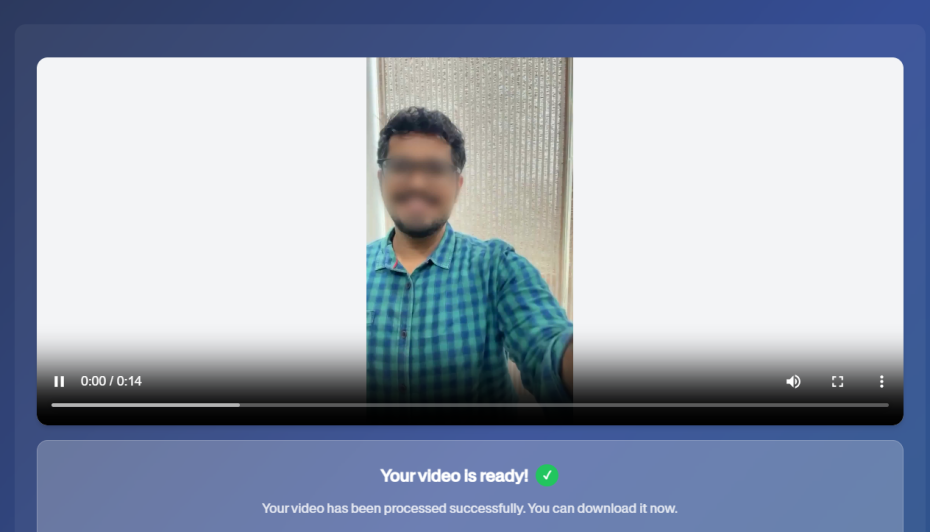
Once you're satisfied with the professional photo editor quality results, download your processed video. The export maintains HD quality while applying consistent face swap online protection throughout the entire clip.
Advanced Features for Professional Use
AI-Powered Motion Tracking
Unlike basic deepfake video maker tools, professional face blur solutions use sophisticated motion tracking. This ensures that face swap editor effects follow subjects naturally, even during rapid movement or camera pans.
Batch Processing Capabilities
For agencies and content creators managing multiple videos, batch processing allows simultaneous anonymization of data across entire video libraries. This deep fake video maker functionality streamlines workflow for professional environments.
Format Compatibility and Quality
Modern tools support various formats while maintaining export quality. Whether you're creating content for social media or professional presentations, faceswap free solutions ensure your final product meets platform requirements.
Choosing the Right Tool: Free vs Professional Options
Free Options typically offer:
- Basic blur face in video functionality
- Limited file sizes (usually 200MB)
- Standard blur effects
- Single video processing
Professional Plans provide:
- Unlimited processing capabilities
- Advanced deep swap ai features
- Batch editing functions
- Priority processing speeds
Privacy and Security Considerations
When using face swap video tools online, ensure the platform:
- Doesn't store your video content permanently
- Offers secure upload/download processes
- Complies with data protection regulations
- Provides transparent privacy policies
Best Practices for Face Anonymization
- Preview Before Publishing: Always review your blur for face effects before sharing content
- Consistency Matters: Maintain uniform blur levels throughout your video
- Quality Check: Ensure pixelated blur effects don't compromise overall video quality
- Legal Compliance: Verify that your anonymization of data meets relevant regulations
How Anonymization Compares to Other Privacy Methods
Blurring isn't the only way to protect identities in video, but it's the most practical for most creators. Synthetic face replacement — generating an entirely new AI face to stand in for the real one — can look more polished, but it's slower to process, works best on single photos rather than moving video, and sits in murkier legal territory since a viewer may not realize the face isn't real. Blur, by contrast, clearly signals that anonymization occurred, which matters for journalism, research, and compliance documentation where transparency is part of the requirement. For a full breakdown of when to choose each approach, see face anonymization vs face blur.
If your footage also includes license plates, street signs, or other identifying details beyond faces, the same AI detection pipeline can be extended with object and text recognition rather than requiring a separate tool — see our guide on blurring faces and license plates in dashcam footage for a practical example of multi-target detection in a single pass.
Technical Requirements and Browser Compatibility
Most modern face swap ai tools operate directly in web browsers, requiring no software downloads. This professional photo editor approach ensures compatibility across devices while maintaining security.
System requirements typically include:
- Modern web browser (Chrome, Firefox, Safari)
- Stable internet connection
- Sufficient bandwidth for video upload/download
Conclusion
Blur face in video technology has revolutionized privacy protection for content creators. With AI-powered face swap online tools, the process that once required expensive software and technical expertise is now accessible to everyone. Whether you need basic faceswap free functionality or advanced deep swap ai capabilities, modern solutions offer the perfect balance of simplicity and professional results.
By following these three simple steps—upload, configure, and download—you can ensure your video content respects privacy while maintaining professional quality. As face replacement technology continues evolving, these tools will become even more sophisticated, making video privacy protection an standard part of content creation workflows.
Start protecting privacy in your videos today with these accessible, AI-powered blur for face solutions that put professional-grade anonymization at your fingertips.