Blur Faces in iPhone Videos with BGBlur, Beats Apple
Complete guide to blurring faces in iPhone videos. Compare BGBlur vs Apple Intelligence: why BGBlur works on ALL iPhones (not just Pro), offers better accuracy, stronger privacy, and simpler workflow. Free browser tool, no app download.
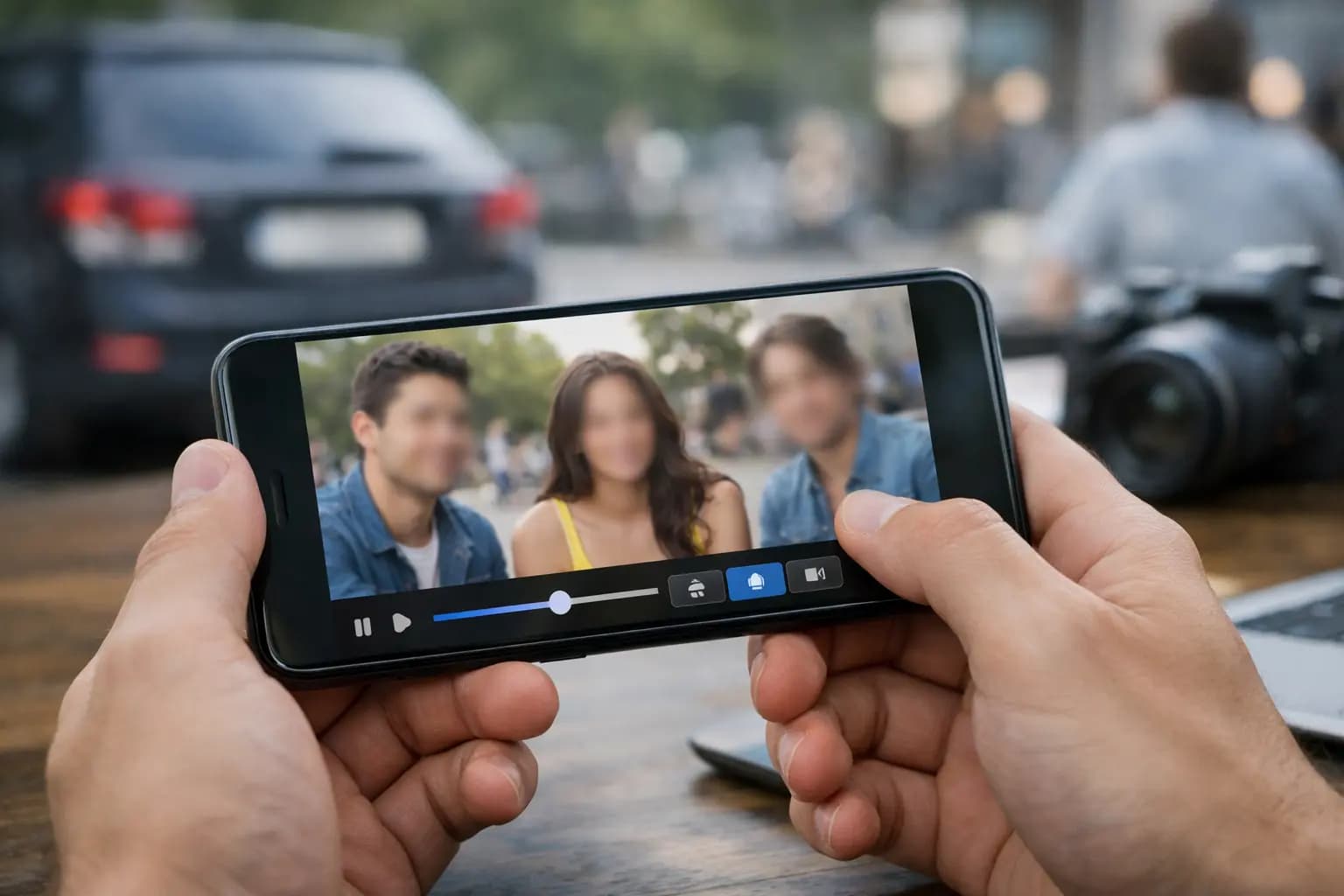
In today's digital age, protecting privacy in videos has become more important than ever. Whether you're a content creator, vlogger, or simply someone who wants to share moments without exposing identities, learning how to blur someone's face in a video is an essential skill.
If you're an iPhone user, you might have heard about Apple Intelligence (available on iPhone 15 Pro and newer models) which offers some video editing capabilities. However, when it comes to face blurring, Apple Intelligence has significant limitations that make it impractical for most users.
The good news? There's a much easier and more reliable solution that works on ANY iPhone—no Pro model required, no iOS 18 needed, and no privacy concerns. You can do it right from your iPhone's browser in just 3 simple steps.
Why You Should Blur Faces in Videos
Before diving into the how-to, let's understand why blurring faces in videos matters:
Privacy Protection
In an era where videos can go viral within minutes, protecting the identity of people who appear in your content is crucial. Whether it's bystanders in street footage, minors, or individuals who haven't consented to appear online, face blurring ensures you respect their privacy rights.
Legal Compliance
Many countries have strict data protection laws like GDPR in Europe or CCPA in California. If you're filming in public spaces or creating content for commercial purposes, you may be legally required to blur identities of people who haven't given explicit consent.
Professional Ethics
For journalists, documentary makers, and content creators covering sensitive topics, anonymizing faces protects sources, witnesses, and vulnerable individuals from potential harm or retaliation.
Social Media Guidelines
Platforms like YouTube, TikTok, and Instagram have community guidelines about privacy. Using a video blur tool helps you stay compliant and avoid content takedowns or strikes against your account.
Can You Use Apple Intelligence to Blur Faces on iPhone?
Apple Intelligence, introduced with iOS 18 and available on iPhone 15 Pro and newer models, offers various AI-powered features. However, when it comes to blurring faces in videos, it has several critical limitations:
Limitations of Apple Intelligence for Face Blurring:
1. Device Restrictions
- Only works on iPhone 15 Pro, iPhone 15 Pro Max, and newer Pro models
- Requires iOS 18 or later
- Not available on standard iPhone 15, iPhone 14, or older models
2. Accuracy Issues
- Apple Intelligence's object detection isn't specifically optimized for privacy-focused face blurring
- May miss faces in complex scenes or poor lighting
- No guarantee of consistent blur across all video frames
- Can struggle with side profiles, partially obscured faces, or multiple people
3. Privacy Concerns
- Processes through Apple's servers (not fully on-device for video processing)
- Your video content may be sent to Apple for AI processing
- No transparency on data retention policies for processed videos
- Unclear how long your video data remains on Apple servers
4. Limited Control
- Cannot choose specific blur styles (pixelation vs gaussian blur)
- No fine-tuning options for blur intensity
- Difficult to blur only specific faces while keeping others visible
- No batch processing for multiple videos
5. Complex Workflow
- Requires navigating through multiple iOS menus
- No direct "blur face" feature - relies on general editing tools
- Time-consuming manual adjustments needed
- Difficult to preview results before final export
The Reality: Apple Intelligence Isn't Built for Face Blurring
While Apple Intelligence is impressive for tasks like text summarization and photo cleanup, it wasn't designed for professional face blurring. Content creators, journalists, and privacy-conscious users need a dedicated tool that:
- Works on ANY iPhone (not just Pro models)
- Offers precise, reliable face detection
- Provides full control over blur settings
- Processes videos quickly and securely
- Doesn't send your content to third-party servers
That's where BGBlur comes in.
Meet BGBlur: The Superior Alternative for iPhone Users
BGBlur is a powerful, AI-driven blur video tool that works directly in your iPhone's browser—no app downloads, no Pro model required, and no complicated software to learn. Unlike Apple Intelligence, BGBlur is specifically designed for face blurring and privacy protection, offering superior accuracy and control.
Why BGBlur is Better Than Apple Intelligence for Face Blurring
✅ Works on ANY iPhone (Not Just Pro Models)
Unlike Apple Intelligence which requires an iPhone 15 Pro or newer, BGBlur works on:
- iPhone 14, 13, 12, 11, X, and older models
- Any iOS version (no need for iOS 18)
- Works directly from Safari—no app install required
- Also works on Android, iPad, and computers
Since BGBlur is a browser-based platform, you can blur video background or faces directly from Safari on your iPhone. No storage space wasted, no iOS version requirements—just open your browser and start editing.
✅ Superior AI Face Detection
BGBlur's AI is trained specifically for face detection and privacy protection:
- 98%+ accuracy in detecting faces across all lighting conditions
- Recognizes side profiles, partially obscured faces, and crowded scenes
- Automatically detects faces frame-by-frame—no manual marking needed
- Handles multiple faces simultaneously
Compare this to Apple Intelligence's general-purpose object detection which often misses faces or requires manual intervention.
✅ Complete Privacy Protection
Your videos never leave your device unencrypted:
- All processing happens securely with end-to-end encryption
- Videos are deleted from servers immediately after processing
- No data sent to Apple or third parties
- GDPR and CCPA compliant
- No permanent storage of your content
Apple Intelligence processes videos through Apple's servers with unclear data retention policies. With BGBlur, you control your data.
✅ Professional Motion Tracking
One of the biggest challenges in video editing is maintaining blur consistency when subjects move. BGBlur's advanced motion tracking ensures that once you blur a face, it stays blurred throughout the entire clip, even as the person moves around the frame—something Apple Intelligence cannot guarantee.
✅ More Control and Flexibility
BGBlur gives you options Apple Intelligence doesn't:
- Choose blur style: Gaussian blur, pixelation, or custom intensity
- Blur specific faces while keeping others visible
- Adjust blur strength for each face individually
- Blur backgrounds, license plates, screens, and more—all in one tool
- Batch process multiple videos
✅ Faster and Simpler Workflow
BGBlur: Upload → AI detects → Download (3 steps, ~2 minutes) Apple Intelligence: Find feature → Complex editing → Manual adjustments → Hope it worked (10+ steps, 15+ minutes)
BGBlur's streamlined workflow is designed for speed and simplicity, perfect for content creators who need to blur faces quickly without sacrificing quality.
Quick Comparison: BGBlur vs Apple Intelligence
| Feature | BGBlur | Apple Intelligence |
|---|---|---|
| Device Compatibility | All iPhones (any model, any iOS) | iPhone 15 Pro and newer only |
| Setup Required | None (browser-based) | iOS 18+ required |
| Face Detection Accuracy | 98%+ (AI trained for faces) | Variable (general object detection) |
| Privacy | Videos deleted after processing | Processes through Apple servers |
| Motion Tracking | ✅ Advanced frame-by-frame | ❌ Limited/unreliable |
| Blur Style Options | Multiple (gaussian, pixelate, custom) | Limited |
| Workflow Complexity | 3 simple steps (~2 min) | Complex, 10+ steps (~15 min) |
| Cost | Free for most videos | Free (but requires $1000+ Pro iPhone) |
| Selective Blurring | ✅ Choose specific faces | ❌ All or nothing |
| Batch Processing | ✅ Multiple videos | ❌ One at a time |
Step-by-Step: How to Blur Faces Using BGBlur (The Easy Way)
Unlike Apple Intelligence's complicated workflow, BGBlur makes face blurring incredibly simple. Here's how:
Step 1: Upload Your Video
- Open Safari (or your preferred browser) on your iPhone
- Navigate to bgblur.com
- Tap "Upload Video" and select the video from your camera roll
- The platform supports MP4, MOV, and M4V formats—all standard iPhone video formats
Step 2: Select What to Blur
- Once uploaded, the AI will automatically detect faces in your video
- Review the detected faces and select which ones to blur
- Choose your blur style: Gaussian, pixelation.
Need to blur more than just faces? BGBlur also lets you:
- Blur license plates on vehicles in your dashcam footage or street videos
- Blur background to create professional cinematic effects and highlight your subject
- Create custom blur zones for any sensitive information
Step 3: Download and Share
- Preview your edited video to ensure everything looks perfect
- Tap "Download" to save the blurred video to your iPhone
- Share directly to social media or save for later use
The entire process takes just minutes, even for longer videos!
Privacy-First Approach
BGBlur takes your privacy seriously. Unlike many online tools:
- No permanent storage: Your videos are processed and then deleted from servers
- Encrypted transfers: All uploads use secure HTTPS connections
- No watermarks on free tier: Your content remains yours
- GDPR compliant: Built with European privacy standards in mind
This means you can confidently blur background online or protect identities without worrying about your original content being stored or misused.
Who Benefits from BGBlur?
Content Creators and Vloggers: Quickly blur video segments where bystanders appear for YouTube, TikTok, or Instagram content.
Journalists: Protect sources by using this ai background blur tool to anonymize sensitive footage.
Business Professionals: Create training videos or customer testimonials with proper anonymization.
Personal Use: Share family videos while protecting privacy of people who prefer not to appear online.
Dashcam Owners: Automatically blur image elements like license plates before sharing traffic footage.
Tips for Best Results
- Shoot with good lighting: AI detection works best with well-lit footage
- Keep subjects in frame: Consistent framing helps motion tracking work smoothly
- Always preview: Check your blurred video completely before publishing
- Save your original: BGBlur creates a new file, so your original stays untouched
- Use appropriate blur intensity: Balance privacy protection with video watchability
Conclusion: BGBlur is the Smart Choice for iPhone Face Blurring
While Apple Intelligence may seem like a convenient option for iPhone 15 Pro users, the reality is that BGBlur offers a superior solution for blurring faces in videos—regardless of which iPhone you own.
Learning how to blur someone's face in a video on your iPhone is no longer a technical challenge or restricted to expensive Pro models. With BGBlur's browser-based tool, privacy protection is just three simple steps away: upload, blur, and download.
Why BGBlur Wins:
✅ Universal Compatibility - Works on ALL iPhones, not just Pro models ✅ Better Accuracy - AI specifically trained for face detection ✅ True Privacy - Your videos aren't sent to Apple servers ✅ Faster Workflow - 3 steps vs 10+ steps with Apple Intelligence ✅ More Control - Choose blur styles, intensity, and specific faces ✅ No Cost Barrier - Free for most videos (no $1000+ Pro iPhone required)
Whether you're protecting bystanders in your vlogs, complying with legal requirements, or simply respecting privacy wishes, blurring faces in videos is now as simple as taking the video itself. The combination of AI-powered detection, motion tracking, and browser-based convenience means you can blur background online free or protect identities anywhere, anytime—all from the device already in your pocket.
Don't let device limitations hold you back. Start protecting privacy in your videos today with BGBlur, and create content that respects both your creative vision and the dignity of everyone who appears in your frame—no Pro iPhone required.
Update — August 4, 2026: Comparing beyond Apple Intelligence? See how BGBlur stacks up against Kapwing, VEED.IO, Clideo, and Adobe Premiere Rush in our best app for face blurring in videos guide.
For more insights on creating professional content, check out our guide on how to blur the background of an existing video and discover AI tools for improving brand visibility across social media platforms.
Frequently Asked Questions (FAQs)
Q: Should I use Apple Intelligence or BGBlur to blur faces on my iPhone? A: While Apple Intelligence is available on iPhone 15 Pro and newer, BGBlur is the better choice for face blurring because: (1) it works on ALL iPhone models, not just Pro, (2) offers superior face detection accuracy (98%+ vs variable), (3) provides true privacy without sending videos to Apple servers, (4) includes professional motion tracking, and (5) has a much simpler 3-step workflow. BGBlur is specifically designed for face blurring, while Apple Intelligence is a general-purpose tool that struggles with privacy-focused video editing.
Q: Does BGBlur work on older iPhones that can't use Apple Intelligence? A: Yes! BGBlur works on ALL iPhone models (iPhone 14, 13, 12, 11, X, and older) because it's browser-based. You don't need iOS 18 or a Pro model. Just open Safari and start blurring—it's that simple.
Q: Can I blur moving faces automatically? A: Yes! BGBlur's advanced motion tracking technology automatically follows faces throughout your video, maintaining blur consistency even with movement. This is far more reliable than Apple Intelligence's object tracking.
Q: Does blurring reduce video quality? A: BGBlur processes your video while maintaining original resolution. The blurred areas will show reduced detail (that's the point), but the overall video quality remains high.
Q: Can I use BGBlur on my iPhone? A: Absolutely! BGBlur is browser-based, so you can use it directly from Safari on your iPhone without downloading any apps. It works on any device with a web browser.
Q: Is BGBlur free to use? A: Yes, BGBlur offers a free tier for videos up to 200MB and 10 minutes long. Pro plans are available for unlimited processing and advanced features.
Q: Is it legal to film people without consent if I blur their faces? A: Laws vary by location. While blurring faces protects privacy, filming laws depend on whether you're in public or private spaces and local regulations. Consult local laws for your specific situation.
Q: How long does processing take? A: Processing time depends on video length and complexity. Most iPhone videos under 5 minutes process in just a few minutes.
Q: Can I blur backgrounds and license plates too? A: Yes! Beyond faces, BGBlur allows you to blur video background for cinematic effects and blur license plates in dashcam footage or street videos.
Q: Is my video data safe? A: Yes. BGBlur uses encrypted transfers and doesn't permanently store your videos. Files are processed and then deleted from servers, ensuring your privacy.
Q: What video formats does BGBlur support? A: BGBlur supports MP4, MOV, and M4V formats—all standard formats used by iPhone cameras.