How to Remove Watermark from AI Videos
Remove watermarks from Sora, Veo, and Gemini AI videos with an AI watermark remover that rebuilds the background no cropping or blur needed..
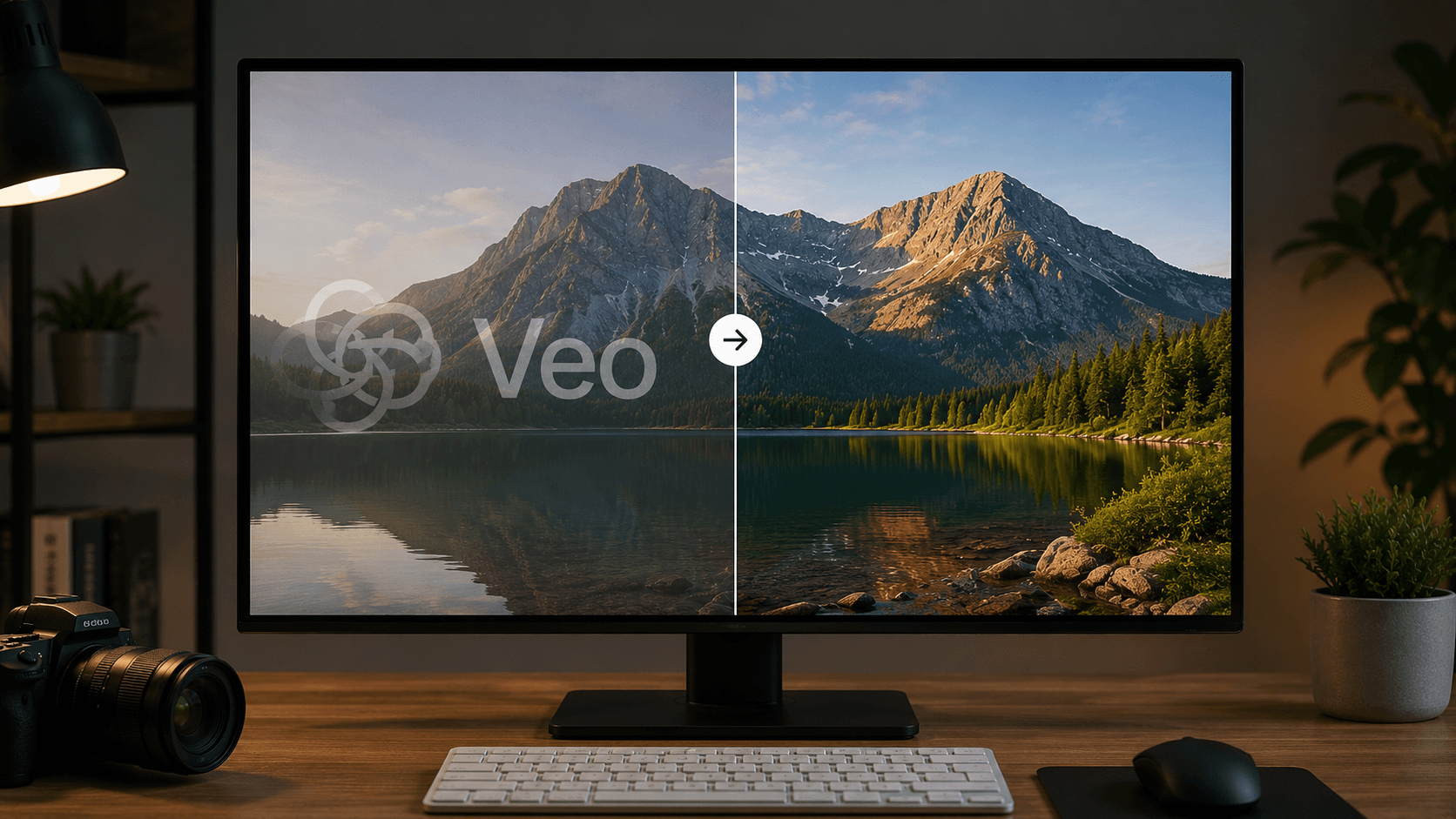
AI video generators have exploded in popularity. Tools like Sora, Veo, Gemini and more can turn a simple text prompt into cinematic footage in minutes, and creators everywhere are using them for shorts, ads, product demos, and storytelling. But almost every one of these tools ships your video with one thing you probably do not want in your final cut: a watermark.
Whether it is a corner logo, a moving badge, or a translucent stamp across the frame, that watermark instantly tells viewers the clip is raw, unpolished output. If you generated the video yourself and want to publish it as part of your own branded content, the watermark gets in the way.
The good news is that you no longer need desktop editing software, masking skills, or frame-by-frame patching to fix this. A modern AI watermark remover can detect the watermark, track it across every frame, and reconstruct the background behind it, so the final video looks like the watermark was never there.
In this guide, you will learn why AI videos carry watermarks, how an online video watermark remover actually works, how to remove Sora, Veo, and Gemini watermarks step by step, and what separates clean AI reconstruction from the old crop-and-blur tricks that ruin footage.
Try the AI Watermark Remover free
Table of Contents
- Watermark Removal at a Glance
- Why Do AI Videos Have Watermarks?
- What Is an AI Watermark Remover?
- How to Remove Watermark from AI Videos in 3 Steps
- Removing Watermarks from Specific AI Tools
- Why AI Reconstruction Beats Cropping and Blurring
- Online Watermark Remover vs Apps and Desktop Software
- Removing Watermarks from AI Photos
- Tips for the Cleanest Results
- A Quick Note on Responsible Use
- Frequently Asked Questions
- Conclusion
Watermark Removal at a Glance
| Question | Answer |
|---|---|
| What does the tool do? | Removes watermarks, logos, text overlays, and stamps from videos using AI background reconstruction. |
| Which AI video watermarks can it remove? | Sora, Veo, Gemini, ChatGPT, Nano Banana, and other AI-generated video and image watermarks. |
| Does it crop the video? | No. The watermark is removed in place, keeping the original resolution and aspect ratio. |
| Does it leave blurry patches? | No. The AI rebuilds the pixels behind the watermark so the area looks untouched. |
| Supported formats | MP4, MOV, AVI, MKV and other common formats. |
| Do I need to install software? | No. It runs entirely in your browser on desktop, tablet, and mobile. |
| Where can I try it? | On the BGBlur Watermark Remover feature page. |
Why Do AI Videos Have Watermarks?
Every major AI video generator adds a visible mark to its output, and each does it slightly differently:
- Sora places a moving watermark that travels around the frame, making it deliberately hard to crop out.
- Veo adds a visible badge to videos generated on most plans, typically in a corner of the frame.
- Gemini stamps its AI-generated videos and images with a visible mark that identifies the content as AI output.
These watermarks exist for a reason. They signal that the content was made by AI, they promote the tool that generated it, and on free or lower-tier plans they act as an incentive to upgrade. Some platforms even reserve watermark-free exports for their most expensive subscriptions.
The problem is that a watermark rarely fits the final use of the video. If you generated a clip for your own brand, your client's campaign, or your YouTube channel, a third-party badge floating in the corner looks unprofessional, distracts viewers, and clashes with your own branding. That is exactly the situation a video watermark remover is built for.
What Is an AI Watermark Remover?
An AI watermark remover is a tool that uses computer vision and generative reconstruction to erase watermarks from video. Instead of hiding the mark under a blur or slicing it off the edge of the frame, the AI performs two jobs at once:
-
Detection and tracking. The system locates the watermark in the frame and follows it across the entire clip, even when it moves, changes opacity, or sits on top of complex motion. This matters enormously for AI videos, because watermarks like Sora's are designed to move.
-
Background reconstruction. For every frame, the AI analyzes the surrounding pixels and the frames before and after, then rebuilds what should exist behind the watermark. Sky stays sky, skin stays skin, and moving textures stay in motion.
This is the same underlying technology used to remove objects from video, such as a passerby, a boom mic, or an unwanted sign. A watermark is simply treated as one more object to erase, which is why BGBlur's watermark removal is powered by its AI Video Object Remover engine. The difference from generic object removal is that watermark removal is tuned for semi-transparent overlays, text, and logos that sit on top of the footage rather than inside the scene.
The result is a watermark video turned into a clean video, with no visible seam, no flicker, and no change to the frame dimensions.
How to Remove Watermark from AI Videos in 3 Steps
You do not need editing experience to do this. The entire process runs online in your browser and takes a few minutes.
Step 1. Upload Your AI Video
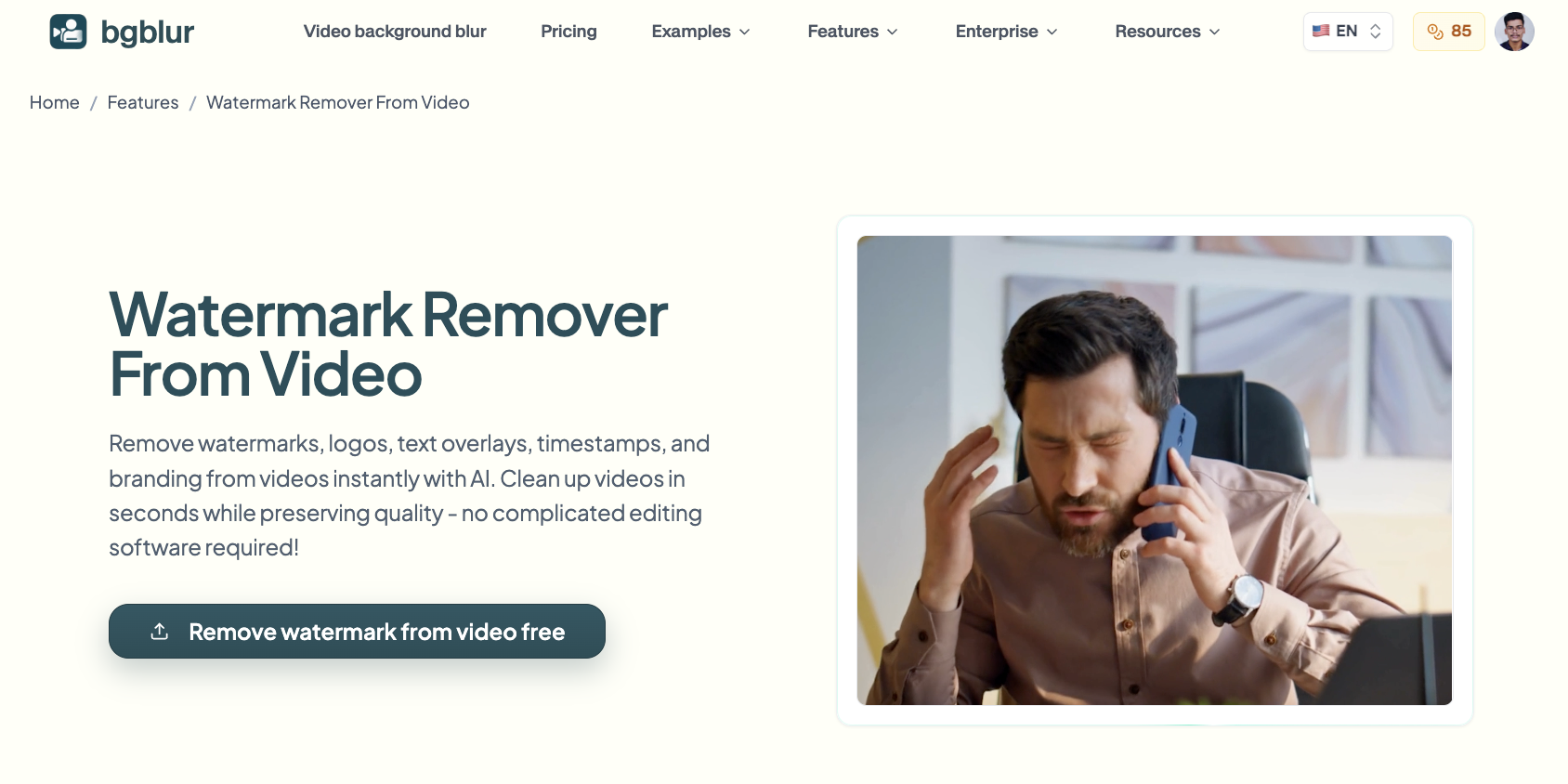
Head to the Watermark Remover From Video page and upload your clip. MP4, MOV, AVI, and MKV files are supported. This can be a Sora generation you just exported, a Veo clip from your project, or a Gemini video saved to your device.
Since everything runs in the browser, this works the same way on a laptop, a tablet, or a phone. There is no software to download and no plugin to install, which also makes it the simplest app to remove watermark alternative for mobile users who do not want to fill their storage with another editor.
Step 2. Select the Watermark Area
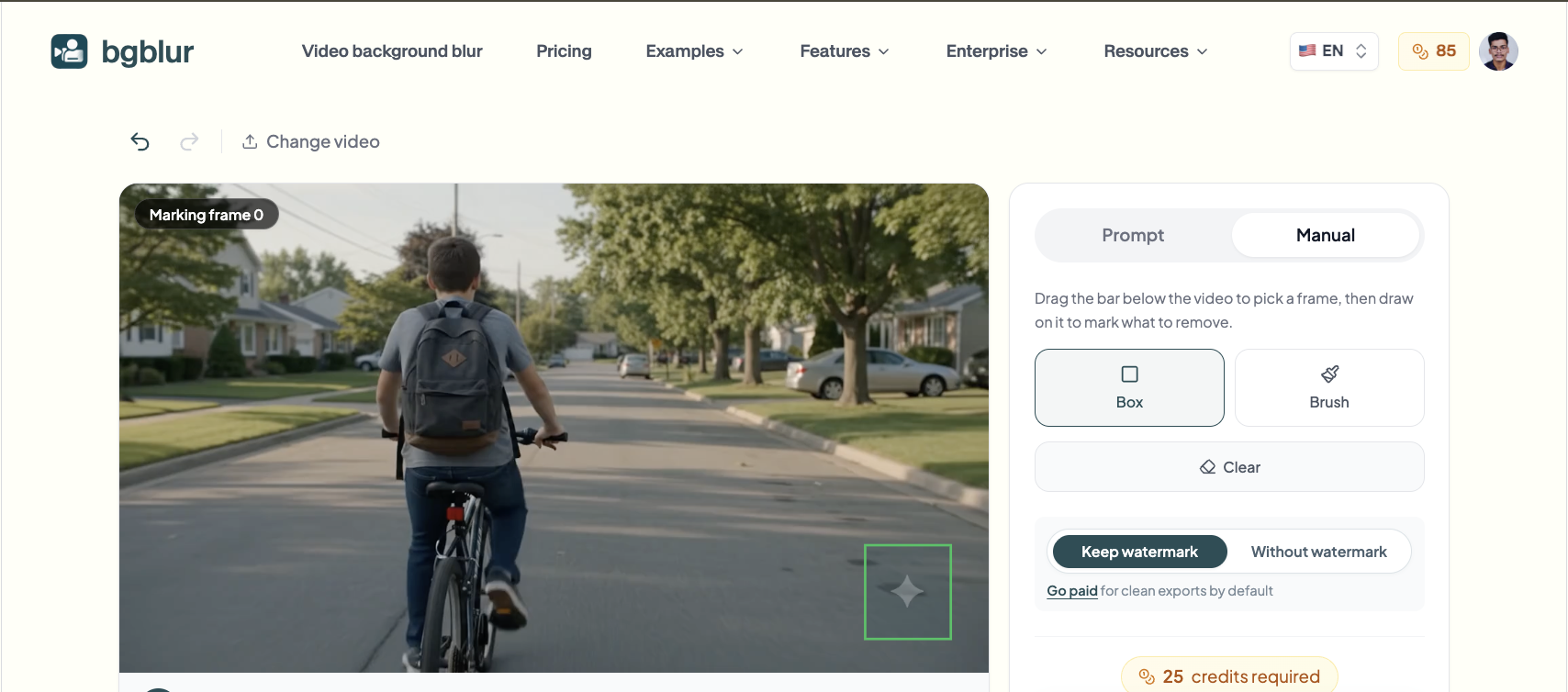
Mark the region where the watermark appears. For a static corner badge, that is a single box. For a moving watermark like Sora's, the AI tracks the mark as it travels across frames, so you are not chasing it manually through the timeline.
Once the area is selected, the AI gets to work: it identifies the logo or text, separates it from the real footage underneath, and reconstructs the background behind it frame by frame.
Step 3. Preview and Download
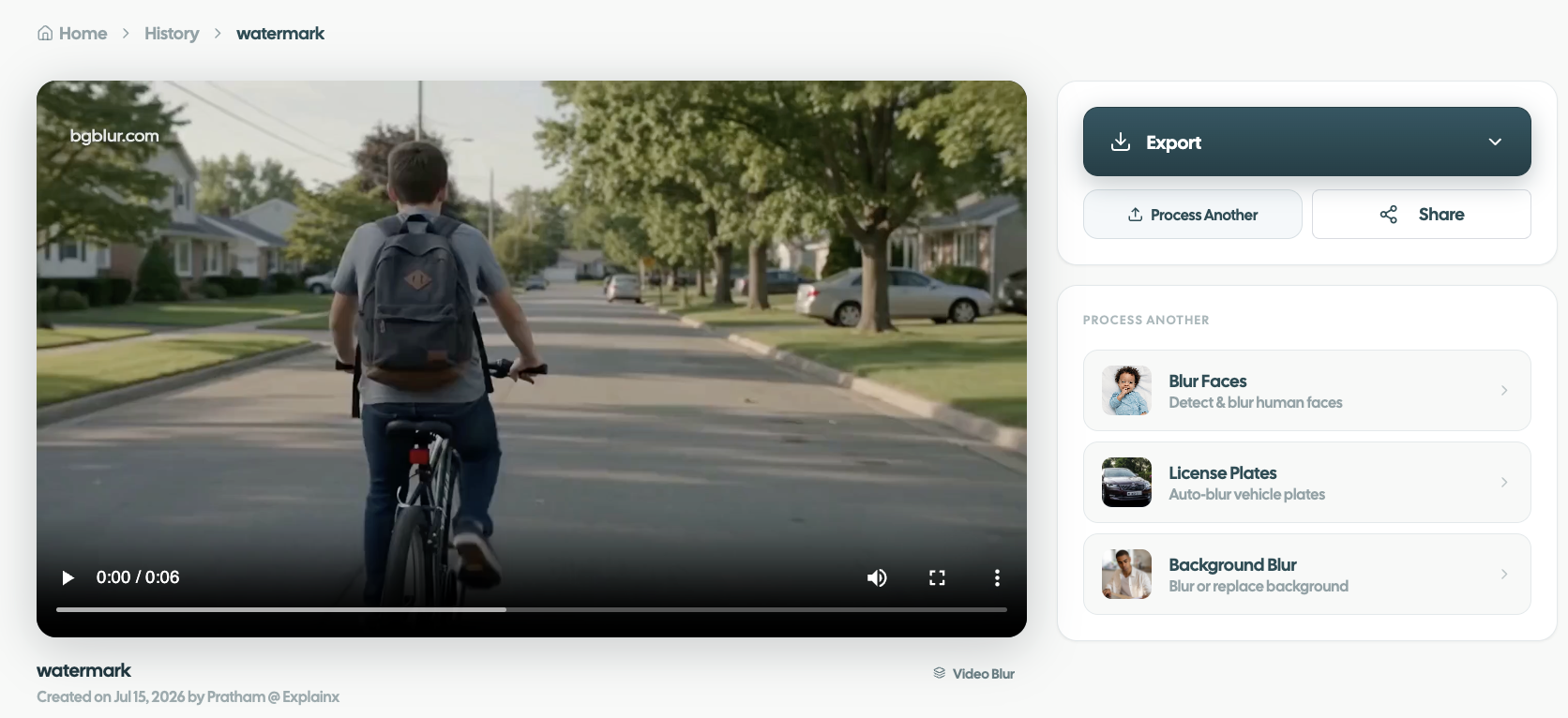
Play back the cleaned result before exporting. Check the area where the watermark used to be, especially during fast motion or scene changes. When it looks right, download the video in full quality with its original resolution and aspect ratio intact. Nothing is cropped, and nothing is compressed away.
That is the entire workflow: upload, select, download. No masking, no keyframes, no rendering queues.
Removing Watermarks from Specific AI Tools
Different AI generators watermark their videos differently, so here is what to expect from each.
Sora Watermark Remove
Sora's watermark is the trickiest of the major tools because it moves around the frame throughout the clip. Cropping cannot touch it, and static masks fail the moment it shifts position. An AI remover handles this by tracking the watermark's path across the entire video and reconstructing the background at every position it visits. The removal stays consistent from frame to frame, so there is no flickering patch trailing behind where the badge used to be.
Veo Watermark Remove
Veo videos typically carry a visible badge in a fixed area of the frame. Because the position is stable, removal is straightforward: select the badge once, let the AI rebuild the pixels behind it, and export. The challenge with Veo footage is usually the content underneath the badge, since Veo often generates rich, detailed scenes. Reconstruction quality matters here, and this is where AI inpainting clearly outperforms clone-stamp or blur tricks.
Gemini Watermark Remove
Gemini stamps both its AI videos and AI images with a visible mark. The same workflow covers both: upload the file, mark the stamp, and download the clean version. If you work with Gemini image outputs alongside video, you can clean both in the same tool rather than juggling separate photo and video editors.
The remover also handles ChatGPT watermarks on generated pictures and Nano Banana watermarks on AI images, so one workflow covers essentially every mainstream AI generator you are likely to use.
Why AI Reconstruction Beats Cropping and Blurring
Before AI inpainting existed, creators had three bad options for dealing with watermarks, and all three damaged the video.
Cropping cuts the watermark off the edge of the frame, but it also cuts your composition. A 16:9 video becomes something narrower, subjects get pushed off-center, and platforms may letterbox or zoom the result. For AI videos with moving watermarks, cropping does not even work, because the mark travels through the middle of the frame.
Blurring or pixelating the watermark area hides the logo but leaves an obvious smudge that draws the eye in every single frame. Viewers immediately see that something was covered up.
Sticker overlays simply trade one distraction for another, stacking your logo on top of someone else's.
AI background reconstruction avoids all of this. The model looks at the pixels around the watermark and at neighboring frames, then generates the missing content so the area matches the rest of the shot in color, texture, lighting, and motion. The frame keeps its full resolution and original aspect ratio, and playback stays smooth because the reconstruction is tracked across the whole clip rather than computed independently per frame.
For AI-generated footage this matters even more than for camera footage. AI videos are often destined for polished use cases like ads, brand content, and social campaigns, where a smudged corner or a cropped frame instantly lowers perceived quality.
Online Watermark Remover vs Apps and Desktop Software
If you search for an app to remove watermark, you will find dozens of mobile apps and desktop programs. Here is how a browser-based watermark remover video online tool compares.
No installation. Desktop editors like professional NLEs can remove watermarks with manual masking and clone work, but they require installation, a capable machine, and real editing skill. A browser tool needs none of that.
Works on every device. Because it runs in the browser, the same tool works on Windows, Mac, iPhone, iPad, and Android without separate app versions. You can generate a clip with Sora on your laptop and clean it from your phone.
Faster for single tasks. Opening a full editing suite to erase one corner badge is overkill. An online remover goes from upload to export in minutes.
No skill requirement. Manual watermark removal in editing software means masking, tracking, and patching by hand for every second of footage. The AI does all of that automatically.
The trade-off used to be quality: early online tools just blurred the area. Modern AI reconstruction closed that gap, which is why a dedicated online remover is now the practical default for creators cleaning up AI videos.
Removing Watermarks from AI Photos
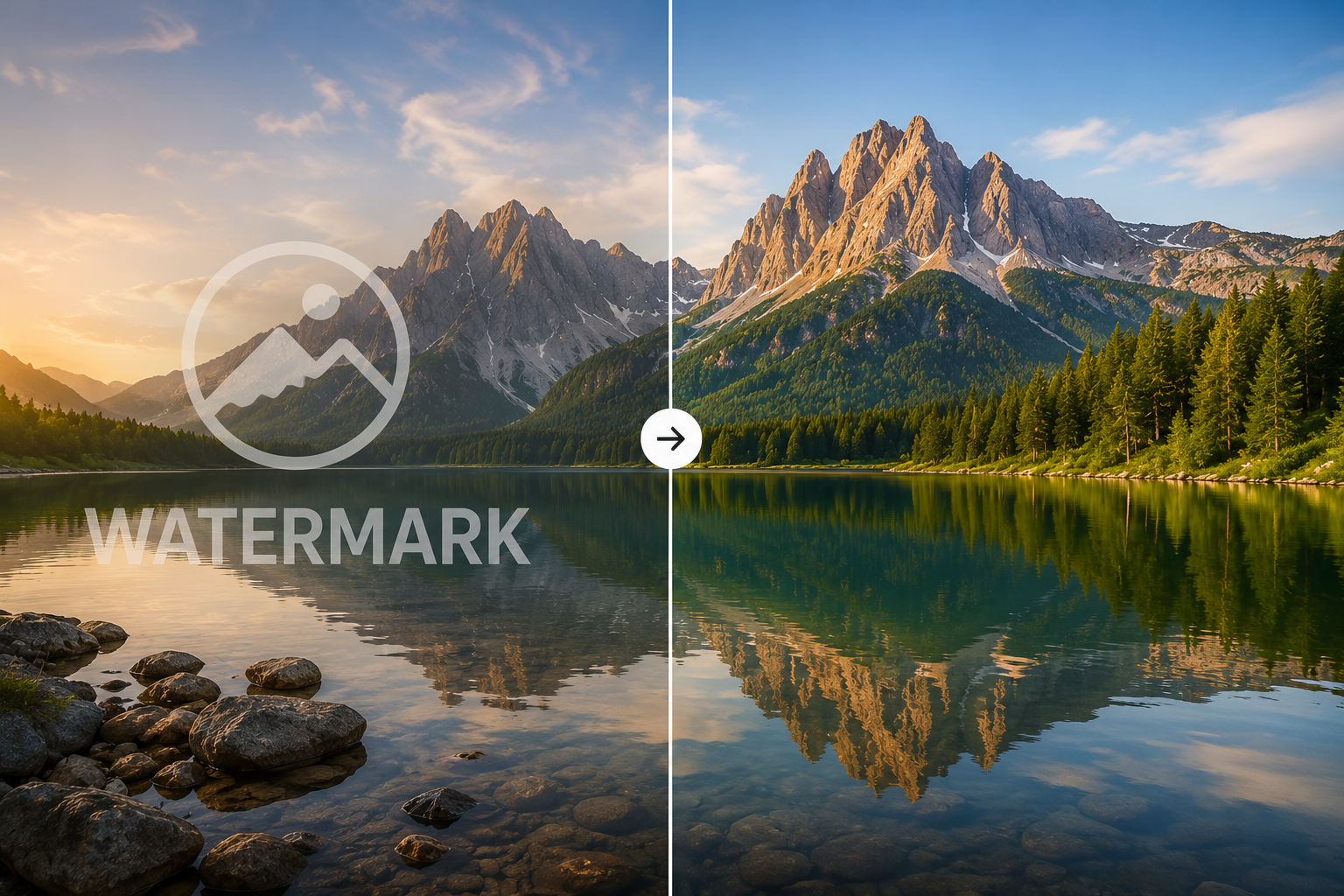
Video is not the only place AI tools stamp their output. Gemini, ChatGPT, and Nano Banana all watermark generated images too. If you need to remove watermark from photo outputs, the process is even simpler than video: there is only one frame to reconstruct, so results are near-instant. The AI analyzes the pixels around the stamp and fills the area with matching content, preserving textures like skin, fabric, sky, and text-free backgrounds.
This is useful when you are building a campaign that mixes AI images and AI videos and you want every asset cleaned in one consistent workflow instead of switching between a photo eraser and a video editor.
Tips for the Cleanest Results
A few practical habits will noticeably improve output quality:
- Upload the highest quality version you have. The more detail the AI can see around the watermark, the more accurate the reconstruction. Avoid re-compressed downloads when you still have the original export.
- Select the watermark area precisely. A tight selection gives the AI less to rebuild and keeps more of your original footage untouched.
- Preview motion-heavy moments. Fast pans and scene cuts are the hardest sections to reconstruct, so scrub through them in the preview before downloading.
- Clean before you edit, not after. Remove the watermark from the raw AI clip first, then bring the clean version into your edit. Removing it after adding text, transitions, or overlays makes tracking harder.
A Quick Note on Responsible Use
Watermark removal is built for content you own or have the rights to use: your own AI generations, client projects you are licensed to edit, and footage you created. Removing watermarks from other people's copyrighted videos or reposting someone else's work as your own is a different matter entirely, and it can violate copyright law and platform rules. Also check the terms of the AI tool you used, since some platforms have their own policies about how generated content and its markings may be used. Use the tool to polish your work, not to claim someone else's.
Frequently Asked Questions
How do I remove a watermark from an AI video?
Upload the video to an AI watermark remover like BGBlur, select the watermark area, and let the AI reconstruct the background behind it. Preview the cleaned result and download the video in full quality without cropping.
Can it remove the Sora watermark even though it moves?
Yes. The AI tracks the moving watermark across the entire clip and rebuilds the background at every position it appears, keeping the removal consistent from frame to frame with no flickering.
Which AI video watermarks are supported?
Sora, Veo, and Gemini video watermarks, plus ChatGPT and Nano Banana watermarks on AI-generated images. The same workflow also removes regular logos, timestamps, repost marks, and burned-in text from any video.
Will removing the watermark reduce my video quality?
No. The video keeps its original resolution, frame rate, and aspect ratio. Only the pixels in the watermark area are reconstructed, and the rest of the footage is untouched.
Do I need to install any software?
No. The watermark remover runs entirely in your browser on desktop and mobile. Upload, select, preview, and download without installing anything.
What formats and sizes are supported?
MP4, MOV, AVI, and MKV are supported. The free plan handles videos up to 500MB and 5 minutes, while paid plans support up to 1GB and 10 minutes per video.
Conclusion
AI video generators like Sora, Veo, and Gemini have made stunning footage accessible to everyone, but their watermarks were never meant to live in your final published content. Cropping ruins composition, blurring leaves ugly smudges, and manual editing takes hours of skilled work.
An AI watermark remover solves the problem the right way: it tracks the watermark through every frame, whether it sits still or moves like Sora's, and reconstructs the real background behind it. Your video keeps its full resolution, its aspect ratio, and its natural motion, and viewers never know a watermark was there.
If you have AI videos waiting to be published, clean them up in minutes with the BGBlur Watermark Remover. Upload your clip, mark the watermark, and download a professional, watermark-free video ready for YouTube, Instagram, TikTok, or your next campaign.