Cleaner Reels and TikToks: Background Blur Basics [2026]
Messy backgrounds and stray faces make TikToks and Reels look amateur. This guide shows creators how AI background blur, face blur, and license plate blur clean up footage in seconds using BGBlur, no editing skills required.
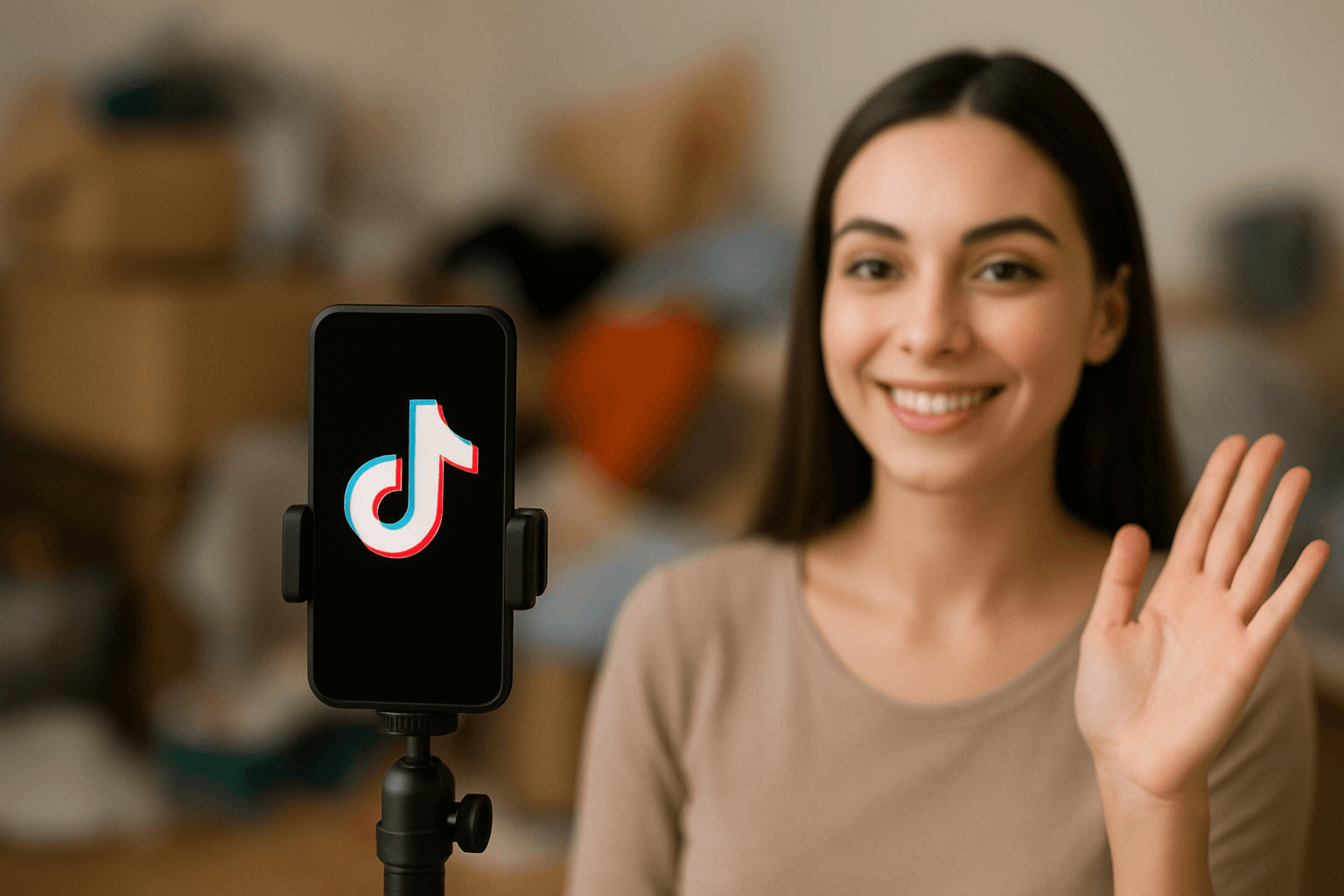
Ever scrolled through TikTok and noticed how some videos just look cleaner? That's not an accident. The secret is video background blur — a simple trick that makes your content pop and keeps viewers focused on what matters: you.
| Question | Answer |
|---|---|
| Fastest way to clean up a messy background? | AI background blur in BGBlur, no reshoot needed |
| Does it work on moving subjects? | Yes, motion tracking follows faces and backgrounds as you move |
| Is it free? | Free up to 200MB / 10 minutes, no watermark cap on quality |
| Can it blur faces and license plates too? | Yes, in the same upload, alongside background blur |
| Do I need editing software? | No, it is entirely browser-based |
Whether you're filming in a messy room, protecting someone's privacy, or just want that professional look, knowing how to blur video backgrounds can transform your content game. If you're deciding between blurring and other privacy fixes, see how face anonymization compares to face blur for a deeper breakdown of when each approach makes sense.
Why Content Creators Are Obsessed with Blur
Let's be real—not everyone has a picture-perfect filming setup. Maybe your background is cluttered, or you're shooting in public and need to blur face in video for strangers who walked into your shot. Perhaps you accidentally caught a license plate in video that needs hiding.
Video background blur AI tools solve all of this in seconds. No fancy editing skills required. Just upload, blur, and post.
What Can You Actually Blur?
Modern blur tools aren't one-trick ponies. Here's what you can clean up:
Backgrounds: Filming at home? Use video bg blur online to hide that laundry pile or unmade bed. Your viewers don't need to see your life chaos—just your content.
Faces: Caught random people in your street footage? Blur face in video to respect their privacy without reshooting.
License Plates: Street content creators, this one's for you. Blur number plate in video online free before posting to protect privacy (and avoid potential issues). For dashcam and car-content creators specifically, see our guide on why people blur license plates and how to do it properly.
Sensitive Info: Accidentally filmed your address, phone number, or any personal details? Blur it out instantly.
The TikTok Editor Advantage
While TikTok has basic editing features, serious creators use dedicated tools. A good TikTok video editor gives you precision control over what gets blurred and how intense that blur should be.
Looking for the best video editor for TikTok? Choose one that offers:
- Quick processing (because who has time to wait?)
- Video background blur online free options
- Easy controls for blur intensity
- Mobile and desktop compatibility
The best TikTok video editor isn't always the most expensive—it's the one that fits your workflow and gets results fast. If you're comparing options, our roundup of the best video blur and background apps breaks down how the major tools stack up on speed, price, and privacy handling.
How to Blur Your TikTok Background: Step by Step
You don't need to learn a new app from scratch. The workflow is the same whether you're cleaning up a Reel, a TikTok, or a raw phone clip:
- Upload your clip to bgblur.com — drag and drop, no account required to preview.
- Pick what to blur — background, faces, license plates, or a specific object you tap on.
- Preview the blur strength and adjust intensity so your subject still pops.
- Export as MP4 or MOV in HD, then post directly to TikTok, Instagram Reels, or YouTube Shorts.
The whole pass usually takes under a minute for a short-form clip, since BGBlur runs detection in the browser instead of requiring a manual render.
AI Makes Everything Easier
Here's where things get interesting. TikTok video editor AI technology can automatically detect what needs blurring. Point at a face? Blurred. Select a background? Instantly softened.
This ai blur tool technology saves hours of manual work. Instead of frame-by-frame editing, the AI handles the heavy lifting while you focus on creating content.
Not Just for Videos
Got static content too? The same tools often work for images. Need to blur image online free? Most platforms that offer video blur also let you:
- Image blur face for group photos
- Image blur license plate for car photos
- Image blur background for product shots
One free tool, multiple uses. That's efficiency.
Native App Blur vs. Dedicated AI Blur Tools
TikTok and Instagram both ship basic blur filters, so it's worth asking why creators bother with a separate tool at all. The short answer: native filters blur a fixed region, not a tracked subject.
| Feature | Native app filter | BGBlur (AI) |
|---|---|---|
| Tracks moving faces/objects | No — static overlay | Yes — motion tracking |
| Works on backgrounds only | Limited presets | Full background, face, plate, object blur |
| Batch process multiple clips | No | Yes |
| Export without watermark | Varies by app | Yes, on paid plans |
| Works outside the app (any platform) | No | Yes — browser-based, any device |
If you only need a quick aesthetic blur on a still frame, the native filter is fine. If a face, plate, or moving object needs to stay hidden for the entire clip — including as the camera pans or your subject walks — you need motion-tracked AI blur, not a filter.
When You Should Reshoot Instead of Blur
Blur is not a universal fix. If the entire frame is unusable — no clean angle exists, or the subject you need visible is inseparable from the thing you need hidden — reshooting is faster than trying to blur your way out of it. Use blur for isolated fixes: a passerby who walked through your shot, a plate on a parked car, a cluttered corner of an otherwise clean room. Use a reshoot when privacy or clutter issues affect more than roughly a third of the frame for most of the clip.
Best Practices for Blurring Reels and TikToks
A few habits separate creators who post confidently from creators who second-guess every upload:
- Review before you export. Skim the full clip at 1x speed after blurring — motion tracking is accurate but not infallible on fast whip-pans or heavy motion blur.
- Keep an unprocessed original. Store your raw footage locally in case you need to re-edit or reprocess with different blur settings later.
- Blur consistently, not selectively. If you blur one bystander's face, blur all of them in the same clip — inconsistent redaction looks more suspicious than no redaction at all.
- Match blur intensity to platform. A heavier blur reads better on TikTok's compressed video pipeline than a light blur that can get further softened (or partially undone) by platform compression.
- Caption what you blurred, if relevant. For street content or public-space filming, a short caption like "faces blurred for privacy" builds trust with viewers instead of raising questions.
Conclusion
Creating clean, professional TikToks and Reels doesn't have to be complicated. Video background blur is the simple trick that separates amateur content from polished, viewer-ready posts. Whether you're hiding a messy background, protecting privacy, or just adding that professional touch, blur tools have become essential for modern content creators.
The beauty of tools like BGBlur is that they democratize professional-looking content. You don't need expensive cameras, perfect filming locations, or advanced editing skills. Just a good idea, your smartphone, and a quick blur before posting.
So next time you're about to post that video but hesitate because of what's in the background—don't reshoot. Just blur it. Your content is too good to let a messy room or random passerby stop you from posting.
Frequently Asked Questions
How do I blur the background in my TikTok videos?
Using BGBlur is straightforward—just upload your video, select what you want to blur (background, faces, or objects), and download the processed video. The online video editor works right in your browser with no software installation needed. BGBlur supports popular formats like MP4 and MOV while maintaining HD quality, so your TikTok content stays crisp and professional.
Can I blur faces in videos for free?
Yes! BGBlur offers free processing for videos up to 200MB and 10 minutes long. The AI automatically detects and tracks moving faces throughout your video, so you don't need to manually blur face in video frame by frame. It's perfect for protecting bystander privacy in street content or hiding identities in interviews without spending a dime.
What's the best way to blur a license plate in a video?
BGBlur's AI motion tracking makes it easy to blur number plate in video online free. The tool automatically detects license plates and follows them as they move through your footage—whether it's dashcam videos, parking lot scenes, or street content. No manual tracking required, and you can process multiple clips at once with batch processing.
Do I need special software to blur video backgrounds?
No downloads required. BGBlur is a browser-based tool that works on both mobile and desktop. Just visit the site, upload your video, and the video bg blur online tool handles everything in real time. You can even create cinematic blur effects with soft background transitions and bokeh-style blur to keep your subject in sharp focus.
Will blurring affect my video quality?
Not with BGBlur. The tool maintains your original HD video quality while applying blur only to the areas you select. Whether you're blurring backgrounds for that professional look or anonymizing faces and plates for privacy, the rest of your footage stays crystal clear—perfect for posting to TikTok, Instagram, or YouTube.