Spot Healing Brush for Video
Brush over small distractions, blemishes, logos, or unwanted objects and create a cleaner video with BGBlur’s AI-assisted cleanup workflow.
How to Use the Spot Healing Brush
Clean up small imperfections in three focused steps
Upload your video or image
Upload the footage or image that contains the small imperfection, logo, mark, or unwanted object you want to clean up.
Brush over the unwanted detail
Use the spot healing brush tool to paint precisely over the selected detail, then review the affected area in the preview.
Review the cleanup and export
Refine the selection if needed, confirm the result looks natural, and download your cleaned video or image when ready.
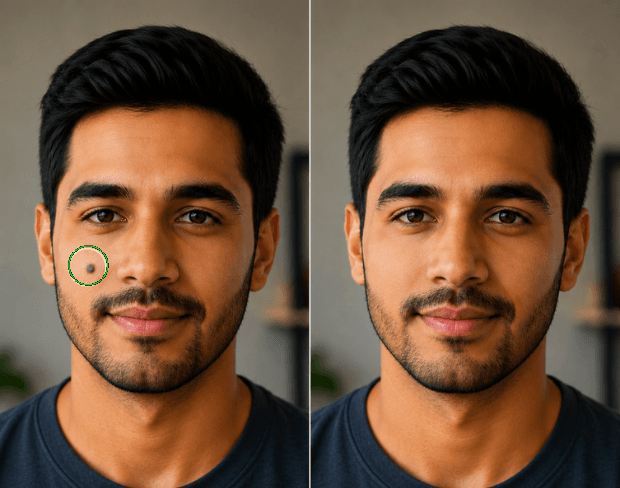
Target Small Imperfections With Precision
Use the spot healing brush to paint directly over a small blemish, stray mark, logo, or unwanted object. Rather than altering the entire frame, you define the precise area that needs attention. This focused selection gives you more control when cleaning product videos, interviews, tutorials, and social clips where every surrounding detail should remain visible and unchanged in the final exported version.
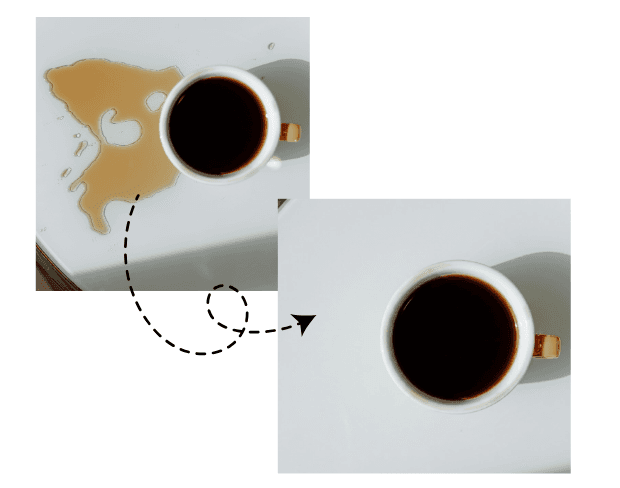
Remove Distracting Objects From Scenes
Remove objects that pull attention away from the subject, including small signs, background clutter, temporary labels, or visual marks. Paint over the distraction with the healing brush tool, then review the proposed cleanup before exporting. This workflow is useful when a reshoot is impractical and you need a cleaner version of otherwise usable video footage for publishing, presentations, or client delivery without delaying your delivery schedule.
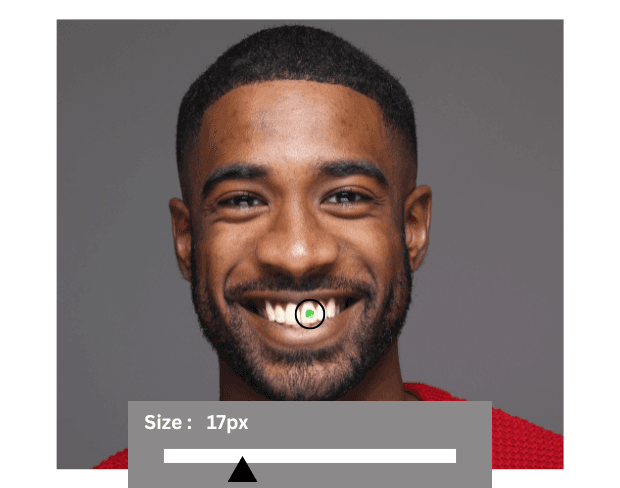
Adjust your brush size
Adjust the Spot Healing Brush size to fit the blemish or object you want to remove. Use a smaller brush for precise marks and a larger brush for broader distractions, keeping the selection close to the unwanted area for a cleaner, more natural result.

Choose the tool for the job.
Choose the right Spot Healing tool for your edit. Use the healing brush for blemishes, dust, and small marks, or the object removal tool for larger unwanted objects. Matching the tool to the job helps you achieve a cleaner result with less refinement.
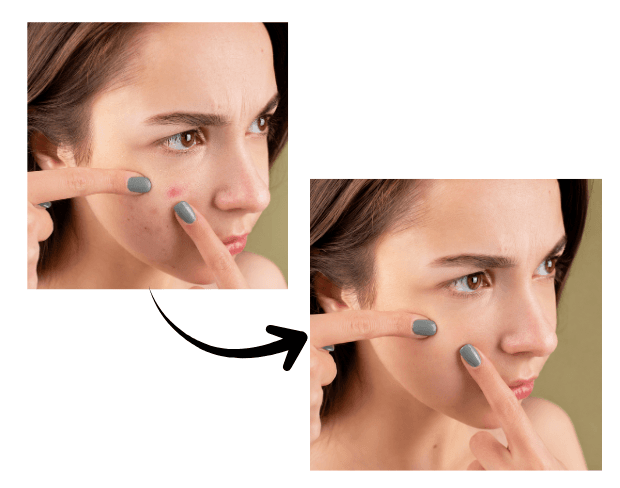
Remove a blemish or object.
Paint over a blemish or unwanted object with the Spot Healing Brush, then preview the cleanup. Refine the selected area if any part remains visible and export when the result looks natural, without changing the rest of your video or image.
What Makes BGBlur Different?
BGBlur is built for browser-based AI video editing: upload a clip, choose what to hide or soften, and export privacy-ready footage without learning timeline software.
AI video blur
Automatic video blur workflows reduce manual masking for faces, plates, backgrounds, screens, and sensitive objects.
Browser-based
Edit video online from desktop or mobile without installing professional video editing software.
Privacy focused
BGBlur is designed for safer publishing, redaction, anonymization, and compliance-aware video sharing.
Selective control
Choose targeted blur, background blur, face anonymization, or object blur based on the footage.
Fast workflow
Simple upload, preview, processing, and export steps help creators and teams finish edits quickly.
Multiple formats
Use BGBlur across common video and image workflows for social, legal, training, and creator content.
Blurring Video Backgrounds Automatically
BgBlur is dedicated to making video privacy and enhancement accessible to everyone. Our tools use advanced AI to help you blur faces, license plates, and backgrounds in your videos—quickly and securely, right in your browser.
Features include automatic face blur, license plate blur, and background blur. Try it out now by uploading your video at /en/upload. No downloads or advanced software required!
Powered by BGBlur
Spot Healing Brush FAQ
A spot healing brush tool lets you paint over a small area you want to clean up, such as a blemish, logo, mark, or other visual distraction.
Yes. Mark the unwanted object with the brush, review the result, refine the selected area when needed, and export the cleaned video.
You can target small visual distractions such as blemishes, stray marks, dust, temporary labels, logos, and minor unwanted objects.
Yes. Upload an image or video, paint over the detail you want to clean up, then review the result before exporting.
No. BGBlur works in your browser, so you can upload, refine the selected area, and export without installing a desktop editor.
Yes, BGBlur's AI automatically tracks moving objects, faces, and vehicles. You do not need to manually mask every frame; the motion-aware tracker keeps the blur locked onto the subject as it moves.
BGBlur is a completely web-based tool. You can upload any video or image, select the Face Blur tool, and apply pixelation or blur instantly inside your browser without downloading any apps or plugins.
Absolutely. Our AI is trained specifically to detect and blur license plates in driving footage, dashcams, and street-view videos. It helps creators and transport fleets stay compliant with privacy laws.
Your privacy is our priority. BGBlur leverages advanced client-side technologies to process videos securely. Your files are processed locally in your browser and are never uploaded or stored permanently on external servers.
Yes! BGBlur is fully responsive and optimized for mobile browsers. You can easily blur a video background or pixelate faces directly on your iPhone, iPad, or Android phone.
Limits depend on the feature. Standard video blur tools such as face blur, license plate blur, background blur, blur anything, screen blur, NSFW blur, and face anonymization support up to 200MB and 10 minutes on the free plan, while Pro users get unlimited blur processing with longer video support. Object Remover supports MP4 and MOV videos up to 1GB and 10 seconds per clip. Voice Anon direct uploads support up to 100MB, while the upload/URL workflow supports audio or video files up to 500MB and under 10 minutes.
User Reviews
Share your experience and help others make informed decisions
Write a Review
Community Score
0.0
/ 5
Based on 0 reviews
All Reviews (0)
No reviews yet
Be the first to share your experience and help others make informed decisions!
Ready to blur your video content?
Start protecting privacy and creating professional video blur effects today with our AI-powered tool. No downloads required - blur directly in your browser.
Start Blurring Now