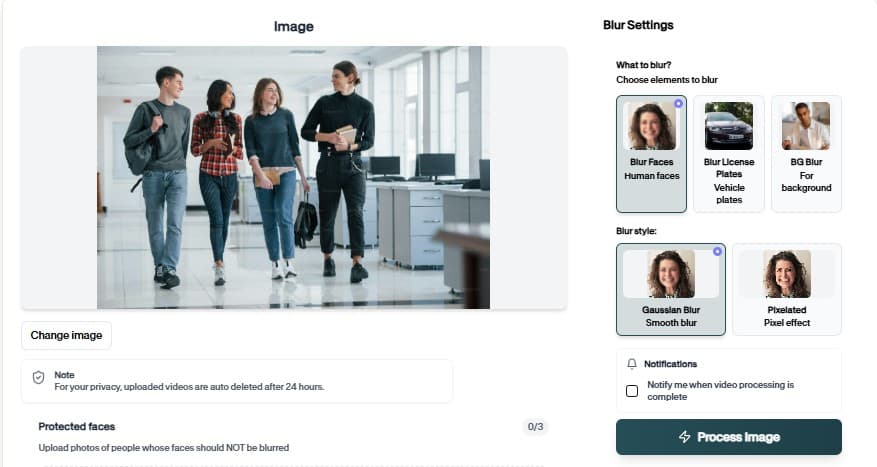
Blur Sensitive Content in MOV Files Online
Drop a MOV file into Blur Moving Faces Video, let AI mark regions to protect, and download a clean export without installing software.

Blur Moving Faces Video — How It Works
Optimized for MOV uploads with quality preserved.
Why teams use Blur Moving Faces Video
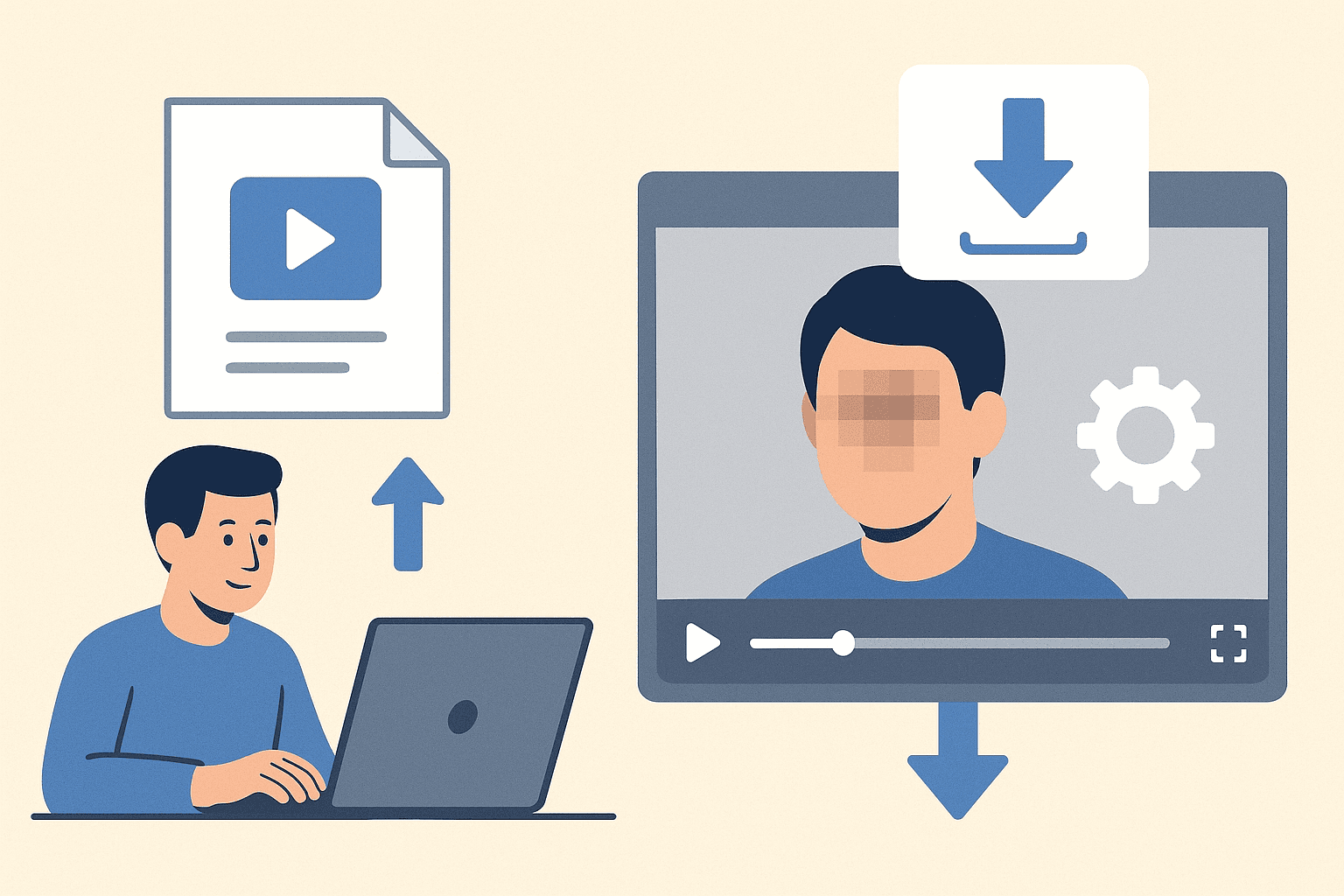
Blur Moving Faces Video shortens the path from raw upload to privacy-reviewed export. AI proposes regions to protect, you adjust if needed, and download a file ready for clients, platforms, or archives.
Blur Moving Faces Video is especially useful for repeat review cycles — same rules, many files.
Preserve resolution and bitrate where possible on export
Download results without mandatory account creation
Handle phone, drone, and screen-capture sources
Combine with other BGBlur tools in the same project flow
Upload from desktop or mobile browsers
Accept native container uploads without transcoding first
Where it is used

Client delivery
Send privacy-reviewed exports. يحافظ على هذا سير العمل عمليا للمراجعة المتكررة وتنظيف الخصوصية والنشر وتسليم الفريق دون إجبار المحررين على إعادة بناء كل قناع أو تعديل يدويا.
Team handoff
Standardize redaction across editors. يحافظ على هذا سير العمل عمليا للمراجعة المتكررة وتنظيف الخصوصية والنشر وتسليم الفريق دون إجبار المحررين على إعادة بناء كل قناع أو تعديل يدويا.
Archive cleanup
Retroactively fix old media libraries. يحافظ على هذا سير العمل عمليا للمراجعة المتكررة وتنظيف الخصوصية والنشر وتسليم الفريق دون إجبار المحررين على إعادة بناء كل قناع أو تعديل يدويا.
Client delivery
Send privacy-reviewed exports. يحافظ على هذا سير العمل عمليا للمراجعة المتكررة وتنظيف الخصوصية والنشر وتسليم الفريق دون إجبار المحررين على إعادة بناء كل قناع أو تعديل يدويا.
Team handoff
Standardize redaction across editors. يحافظ على هذا سير العمل عمليا للمراجعة المتكررة وتنظيف الخصوصية والنشر وتسليم الفريق دون إجبار المحررين على إعادة بناء كل قناع أو تعديل يدويا.
Archive cleanup
Retroactively fix old media libraries. يحافظ على هذا سير العمل عمليا للمراجعة المتكررة وتنظيف الخصوصية والنشر وتسليم الفريق دون إجبار المحررين على إعادة بناء كل قناع أو تعديل يدويا.
Fast browser turnaround
Most projects move from upload to export in minutes because Blur Moving Faces Video proposes edits automatically instead of starting from a blank timeline.
Try Blur Moving Faces Video now
Upload a sample file and confirm the preview before you download.
How to use Blur Moving Faces Video
Upload, verify, download — no timeline editing required.
Upload your MOV file
Drag your MOV file into Blur Moving Faces Video. Phone, dashcam, screen capture, and studio sources are all supported in the browser.
Review detections
Review AI suggestions, tweak regions that need extra protection, and confirm the preview matches your policy.
Download the export
Export when the preview looks correct. The file is ready for upload, client portals, or archive storage.
Editing features
Blur Moving Faces Video at a glance
What you get when using Blur Moving Faces Video in real projects.

Detection-first workflow
Preserve resolution and bitrate where possible on export
Browser or API delivery
Download results without mandatory account creation

Privacy-safe exports
Handle phone, drone, and screen-capture sources
Teams using similar workflows
How Blur Moving Faces Video fits day-to-day media and compliance work.
“Blur Moving Faces Video cut our redaction time from hours to minutes on last week's footage.”
“We shipped client-safe exports the same day instead of waiting on manual masking.”
“Blur Moving Faces Video is simple enough for producers who do not live inside NLE timelines.”
Blur Moving Faces Video — FAQ
Common questions about Blur Moving Faces Video, exports, and privacy handling.
Sensitive regions based on the tool configuration — review the preview to confirm.
Yes — core blur workflows are free in the browser. Premium limits apply to very long files or batch needs.
Yes. Blur Moving Faces Video accepts MOV uploads and returns a processed file without requiring you to convert formats first.
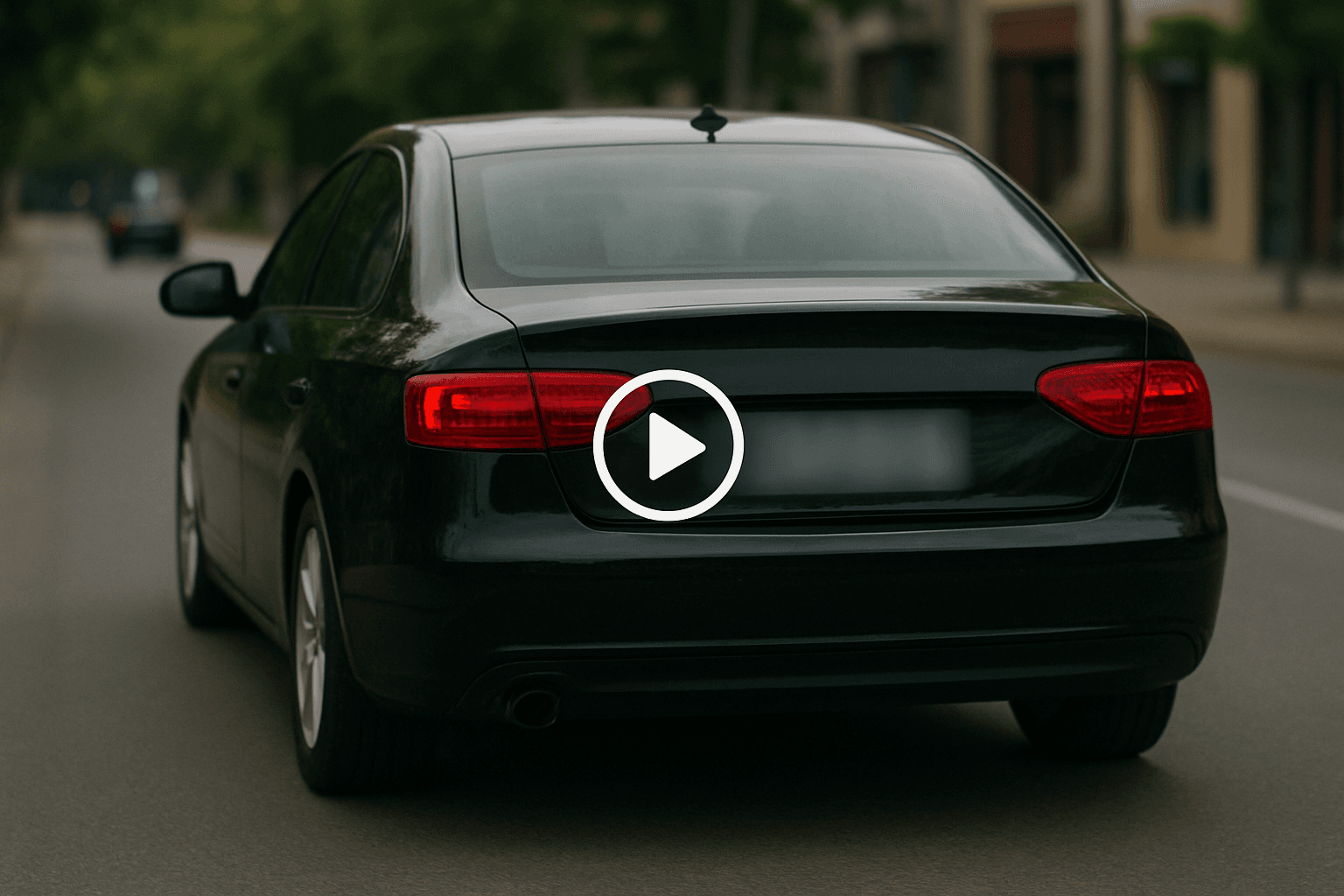
Yes. Tracking keeps blur attached to faces or plates as they cross the frame, reducing the need to fix slips in post.
No. Blur Moving Faces Video runs in the browser — upload, preview, and download without Premiere, DaVinci, or desktop apps.
BGBlur processes files for the editing session with privacy-first handling. Media is not published as permanent public assets.
User Reviews
Share your experience and help others make informed decisions
Write a Review
All Reviews (0)
No reviews yet
Be the first to share your experience and help others discover this tool!
Face privacy tools
More ways to blur, pixelate, and redact faces
Explore face-focused workflows for videos, photos, social clips, CCTV footage, and privacy reviews where identities must stay protected.
View all tools →MOV Workflow
Blur Sensitive Content in MOV Files Online
Drop a MOV file into Blur Moving Faces Video, let AI mark regions to protect, and download a clean export without installing software.
Optimized for MOV uploads with quality preserved.
Open Blur Moving Faces Video