Desenfoque de privacidad para reuniones de Zoom y Teams
Professional video call recordings with blurred backgrounds, participant faces, and sensitive on-screen content for safe sharing.
Recorded Zoom and Teams meetings often contain more than the intended presentation: home offices with family photos, coworkers who didn't consent to external sharing, and screen shares with customer data.
Clean up Zoom and Teams recordings for safe sharing in three steps
Built for corporate comms, HR, and marketing teams who need privacy-safe recordings for external or LMS distribution.
Export your Zoom or Teams recording
Download the MP4 from Zoom cloud or Teams recordings before sharing externally.
Apply background and face blur
Blur participant backgrounds and specific attendee faces to protect privacy in gallery view.
Preview and export
Check gallery layouts across the timeline, then export for LMS, YouTube, or Vimeo hosting.
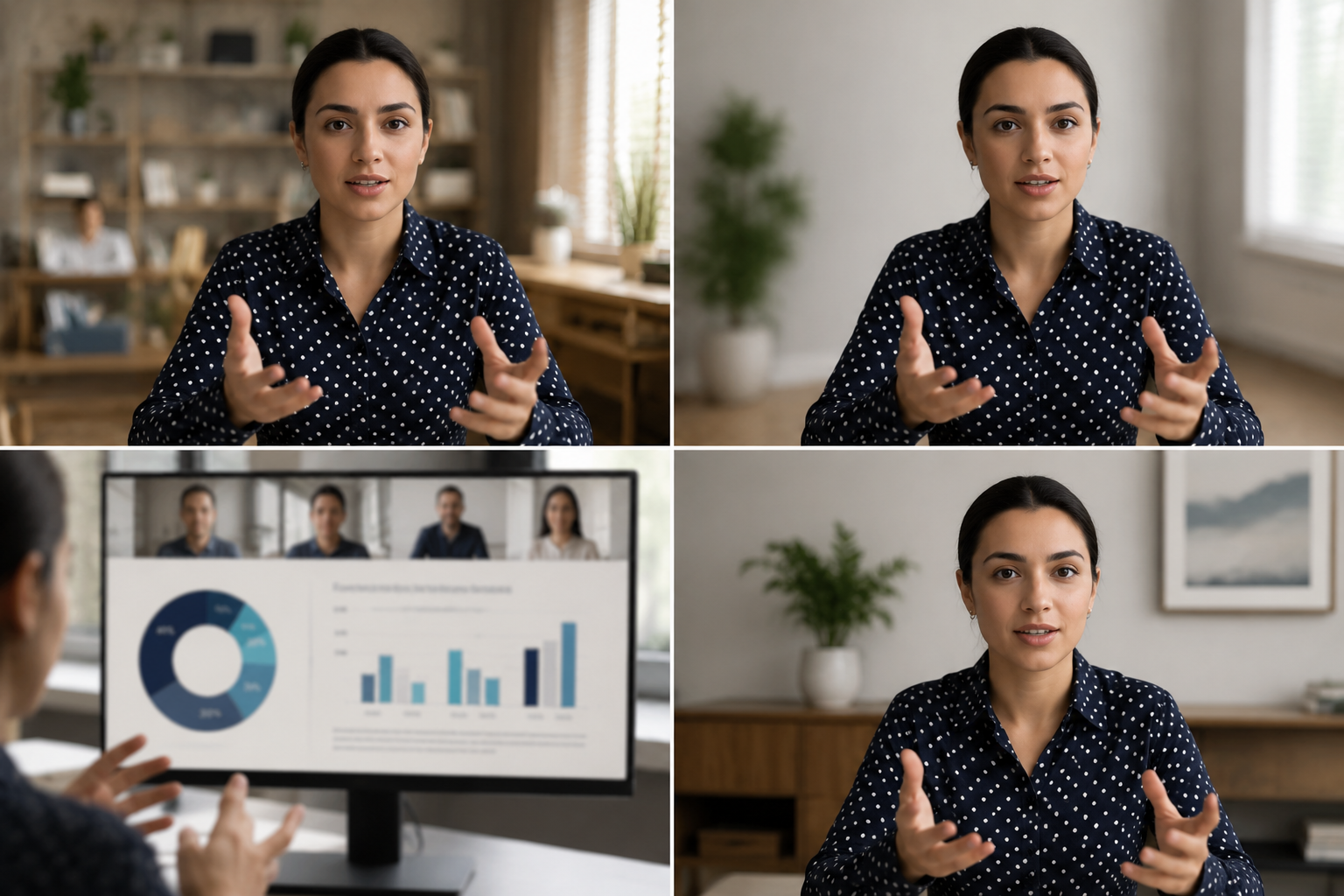
What this example demonstrates
Post-production blur gives you control that real-time virtual backgrounds can't: selectively protect participants, hide screen share content, and clean up backgrounds after the call ends.

Why teams use this pattern
Use this workflow when you need to share all-hands recordings externally, create training clips from client calls, or publish webinar archives with attendee privacy intact.
Common use cases
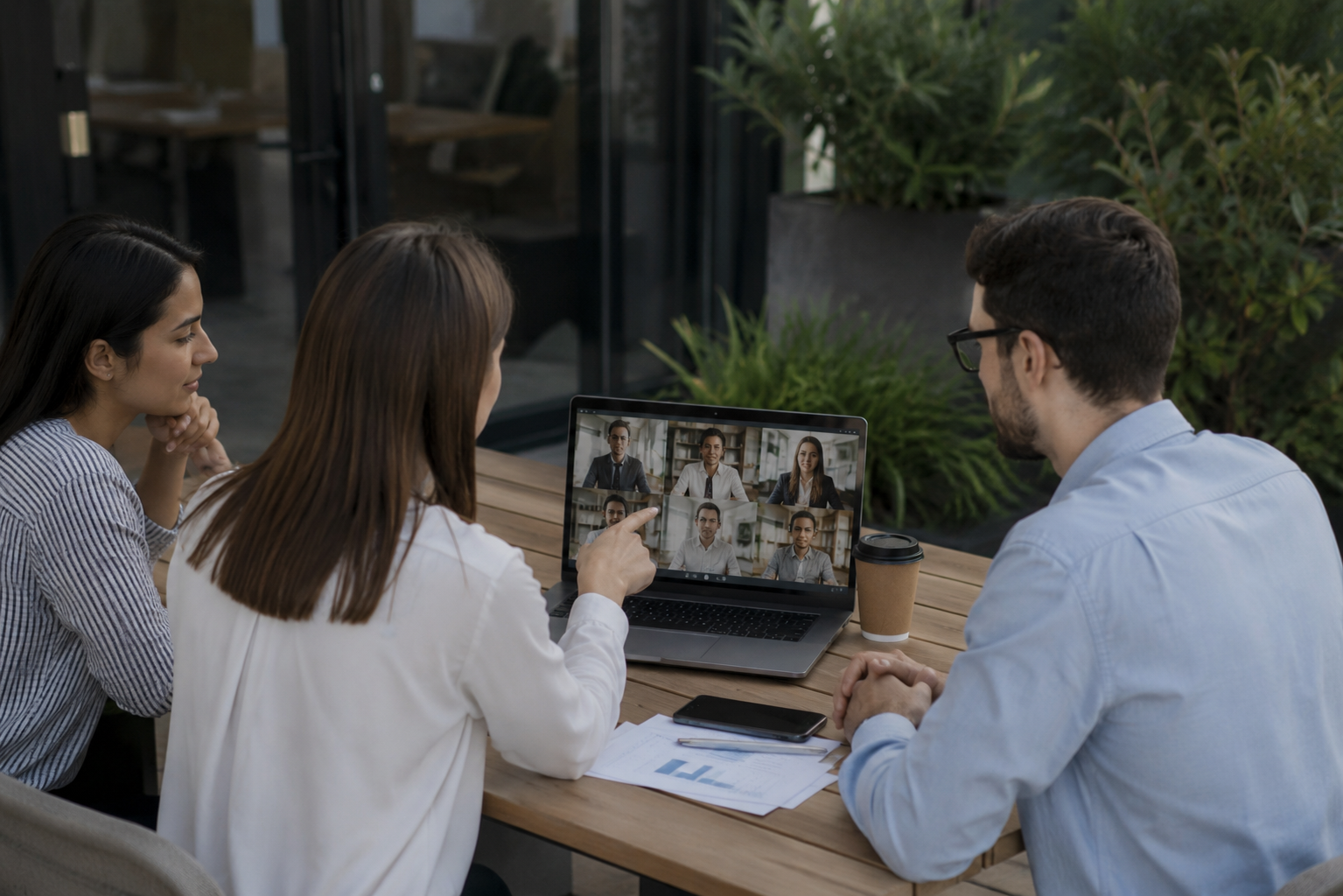
Teams reach for this workflow when all-hands meetings shared with contractors or press; client webinars with internal attendees visible; training recordings from customer success calls; town halls with employee q&a requiring anonymization. BGBlur automates detection so these scenarios stay publishable without days in a timeline.

Built for Corporate communications teams and HR and internal comms
Ideal audiences include Corporate communications teams, HR and internal comms, Marketing and demand gen, Customer education teams. Pair this example with your policy review when footage is sensitive or public-facing.
Casos de uso
- Reuniones de todo tipo compartidas con contratistas o prensa
- Webinars clientes con asistentes internos visibles
- Grabaciones de entrenamiento de llamadas de éxito del cliente
- Alcaldías con empleado Q limitadaA que requiere anonimato
Para quién es
- Equipos de comunicaciones institucionales
- Recursos humanos y comunicaciones internas
- Marketing y demanda gen
- Equipos de educación al cliente
Más ejemplos de desenfoque de video
Explore escenarios similares con los mismos clips de demostración y orientación paso a paso.
Desenfoque de fondo para enfoque cinematográfico
Suaviza o reemplaza fondos cargados para que el sujeto destaque, perfecto para webinars, reseñas y demos grabadas en casa.
Desenfoque de rostros en video talking-head
Detección automática de rostros y desenfoque con seguimiento de movimiento para entrevistas, podcasts y vlogs, manteniendo identidades protegidas.
Videos de RR. HH. y formación con fondos más seguros
Oculta desorden de oficina, gráficos de pacientes o pósters que revelan ubicación en contenido de aprendizaje y desarrollo.
Desenfoque de grabaciones de pantalla para tutoriales y demos
Oculta contraseñas, claves API, correos y datos personales en capturas de pantalla, esencial para demos de software y soporte.
Explorar características de BGBlur
Preguntas frecuentes
- ¿Por qué no usar el borrón de fondo incorporado de Zoom?
- El borrón en tiempo real se aplica durante la llamada; el borrón de postproducción le permite controlar las decisiones de privacidad después de grabar cuando usted conoce el contexto compartido.
- ¿Puedo difuminar sólo un participante en la vista de la galería?
- Sí, el borrón facial selectivo funciona en los diseños de rejillas para proteger a los asistentes específicos mientras mantiene a otros visibles.
- ¿Qué hay de nombres de chat y participante en la grabación?
- Mangos de Difunción de vídeo sólo pixels; nombres de participantes deshabilitados y superposiciones de chat en los ajustes de grabación de Zoom/Teams o recortar los elementos UI en post.
¿Listo para probar esto en tu metraje?
Sube MP4, MOV o M4V y aplica los mismos modos de desenfoque que se muestran en este ejemplo.
Prueba BGBlur gratis