AI वीडियो ऑब्जेक्ट रीमूवर
एआई परिशुद्धता के साथ अपने वीडियो से अवांछित ऑब्जेक्ट्स, लोग, टेक्स्ट, लोगो या वॉटरमार्क निकालें। अपने पैरों को बरकरार रखते हुए कुछ भी सहज रूप से मिटा दें।.
3 चरणों में वीडियो से ऑब्जेक्ट कैसे निकालें
अपने वीडियो से कुछ भी मिटाने के लिए तीन सरल कदम
चरण 1: अपने वीडियो को अपलोड करें
अवांछित वस्तुओं के साथ वीडियो अपलोड करें। MP4, MOV, और सभी आम वीडियो प्रारूपों का समर्थन करता है।.
चरण 2: ऑब्जेक्ट्स को निकालने के लिए चुनें
उन वस्तुओं पर पेंट करने के लिए ब्रश टूल का उपयोग करें जिन्हें आप मिटाना चाहते हैं। पूरी अवधि को कवर करने के लिए टाइमलाइन को समायोजित करें जहां वस्तु दिखाई देती है।.
चरण 3: निकालें और डाउनलोड करें
अपनी हटाने की विधि (Gausian Blur, Smooth Fill, या क्लोन पैच) चुनें और तुरंत अपने साफ वीडियो को डाउनलोड करें।.
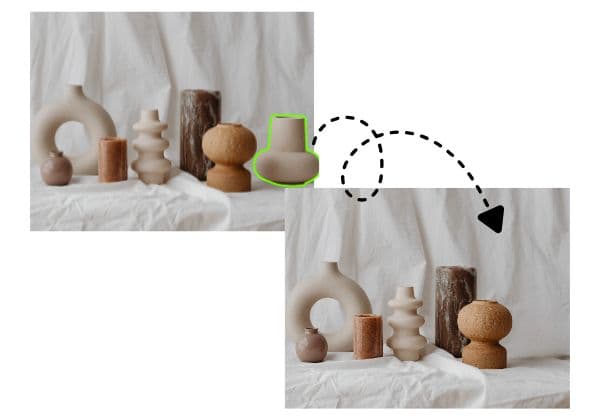
एआई-संचालित ऑब्जेक्ट हटाने
उन्नत एआई प्रौद्योगिकी स्वचालित रूप से वीडियो से वस्तुओं, लोगों और वस्तुओं का पता लगाती है और हटा देती है। अवांछित तत्वों को मिटा दें, वॉटरमार्क को हटा दें, लोगो को हटा दें, या पेशेवर सटीकता के साथ पृष्ठभूमि को विचलित करें - कोई मैनुअल फ्रेम-by-फ्रेम संपादन की आवश्यकता नहीं है।.
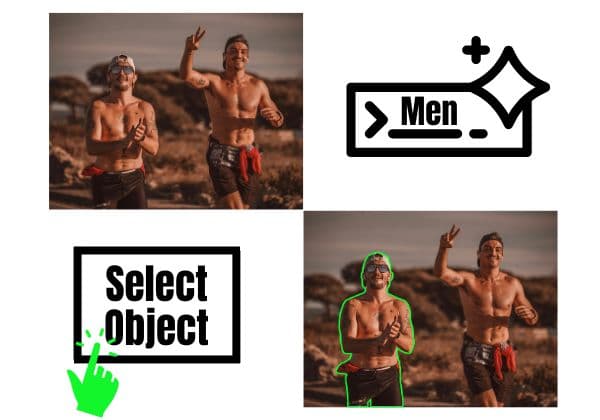
एकाधिक हटाने के तरीके
एकाधिक एआई हटाने की तकनीकों से चुनें: प्राकृतिक मिश्रण के लिए गौसियन ब्लर, सीमलेस पैच के लिए चिकना भरना, पास के पिक्सेल की प्रतिलिपि बनाने के लिए रंग भरने, या क्लोन पैच। प्रत्येक विधि आपके दृश्य के अनुरूप स्वच्छ, कलाकृति-मुक्त परिणाम सुनिश्चित करती है।.
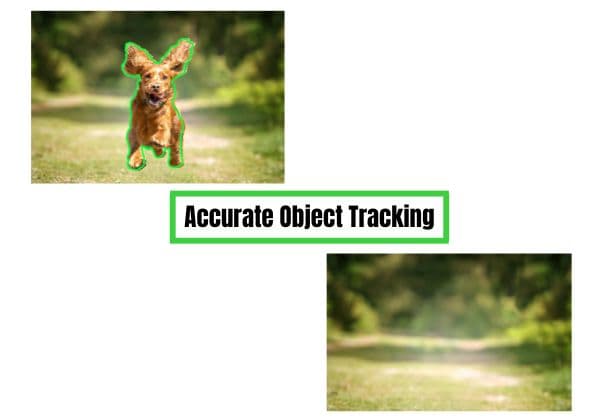
ऑब्जेक्ट ट्रैकिंग चल रहा है
बुद्धिमान गति ट्रैकिंग के साथ चलती वस्तुओं को निकालें। हमारी एआई स्वचालित रूप से आपके क्लिप में ऑब्जेक्ट्स को मिटा देती है क्योंकि वे चलते हैं, घूमते हैं या आकार बदलते हैं - लोगों को चलने, चलती वाहनों पर लोगो, या किसी भी गतिशील तत्वों को हटाने के लिए बिल्कुल सही।.
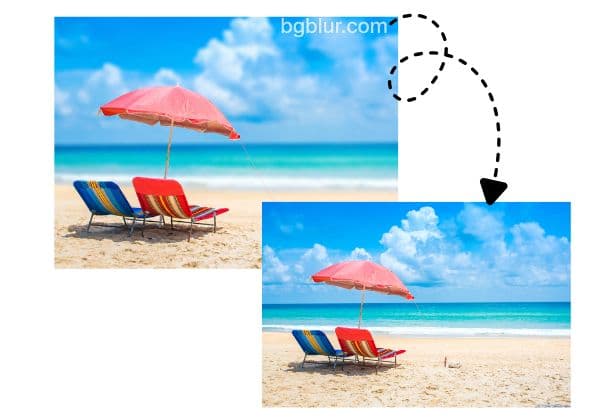
वॉटरमार्क और लोगो को हटाने
स्थायी रूप से अपने वीडियो से वॉटरमार्क, लोगो, टाइमस्टैम्प और टेक्स्ट ओवरले को हटा दें। स्टॉक फुटेज को साफ करें, TikTok वॉटरमार्क को हटा दें, YouTube लोगो को मिटा दें, या वीडियो की गुणवत्ता को बनाए रखते हुए किसी भी ब्रांडिंग तत्वों को हटा दें।.
किसी भी वस्तु पर काम करता है
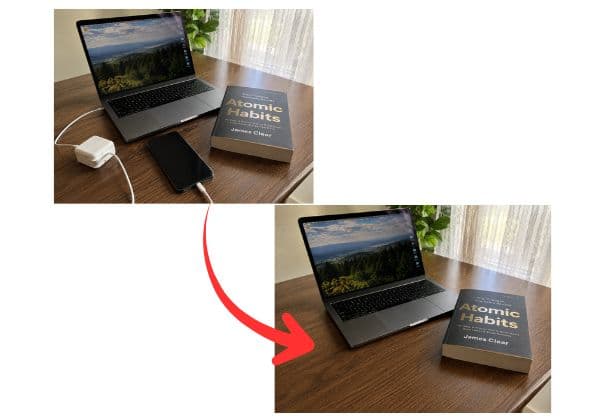
जो कुछ आप देखते हैं उसे निकालें: लोग, वाहन, जानवर, पाठ, संकेत, ध्रुव, तार, अवांछित पृष्ठभूमि, या किसी भी दृश्य विचलन। ऑब्जेक्ट को ब्रश टूल के साथ चुनें और AI बाकी को फ्रेम-accurate हटाने के साथ संभालने दें।.
वीडियो से लोगों को मुफ्त में हटाएं
क्या आपको वीडियो फुटेज से किसी व्यक्ति को हटाने की ज़रूरत है, या पूरी तरह से वीडियो से लोगों को हटाना है — कोई फोटोबॉम्बर, शॉट में चलता अजनबी, या बैकग्राउंड में भीड़? यह AI वीडियो ऑब्जेक्ट इरेज़र इसे ऑनलाइन मुफ्त में संभालता है, बिना किसी एडिटिंग सॉफ़्टवेयर के। अपना क्लिप अपलोड करें, हटाने के लिए व्यक्ति या लोगों को चुनें, और AI आसपास के फुटेज का उपयोग करके, फ्रेम दर फ्रेम, उनके पीछे की जगह भर देता है।
वीडियो ऑनलाइन से अवांछित वस्तुएं मुफ्त में हटाएं
फ्रेम में एक भटकी हुई केबल से लेकर सीमित बजट वाले क्रिएटर्स के लिए वीडियो ऑनलाइन मुफ्त से अवांछित वस्तु हटाने के वर्कफ़्लो तक, यह टूल एक समर्पित वीडियो ऑब्जेक्ट इरेज़र जितना ही काम करता है — बिना किसी अलग ऐप के। एक अवांछित वस्तु, बार-बार आने वाली बैकग्राउंड गड़बड़ी, या किसी भी ऐसी चीज़ के लिए काम करता है जिसे हटाने के लिए आमतौर पर एक प्रोफेशनल एडिटर चाहिए होता।
AI परिशुद्धता के साथ वीडियो से कुछ भी निकालें
BGBLur वीडियो ऑब्जेक्ट को हटाने के लिए सरल और पेशेवर बनाता है। अपने ब्राउज़र में सीधे लोगों, वॉटरमार्क, लोगो, टेक्स्ट, वाहन, जानवरों, या किसी भी अवांछित तत्वों को मिटाने के लिए AI का उपयोग करें - कोई जटिल सॉफ्टवेयर आवश्यक नहीं है।.
ब्रश टूल के साथ ऑब्जेक्ट्स का चयन करें, अपनी हटाने की विधि (ब्लूर, फिल या क्लोन) चुनें और मिनटों में स्वच्छ परिणाम प्राप्त करें। सामग्री रचनाकारों, वीडियोग्राफर, बाज़ारियों और किसी को भी जो त्वरित वीडियो सफाई की जरूरत है के लिए बिल्कुल सही। इसे /ai-video-object-remover पर आज़माएं।.
द्वारा संचालित BGBlur
AI वीडियो ऑब्जेक्ट रीमूवर सामान्य प्रश्न
अपने वीडियो को अपलोड करें, उन ऑब्जेक्ट्स पर पेंट करने के लिए ब्रश टूल का उपयोग करें जिन्हें आप हटाना चाहते हैं, ऑब्जेक्ट दिखाई देने पर कवर करने के लिए टाइमलाइन को समायोजित करें, अपनी हटाने की विधि का चयन करें, और अपना साफ वीडियो डाउनलोड करें।.
हाँ। BGBlur अपने वीडियो के माध्यम से चलने के रूप में स्वचालित रूप से ऑब्जेक्ट का पालन करने और हटाने के लिए AI गति ट्रैकिंग का उपयोग करता है। एक बार ऑब्जेक्ट का चयन करें, और एआई इसे सभी फ्रेमों में ट्रैक करता है।.
हाँ। आप TikTok वॉटरमार्क, यूट्यूब लोगो, टाइमटाम्प्स, स्टॉक फुटेज वॉटरमार्क, या किसी भी टेक्स्ट ओवरले को हटा सकते हैं। वॉटरमार्क पर पेंट करें, चिकनी भरने या क्लोन पैच का चयन करें, और अपने साफ वीडियो को निर्यात करें।.
BGBlur एकाधिक तरीके प्रदान करता है: Gaussian ब्लूर (दुर्भावस्थ रूप से पृष्ठभूमि के साथ), चिकना भरने (गंभीर रूप से भरा), रंग भरने (मार्च पृष्ठभूमि रंग), और क्लोन पैच (पास के पिक्सल कॉपी)। वह तरीका चुनें जो आपके दृश्य के लिए सबसे अच्छा काम करता है।.
आप लोगों, जानवरों, वाहनों, पाठ, लोगो, वॉटरमार्क, ध्रुवों, तारों, संकेतों, अवांछित पृष्ठभूमि, या किसी भी दृश्य तत्व को हटा सकते हैं। यदि आप इसे देख सकते हैं, तो आप इसे हटा सकते हैं।.
BGBlur आपके मूल वीडियो रिज़ॉल्यूशन और गुणवत्ता को बनाए रखता है। केवल चयनित क्षेत्रों को संसाधित किया जाता है, जबकि आपके बाकी फुटेज प्रिस्टिन रहता है।.
हाँ। आप एक ही पास में कई ऑब्जेक्ट चुन सकते हैं और हटा सकते हैं। प्रत्येक वस्तु इष्टतम परिणामों के लिए विभिन्न हटाने के तरीकों का उपयोग कर सकती है।.
ऑब्जेक्ट हटाने पूरी तरह से अपने वीडियो से तत्वों को मिटा देता है, जबकि केवल उन्हें अस्पष्ट करता है। जब आप ट्रेस के बिना स्वच्छ फुटेज चाहते हैं, या जब आपको क्षेत्र को दिखाई देने के दौरान गोपनीयता की रक्षा करने की आवश्यकता होती है तो उसे हटाने का विकल्प चुनें।.
नहीं BGBLur अपने ब्राउज़र में पूरी तरह से चलाता है। अपलोड करें, ऑब्जेक्ट्स को हटा दें, और डाउनलोड नहीं - कोई स्थापना, कोई प्लगइन नहीं, कोई जटिल संपादक की जरूरत है।.
प्रसंस्करण समय वीडियो की लंबाई और वस्तुओं की संख्या पर निर्भर करता है। अधिकांश वीडियो मिनटों में प्रक्रिया करते हैं। आप वास्तविक समय में प्रगति को ट्रैक कर सकते हैं और तैयार होने पर तुरंत डाउनलोड कर सकते हैं।.
AI वीडियो ऑब्जेक्ट रिमूवर 1GB तक MP4 और MOV वीडियो को सपोर्ट करता है। वर्तमान ऑब्जेक्ट निष्कासन वर्कफ़्लो प्रति अपलोड 10 सेकंड तक क्लिप स्वीकार करता है।
हाँ, BGBlur का AI हिलती हुई वस्तुओं, चेहरों और वाहनों को स्वचालित रूप से ट्रैक करता है। आपको मैन्युअल रूप से हर फ्रेम को मास्क करने की आवश्यकता नहीं है; मोशन-अवेयर ट्रैकर वस्तु के हिलने पर भी ब्लर को उस पर बनाए रखता है।
BGBlur पूरी तरह से एक वेब-आधारित टूल है। आप किसी भी वीडियो या इमेज को अपलोड कर सकते हैं, फेस ब्लर टूल चुन सकते हैं, और बिना किसी ऐप या प्लगइन को डाउनलोड किए तुरंत अपने ब्राउज़र के भीतर पिक्सेलेशन या ब्लर लागू कर सकते हैं।
बिल्कुल। हमारा AI विशेष रूप से ड्राइविंग फुटेज, डैशकैम और स्ट्रीट-व्यू वीडियो में लाइसेंस प्लेटों का पता लगाने और उन्हें ब्लर करने के लिए प्रशिक्षित है। यह गोपनीयता कानूनों के अनुपालन में मदद करता है।
आपकी गोपनीयता हमारी प्राथमिकता है। BGBlur वीडियो को सुरक्षित रूप से प्रोसेस करने के लिए उन्नत क्लाइंट-साइड तकनीकों का लाभ उठाता है। आपकी फाइलें आपके ब्राउज़र में स्थानीय रूप से प्रोसेस की जाती हैं और बाहरी सर्वर पर कभी भी अपलोड या स्टोर नहीं की जाती हैं।
हाँ! BGBlur पूरी तरह से रिस्पॉन्सिव है और मोबाइल ब्राउज़रों के लिए अनुकूलित है। आप अपने iPhone, iPad या Android फोन पर सीधे वीडियो बैकग्राउंड को आसानी से ब्लर कर सकते हैं या चेहरों को पिक्सेलेट कर सकते हैं।
सीमाएँ विशेषता पर निर्भर करती हैं। मानक वीडियो ब्लर टूल जैसे फेस ब्लर, लाइसेंस प्लेट ब्लर, बैकग्राउंड ब्लर, कुछ भी ब्लर करना, स्क्रीन ब्लर, एनएसएफडब्ल्यू ब्लर और फेस एनोनिमाइजेशन फ्री प्लान पर 500 एमबी और 5 मिनट तक या पेड प्लान पर 1 जीबी और 10 मिनट तक सपोर्ट करते हैं। ऑब्जेक्ट रिमूवर 1GB तक MP4 और MOV वीडियो और प्रति क्लिप 10 सेकंड का समर्थन करता है। वॉयस एनॉन डायरेक्ट अपलोड 100 एमबी तक का समर्थन करता है, जबकि अपलोड/यूआरएल वर्कफ़्लो 500 एमबी तक और 10 मिनट से कम समय की ऑडियो या वीडियो फ़ाइलों का समर्थन करता है।
User Reviews
Share your experience and help others make informed decisions
Write a Review
Community Score
0.0
/ 5
Based on 0 reviews
All Reviews (0)
No reviews yet
Be the first to share your experience and help others make informed decisions!
क्या आप अपने वीडियो कंटेंट को ब्लर करने के लिए तैयार हैं?
आज ही हमारे AI-पावर्ड टूल के साथ प्राइवेसी की सुरक्षा करना और प्रोफेशनल वीडियो ब्लर इफेक्ट्स बनाना शुरू करें। कोई डाउनलोड आवश्यक नहीं - सीधे अपने ब्राउज़र में ब्लर करें।
अभी ब्लर करना शुरू करें