Zoom > Squadre che incontrano la privacy blur
Professional video call recordings with blurred backgrounds, participant faces, and sensitive on-screen content for safe sharing.
Recorded Zoom and Teams meetings often contain more than the intended presentation: home offices with family photos, coworkers who didn't consent to external sharing, and screen shares with customer data.
Clean up Zoom and Teams recordings for safe sharing in three steps
Built for corporate comms, HR, and marketing teams who need privacy-safe recordings for external or LMS distribution.
Export your Zoom or Teams recording
Download the MP4 from Zoom cloud or Teams recordings before sharing externally.
Apply background and face blur
Blur participant backgrounds and specific attendee faces to protect privacy in gallery view.
Preview and export
Check gallery layouts across the timeline, then export for LMS, YouTube, or Vimeo hosting.
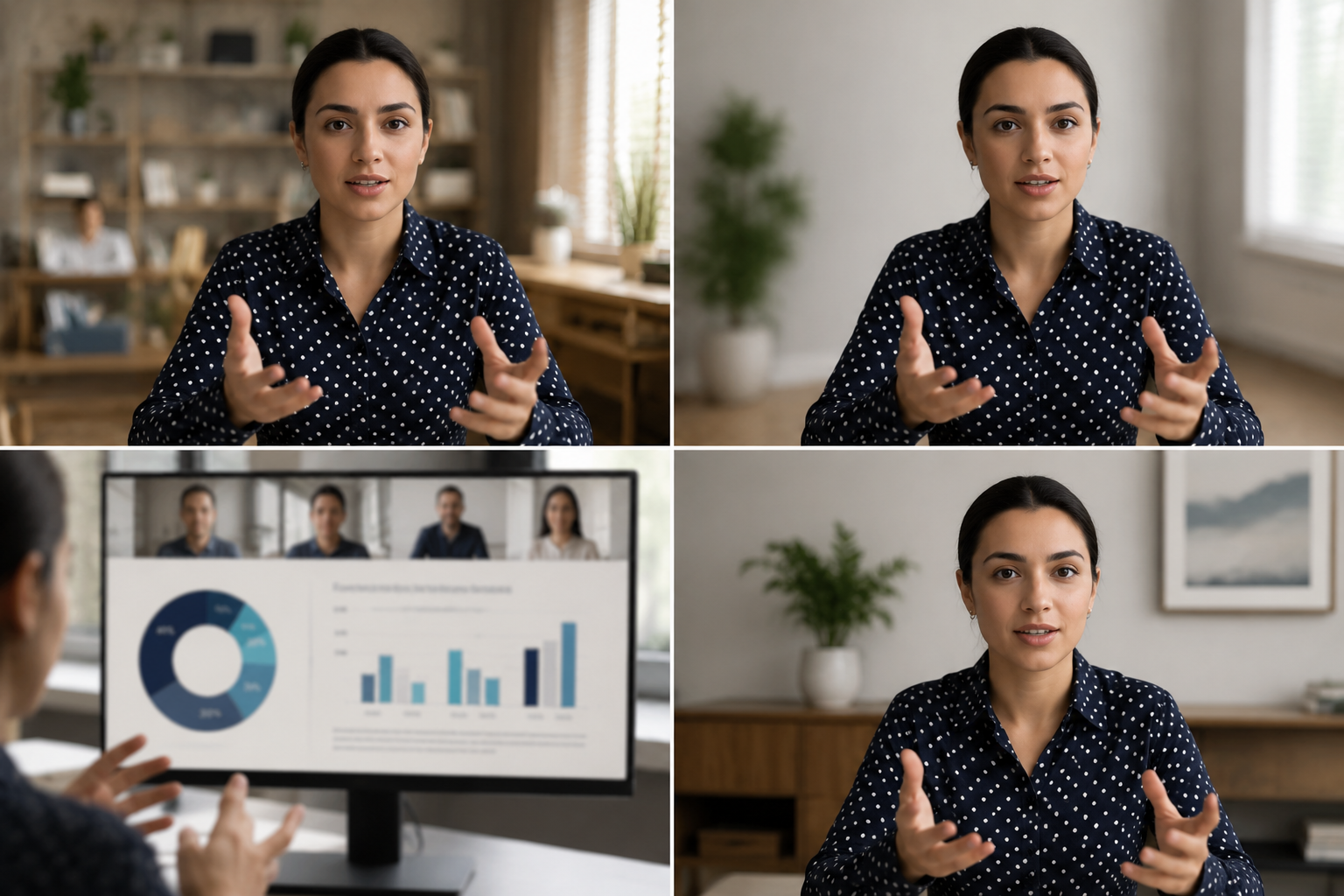
What this example demonstrates
Post-production blur gives you control that real-time virtual backgrounds can't: selectively protect participants, hide screen share content, and clean up backgrounds after the call ends.

Why teams use this pattern
Use this workflow when you need to share all-hands recordings externally, create training clips from client calls, or publish webinar archives with attendee privacy intact.

Common use cases
Teams reach for this workflow when all-hands meetings shared with contractors or press; client webinars with internal attendees visible; training recordings from customer success calls; town halls with employee q&a requiring anonymization. BGBlur automates detection so these scenarios stay publishable without days in a timeline.

Built for Corporate communications teams and HR and internal comms
Ideal audiences include Corporate communications teams, HR and internal comms, Marketing and demand gen, Customer education teams. Pair this example with your policy review when footage is sensitive or public-facing.
Casi d'uso
- Riunioni di tutte le mani condivise con appaltatori o stampa
- Webinar client con partecipanti interni visibili
- Registrazioni di formazione da chiamate di successo del cliente
- Municipi con dipendente Q&A che richiedono l'anonimizzazione
A chi è rivolto
- Squadre di comunicazione aziendale
- Risorse umane e interne
- Marketing e domanda
- Team di istruzione clienti
Altri esempi di sfocatura video
Esplora scenari simili con le stesse clip demo e una guida passo-passo.
Blur sfondo per la messa a fuoco cinematografica
Ammorbidire o sostituire sfondi occupati in modo che i soggetti si distinguono—grande per webinar, recensioni e demo di prodotto filmati a casa.
Arrossire di faccia nel video parlante
Rilevamento automatico del viso e sfocatura per interviste, podcast e vlogs—motion-tracked in modo che le identità rimangano protette.
Video HR & formazione con sfondi più sicuri
Nascondere lo clutter di home-office, i grafici dei pazienti sulle pareti, o i manifesti che lasciano la posizione nel contenuto L&D.
Blur di registrazione dello schermo per tutorial e demo
Nascondi password, chiavi API, e-mail e dati personali nelle cattura dello schermo—essenziale per demo software e video di supporto.
Esplora le funzionalità di BGBlur
Domande frequenti
- Perché non usare la sfumatura di fondo integrata di Zoom?
- Il blur in tempo reale viene applicato durante la chiamata; il blur post-produzione consente di controllare le decisioni sulla privacy dopo la registrazione quando si conosce il contesto di condivisione.
- Posso blur solo un partecipante in vista galleria?
- Sì, la sfocatura a faccia selettiva funziona in layout di griglia in modo da poter proteggere i partecipanti specifici mantenendo gli altri visibili.
- Che dire di chat e nomi dei partecipanti nella registrazione?
- Il video blur gestisce solo i pixel; disabilita i nomi dei partecipanti e le sovrapposizioni di chat nelle impostazioni di registrazione Zoom/Teams o ritaglia quegli elementi dell'interfaccia utente in post.
Pronto a provare sul tuo filmato?
Carica MP4, MOV o M4V e applica le stesse modalità di sfocatura mostrate in questo esempio.
Prova BGBlur gratuitamente