& Zoomen Teams die de privacy vervagen
Professional video call recordings with blurred backgrounds, participant faces, and sensitive on-screen content for safe sharing.
Recorded Zoom and Teams meetings often contain more than the intended presentation: home offices with family photos, coworkers who didn't consent to external sharing, and screen shares with customer data.
Clean up Zoom and Teams recordings for safe sharing in three steps
Built for corporate comms, HR, and marketing teams who need privacy-safe recordings for external or LMS distribution.
Export your Zoom or Teams recording
Download the MP4 from Zoom cloud or Teams recordings before sharing externally.
Apply background and face blur
Blur participant backgrounds and specific attendee faces to protect privacy in gallery view.
Preview and export
Check gallery layouts across the timeline, then export for LMS, YouTube, or Vimeo hosting.
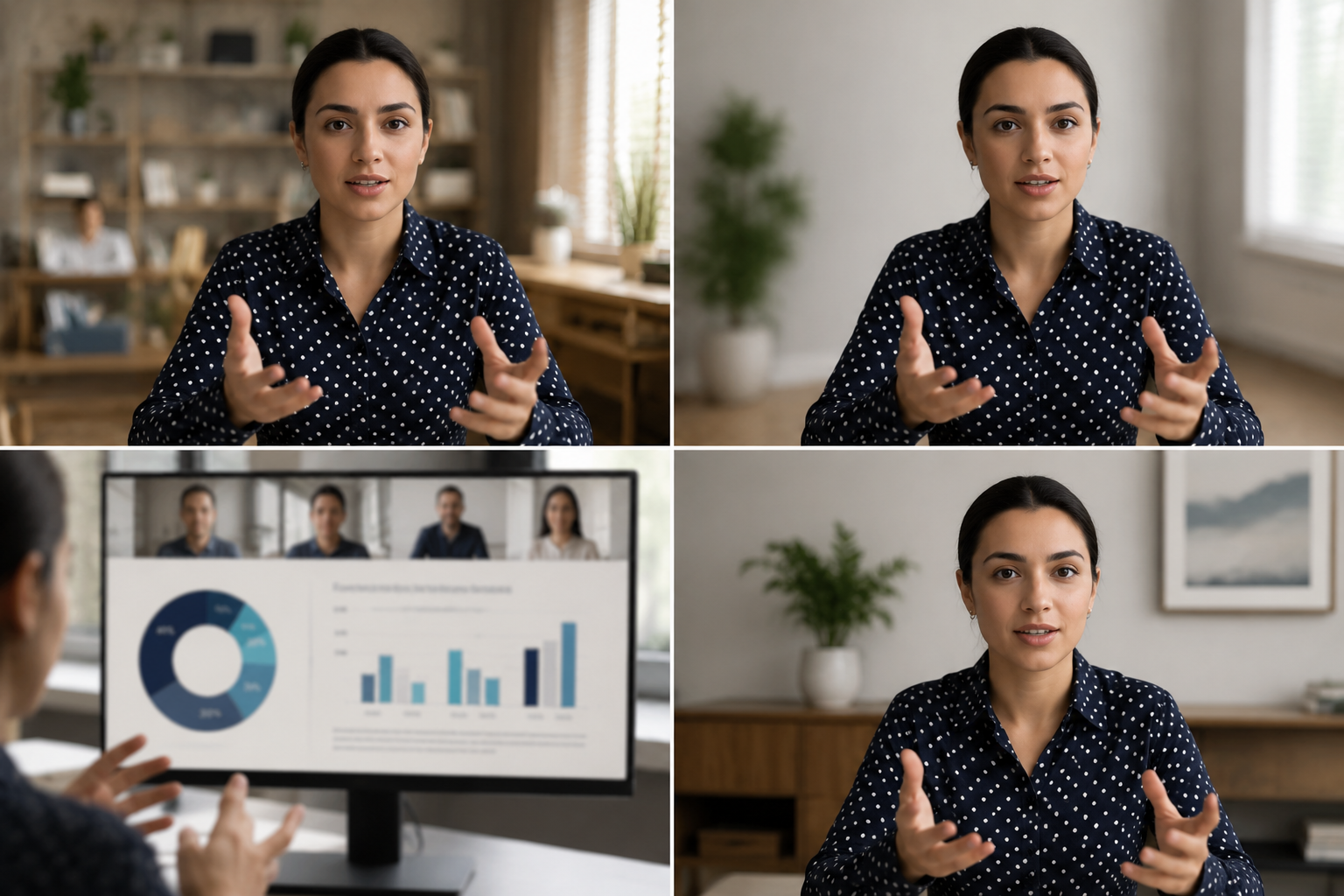
What this example demonstrates
Post-production blur gives you control that real-time virtual backgrounds can't: selectively protect participants, hide screen share content, and clean up backgrounds after the call ends.

Why teams use this pattern
Use this workflow when you need to share all-hands recordings externally, create training clips from client calls, or publish webinar archives with attendee privacy intact.

Common use cases
Teams reach for this workflow when all-hands meetings shared with contractors or press; client webinars with internal attendees visible; training recordings from customer success calls; town halls with employee q&a requiring anonymization. BGBlur automates detection so these scenarios stay publishable without days in a timeline.

Built for Corporate communications teams and HR and internal comms
Ideal audiences include Corporate communications teams, HR and internal comms, Marketing and demand gen, Customer education teams. Pair this example with your policy review when footage is sensitive or public-facing.
Toepassingen
- Bijeenkomsten met aannemers of pers
- Client webinars met interne aanwezigen zichtbaar
- Training opnames van klanten succes gesprekken
- Stadhuis met werknemer Q&A die anonimisering vereist
Voor wie het is
- Bedrijfscommunicatieteams
- HR en interne communicatie
- Marketing en vraag gen
- Klanteneducatieteams
Meer video vervagen voorbeelden
Ontdek vergelijkbare scenario's met dezelfde democlips en stapsgewijze begeleiding.
Achtergrondvervaging voor filmische focus
Verzacht of vervangen drukke achtergronden zodat onderwerpen opvallen geweldig voor webinars, reviews, en product demo's gefilmd thuis.
Gezichtsvervaging in talking-head video
Automatische gezichtsdetectie en vervaging voor interviews, podcasts en vlogs, zodat identiteiten beschermd blijven.
HR & trainingsvideo's met een veiliger achtergrond
Verberg rommel, patiëntenkaarten op muren, of posters die de locatie in L&D-inhoud lekken.
Vervaging van schermopname voor tutorials & demo's
Verberg wachtwoorden, API-sleutels, e-mails en persoonlijke gegevens in het scherm vangt essentiële voor software demo's en ondersteuning video's.
Veelgestelde vragen
- Waarom niet Zoom's ingebouwde achtergrondvervaging gebruiken?
- Real-time vervaging wordt toegepast tijdens de oproep; post-productie vervaging kunt u privacy beslissingen te controleren na opname wanneer u de sharing context kent.
- Kan ik slechts één deelnemer aan galerieweergave vervagen?
- Ja, selectieve gezichtsvervaging werkt in rasterindelingen zodat u specifieke deelnemers kunt beschermen terwijl u anderen zichtbaar houdt.
- Hoe zit het met chat en deelnemers namen in de opname?
- Video vervaging behandelt alleen pixels; schakel deelnemersnamen en chat-overlays uit in Zoom/Teams opname-instellingen of snijd deze UI-elementen in de post uit.
Klaar om dit op je eigen beelden te proberen?
Upload MP4, MOV of M4V en pas dezelfde vervagingsmodi toe als in dit voorbeeld.
Probeer BGBlur gratis